Search & You
No site would be complete without a Search engine built in to it. PonyIsland's search feature helps users locate various things around the site that you may be looking for. To access the Search window, click on Search on your main navigation strip. Once you have done this you will notice five options. They have been listed below with brief descriptions - to learn more about each option, please see the appropriate section:
- Ponies: This allows you to search the site for ponies that are living, dead or unnamed in a variety of ways to achieve the results you are looking for.
- Users: This allows you to search for users under their current name, old name, or sub accounts. You can also search via user type, and country.
- Contests: This allows you to search for upcoming contests. You can also search for contests which have already run.
- Items: This allows you to search for items by their type, name, owner, etc. You can also see what items may be for sale or up for bid.
- Forums: This allows you to search for specific things posted in the varying forums.
Searching for Ponies
The pony section of the Search page can perform as wide or narrow of a search as you wish; it all depends on what options you chose to filter your search with. Be aware that very general searches can take a few minutes to complete.
Let's take a look at the search page:
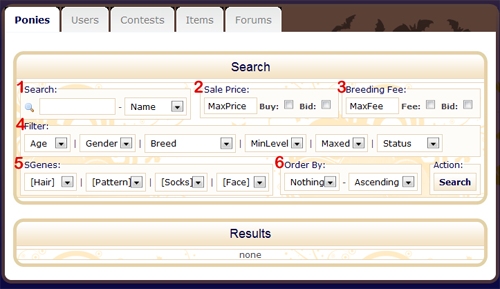
1. The Search field
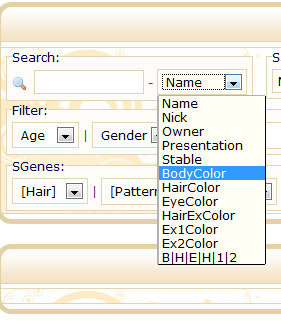
Here we can search by a pony's name, nickname, owner, the pony's presentation, the owner's stable name, and colors in various locations.
Name: This will search for ponies with the name indicated. If you can only remember part of the pony's name that you're looking for and it may not be at the beginning of the name, the "%" tells the search to look for items which include the text indicated.
- %star would return all ponies whose names end with "star".
- %star% would return all ponies whose names contain "star" anywhere in the name.
Nickname: This will search for ponies with the nickname indicated. Like with the name, if you can only remember part of the pony's nickname that you're looking for, the "%" tells the search to look for items which include the text indicated.
Owner: This will search for ponies owned by the user indicated. Like above, if you can only remember part of the owner's name that you're looking for, the "%" tells the search to look for items which include the text indicated.
Presentation: This will search for ponies with text indicated in their presentation. This is a more general search than the ones above. For example, entering "starter" and selecting this search will find ponies with the word "starter" anywhere in their presentation.
Stable: This will search for ponies owned by users with the indicated stable name. Like with the owner, if you can only remember part of the user's stable name, the "%" tells the search to look for items which include the text indicated. Please keep in mind that this search can take some time to complete.
BodyColor, HairColor, EyeColor, HairExColor, Ex1Color, Ex2Color: These are used to find colors in a single, specific location and is very useful for completing a [Link #QBreed]breeding quest. To search, we need to know the HEX value (i.e. #FFFFFF) of a color and not the DEC value (255|255|255). You can change your preferences on your profile so that you view these values in HEX instead of DEC, or if you hover over the little color box next to the numbers on your pony's profile page or the quests page, you will get a pop up that shows the value that you are not set to view by default.
How do you use it, though?
If you want to search for ponies with an exact color in a certain location, just enter the exact HEX code in the search box and choose the location that you're looking for.
Searching for an exact color is perfect if you're looking for pure white bodied ponies for sale, but not so good for finding a pony that's kind of close enough to get that breeding quest going.
The "wild card" variable for HEX values is the underscore ("_"). Replacing a number/letter with an underscore ("_") in a HEX value will tell the search to search for a HEX with any value in that location.
Examples:
- F_F_F_ would return any pony with a value of #F0F0F0 (240|240|240) to #FFFFFF (255|255|255).
- F_0000 would return ponies with a red body between #F00000 (240|000|000) and #FF0000 (255|000|000)
- F_0_0_ would return any pony with a value between #F00000 (240|000|000) and #FF0F0F (255|015|015)
B|H|E|H|1|2 (Body|Hair|Eyes|HairExtra|Extra1|Extra2): This search option can be used two ways. The most simple use for it is to use it to search for a HEX value in any location on any pony by surrounding the HEX value that you want with "%" signs.
Example: %F_F_00% would return ponies with yellow looking HEX values anywhere.
It can also be used to search multiple locations at once. To search for a Body and Hair value, you would enter the HEX value you want in the body, then a "|" divider (that's the vertical line, not an "I" or "L"), and then the HEX value you want in the hair.
Example: To find ponies with yellow bodies with cyan hair, you could enter: F_F_0_|0_F_F_
If you want to search other locations, you need to remember to add the wild card underscores for all parts of the value of any locations that you don't care about.
Example: To find ponies with yellow bodies with cyan paint, you could enter: F_F_0_|______|______|______|______|0_F_F_
2. Sale Price
Here you can choose to search only for ponies that are up for Buy and/or Bid, as well as the maximum price that you want to spend. Want to go shopping but are on a budget? Just enter the maximum amount that you can spend here.
3. Breeding Fee
This is the same as #2, but for male ponies that are up for breed.
4. Filter
Here you can set more detailed filters for our search.
You can look for:
- Adults or babies only or both by leaving it on the default.
- Male or female only or both by leaving it on the default.
- A specific breed or all breeds by leaving it on the default.
- A minimum level that ponies should be.
- How many times a pony has been maxed and reset.
- Ponies that are living and named by default, unnamed, named and dead, or named and released.
5. SGenes
Here you can filter the search to only look for ponies which show specific SGenes. If you choose "Colorize" instead of the gene listed under "Colorized", you will be able to search for ponies that show any colorize gene in that location.
6. Order By
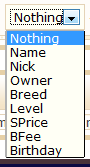
A selection here will sort ponies by sale price, level, owner, breed fee, etc and whether you want to see them ordered lowest-to-highest or highest-to-lowest.
Name or Nick: Sorts by the pony names or nicknames. Ascending will sort A-Z with special characters showing at the top of the list. Descending will sort Z-A with special character showing at the end of the list.
Owner: Sorts by the username of the owner. Ascending will sort A-Z with special characters showing at the top of the list. Descending will sort Z-A with special character showing at the end of the list.
Breed: Sorts by the pony breeds. Ascending will sort the breeds A-Z. Descending will sort the breeds Z-A.
Level: Sorts by the pony level highest-to-lowest or lowest-to-highest.
SPrice or BFee: Sorts by the Sale Price or Breed Fee highest-to-lowest or lowest-to-highest.
Birthday: Sorts by the pony birthdate. Ascending will sort the ponies from oldest-to-youngest. Deccending will sort the ponies from youngest-to-oldest.
Searching for Users
The user section of the Search page does not have quite as many options as the pony search, but it still allows for some very useful searches.
Let's take a look at the User search option;
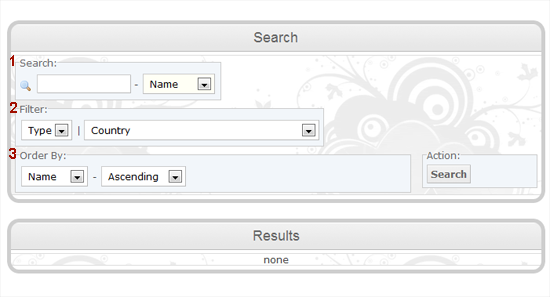
1. The Search Field
Much like the pony search section, the user section allows you to select a few ways to search for a user on the site. By selecting the drop box, you will find that you can search by Name, Stable, Suboff or OldName. Each section has been briefly described below:
Name: You can input a name into this field and hit search to bring up all usernames starting with that name. You can, of course, search for full usernames or partial usernames.
Stable: Much like the name feature, you can input a name into this field and search for all stables containing that particular name.
SubOff: By using this feature, you can see all the subs associated with a particular username they have inputted into the search box.
OldName: This feature allows you to search for old usernames to see what the new username may be.
2. The Filter
The filter portion of the user search allows you to customize your search a bit more. Under the first drop box - labeled type - you will be able to specify if you are searching for one of the following account types: TRI, USR, MOD, ADMN. This simplifies the search by only searching through users with those account titles. You can also filter your search by choosing a specific country to look through.
3. Order By
The order by section allows you to change how the search results are delivered to you. The default is set to alphabetically (A-Z) by name, however you can change this by selecting one of the following from the first drop down box; Name, Stable, Country, LLogin (Last Login).
By selecting ascending or descending you simply change which order the results appear in. Ascending will show you results alphabetically (A-Z), while descending will show you results backward (Z-A).
Searching for Contests
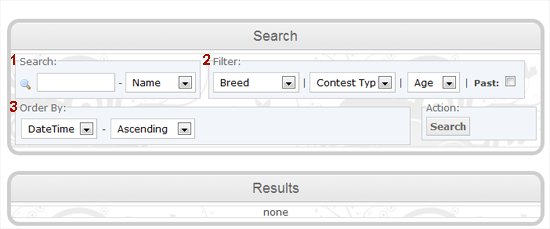
Much like the user section of the search, the contest section offers three key areas to aid you when using this feature which repeats from the last section: Search, Filter and Order By.
Let's take a look at the search for Contests;
1. Search
Much like before, the search area is pretty much the same, except here you can search by Name, Class Name, Organizer, and Description. These choices have been defined briefly below:
Name: This option allows you to search for partial or complete names of running, or upcoming, contests.
Class Name: This option allows you to search for partial or complete names of classes that are held within contests.
Organizer: This option allows you to search for contests being run by a specific user.
Description: This option allows you to search the overall description of a contest.
2. Filter
The filter for contests has a bit more to it than the last section, and as such, more options for narrowing down the specifics of your search.
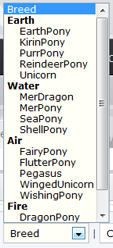 For example, the first option under the filter is to search by Breed - this allows you to find contests specific to a certain breed of ponies.
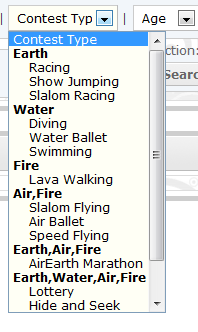 The next option is Contest Type. This option will allow you to select a specific type of contest that you are looking for.
Last in the list is the filter for Age. This allows you to search for contests catering to adult ponies, or contests catering to baby ponies. You can also check the 'Past]' box to search for contests that have previously run.
3. Order By
Like before, order by is simply how the search results appear to you. The default will always organize your search results by the Date & Time of a Contest in chronological order. However, you can change this so your search results are organized by the Name of the Contest, or the Organizer of the contest. Also like before, you can change the results to show up in an ascending order, or a descending order.
Searching for Items
The items search functions the same way as all the other options, but adds back in the element of purchasing. Here you can look for items by their type, their price, or simply by who owns the item, or is selling the item.
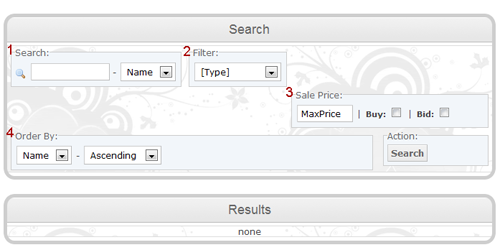
Let's take a closer look at the items search:
1. Search
By using the drop down box listed in the search area, we can search for either the name of the item in question, or by who owns the item.
 2. Filter
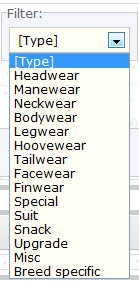
The filter breaks things down by the category in which the items falls.
Here you have multiple choices. As always, the search will automatically default to [Type] which means when you are searching, the system will look through all categories of items. If you would like to narrow down your search further, you have the following choices in doing so: Headwear, Manewear, Neckwear, Bodywear, Legwear, Hoovewear, Tailwear, Facewear, Finwear, Special, Suit, Snack, Upgrade, Misc, and Breed Specific.
3. Sale Price
The sale price section allows you to search for items that a user may have up for buy or for bid. You can also edit the box labeled MaxPrice with the maximum amount you are willing to pay for the particular item you are looking for.
4. Order
Much like the other categories under the search feature, the order section allows you to select how your results are displayed. Here you can choose to have your results listed by Name, Order or Price. Also like the other categories, you can choose whether the results are listed alphabetically A-Z, alphabetically Z-a, increasing (ascending), or decreasing (descending).
Searching the Forums
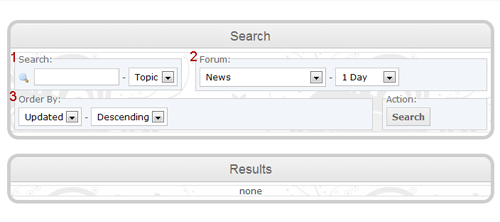
The forum section of the search allows you to scour the forums looking for certain topics, replies, or posts made by specific users. Please keep in mind that you can only search one forum at a time.
Let's take a closer look at the forum search:
1. Search
The search area works the same as all the other areas, except now you have the choice of searching via topic, reply, and user. Please be advised that when you search with a specific user in mind, you will not only pull up threads created by that user, but also threads that user has replied in.
 2. Forum
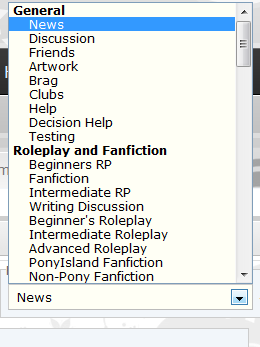
 This area is where you select which forum you would like to search through.
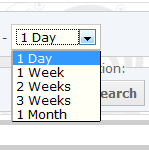
You can also select how far back you would like to search within that particular forum.
3. Order By
The order by section allows you two options when sorting your results: Updated and Started. Selecting updated will show you specific threads in which they were last updated going off the other categories of your search. By selecting started, the results will be listed in order of when the threads were created.
As always choosing ascending will list your results first to last, while descending will list your results last to first.