Forums and PMs
- Communication & You: Using the Forums
Threads vs Posts, Replying to a Thread vs Reporting a Thread, Common in Game Abbreviations, Formatting Your Posts, Other Formatting Tips & Tricks, Other Quick Things - Communication & You: Forum Information
Where should I put my post and what is that forum for? - Communication & You: Private Messages!
Understanding Mail, Understanding Contacts, Understanding Compose
Communication & You: Using the Forums
Besides participating in the breeding part of the game, or the contesting side, or the questing end, there is also the community that thrives on PonyIsland that many users seek out.
PonyIsland offers users a forum community complete with different areas of discussion that range in topics concerning the site, the ponies, the achievements, all the way to off-topic chatter. Users can find pinned topics in some forums - if you come across a forum with pinned threads, please make sure you take the time to read these. Pinned threads can contain vital information which can aid you during game play. The forums come with their own set of Rules which can be found by visiting the Rules page: Rules
** It should be mentioned that by participating on the forums, all users are expected to have read the rules, understand the rules, and plan to follow the rules. Failure to do so will come with consequences as the rules are very accessible to everyone on this site. **
Since PonyIsland offers such diversity in their forums, certain topics belong in specific places. For example, if you are interested in selling a pony, or taking offers on a pony, your thread should be posted in the Sell forum. Likewise, if you are interested in purchasing a certain pony, or have a specific pony in mind that you are looking to buy, you should post your thread in the Buy forum. Our Discussion forum is based solely around PonyIsland discussions - any thing PonyIsland related. Likewise, again, all off-topic chatter should go in the Friends forum. If you need help making a decision, your thread should be posted in the Decision Help forum, while all questions regarding game play can be posted in the Help forum.
Please make sure you pay attention to the forums you are posting in as our Staff reserves the right to remove or move any thread that does not belong in it's correct place. Failure to post threads in the correct forum after being advised as to where they belong will result in further consequences as outlined in our rules.
Threads vs Posts
When it comes to posting on the forums, it is good to know the difference between threads and posts as they have been confused one for the other many times before.
A thread is something you create inside the individual forms.
A post or reply, is something you do inside the individual threads.
Both threads, and posts, can be removed by the staff on PonyIsland. If a thread is removed, it will no longer show up inside the forum that it was in. If a post, or reply, is removed it will still be listed inside the thread, but will be replaced with bolded red letters letting other users know that it has been removed and by whom.
Oh no! My thread has been deleted! What do I do?
Check your Private Messages, please, as you will receive one letting you know why it was removed and by which MOD. It is best to contact the person who removed your thread (or reply!) in regards to any questions you may have. You are, of course, welcome to open a Support Ticket, but dealing with the person who removed it directly will be more beneficial for you in the end.
Creating a New Topic
Curious about creating a new topic? The first thing you will need to do is find the correct, and appropriate forum for your new thread. Once you have done that, you can click on the link at the top of the forums that says New Topic.
The New Topic window will open with three sections; a drop down box, subject line, and blank body box. These areas have been described for you below:
- Drop Down: The drop down box contains 8 choices with a 9th blank option. These choices, if one is selected, will add a small image to the left of your topic on the main page of the forum. *This is an optional choice as you do not need to choose an image in order to post a new topic.
- Subject Line: Very simply put, this is where you write the title of your thread. Please keep in mind that all titles need to be ### characters or less.
- Body Box: The blank body box is where you write your new topic.
Once you have finished you can either preview the topic (recommended), or post.
Users are also able to create Polls. Polls will work the same way as a new topic, except you will need to select Poll from the bottom (near Preview & Post) before setting to work. If you select this you will find a "Question" option, as well as an "Alternative" option. These two things have been described below:
- Question: The question line is where you write the question you are asking users.
- Alternatives: The alternative is where you write the choice of answers for the poll.
Much like with normal threads, you can hit preview or post when finished.
Replying to a Thread vs Reporting a Thread
Aside from posting new threads, users can also reply to threads, and report threads. It is very important that you do not mix the two up.
In order to reply to a thread, you must click New Reply which can be found underneath the title of the thread, and to the left. A new blank box will open which will allow you to type your response. When you are finished, you can preview what you wrote, or post it.
If a thread is inappropriate, or breaking the rules of the site, you can also Report it. To report a thread, click the Report link found on the bottom left of the thread. Once you click this, you will be taken to an open support ticket. Type a brief description of the reason for the report as the subject, then you can elaborate the reason in the "problem" box. Then click the "Submit" button to send the report to the staff.
Common in Game Abbreviations
Often times on the forums, users like to use common in game abbreviations. If you are new to the site, these abbreviations could be a little confusing. Below is a list of common in game abbreviations for your reference:
- ADM/ADMN - Administrator. VeeZ and ZarqX, owners and creators of the game.
- AOOCS - All Options Open Custom Starter.
- BIN - Buy It Now. Commonly used in auctions to end the bidding early with an automatically accepted bid.
- BP - Bonus Points.
- BrS - Breed Specific Sgene. Sgenes that can only be generated in a specific breed. Also see S-gene.
- DVS - Double Visible Starter. Not to be confused with Double Visible Starter Offspring, a DVS is a unique pony which can only be made by our ADMN, VeeZ.
- DVSO - Double Visible Starter Offspring. A pony that shows two visible special genes and is the baby of two starter ponies.
- IB - InBreeding
- LA - Live Auction.
- LTB - Looking To Buy.
- MOD - Moderator. Someone who is apart of the site staff, they help keep the forums tidy and enforce the rules of the site.
- OBO - Or Best Offer.
- P - Purebred. This is normally used in pony nick names.
- PC - Price Check.
- PG - PonyGold. Our ingame currency
- PM - Private Message. Our ingame mail system.
- POTW - Pony of the Week. The pony in the spotlight on the front page which is elected by a special committee.
- QV - Quadruple Visible. A pony that shows four visible special genes.
- RB - Reverse Breed. This means you allow others to breed with your female ponies for a fee.
- S - Starter. This is normally used in pony nick names.
- SV - Single Visible. A pony that shows one visible special gene.
- S/O (or SO) - Starter Offspring. Often used in labeling a pony who is 2nd generation.
- S/O/O (or SOO) - Starter Offspring Offspring. Often used in labeling a pony who is 3rd generation.
- S-Gene - Special Gene. This is what we call Paint, Stockings, Zig Zags, etc. It should be noted that not all users label their genes the same way. If you are confused with what a pony carries because the user labels it differently, please contact the user for clarification.
- T/O (or TO) - Taking Offers.
- TRI - Trial User. This is a player with non paid account.
- TV - Triple Visible. A pony that shows three visible special genes.
- UDL - Undeployed Level.
- USR - User. This is a player with paid account.
- WMW - Watch Me Work. Commonly found in the Artwork forum.
- WU - Winged Unicorn. This is an abbreviation for the breed.
Formatting Your Posts
Our forums use BBCode (Bulletin Board Code) and will allow users the ability to change their font colors, font styles, quote other users, post links, and post images.
When you are posting a new thread, or simply replying to a current thread, you will notice several boxes at the bottom of your reply area. They are described below the example image:
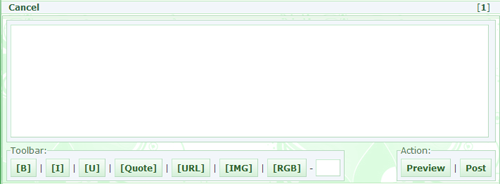
- [B]: By pressing this, anything you write in between the bracketed letters will become bolded.
- [I]: By pressing this, anything you write in between the bracketed letters will become italicized.
- [U]: By pressing this, anything you write in between the bracketed letters will become underlined.
- [Quote]: By pressing this, anything you write in between the bracketed letters will be posted in a quote block.
- [URL]: URL tags are used when you would like to post an active link on the forums. To use these, place the website URL in between the brackets.
- [IMG]: IMG tags will allow you to post images on the site. To do so, place the image URL inside the brackets (Image URLs will usually end with .jpg, .png, .gif, etc).
- [RGB]: RGB tags will allow you to change the color of your font. To post colorful text, you will need to place the HEX code after the B in the first RGB tag, a number sign (#) must also be included: [RGB#FF0000] When posted correctly this will turn your text red [/RGB]
Color can also be changed by using the correct color name. To do the use, just replace the #HEXcode with the color name in the first tag after the B.
Other Formatting Tips & Tricks
Users can also post hidden links, picture links and center their posts as well. Please see below for more information:
Hidden Links: You can also hide the URL by removing the second bracket of the first tag and placing it at the end of the website URL instead:
[URL WEBSITE URL GOES HERE]Text that is hiding the URL goes here[/URL]
Picture Links: To post a picture link is just as easy as posting a hidden link. You will need to follow the same hidden link steps, but instead of hiding the link behind text, you can place the IMG tags in between the URL tags instead. Once this is posted, your image will be considered "clickable" - or will become an image link.
Center: To post text that is centered, you can use the [ C ] tags. Please remember to not include the spacing, and to use [ /C ] when you are finished.
Other Quick Things
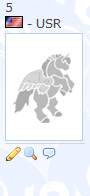 Under your avatar on the forums, you will see a Pencil, Magnifying Glass and Dialog Bubble. These are quick links that can be used on the forums. Each is described below;
Pencil: The pencil icon will allow you to edit your reply. Please note that users cannot edit their thread titles, only the content of their posts. When you have finished you can click Edit next to the preview link at the bottom of the reply box.
Magnifying Glass: This icon will only show up if you have previously edited a reply. The magnifying glass will allow you to review the history of your reply from when you first posted it, to the most recent post - edits included. It will pop up in a new window, or pop up box.
Dialog Bubble: This icon allows for quick and easy quoting! Simply click the dialog bubble under the user you wish to quote, and hit reply. Their reply will automatically be in the new reply box set inside the quote coding.
Forum Information
The forums are the heart and soul of the tight-knit community we have on PI. On the forums, you can do anything from roleplaying and exchanging art to discussing the finer points of breeding and contesting. Below is a description of each forum you can post in.
General Forums
News
The news forum is designated as "read and reply", which means that only the administrators of Pony Island (VeeZ and ZarqX) can create new threads in it, but everyone can reply. The news forum is where we find out about the newest features on PI, such as changes to the contesting system or new types of ponies. The most recent news topics are also featured at the bottom of the Pony Island layout for easy access.
Discussion
The discussion forum is for topics that are about Pony Island, but don't fit into a more specific forum. Subjects in the discussion forum can have anything to do with Pony Island. Some popular threads include discussions about the popularity of certain pony breeds, the impact of projects on the economy, and the number of males versus females people have in their stables.
Official Events
The official events forum is used for all PI Official events such as Extravaganza, Costume Contests, etc. Only authorized users can create threads in these forums, but everyone has the ability to reply to the threads posted here.
Giveaways and Games
The giveaways and games forum is where all free games and giveaways should be posted. Please note that naming contests do not belong here, and neither do tattoo contests.
Friends
The friends forum is for off-topic discussion, meaning it doesn't have a strong link to Pony Island. In the friends forum, users can share what's going on in their lives, celebrate birthdays and accomplishments, relax and have a good time.
Artwork
Artwork is the forum you can go to when you want to show off art you have worked on, or art you have had commissioned from someone else. It is a place where artists can go to ask for advice, critiques and get help on art-related things. Artists can give away free things in this forum for users as well. However, if you are looking to open commissions, or are looking to purchase commissions, you should not be posting here. This is not a forum for selling artwork, or finding artists to commission.
Show 'n Tell
Did you finally get the pony of your dreams, or reach the level you needed to complete your quest? Did your pony give birth to twins or triplets? Post here to celebrate!
Clubs
The clubs forum is where users interested in the same thing can get together to discuss their interests. Please note that only one thread per topic is permitted.
Help
If you have a question about gameplay or the site in general that isn't covered by the manual, you're confused about the manual's answer, or you are having what you think is a technical issue for the site, post here and you'll receive replies from other users. If there's one thing our players like to do, it's help out others! This is not the place for pricing help, however. Questions about pricing belong in the appropriate Advertise forum.
Decision Help
The decision help forum is where to post if you need help making a decision. Can't decide which test breed you like? Need help deciding if you should keep or sell a pony? Can't find the right name? Your thread belongs here! As with the Help forum, this is not the place for pricing help, however.
Testing
If you'd like to test your forum signature to make sure it works, post here. You can also use this forum to practice posting images and links or to test the layout of a thread for another forum. This forum should not be abused, or used to get around PM bans.
Strategies Forums
Quests
If you need help with a quest, be it advice on how to proceed, or a search for certain colors, look no further. The friendly people in the quest forum are sure to help you out.
Advanced breeding In the advanced breeding forum, you'll find discussion of color combinations, genetics, interesting breeding projects users have going on, and similar topics. It is also a place to get help with these kinds of subjects.
Strategy/Contesting
The strategy/contesting forum allows users to get together to discuss different contesting strategies that they use with their ponies.
Advertisement Forums
**If these forums do not appear on your forum list, it is likely an ad blocking program/add-on causing the problem. Please make sure that you tell your ad blocker to allow PI addresses.**
Contests
If you're running a contest or looking for one to participate in, the contests forum is a great place to check out. Find the best contests with the coolest prizes advertised here. Please note that naming contests do not belong here, and neither do tattoo contests.
Buy
Are you planning to buy a pony? Post a want ad here with what you're looking for and someone will answer soon!
Sell
Advertise your ponies for sale here so people know you're having a sale! You can also scan this forum if you're in the mood to buy ponies. You'll surely find a bargain.
Non-Pony Trade
This forum is for the selling and buying of anything that isn't a pony. Post here if you need to buy a resurrection scroll to revive your dead pony, or if you need your account paid for. You can also advertise your items and bonus points. Always remember to offer something in return!
Live Auctions
Going once, going twice, SOLD! Items and ponies up for real-time auction can be found in this forum. Post here if you need to sell a pony quickly or if you're looking for good prices. Please check the rules for this forum in the posts at the top of the forum before participating, however. Live Auctions sales are binding, and if you bid or offer something for sale here, you are obligated to pay for it or sell it.
Artwork Trades
Artwork Trades is a forum where artists can gather to sell their artwork. Whether you are looking to commission someone for sketches, lineart, shading, templating, etc you can certainly find someone in this forum.
Adoptables Forums
Adoptable Help and Ideas
Adoptable Help and Ideas is the forum users post in when they want constructive criticism regarding their upcoming adoptable, their artwork for an adoptable or just generally want feedback from other users before entering their adoptable in Introductions - you may also find a partner or long-term staff here willing to help you as well! This forum is meant for helping and aiding those who wish to start an adoptable gather ideas for one. It should not be treated like the Introductions forum - games should not be played, prizes should not be given away.
Adoptables Introductions
Adoptables Introductions is the forum where you can find all new adoptables to PonyIsland, or adoptables that have had a change in ownership. Adoptables must spend three weeks in this forum and are only permitted to host free events.
Adoptables Generals
Adoptables Generals is the forum where all active adoptables post their events or chat threads. In this forum adoptables are released and events and games are hosted. Here adoptable owners are permitted to give things away for free or they may charge for currency (site currency or other forms of currency).
Adoptables Brag
Adoptables Brag is where excited adoptable owners can post about a new adoptable they have recently won or purchased. This forum is very similar to our regular, pony Brag forum but it is limited to only adoptables.
Adoptables Breeding
Adoptables Breeding is where you can find advertisements during a particular adoptable's breeding season.
Adoptables Approval
Adoptables Approval is an old forum that is no longer in use.
Roleplay and Fanfiction Forums
For information about how to post in these forums, please see The Writer's Guild information on the Writing/RP tab here
Beginner's Roleplay
Beginner's roleplay is for everyone just starting out in the world of role-playing!
Intermediate Roleplay
A forum for those who are experienced in the world of role-playing!
Advanced Roleplay
For those users who enjoy writing long, detailed replies for their role-plays.
PonyIsland Fanfiction
The PonyIsland fanfiction forum is where to go if you'd like to read or write stories about the ponies at Pony Island.
Non-Pony Fanfiction
The Non-Pony fanfiction forum is where to go if you'd like to read or write stories based on existing works.
Original Fiction
The original fanfiction forum is where to go if you'd like to read or write stories based on original works.
Azuyan Forums
For information about how to post in these forums and join in events, please see Azuyan Roleplay information on the Writing/RP tab here
Azuyan Events
This forum is used for all Azuyan run events!
Azuyan Fanworks
This forum is where you can find all player content, world-building, fan groups, artwork, fanfics and characters.
Azuyan Showcase
This forum is where you can explore the world of Azuyan!
Azuyan Fanplay
This forum is used for all player-run role plays!
Associations Forums
The Very Boring Grownups Association
The VBGA is for those users 16+ who wish to talk about topics that may not be suitable for the public of PI. Please review the Association's main page (here) for information on how to join.
The Pet Association
The Pet Association is a place where all chatter concerning pets, pet care, pet advice, etc should be posted. Please review the Association's main page (here) for information on how to join.
Communication & You: Private Messages!
Aside from participating on the forums, users can also use the mail system that PonyIsland offers on site. There are two ways to access your Private Messages (PMs). The first way is by clicking on the envelope on the top navigation bar. The second way is by going My Account > Contact.
Once you have entered the main area for Private Messaging, you will find three tabs. They are Mail, Contacts and Compose. They have been described for you below:
- Mail: This is the main page for Private Messaging. Here you will see any new or old messages waiting for you. New messages will always show with their titles bolded, messages you replied to will show with their titles italicized, while messages you have read but done nothing with will just appear as normal font. When you have a new message, the envelope icon on the top navigation bar will light up.
- Contacts: This section is where you can change your PM settings, add users to a mailing list, or block users.
- Compose: This is where you create new PMs to send to other users.
Of course there is more to each section than what is listed above. Please see the individual section break downs for more information.
Understanding Mail
Besides telling you what messages are new, read, or replied to, you can also do much more. This main page of your Mailbox allows you to organize your messages into folders if you choose to. You can also search through messages as well.
Down the left side of the main Mail page, you will notice a +|- column as well as boxes. By clicking the boxes, you can select individual messages one at a time. To speed up the selection process you can press the + to select all the messages on that page. At the bottom of the page there will be a box with the words All Pages next to it - selecting this will select all the messages on every page.
Now that you have your messages selected, you can do a number of things. Scroll down to the bottom of the page to the Selected drop down box. Please note that in order to execute any of the listed commands, you will need to click on GO (as well as selecting OK from the pop up box). Listed below is what you will find, as well as a brief description as to what each of these things do under the drop down box:
- Deleted: This will delete your selected messages. Please be advised that once you delete a message, you cannot bring it back.
Under the section MARK AS, you will find the following:
- Read: This will set the selected message to show in your inbox folder as read.
- Unread: This will set the selected message to show in your inbox as unread. Note that it will appear bolded.
- Replied: This will set the selected message to show in your inbox as replied. Note that it will appear italicized.
Under the section MOVE TO you will find:
- Inbox: This is your main inbox. If you have a message in a separate folder, you can move it back to your main inbox by selecting this.
- New Folder: This will allow you to make a new folder to move your selected messages to. A pop up box will appear asking you to name the folder if you choose to select this. You can view the folder you created by visiting the middle Folders column.
You will also notice a section called Folders. Here is where you can view either your inbox, folders you created or your sent messages. Please note you can only view sent messages up 30 days after you sent them or until the receiver deletes the message from their inbox. To switch between simply click the drop down box and select which folder you would like to view.
The third, and final section of the main Mail area is the Search section. In this section you can search for specific messages by using keywords that fit one of the following categories: Subject, Message, From, Date, Unread.
Understanding Contacts
Your Contacts tab is set up in to three initial sections: Options, Default, and Blocked. Each section has been outlined below:
Options: This is where you set who can contact you. The initial setting is Default which allows any USR to contact you. The second option is Only Contacts which will allow only users listed on your contacts list to contact you. The third option is Block All Trials, this feature is no longer needed as TRI accounts cannot use the message system.
Default: This section is where you can add users to be a part of your contact list. To add a user click on Add User and insert their username. Once you have done so, you will see their username and avatar pop up in the box. You will notice 4 icons under their name. These icons are quick links to Send a PM, Delete, Create a New Group, or Write Notes About. Notes will show up under their username in that blank space. You will also see Delete Group - this will delete the entire group. Last, you will see Reset Order - clicking this resets the order in which the users in your group are displayed.
Blocked: This section works the same way as the Default section, except users listed here will not be able to contact you at all. Any username you place in this section will be blocked.
Understanding Compose
This section is quite self explanatory as this is where you go to compose new private messages (PMs) to users. You can insert someone's username in one of two ways. The first way is by having them on your Contact List and selecting their username from the drop down box on the left hand side. The second way is by physically writing their username into the space provided for you next to the subject line. You can also send mass PMs to your whole contact list by selecting the name of the group, or by writing in multiple usernames and separating them with a comma [,].
Please be advised that you will need to place a title on the subject line or you will not be allowed to send the message to the user.
Likewise, you cannot send a blank message as the system will not allow it.
You will also see the options to change your text style at the bottom of the message area which was covered earlier in the manual. When you are satisfied with your message, click send.