Restore - Edit Selected Volumes Dialog
Accessed from the Restore wizard, VM Settings tab, Actions column > Volumes link.
In the Volumes dialog select a datastore then click EDIT SELECTED to edit information for several datastores at the same time.
The Edit Selected Volumes dialog is displayed.
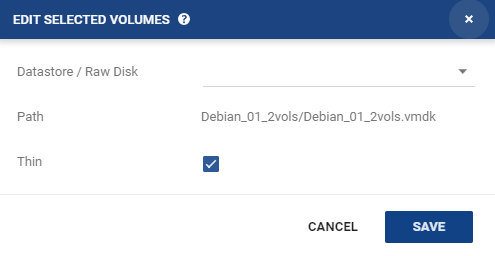
| 1. | Specify the datastore settings: |
| • | Datastore / Raw Disk : The datastore/storage, or RDM disk where the virtual machine files will be restored. |
| • | Path: This field cannot be edited in this window. The path to the datastore/storage/RDM disk. If more than one datastore is selected, the path is not displayed. |
| • | Thin: Whether the virtual machine disks will be thin‑provisioned or not. |
| 2. | Click Save to return to the Volumes dialog. |
See also:
| • | About Dialog |
| • | Add Checkpoint Dialog |
| • | Pair Sites - Add Site Dialog |
| • | Add Static Route Dialog |
| • | Advanced Journal Settings Dialog |
| • | Advanced Journal Settings Dialog (vCD) |
| • | Advanced VM Recovery Settings Dialog |
| • | Advanced VM Replication Settings Dialog |
| • | Advanced VM Replication Settings Dialog (vCD) |
| • | Advanced VM Settings for Cloud Dialog |
| • | ALERTS |
| • | Boot Order Dialog |
| • | Browse for File Dialog |
| • | Change Host Password VRA Dialog |
| • | Edit VM Recovery VRA Dialog |
| • | Checkpoints Dialog |
| • | Configure and Install VRA Dialog |
| • | Configure Paired Site Routing Dialog |
| • | Configure Provider vDCs Dialog |
| • | Configure VM Settings Dialog |
| • | Create New Credentials Dialog |
| • | Edit Volume Dialog (vCD) |
| • | Edit NIC Dialog |
| • | Edit Repository Dialog |
| • | Edit Selected Volumes Dialog |
| • | Edit VM Dialog |
| • | Edit VM Dialog (vCD) |
| • | Edit VM Settings Dialog (AWS) |
| • | Edit VM Settings Dialog (Azure) |
| • | Edit vNIC Dialog |
| • | Edit vNIC Dialog (vCD) |
| • | Edit Volumes Dialog |
| • | Edit Volumes Dialog (vCD) |
| • | Edit VRA Dialog |
| • | Guest Services Settings Dialog |
| • | License Dialog |
| • | Manage Static Routes Dialog |
| • | New Repository Dialog |
| • | Restore - Edit NICs Dialog |
| • | Offsite Clone Window |
| • | Open Support Case Dialog |
| • | Remote Support Dialog |
| • | Restore a Virtual Machine or VPG from Repositories |
| • | Restore - Edit Volumes Dialog |
| • | Site Settings Dialog |
| • | Stop Failover Test Dialog |
| • | TASKS |