License Dialog
The Zerto license includes information such as the number of virtual machines that can be protected and the license expiry date. You can see these details by clicking  in the top right of the header and selecting License.
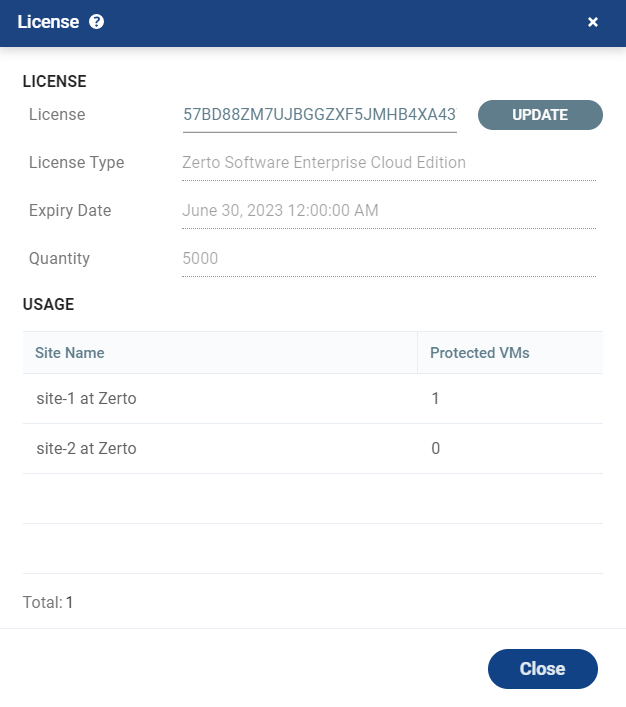
The Zerto license window displays the following details:
| In the License area: | |
| License: |
The license key itself. To update your license key, see Updating your license key. |
| License Type: | What is licensed: whether the license restricts the number of virtual machines that can be protected or the number of sockets used. |
| Expiry Date: | The license expiry date. |
| Quantity: | The maximum amount licensed, either virtual machines or sockets, based on the license type. If blank, the quantity is unlimited. |
| In the Usage area: | |
| Usage: |
The sites using the license and the number of protected virtual machines in each site. |
A warning is generated when either the license expires or more than the licensed number of virtual machines are being protected. Protection continues but the license should be updated. After getting a new license key you can update Zerto with this key.
Updating your license key
Use the following procedure to update your existing license key.
To update a license key:
| 1. | In the Zerto User Interface, in the top right of the header click  and select License. and select License. |
| 2. | Enter a valid license key and click UPDATE. |
The license is updated on the local site and the paired remote sites.
See also:
| • | About Dialog |
| • | Add Checkpoint Dialog |
| • | Pair Sites - Add Site Dialog |
| • | Add Static Route Dialog |
| • | Advanced Journal Settings Dialog |
| • | Advanced Journal Settings Dialog (vCD) |
| • | Advanced VM Recovery Settings Dialog |
| • | Advanced VM Replication Settings Dialog |
| • | Advanced VM Replication Settings Dialog (vCD) |
| • | Advanced VM Settings for Cloud Dialog |
| • | ALERTS |
| • | Boot Order Dialog |
| • | Browse for File Dialog |
| • | Change Host Password VRA Dialog |
| • | Edit VM Recovery VRA Dialog |
| • | Checkpoints Dialog |
| • | Configure and Install VRA Dialog |
| • | Configure Paired Site Routing Dialog |
| • | Configure Provider vDCs Dialog |
| • | Configure VM Settings Dialog |
| • | Create New Credentials Dialog |
| • | Edit Volume Dialog (vCD) |
| • | Edit NIC Dialog |
| • | Edit Repository Dialog |
| • | Edit Selected Volumes Dialog |
| • | Edit VM Dialog |
| • | Edit VM Dialog (vCD) |
| • | Edit VM Settings Dialog (AWS) |
| • | Edit VM Settings Dialog (Azure) |
| • | Edit vNIC Dialog |
| • | Edit vNIC Dialog (vCD) |
| • | Edit Volumes Dialog |
| • | Edit Volumes Dialog (vCD) |
| • | Edit VRA Dialog |
| • | Guest Services Settings Dialog |
| • | Manage Static Routes Dialog |
| • | New Repository Dialog |
| • | Restore - Edit NICs Dialog |
| • | Offsite Clone Window |
| • | Open Support Case Dialog |
| • | Remote Support Dialog |
| • | Restore a Virtual Machine or VPG from Repositories |
| • | Restore - Edit Volumes Dialog |
| • | Restore - Edit Selected Volumes Dialog |
| • | Site Settings Dialog |
| • | Stop Failover Test Dialog |
| • | TASKS |