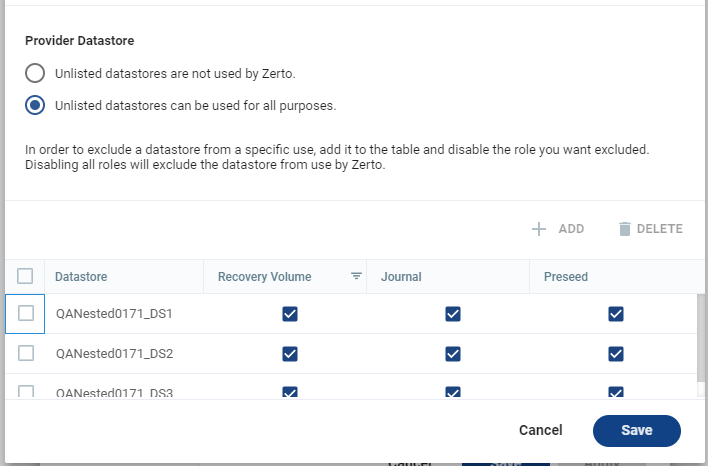
Configure Provider vDCs Dialog
Accessed from Site Settings > Cloud Settings tab > Datastore Configuration area.

A Provider vDC is a collection of compute, memory, and storage resources from a vCenter. A Provider vDC provides resources to organization vDCs.
Used by Zerto Managed Service Providers to define provider vDCs, and to define which datastores can be used by Zerto, to which purpose.
Datastores which are not listed in this window may be used by Zerto, unless they are explicitly excluded.
Before setting up Zerto to work with vCD, you must have an AMQP server installed.
|
•
|
Zerto provides an AMQP installation kit if you do not have one installed for vCD, available as a download from the Zerto Support Portal, from the downloads page. |
|
•
|
Run ZertoAMQPInstallWizard.exe from the kit and when prompted enter the IP of the vCD and the administrator user and password to access this vCD. |
|
•
|
The Zerto Virtual Manager connects to the vCD and checks whether an AMQP server is installed. |
|
•
|
If an AMQP server is not installed, Zerto recommends using RabbitMQ, which in turn requires Erlang/OTP. |
|
•
|
Links to the sites to install both Erlang/OTP and RabbitMQ are provided as part of the Zerto AMQP installation. Use these links to install Erlang/OTP and then RabbitMQ, then you can continue with the Zerto AMQP installation. |
|
•
|
If an AMQP server was already installed, change the connection details displayed to those defined in vCD. |
|
•
|
If you installed the AMQP server as part of the Zerto AMQP installation, the default settings for these installations are displayed, with a user and password of guest. |
|
•
|
At the end of the Zerto AMQP installation, vCD is updated with these settings, in AMQP Broker Settings under Administration > Blocking Tasks > Settings. |
To configure access to provider vDCs, and their datastore’s configuration:
|
1.
|
In the Provider vDCs area (top), click Add. A list of provider vDCs appear. |
The provider vDCs were created by the Managed Service Providers according to predefined service levels, storage availability, performance requirements or cost.
|
•
|
Add the provider vDCs which will be available for use in Zerto. |
|
2.
|
In the Provider Datastore area select one of the following: |
|
•
|
Unlisted datastores are not used by Zerto: Clearly define that datastores which are not listed in this window cannot be used. |
|
•
|
Unlisted datastores can be used for all purposes: Allow unlisted datastores of all provider vDCs, even those provider vDCs that were not added to the list of Provider vDCs can be used for any purpose. |
|
3.
|
In the Provider Datastore area, click Add, to add datastores. |
|
•
|
Select the Recovery Volume checkbox, if the datastore can be used as a recovery datastore. |
|
•
|
Select the Journal checkbox if the datastore can be used for the journal. |
Make sure that at least one journal datastore is exposed and available for the ZORG's Org vDC's storage policies.
|
•
|
Select the Preseed checkbox if the datastore can be used for preseeded disks. Only datastores marked as preseeded can be used, preventing different organizations being exposed to datastores of other customers using the preseed option. |
|
•
|
In order to exclude a datastore, add it to the list, then deselect all checkboxes. |
See also: