Options
Overview
You can modify VocalSynth 2 configuration and preferences, check for updates and see your current authorization status in the Options dialog.
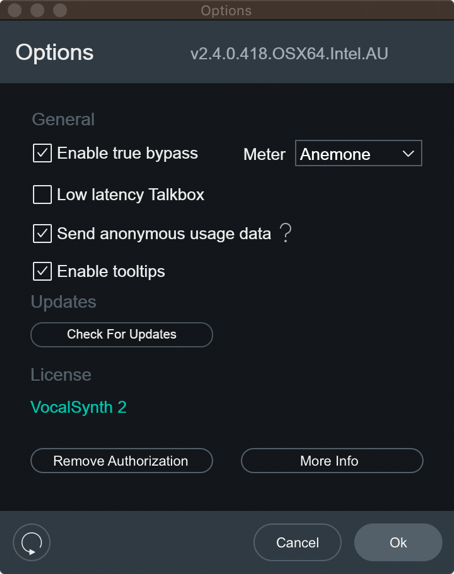
You can open the VocalSynth Options dialog by pressing the gear button on the right side of the plug-in header area.

The footer area of the Options dialog includes the following controls:

- Reset: Reverts all options to their factory default values.
- Ok: Saves changes and closes the Options dialog.
- Cancel: Closes the Options dialog without saving any recent changes.
General
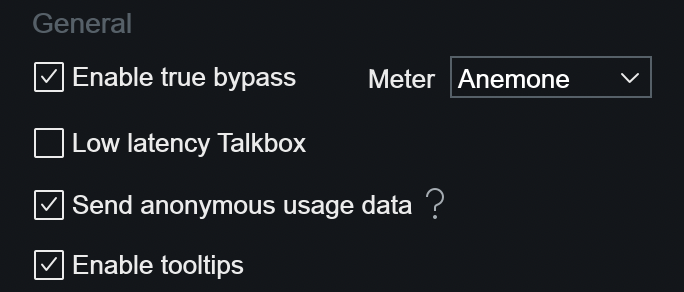
- Enable True Bypass: To ensure seamless transitions (no audible clicks or ramp up times) when enabling/disabling modules, the DSP is always running in the background. Enabling True Bypass means that when disabling a module or effect that particular DSP is fully disabled rather than running in the background. This saves on CPU resources and latency. Optimizing performance by enabling True Bypass means that you may hear audible transitions when enabling/disabling modules or effects. This may make it harder to do A/B comparisons.
- Low Latency Talkbox: VocalSynth’s Talkbox is able to intelligently analyze an incoming audio signal, extracting an accurate map/envelope of the formants without need for the hardware. With more latency comes more intelligibility but this compromises the ability for live performance. This parameter allows you to toggle between two types of algorithms, one optimized for live performance, and one for studio use, or the final bounce, which increases intelligibility. The algorithm for studio use has approximately 50 ms of latency at 44.1 kHz. This, coincidentally, is roughly the amount of time it takes all frequencies to pass (a 20 Hz cycle is 50 ms long).
- Send Anonymous Usage Data: When enabled, anonymous usage data will be sent to help iZotope improve
VocalSynth and other products in the future.
- ?: Opens the iZotope Analytics Opt-in policy in your web browser.
- Enable Tooltips: When enabled, control descriptions will be displayed in a tooltip when you hover your cursor over a parameter.
- Meter: Selects the meter to display in the center of the VocalSynth 2 interface. You can choose between:
- Anemone: New to VocalSynth 2, displays visualizations based on enabled module activity.
- Wave: Displays the wave meter visualization from VocalSynth 1.
Updates
The state of this button changes depending on if there is an available update, or if it is detected that you do not have iZotope’s Product Portal application installed.

- Download Product Portal: To stay up to date with new versions of VocalSynth and other iZotope products, download the iZotope Product Portal application.
- Check for Updates: Manually check for available updates. Clicking this button will open the Product Portal application and check for updates.
- Download Update: If an update is available, a small pink dot will appear here and on the options gear button in the main plug-in interface. Clicking the ‘Download Update’ button in the options window will launch the Product Portal application and display the Updates page.
Authorization
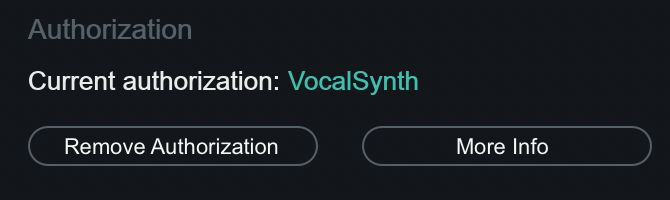
Displays your current authorization status and allows you to authorize or remove authorization. Read more about authorizing VocalSynth in the Authorization chapter.
- Current Authorization Status: displays the current authorization state of the product.
- Remove Authorization: removes the current authorization.
- More information: opens iZotope’s Authorization Support page in a web browser.
VocalSynth 2.5.0