VocalSynth 2 Help
Introduction
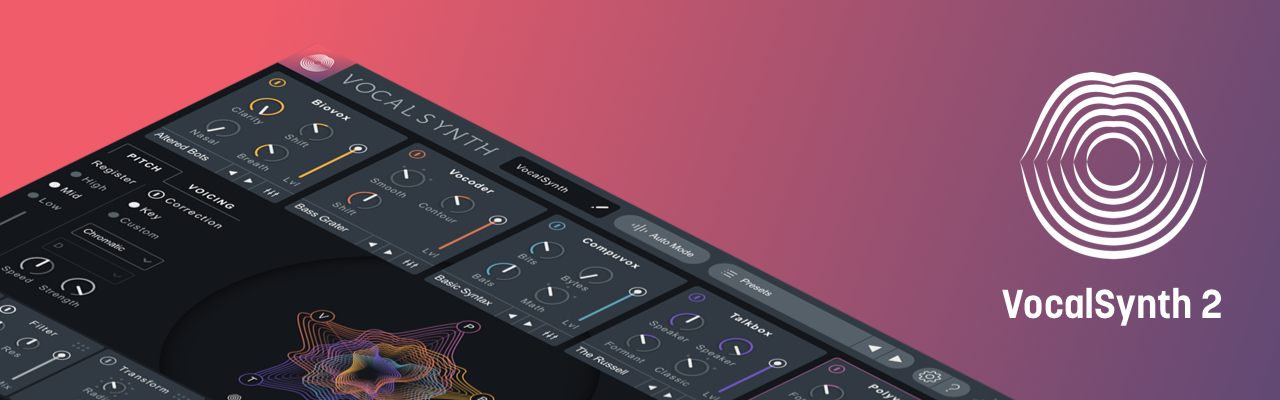
Shape the human character of your voice
Biovox: Modify physiological elements of the human vocal tract and manipulate vocal characteristics like nasality, formants, and vowel shapes for truly unique, human-sounding results.
New and improved effects
- Ring Mod: Add metallic texture and rhythmic movement to your vocal with the new hybrid Ring Mod/Tremolo effect.
- Chorus: Add lush layers to thicken and enhance your vocal.
- Shred: Slice and sequence your vocal with the completely revamped Shred effect.
- Effects Chain Re-ordering: Change the processing order in the effects chain quickly and easily by clicking and dragging any effect panel to a new position.
Visualize processing and Manage your vocal in the mix
- Anemone meter: A new and beautiful way to visualize and control VocalSynth’s effect on your vocal.
- Neutron Visual Mixer: Control volume, pan and width of any VocalSynth 2 instance in your session from the Visual Mixer window.
- Neutron Masking Meter: Select VocalSynth 2 instances in the Neutron EQ’s Masking Meter to monitor and evaluate how your vocal is competing with other aspects of your mix.
- Insight 2: Select VocalSynth 2 instances as a source in the Insight 2 Spectrogram meter.
Deeper control and customization
- Module Advanced Views: VocalSynth 2 reveals a number of controls for sculpting and enhancing the sound
of the different modules.
- Synth Controls: Customize the synthesizer engine controls in the Biovox, Vocoder, Compuvox, and Talkbox modules.
- Vocoder Band Controls: Control the volume and pan of the Vocoder frequency bands.
- Module Mix Controls: Tailor the output of each module with the pan and filter controls in the Mix section of the module advanced views.
Enhanced stereo processing options
- Global Pan & Width: Adjust the apparent stereo field and the stereo pan position of VocalSynth’s processed output.
- Module Pan: Control the stereo pan position of each module’s output individually.
Improvements and Optimizations in Vocalsynth 2
- Improved CPU Performance.
- Refreshed User Interface: Check out the Interface Guide for an overview of the VocalSynth 2 interface.
- Sound Quality Enhancements:
- Completely updated Vocoder modes for smoother, warmer sounding processing.
- Internal signal flow updates to optimize the output of each module.
User Interface Guide
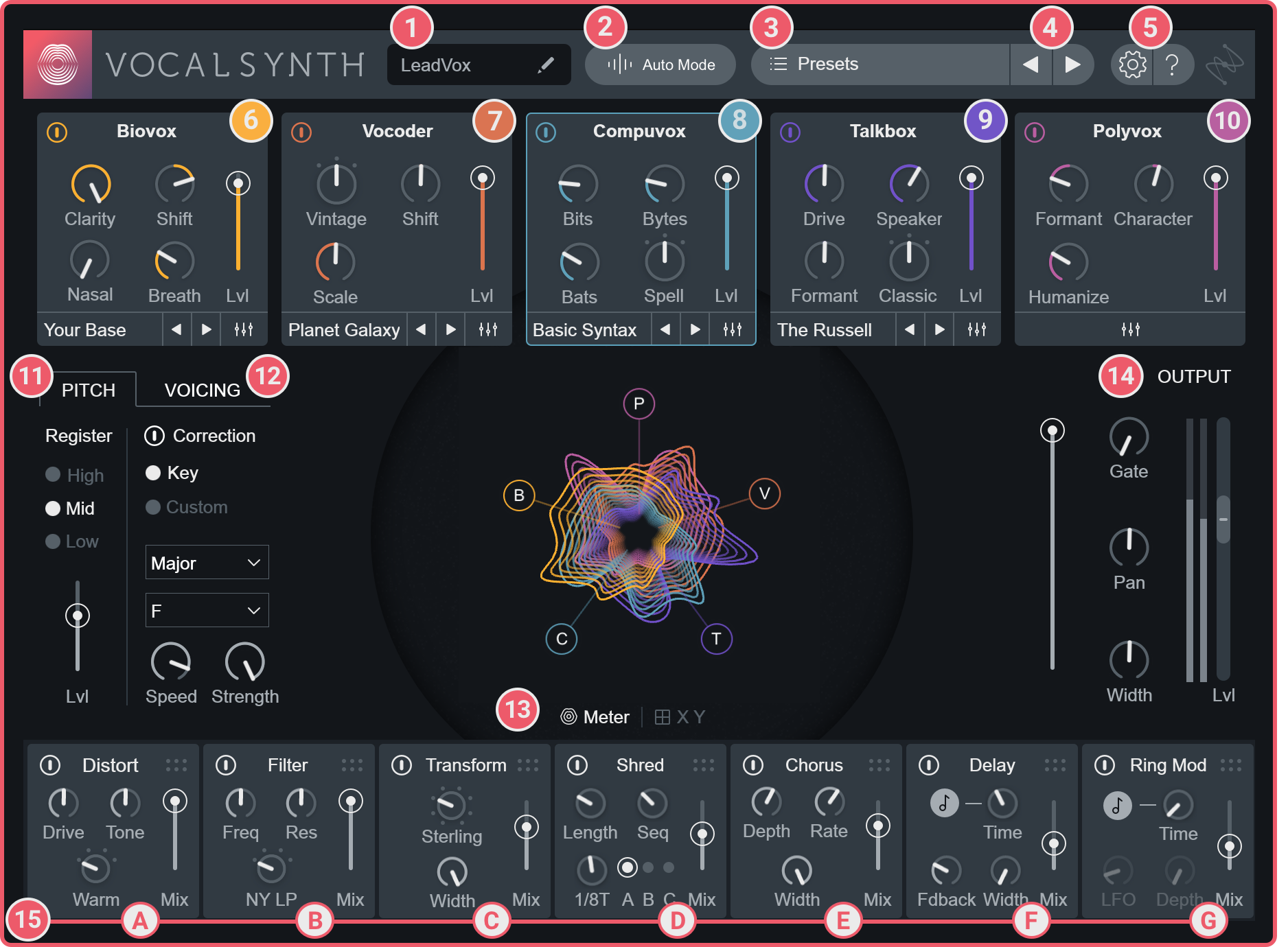
VocalSynth 2 includes a number of new features and workflow enhancements. The following guide highlights the key areas of the interface:
| KEY | DESCRIPTION |
|---|---|

|
PLUG-IN INSTANCE NAME: Displays the name of the current instance of VocalSynth 2. This name can be edited by clicking on the pencil icon. VocalSynth 2 instance names appear in selection menus of compatible iZotope plug-ins. |

|
GLOBAL INPUT MODE: This button displays the icon and name of the currently selected global input mode. To change the global input mode, click on this button to enter the global mode selection screen. |

|
PRESETS: Opens the Preset Manager window and displays the currently selected preset name. |

|
PREVIOUS/NEXT PRESET BUTTONS: Selects the previous or next preset in the preset list. These buttons are useful for auditioning different presets quickly without having to open the preset manager window. |

|
OPTIONS and HELP: Clicking on the gear button will open the VocalSynth options window. Clicking on the ‘?’ button will launch this help documentation. |

|
BIOVOX: This panel includes the main Biovox module controls, Biovox synth preset selector and access to the Biovox Advanced View by clicking on the mixer icon to the right of the synth preset previous/next buttons. |

|
VOCODER: This panel includes the main Vocoder module controls, Vocoder synth preset selector and access to the Vocoder Advanced View by clicking on the mixer icon to the right of the synth preset previous/next buttons. |

|
COMPUVOX: This panel includes the main Compuvox module controls, Compuvox synth preset selector and access to the Compuvox Advanced View by clicking on the mixer icon to the right of the synth preset previous/next buttons. |

|
TALKBOX: This panel includes the main Talkbox module controls, Talkbox synth preset selector and access to the Talkbox Advanced View by clicking on the mixer icon to the right of the synth preset previous/next buttons. |

|
POLYVOX: This panel includes the main Polyvox module controls and allows you to access the Polyvox Advanced View by clicking on the mixer icon at the bottom of the panel. |

|
PITCH: Includes Register settings for pitch detection and correction, Pitch Correction controls and a dry/pitch corrected signal level control. |

|
VOICING: Reveals the Voicing controls tab. The Voicing tab includes controls for the internal synthesizers when using VocalSynth 2 in Auto or MIDI Mode. |

|
METER & X/Y PAD VIEW SELECTOR: Toggles between the meter and X/Y pad controller views. The default meter selection can be changed in the Options window. |

|
OUTPUT: Includes global output Mix, a Gate Threshold control, Pan, Width and output Gain controls. |

|
ADJUSTABLE EFFECTS CHAIN: Click and drag on the dots above the mix slider in any effect panel to change the position of the effect in the processing chain. The following effects are available in the effects Chain: |

|
DISTORT effect. |

|
FILTER effect. |

|
TRANSFORM effect. |

|
SHRED effect. |

|
CHORUS effect. |

|
DELAY effect. |

|
RING MOD effect. |
Global Modes
Overview
VocalSynth is designed to be inserted on a vocal track and offers different input modes to determine how it applies processing to your vocal.
VocalSynth relies on two input signals to process a vocal, a modulator and a carrier input.
- Modulator: The modulator (voice/speech) is the audio from the track VocalSynth is inserted on. The modulator imparts spectral characteristics on the carrier signal.
- Carrier: The carrier signal takes on spectral characteristics of the modulator and is further modified by the processing parameters in the different modules. The carrier directly influences the processed (wet) output signal of VocalSynth. The source of the carrier signal is different depending on the global mode you have selected, see the mode descriptions below for more information.
Changing Modes
You can change the currently selected mode by clicking on the mode button in the top bar of the interface:

In the mode selection screen, select a mode and click “Accept” to change to the selected mode. You can exit the mode selection screen without changing modes by clicking the “Cancel” button. The following sections outline how the different Global Modes in VocalSynth 2 work.
Auto Mode
When Auto mode is selected, the incoming audio serves as the source for the modulator and the carrier.
VocalSynth listens to the incoming audio and detects pitch information based on the range selected in the Pitch controls area. The pitch information it detects informs the notes played by the internal synth engine. The notes played by the synth can be further customized by adjusting the auto voice parameters in the Voicing panel.
No special configuration is needed to process your vocal in Auto Mode. As long as the vocal track VocalSynth is inserted on contains audio, you will hear the effect.
Auto Mode is ideal for adding textural effects to your vocal. Not a keyboard player? Not using MIDI in your session? Auto mode may be the best option for manipulating your vocal.
MIDI Mode
MIDI Mode allows you to play harmonies into VocalSynth to create interesting vocal effects tailored to the musical structure of your song.
When MIDI mode is selected, the modulator signal is the incoming audio from the track VocalSynth is inserted on.
The carrier input is based on MIDI information from a connected MIDI keyboard or MIDI clip in your session. The MIDI notes received by VocalSynth tell the internal synth engine what notes to play.
You can choose between Mono or Poly mode and adjust Glide time amount (Mono mode only) in the Voicing panel.
Need help configuring MIDI mode?
Configuring MIDI mode can vary depending on your DAW. For detailed setup instructions, check out the DAW Setup chapter.
Sidechain Mode

Routing non-traditional sources (a guitar or synthesizer, for example) to the sidechain input of VocalSynth when operating in Sidechain mode can create some interesting experimental sounds.
Sidechain mode bypasses the internal synthesizers and routes the audio signal from the selected sidechain input into VocalSynth. The audio routed into VocalSynth’s sidechain input will be modulated by your vocal track, allowing you to make any audio source “talk”.
When Sidechain mode is selected, the modulator signal is the incoming audio from the track VocalSynth is inserted on. The audio input from a configured sidechain source is treated as the carrier.
Sidechain Mode Limitations
Not all VocalSynth features are available in Sidechain mode. The following controls are disabled in Sidechain Mode:
Need help setting up Sidechain mode?
Configuring Sidechain mode can vary depending on the DAW you are using. For detailed setup instructions, check out the DAW Setup chapter.
General Functions
Overview
VocalSynth offers an X/Y pad controller and output effects/mixer section for enhanced control of the processing applied to your vocal. In addition to these controls, an output meter and two visualization options allow you to monitor processing activity in different ways.
XY View
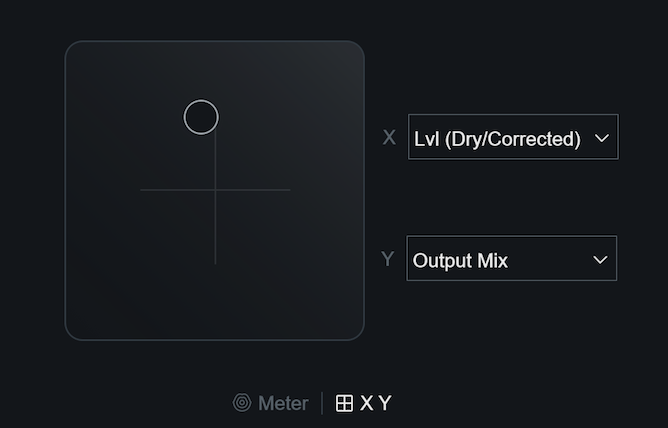
The X/Y pad controller can be accessed by selecting the X/Y button in the center of the interface.

You can assign parameters to the x-axis by selecting them from the X dropdown menu. Moving the X/Y pad node horizontally will increase or decrease the selected parameter’s value. The left edge of the X/Y pad represents the minimum value of the control, the right edge represents the maximum value.
You can assign parameters to the y-axis by selecting them from the Y dropdown menu. Moving the X/Y pad node vertically will increase or decrease the selected parameter’s value. The bottom edge of the X/Y pad represents the minimum value of the parameter, the top edge represents the maximum value.
The following parameters can be assigned to either axis of the X/Y pad controller:
| X/Y Params | ||||
|---|---|---|---|---|
| Biovox Breath | Compuvox Bats | Distort Drive | Polyvox Character | Talkbox Drive |
| Biovox Clarity | Compuvox Bits | Distort Mix | Polyvox Formant | Talkbox Formant |
| Biovox Lvl | Compuvox Bytes | Distort Tone | Polyvox Humanize | Talkbox Lvl |
| Biovox Nasal | Compuvox Lvl | Filter Freq | Polyvox Lvl | Talkbox Speaker |
| Biovox Shift | Delay Feedback | Filter Mix | Ring Mod Depth | Transform Mix |
| Chorus Depth | Delay Mix | Filter Res | Ring Mod Freq/Time | Transform Width |
| Chorus Mix | Delay Time | Lvl (Dry/Corrected) | Ring Mod LFO | Vocoder Lvl |
| Chorus Rate | Delay Width | Output Mix | Ring Mod Mix | Vocoder Scale |
| Chorus Width | - | Shred Mix | - | Vocoder Shift |
Meter View
A vocal that sounds good deserves to look good too. VocalSynth 2 comes with a brand new way to visualize your vocal. If you prefer the Wave Meter from VocalSynth 1, you can select it from the Meter dropdown menu in the Options window.
Anemone
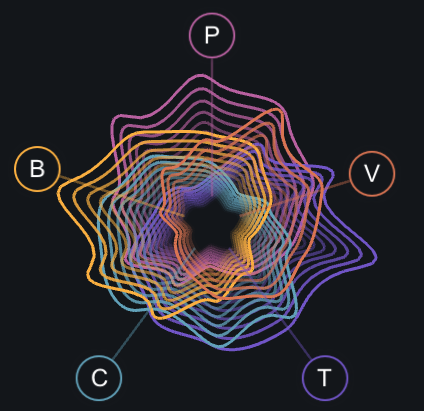
The anemone meter displays visual information for each module and allows you to control module level amounts by clicking and dragging on the associated node (B = Biovox, V = Vocoder, C = Compuvox, T = Talkbox, P = Polyvox). If a module is disabled, the associated node and visualization will be hidden. The shape of the visualization for each module changes based on MFCC (Mel Frequency Cepstral Coefficients) calculations.
Wave Meter

The wave meter displays frequency spectrum information based on the output of VocalSynth.
How do I get the Wave meter to show up?
Open the Options window and select Wave in the Meter dropdown menu.
Output
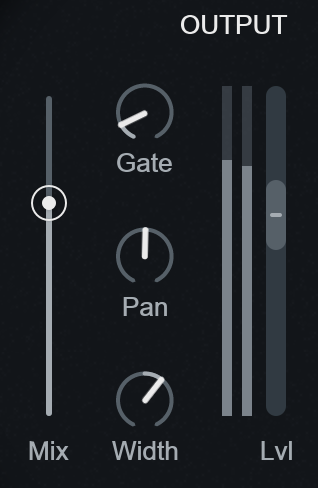
Mix
Adjusts the balance between the processed (wet) and unprocessed (dry, pre-FX) signals.
Gate
Adjusts the Gate threshold level. The Gate detection occurs on the input signal level, gating is applied to the wet output signal before effects chain processing. In other words, if the input signal level falls below the Gate threshold level, gating will be applied to the wet (processed) signal before it is processed by the effects chain.
Pan
Adjusts the stereo pan position of the output signal.
Width
Adjusts the amount of stereo widening or narrowing effect applied to the output of VocalSynth. At -100 this will narrow the apparent stereo width of the output so that it is effectively mono. At +100 this effect will exaggerate the stereo image width of the output signal.
Lvl
Applies a clean gain offset amount to the output signal. Clip indicators appear when the output of the plug-in is clipping. You can clear the clip indicator lights by clicking on them after stopping playback.
Pitch & Voicing
Overview
The Pitch and Voicing control tabs allow you to adjust pitch detection and correction parameters, dry voice gain, and synth voice parameters.
Pitch
Register
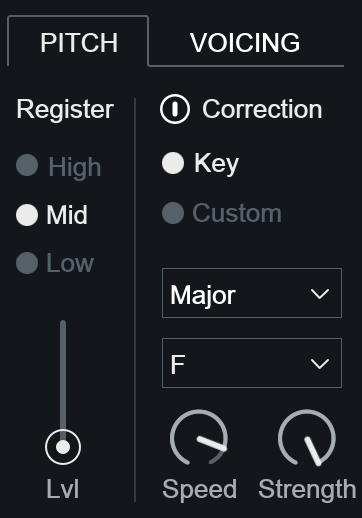
Controls how VocalSynth 2 detects and analyzes incoming vocal data. There are three Register settings to choose from: LOW, MID, HIGH.
Tip
- Start with the Mid setting for most audio applications.
- If you notice any undesirable behavior or artifacts in the detected pitches, experiment with the Low and High options to achieve the best results.
Auto Mode & Register
When VocalSynth 2 is in Auto mode, the Register control will effect how the pitch tracking interacts with the oscillators. If the Register is set to High and you’re singing Low, the oscillators in the Compuvox, Vocoder, or Talkbox modules won’t be able to follow your vocal effectively.
Lvl
Adjusts the dry input/pitch corrected signal level.
Enable Correction
Enables/disables pitch correction processing.
Scale Type
There are two methods for selecting the scale type used for pitch correction: KEY and CUSTOM.
- Key: Allows you to choose between several predefined scale types.
- Scale: Defines the scale used to snap your incoming vocal pitches to. Choose from Major, Minor or
Chromatic.
Tip: Chromatic Scale
- If you don’t know what scale to use, set your scale type to Chromatic.
- Root: Defines the root note or key for pitch correction. It is important to set an accurate root note as this helps the pitch correction algorithm determine the best possible pitches for your vocals to correct to.
- Scale: Defines the scale used to snap your incoming vocal pitches to. Choose from Major, Minor or
Chromatic.
- Custom: Custom mode allows you to create a unique scale type. This can be useful for creative effects, such as locking a vocal to only a few pitches, or practical, such as creating a particular scale (e.g. pentatonic). When defining a Custom scale, click on any notes of the keyboard that you wish to enable/disable as options for pitch correction. When the individual notes are enabled, they’ll display a bright white.
Speed
Determines how quickly your incoming vocals will be snapped to any particular note. Speed ranges from 0 to 100 ms. Values closer to 0 ms achieve robotic, immediate pitch snapping, where values higher than 50 ms obtain more natural and transparent results.
Strength
Controls how closely the pitch correction will pull your voice to the correct frequency. Lower strength values may not perfectly correct a pitch, but will lessen any tuning issues. This tends to sound more natural, but if you’re after the more robotic sound, you’ll want Strength turned up.
Voicing
There are two global modes that allow you to control aspects of the internal synthesizer voices in VocalSynth 2: Auto mode and MIDI mode. When Sidechain mode is selected, the internal synthesizers are bypassed and all Voicing controls are disabled. Read more about the global different input modes in the Global Modes chapter.
Auto Mode Voicing
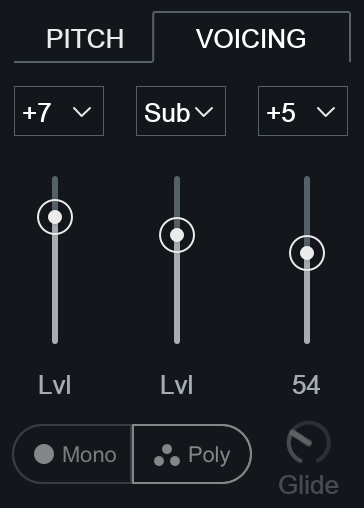
Auto Mode Voicing: Interval
Defines an interval for each of the 3 auto voices. This interval is how far away, diatonically, the new harmony will be from the root note of the musical key. The musical key is defined in the Pitch control panel (which doesn’t have to be enabled).
Auto Mode Voicing: Lvl
Adjusts the level of the auto generated voices sent to the modules for processing.
MIDI Mode Voicing
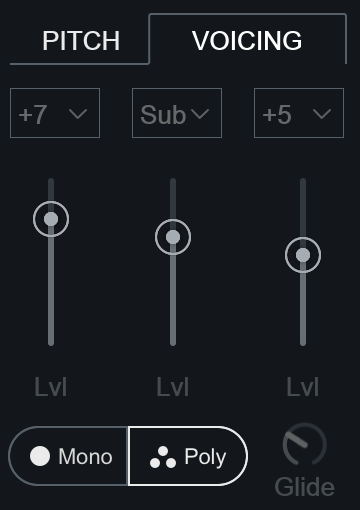
MIDI Mode Voicing: Mono
Short for monophonic. Allows only one pitch to be played at a time, but playing notes consecutively will not retrigger the internal envelopes.
MIDI Mode Voicing: Poly
Short for polyphonic. Allows multiple pitches to be played at once (known as polyphony) like chords with lines or melodies that might have overlapping voices.
MIDI Mode Voicing: Glide
Adjusts the portamento speed when transistioning from one note to another (Mono Mode only).
Biovox
Overview
Inspired by articulatory synthesis, Biovox offers tools for altering physiological qualities of a vocal. The module estimates a vocal tract shape from the incoming audio and allows you to effectively manipulate the vocal tract length and shape using just a few intuitive controls. In addition to adjusting properties of the vocal tract, you can control and blend vowel sounds using the vowel pad and even impose vocal imperfections such as nasality and breathiness on your vocal. Biovox is an innovative suite of tools for sculpting formants, tone, and the overall vocal aesthetic.
Controls
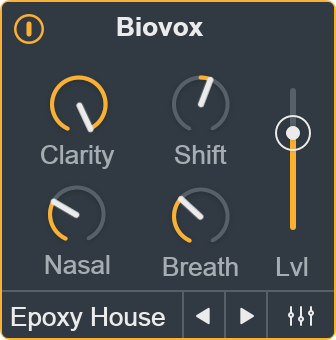
Enable
Enables/disables Biovox module processing.
Clarity
Controls the amount of filter modulation applied to the signal. At lower values, more of the synth signal is present which allows Biovox to exhibit a playable synth character. Lower values also result in less intelligibility.
Shift
Alters vocal tract length to effectively shift the formants of the processed vocal higher or deeper. Positive values result in higher, chipmunk-like sounds. Negative values produce a deep, monster-like sound.
Nasal
Simulates changes to the soft palate to introduce a more nasal quality in the processed vocal.
Breath
Mixes in a breathy, whisper-like character to the processed audio. At the minimum value, no breathiness is added to the signal. At the maximum value, Biovox will output only the breathy signal.
Lvl
Controls the output level of the Biovox module.
Note
You can also control the Biovox output level by dragging the node labeled ‘B’ that appears in the anemone visualization when the Biovox module is enabled.
Synth Preset Selector

Displays the currently selected synth preset name and allows you to change the synth preset without opening the advanced view. Clicking on the preset name display will open the synth preset list. Clicking on the left and right arrow buttons allows you to quickly load different synth presets. You can modify synth parameters and save new synth presets in the advanced view.
Advanced View Button
You can open the Advanced View window by clicking on the mixer button at the bottom of the module’s main panel:

Advanced View
The Biovox Advanced View includes:
- Vowel: Control and blend vowel sounds.
- Synth: Customize synth parameters & save synth presets.
- Mix: Control filtering and panning of the module’s output signal.
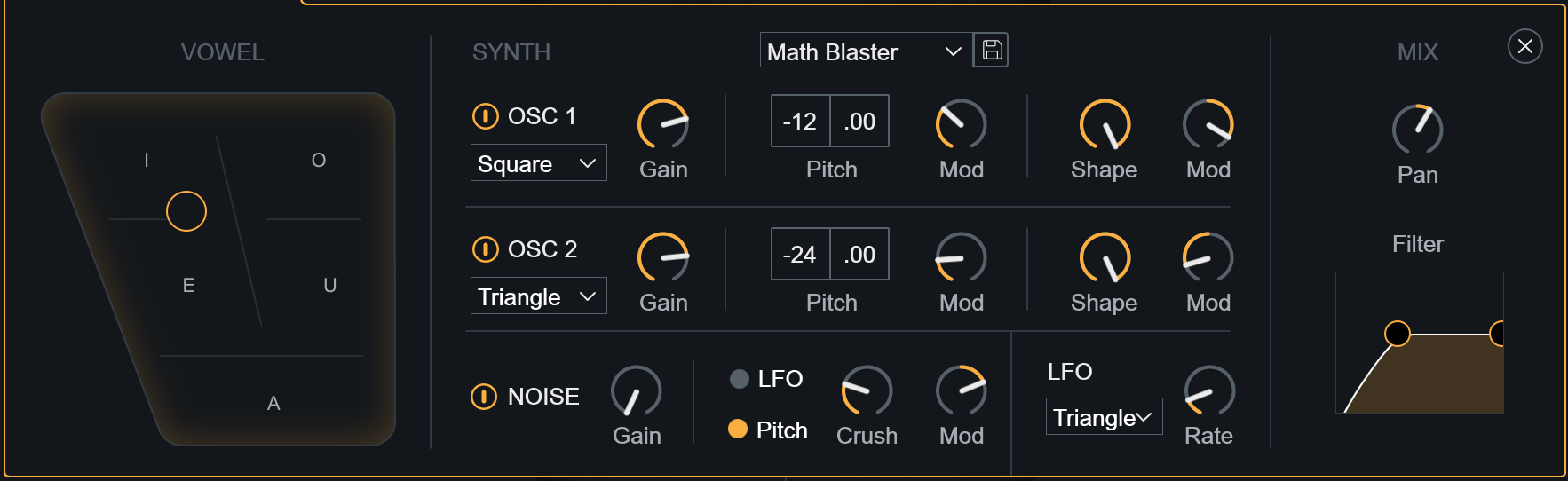
Advanced View: Vowel
The Vowel chart is modeled after the official International Phonetic Alphabet Vowel Chart that maps vowels according to a physical location on the tongue. The Vowel chart controller can be used to impart the sound of a particular vowel on the processed signal by moving a node to different locations on the chart.
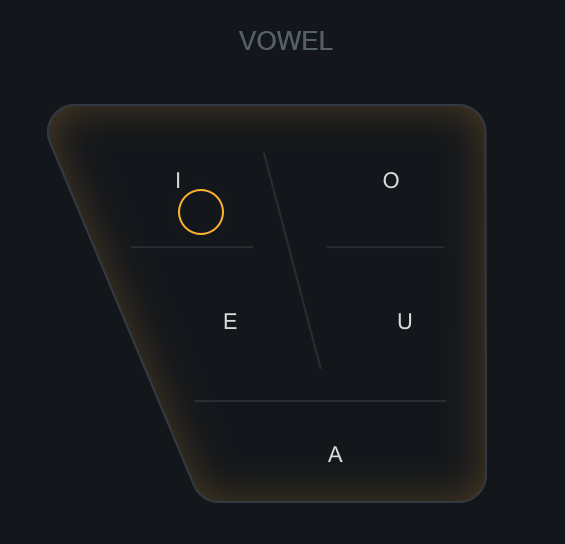
By default, the node is positioned in the center of the chart, resulting in no vowel blend.
Double-click to reset
Double-clicking on the node will return it to the default position in the center of the chart.
Dragging the node toward the outer boundaries of the chart will impart more of the nearest indicated vowel(s) to the processed audio.
When the node is positioned at an edge of the chart, the vowel blend is at the maximum amount and only the nearest vowel(s) will be audible in the processed output.
Advanced View: Synth
When Auto Mode or MIDI Mode is selected, you can control the oscillators and modulation settings for the notes being played into the Biovox module synth engine.
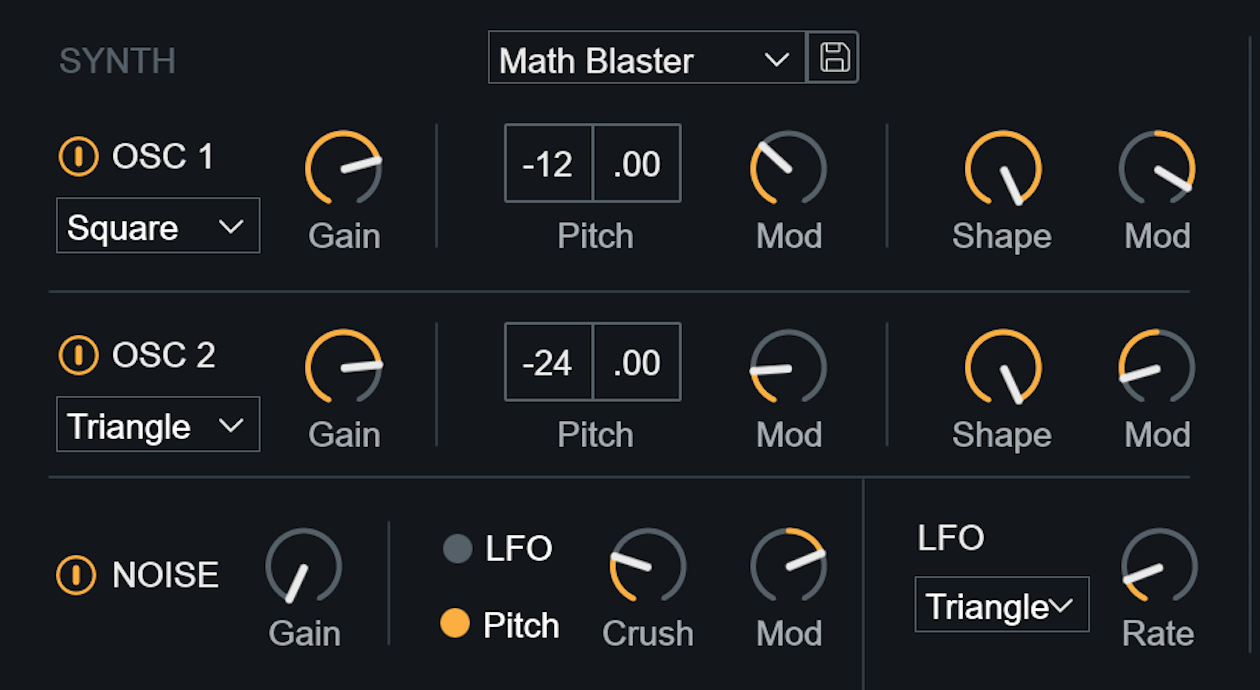
Sidechain mode disables synth controls
When Sidechain mode is selected, the sidechain input signal replaces the module synth engine as the carrier signal. Synth parameters are disabled in all modules when Sidechain is selected as the global mode.
SYNTH PRESETS
Modules that include synth parameters in the advanced view allow for synth presets to be saved and recalled.

- Default synth presets are loaded when VocalSynth is opened. Each module loads a different synth preset by default. Choosing the “Init” preset from the synth preset dropdown menu will return the module’s synth settings to the default preset values.
- Double-clicking on any knob in the “Synth” section of the advanced view will set the control to a factory default state, rather than resetting the value to the “Init” state.
Load Presets
Select a preset from the dropdown menu to load the saved synth parameter values in the current module.
Note
You can also quickly change synth presets without opening the advanced view by clicking on the left/right arrow buttons in the module main panel.
Save Presets
Click on the floppy disk button next to the preset dropdown menu to save a new Synth preset. Type a name in the text field and hit the enter/return key to save the preset.
OSC 1

| Name | Description |
|---|---|
| Enable | Enables/disables Osc 1. |
| Waveform | Selects the waveform shape. |
| Gain | Adjusts the level of Osc 1. |
| Pitch: Coarse Tune | Tunes Osc 1 in coarse increments. (Semitones) |
| Pitch: Fine Tune | Tunes Osc 1 in fine increments. (Cents) |
| Pitch: Mod | Adjusts the amount of LFO modulation applied to Osc 1’s pitch. |
| Shape | Morphs the waveform shape. |
| Shape: Mod | Adjusts the amount of LFO modulation applied to the waveform shape. |
The following table outlines how each shape is affected by modulation:
| Shape | Modulation Behavior |
|---|---|
| Saw | Modifies the pulse width of the saw wave. |
| Square | Modifies the pulse width of the square wave. |
| Sync Saw | This shape simulates two synchronized saw oscillators. Modulating shape will modify the pitch ratio between the two saw oscillators. |
| Triangle | Morphs the triangle wave into a saw wave shape. |
| Saws | Simulates a swarm of seven saw waves. Modulating shape will modify the detune amount between the saw waves. |
OSC 2

| Name | Description |
|---|---|
| Enable | Enables/disables Osc 2. |
| Waveform | Selects the waveform shape. |
| Gain | Adjusts the level of Osc 2. |
| Pitch: Coarse Tune | Tunes Osc 2 in coarse increments. (Semitones) |
| Pitch: Fine Tune | Tunes Osc 2 in fine increments. (Cents) |
| Pitch: Mod | Adjusts the amount of LFO modulation applied to Osc 2’s pitch. |
| Shape | Morphs the waveform shape. |
| Shape: Mod | Adjusts the amount of LFO modulation applied to the waveform shape. |
The following table outlines how each shape is affected by modulation:
| Shape | Modulation Behavior |
|---|---|
| Saw | Modifies the pulse width of the saw wave. |
| Square | Modifies the pulse width of the square wave. |
| Sync Saw | This shape simulates two synchronized saw oscillators. Modulating shape will modify the pitch ratio between the two saw oscillators. |
| Triangle | Morphs the triangle wave into a saw wave shape. |
| Saws | Simulates a swarm of seven saw waves. Modulating shape will modify the detune amount between the saw waves. |
Noise
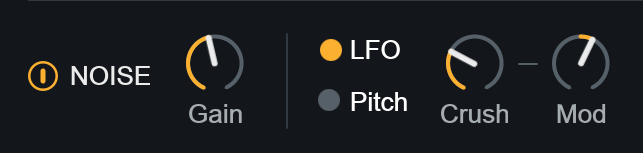
| Name | Description |
|---|---|
| Enable | Enables/disables the Noise oscillator. |
| Gain | Adjusts the level of Noise oscillator. |
| LFO/Pitch | Selects the modulation source used by the Crush Mod control. |
| Crush | Adjusts the amount of aliasing distortion applied to the noise oscillator. At the maximum value, the Noise oscillator will output white noise. |
| Mod | Adjusts the amount of modulation applied to the Crush parameter. The modulation source is determined by the LFO or Pitch selection to the left of the Crush knob. This Mod parameter allows for bidirectional modulation. |
LFO Mod Source
These parameters define the waveshape and speed of the LFO modulation source. All Mod knobs in the current synth view (except for the Crush Mod control, which can toggle between LFO or Pitch modulation sources) use this LFO as their modulation source.
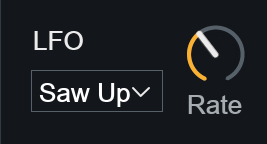
| NAME | DESCRIPTION |
|---|---|
| SHAPE | Selects the low frequency oscillator waveform shape. |
| RATE | Adjusts the speed of the low frequency oscillator. |
Advanced View: Mix
Adjusts stereo pan position and pass filter controls of the module’s output signal.
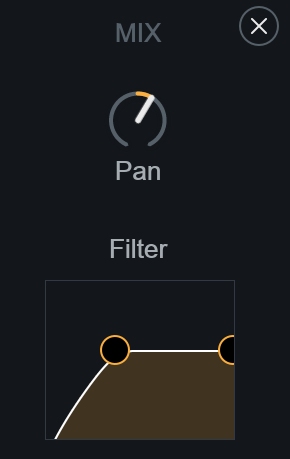
Pan
Controls the stereo pan position of the module’s output signal.
Filter
Adjusts the center frequencies of high-pass and low-pass filters applied to the module’s output signal. Clicking and dragging on a node will adjust the center frequency of that filter. Clicking and dragging in the space below the two nodes will move both nodes at the same time.
Vocoder
Overview
As with a lot of today’s musical technologies, the vocoder (short for Voice Encoder) began life as a completely non-musical, utilitarian piece of electronic equipment. A vocoder relies on two signals, a carrier (synthesizer) and a modulator (usually a voice). Both of the incoming signals are split into a number of frequency bands. The amplitude of the modulator signal in each individual band is then used to control the amplitude of the corresponding bands of the carrier signal. This has the auditory effect of mapping the frequency characteristics of the modulator onto the carrier signal as amplitude changes in each of the frequency bands, resulting in what we hear as talking synthesizers.
VocalSynth 2 allows for detailed manipulation of the Vocoder frequency bands and carrier synth parameters in the Advanced View.
Controls
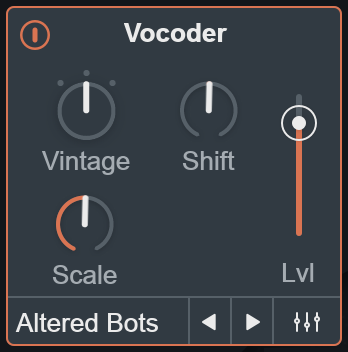
ENABLE
Turns Vocoder module processing on and off.
MODE
The Vocoder has three different modes which alter number of frequency bands used in both the modulator (voice) and carrier (instrument) input. You can adjust the gain and pan of the frequency bands by modifying the Bands controller in the Vocoder advanced view.
- SMOOTH: Reminiscent of the sound produced by early analog vocoders, but with the added benefit of wider resolution. This mode produces a pleasant, smooth sounding effect that retains intelligibility.
- VINTAGE: A classic analog vocoder sound with musically spaced frequency bands for a moderate level of resolution and a timeless sound.
- HARD: A modern analog hybrid rooted in classic vocoder designs. This mode offers greater resolution for a more articulate overall sound.
SHIFT
Alters the amount of frequency shift applied to each vocoder frequency band. Adjusting the Shift amount results in changes to the pitched timbre of the processed signal. Positive values result in brighter timbre but may reduce lower frequency presence in the processed signal. Negative values result in a darker sounding timbre, but may reduce higher frequency presence in the processed signal.
SCALE
Adjusts how quickly the vocoder responds to changing vowel sounds. Higher values may increase the articulation of the synthesized output, where lower values may sacrifice intelligibility for softer-sounding, pad-style result.
LVL
Controls the output level of the Vocoder module.
Note
You can also control the Vocoder output level by dragging the node labeled ‘V’ that appears in the anemone visualization when the Vocoder module is enabled.
SYNTH PRESET SELECTOR
Displays the currently selected synth preset name and allows you to change the synth preset without opening the advanced view. Clicking on the preset name display will open the synth preset list. Clicking on the left and right arrow buttons allows you to quickly load different synth presets. You can modify synth parameters and save new synth presets in the advanced view.
ADVANCED VIEW BUTTON
You can open the Advanced View window by clicking on the mixer button at the bottom of the module’s main panel:
Advanced View
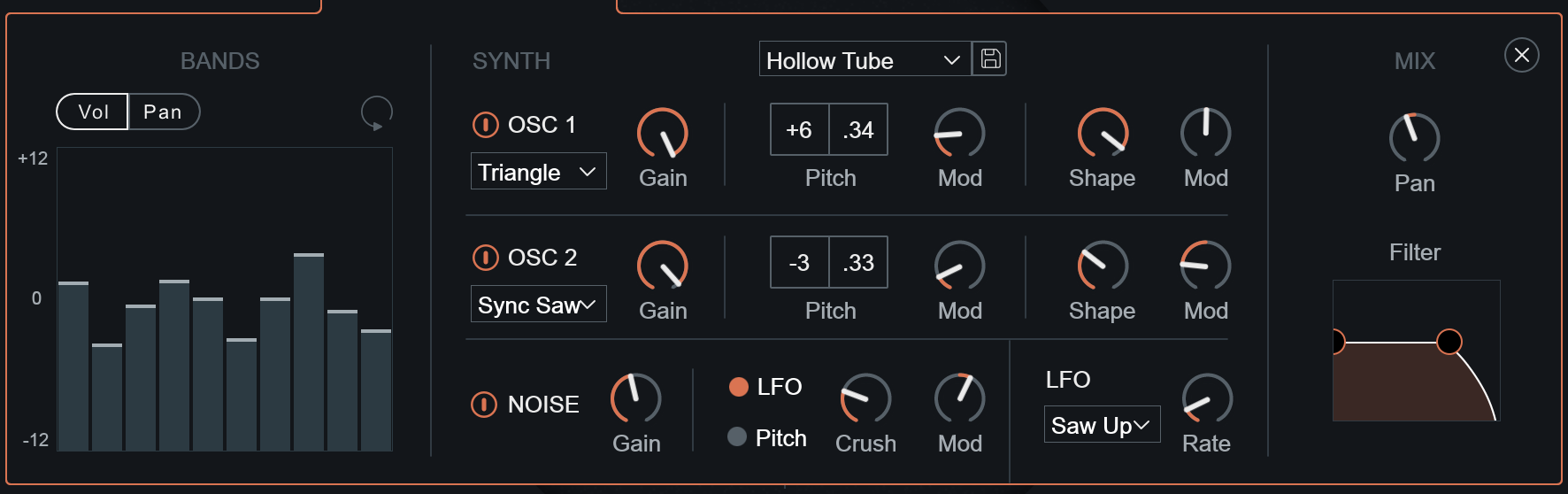
The Vocoder Advanced View includes:
- BANDS: Adjust the Volume and Pan of the Vocoder frequency bands.
- SYNTH: Customize synth parameters & save synth presets.
- MIX: Control filtering and panning of the module’s output signal.
Advanced View: Bands
Displays a bar for each Vocoder frequency band control. The currently selected view (Vol or Pan) determines what the bars control. The number of frequency bars displayed in the bands view is determined by the currently selected vocoder Mode.
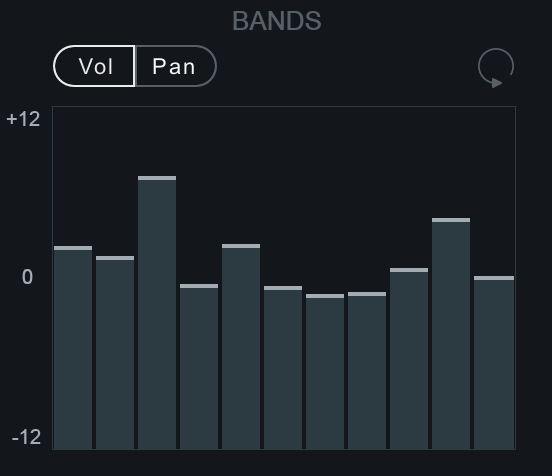
VOL
When selected, adjusting a band control will modify the volume of the associated frequency band.
PAN
When selected, adjusting a band control will modify the stereo pan of the associated frequency band.
RESET
Sets controls in the currently selected band processing view to their factory default values.
Advanced View: Synth
When Auto Mode or MIDI Mode is selected, you can control the oscillators and modulation settings for the notes being played into the Vocoder module synth engine.
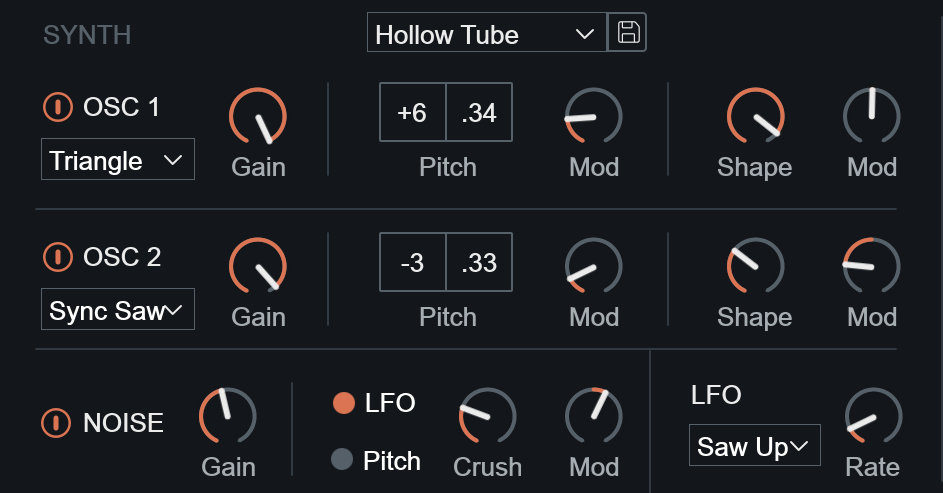
Sidechain mode disables synth controls
When Sidechain mode is selected, the sidechain input signal replaces the module synth engine as the carrier signal. Synth parameters are disabled in all modules when Sidechain is selected as the global mode.
SYNTH PRESETS
Modules that include synth parameters in the advanced view allow for synth presets to be saved and recalled.
- Default synth presets are loaded when VocalSynth is opened. Each module loads a different synth preset by default. Choosing the “Init” preset from the synth preset dropdown menu will return the module’s synth settings to the default preset values.
- Double-clicking on any knob in the “Synth” section of the advanced view will set the control to a factory default state, rather than resetting the value to the “Init” state.
LOAD PRESETS
Select a preset from the dropdown menu to load the saved synth parameter values in the current module.
Note
You can also quickly change synth presets without opening the advanced view by clicking on the left/right arrow buttons in the module main panel.
SAVE PRESETS
Click on the floppy disk button next to the preset dropdown menu to save a new Synth preset. Type a name in the text field and hit the enter/return key to save the preset.
OSC 1

| NAME | DESCRIPTION |
|---|---|
| ENABLE | Enables/disables Osc 1. |
| WAVEFORM | Selects the waveform shape. |
| GAIN | Adjusts the level of Osc 1. |
| PITCH: Coarse Tune | Tunes Osc 1 in coarse increments. (Semitones) |
| PITCH: Fine Tune | Tunes Osc 1 in fine increments. (Cents) |
| PITCH: MOD | Adjusts the amount of LFO modulation applied to Osc 1’s pitch. |
| SHAPE | Morphs the waveform shape. |
| SHAPE: MOD | Adjusts the amount of LFO modulation applied to the waveform shape. |
The following table outlines how each shape is affected by modulation:
| Shape | Modulation Behavior |
|---|---|
| SAW | Modifies the pulse width of the saw wave. |
| SQUARE | Modifies the pulse width of the square wave. |
| SYNC SAW | This shape simulates two synchronized saw oscillators. Modulating shape will modify the pitch ratio between the two saw oscillators. |
| TRIANGLE | Morphs the triangle wave into a saw wave shape. |
| SAWS | Simulates a swarm of seven saw waves. Modulating shape will modify the detune amount between the saw waves. |
OSC 2

| NAME | DESCRIPTION |
|---|---|
| ENABLE | Enables/disables Osc 2. |
| WAVEFORM | Selects the waveform shape. |
| GAIN | Adjusts the level of Osc 2. |
| PITCH: Coarse Tune | Tunes Osc 2 in coarse increments. (Semitones) |
| PITCH: Fine Tune | Tunes Osc 2 in fine increments. (Cents) |
| PITCH: MOD | Adjusts the amount of LFO modulation applied to Osc 2’s pitch. |
| SHAPE | Morphs the waveform shape. |
| SHAPE: MOD | Adjusts the amount of LFO modulation applied to the waveform shape. |
The following table outlines how each shape is affected by modulation:
| Shape | Modulation Behavior |
|---|---|
| SAW | Modifies the pulse width of the saw wave. |
| SQUARE | Modifies the pulse width of the square wave. |
| SYNC SAW | This shape simulates two synchronized saw oscillators. Modulating shape will modify the pitch ratio between the two saw oscillators. |
| TRIANGLE | Morphs the triangle wave into a saw wave shape. |
| SAWS | Simulates a swarm of seven saw waves. Modulating shape will modify the detune amount between the saw waves. |
NOISE
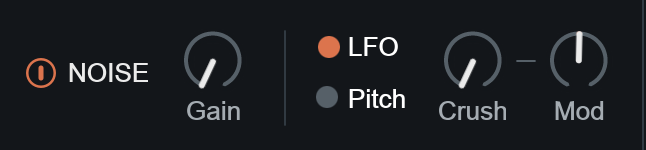
| NAME | DESCRIPTION |
|---|---|
| ENABLE | Enables/disables the Noise oscillator. |
| GAIN | Adjusts the level of Noise oscillator. |
| LFO/PITCH | Selects the modulation source used by the Crush Mod control. |
| CRUSH | Adjusts the amount of aliasing distortion applied to the noise oscillator. At the maximum value, the Noise oscillator will output white noise. |
| MOD | Adjusts the amount of modulation applied to the Crush parameter. The modulation source is determined by the LFO or Pitch selection to the left of the Crush knob. This Mod parameter allows for bidirectional modulation. |
LFO MOD SOURCE
These parameters define the waveshape and speed of the LFO modulation source. All Mod knobs in the current synth view (except for the Crush Mod control, which can toggle between LFO or Pitch modulation sources) use this LFO as their modulation source.
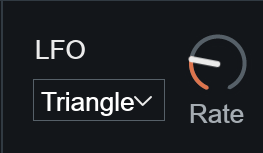
| NAME | DESCRIPTION |
|---|---|
| SHAPE | Selects the low frequency oscillator waveform shape. |
| RATE | Adjusts the speed of the low frequency oscillator. |
Advanced View: Mix
Adjusts stereo pan position and pass filter controls of the module’s output signal.
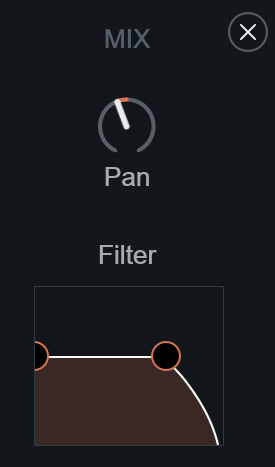
PAN (Mix)
Controls the stereo pan position of the module’s output signal.
FILTER
Adjusts the center frequencies of high-pass and low-pass filters applied to the module’s output signal. Clicking and dragging on a node will adjust the center frequency of that filter. Clicking and dragging in the space below the two nodes will move both nodes at the same time.
More Information
One of the earliest vocoders was developed by Homer Dudley in the late 1920s/early 1930s at Bell Laboratories. Large-scale telephone networks were being implemented at the time, and the vocoder was developed as a potential solution to bandwidth issues. These early tools were designed to encode speech to reduce bandwidth, allowing multiple voice signals to be transmitted over the same cables. Vocoders even underpinned pivotal World War II technologies, such as the SIGSALY system used for secure voice transmission.
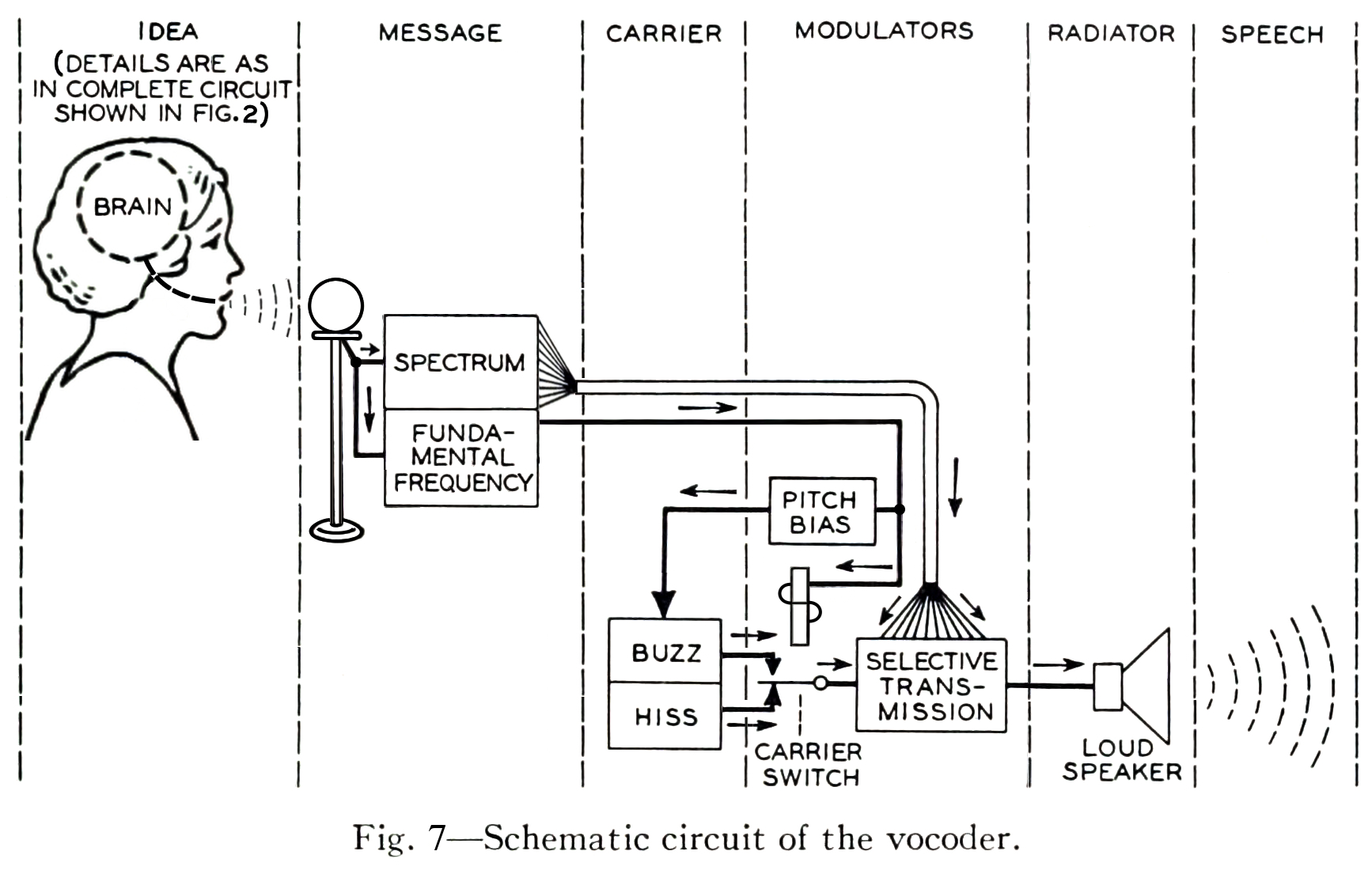
Fast forward a few decades and the vocoder was starting to be used in some iconic musical applications. Early pioneers such as Werner Meyer-Eppler paved the way for Robert Moog and Wendy Carlos as well as Kraftwerk. In the early 1970s Moog and Carlos built a vocoder in which the carrier signal was a Moog modular synth and the modulator a mic input, which was heard several times on the soundtrack to Stanley Kubrick’s film adaptation of Anthony Burgess’ A Clockwork Orange. 2
Over the years vocoders have become so well known, audible on anything from ELO’s Mr. Blue Sky 3 and Michael Jackson’s P.Y.T. (Pretty Young Thing)4 to Coldplay’s Midnight 5 and now… whatever you’ll be using VocalSynth on next!
-
Dudley, H. The Carrier Nature of Speech. 1940. Bell System Technical Journal. Internet Archive Book Images derivative work: User: Clusternote. CC BY-SA 3.0, via Wikimedia Commons. ↩︎
-
Carlos, W. A Clockwork Orange. Warner Bros. Records. 1972. LP. ↩︎
-
Lynne, J. Out of the Blue. Jet. 1977. ↩︎
-
Ingram, J., Jones, Q. Thriller. Epic. 1982. ↩︎
-
Berryman, G., Buckland, J., Champion, W., Martin, C., Hopkins, J. Ghost Stories. 2014. ↩︎
Compuvox
Overview
Compuvox is based on a technology known as Linear Predictive Coding (LPC) which has existed since the late 1960s. As with a number of the audio processors in VocalSynth, LPC was originally a communications technology for encoding intelligible speech at low bit rates to save bandwidth. Nowadays this computerized vocal sound is often used as a special effect common in electronic music production. The outcome sounds similar to infamous toys like the Furby, Speak n Spell (which uses LPC), and even older text-to-speech technologies.
How Does Compuvox Work
Compuvox breaks down the vocal signal into two components. It simultaneously estimates the formants alongside the “excitation,” which is the buzz or noise created by the vocal folds. This information can then be used to recreate the sound of the vocal signal by synthesizing the excitation and filtering it through a formant filter. The simplifications that this model makes lead to some wonderfully cool artifacts.
Controls
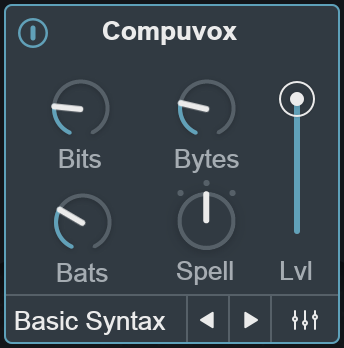
Enable
Enables/disables Compuvox module processing.
Bits
Adds digital aliasing noise to the signal by resampling it using a low-quality technique known as zero-order hold interpolation. Used gently, this can add an interesting inharmonic quality to the sound. Pushed farther, this control can reduce your audio to almost unrecognizable levels of digital chaos.
Bytes
Allows you to artificially prolong vowel sounds. Stretching vowels out in this way can create some interesting non-human yet musically useful vocal effects.
Bats
Increases noise and vocal gravel for a winged-animal-man effect.
Tip
There are some genuinely fun, diverse, and practical ways to use this control. With a lead vocal, especially in some rap, EDM, or metal tracks, pushing Bats close to 100%, but then using the Mixer to only blend in a small amount of Compuvox helps fill out the bottom of the vocal with some really solid noise full of emotion and inflection.
Mode
Compuvox has three different modes that represent multiple different flavors of LPC processing. They react differently to varying types of incoming vocals so experiment with each mode to find the setting that works best for your audio.
- Spell: The most balanced LPC setting, using medium strength and size filtering for an articulate and classic sound.
- Read: The strongest high-order filter mode; it also contains a smaller window size and a faster analysis to give you a narrower sound.
- Math: The broadest setting; it contains a wider windowing size, a more gentle filter, and a reasonably fast analysis speed to give an alternate timbre and sound.
Lvl
Controls the output level of the Compuvox module.
Note
You can also control the Compuvox output level by dragging the node labeled ‘C’ that appears in the anemone visualization when the Compuvox module is enabled.
Synth Preset Selector
Displays the currently selected synth preset name and allows you to change the synth preset without opening the advanced view. Clicking on the preset name display will open the synth preset list. Clicking on the left and right arrow buttons allows you to quickly load different synth presets. You can modify synth parameters and save new synth presets in the advanced view.
Advanced View Button
You can open the Advanced View window by clicking on the mixer button at the bottom of the module’s main panel:
Advanced View
The Compuvox Advanced View includes:
- Synth: Customize synth parameters & save synth presets.
- Mix: Control filtering and panning of the module’s output signal.
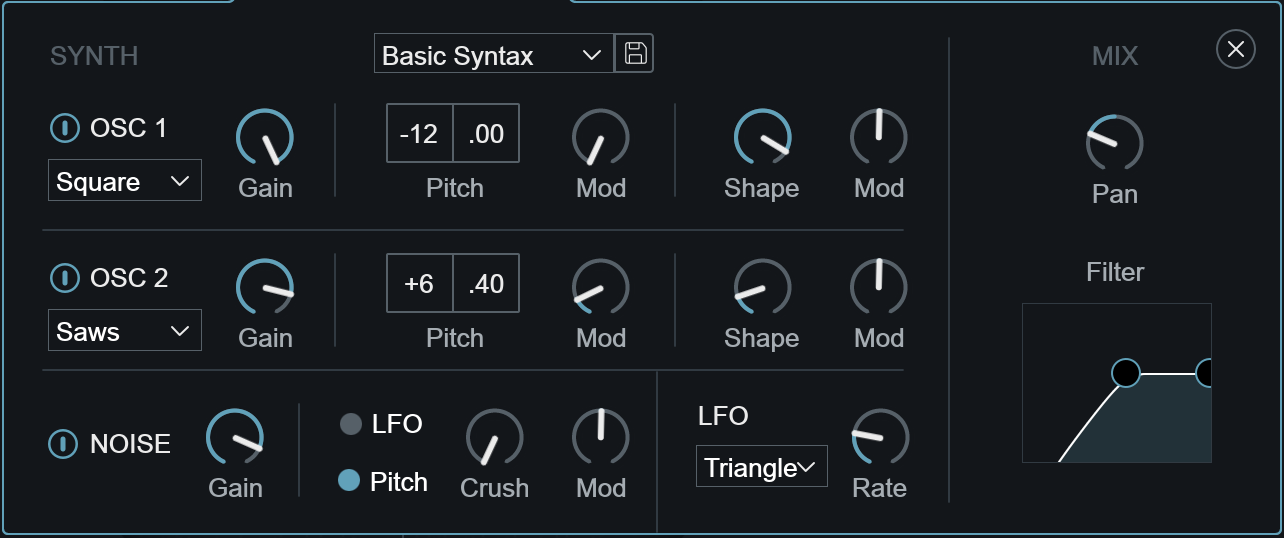
Advanced View: Synth
When Auto Mode or MIDI Mode is selected, you can control the oscillators and modulation settings for the notes being played into the Compuvox module synth engine.
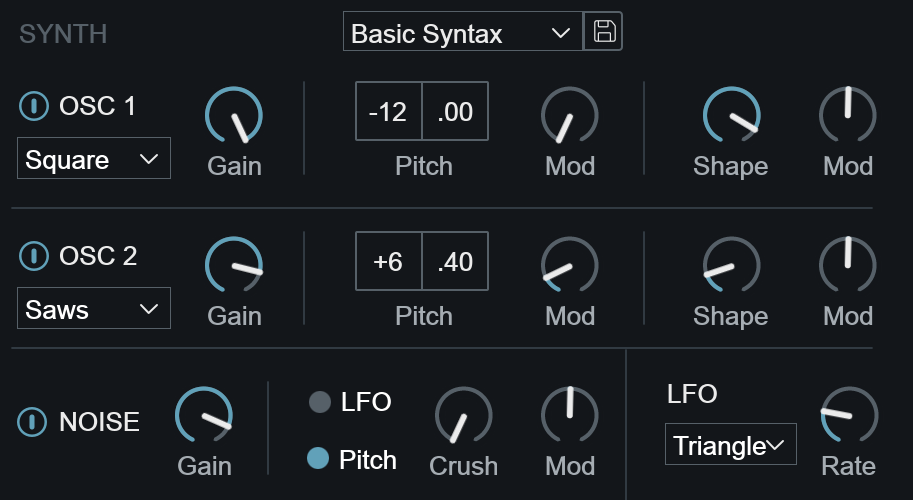
Sidechain mode disables synth controls
When Sidechain mode is selected, the sidechain input signal replaces the module synth engine as the carrier signal. Synth parameters are disabled in all modules when Sidechain is selected as the global mode.
Synth Presets
Modules that include synth parameters in the advanced view allow for synth presets to be saved and recalled.
- Default synth presets are loaded when VocalSynth is opened. Each module loads a different synth preset by default. Choosing the “Init” preset from the synth preset dropdown menu will return the module’s synth settings to the default preset values.
- Double-clicking on any knob in the “Synth” section of the advanced view will set the control to a factory default state, rather than resetting the value to the “Init” state.
Load Presets
Select a preset from the dropdown menu to load the saved synth parameter values in the current module.
Note
You can also quickly change synth presets without opening the advanced view by clicking on the left/right arrow buttons in the module main panel.
Save Presets
Click on the floppy disk button next to the preset dropdown menu to save a new Synth preset. Type a name in the text field and hit the enter/return key to save the preset.
OSC 1

| NAME | DESCRIPTION |
|---|---|
| ENABLE | Enables/disables Osc 1. |
| WAVEFORM | Selects the waveform shape. |
| GAIN | Adjusts the level of Osc 1. |
| PITCH: Coarse Tune | Tunes Osc 1 in coarse increments. (Semitones) |
| PITCH: Fine Tune | Tunes Osc 1 in fine increments. (Cents) |
| PITCH: MOD | Adjusts the amount of LFO modulation applied to Osc 1’s pitch. |
| SHAPE | Morphs the waveform shape. |
| SHAPE: MOD | Adjusts the amount of LFO modulation applied to the waveform shape. |
The following table outlines how each shape is affected by modulation:
| Shape | Modulation Behavior |
|---|---|
| SAW | Modifies the pulse width of the saw wave. |
| SQUARE | Modifies the pulse width of the square wave. |
| SYNC SAW | This shape simulates two synchronized saw oscillators. Modulating shape will modify the pitch ratio between the two saw oscillators. |
| TRIANGLE | Morphs the triangle wave into a saw wave shape. |
| SAWS | Simulates a swarm of seven saw waves. Modulating shape will modify the detune amount between the saw waves. |
OSC 2

| NAME | DESCRIPTION |
|---|---|
| ENABLE | Enables/disables Osc 2. |
| WAVEFORM | Selects the waveform shape. |
| GAIN | Adjusts the level of Osc 2. |
| PITCH: Coarse Tune | Tunes Osc 2 in coarse increments. (Semitones) |
| PITCH: Fine Tune | Tunes Osc 2 in fine increments. (Cents) |
| PITCH: MOD | Adjusts the amount of LFO modulation applied to Osc 2’s pitch. |
| SHAPE | Morphs the waveform shape. |
| SHAPE: MOD | Adjusts the amount of LFO modulation applied to the waveform shape. |
The following table outlines how each shape is affected by modulation:
| Shape | Modulation Behavior |
|---|---|
| SAW | Modifies the pulse width of the saw wave. |
| SQUARE | Modifies the pulse width of the square wave. |
| SYNC SAW | This shape simulates two synchronized saw oscillators. Modulating shape will modify the pitch ratio between the two saw oscillators. |
| TRIANGLE | Morphs the triangle wave into a saw wave shape. |
| SAWS | Simulates a swarm of seven saw waves. Modulating shape will modify the detune amount between the saw waves. |
Noise
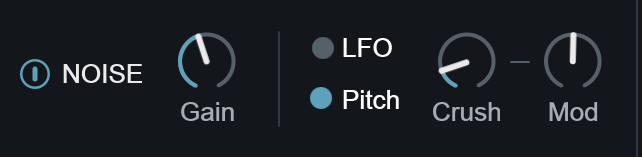
| NAME | DESCRIPTION |
|---|---|
| ENABLE | Enables/disables the Noise oscillator. |
| GAIN | Adjusts the level of Noise oscillator. |
| LFO/PITCH | Selects the modulation source used by the Crush Mod control. |
| CRUSH | Adjusts the amount of aliasing distortion applied to the noise oscillator. At the maximum value, the Noise oscillator will output white noise. |
| MOD | Adjusts the amount of modulation applied to the Crush parameter. The modulation source is determined by the LFO or Pitch selection to the left of the Crush knob. This Mod parameter allows for bidirectional modulation. |
LFO Mod Source
These parameters define the waveshape and speed of the LFO modulation source. All Mod knobs in the current synth view (except for the Crush Mod control, which can toggle between LFO or Pitch modulation sources) use this LFO as their modulation source.
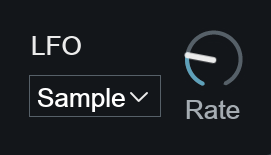
| NAME | DESCRIPTION |
|---|---|
| SHAPE | Selects the low frequency oscillator waveform shape. |
| RATE | Adjusts the speed of the low frequency oscillator. |
Advanced View: Mix
Adjusts stereo pan position and pass filter controls of the module’s output signal.
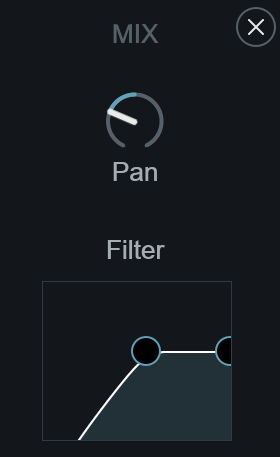
PAN
Controls the stereo pan position of the module’s output signal.
FILTER
Adjusts the center frequencies of high-pass and low-pass filters applied to the module’s output signal. Clicking and dragging on a node will adjust the center frequency of that filter. Clicking and dragging in the space below the two nodes will move both nodes at the same time.
Talkbox
Overview
The Talkbox module emulates the effect of a hardware talkbox effect popularized by rock artists such as Peter Frampton, The Who, and Stevie Wonder, to name just a few. A talkbox imparts vocal characteristics on an input source (a guitar, for example) by driving the output of an instrument through a tube that terminates in or around a performer’s mouth. The signal is then filtered and modulated by the mouth, tongue and lip movements of the performer. The resulting effect sounds as though the guitar is “speaking” or “talking”. With it’s tube-free design and unique formant shifting feature, the Talkbox module is an excellent alternative to the traditional Talkbox pedal.
Controls
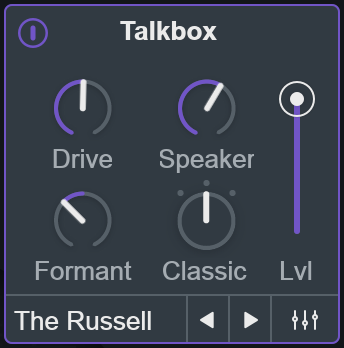
ENABLE
Enables/disables Talkbox module processing.
DRIVE
Increases the input gain into the Talkbox. Higher values will add a crunchy distortion to your signal. The additional harmonics generated when increasing the Drive amount can help to enhance intelligibility by effectively adding frequency content for your voice to modulate.
SPEAKER
Adjusts the amount of talkbox convolution applied to the signal. This simulates the internal acoustics of the speaker compression driver that is typically sealed inside of a hardware Talkbox pedal.
FORMANT
Adjusts the amount of formant shift applied to the incoming signal. VocalSynth’s talkbox algorithm has the ability to extract formant information from the incoming vocal, making this unique feature possible.
The deep, raspy, throatiness of a talkbox can sound very different from person to person, so if your vocal formants aren’t doing it for you, experiment by shifting them with this parameter.
MODE
Alters the response to high frequencies in both the modulator (voice) and carrier (instrument) input. You can choose from the following Talkbox modes:
- DARK: Offers a more brooding, bassy sound.
- CLASSIC: Most reminiscent of a classic talkbox, this is the default mode selection.
- BRIGHT: Offers an accentuated high-end that helps maximize bite and articulation.
LVL
Controls the output level of the Talkbox module.
SYNTH PRESET SELECTOR
Displays the currently selected synth preset name and allows you to change the synth preset without opening the advanced view. Clicking on the preset name display will open the synth preset list. Clicking on the left and right arrow buttons allows you to quickly load different synth presets. You can modify synth parameters and save new synth presets in the advanced view.
ADVANCED VIEW BUTTON
You can open the Advanced View window by clicking on the mixer button at the bottom of the module’s main panel:
Advanced View
The Talkbox Advanced View includes:
- SYNTH: Customize synth parameters & save synth presets.
- MIX: Control filtering and panning of the module’s output signal.
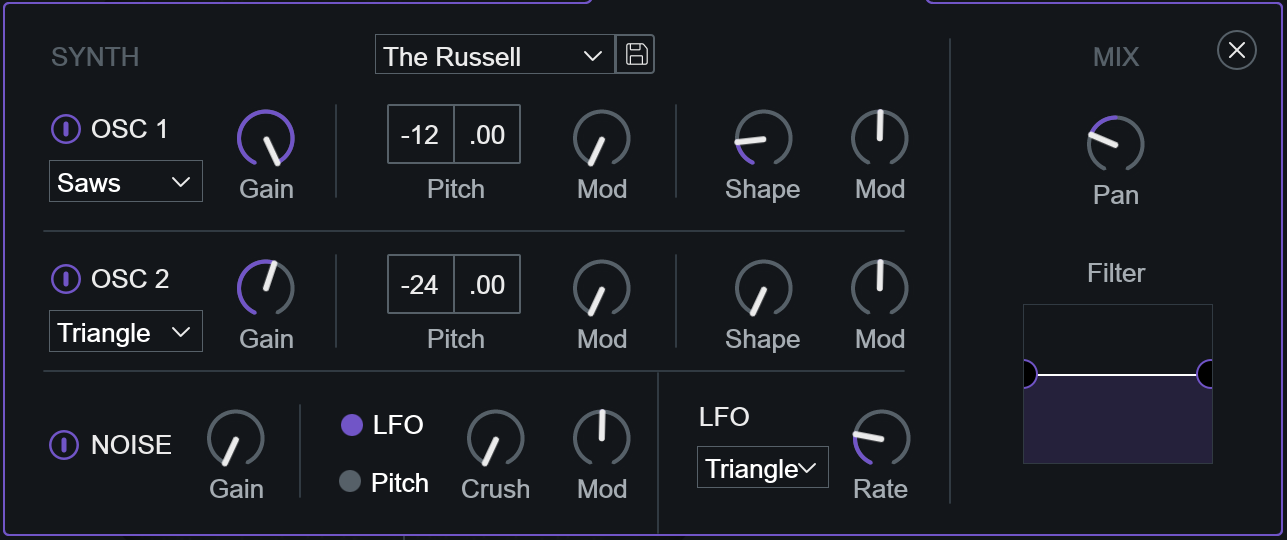
Advanced View: Synth
When Auto Mode or MIDI Mode is selected, you can control the oscillators and modulation settings for the notes being played into the Talkbox module synth engine.
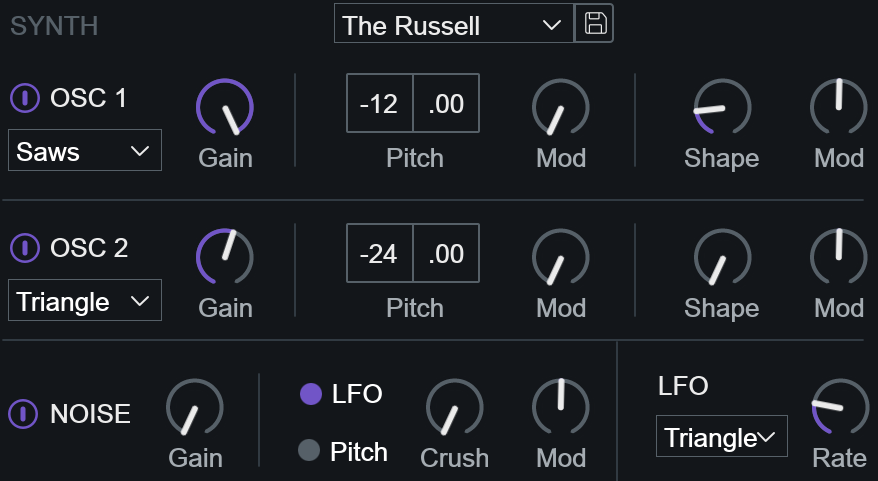
Sidechain mode disables synth controls
When Sidechain mode is selected, the sidechain input signal replaces the module synth engine as the carrier signal. Synth parameters are disabled in all modules when Sidechain is selected as the global mode.
SYNTH PRESETS
Modules that include synth parameters in the advanced view allow for synth presets to be saved and recalled.
- Default synth presets are loaded when VocalSynth is opened. Each module loads a different synth preset by default. Choosing the “Init” preset from the synth preset dropdown menu will return the module’s synth settings to the default preset values.
- Double-clicking on any knob in the “Synth” section of the advanced view will set the control to a factory default state, rather than resetting the value to the “Init” state.
LOAD PRESETS
Select a preset from the dropdown menu to load the saved synth parameter values in the current module.
Note
You can also quickly change synth presets without opening the advanced view by clicking on the left/right arrow buttons in the module main panel.
SAVE PRESETS
Click on the floppy disk button next to the preset dropdown menu to save a new Synth preset. Type a name in the text field and hit the enter/return key to save the preset.
OSC 1

| NAME | DESCRIPTION |
|---|---|
| ENABLE | Enables/disables Osc 1. |
| WAVEFORM | Selects the waveform shape. |
| GAIN | Adjusts the level of Osc 1. |
| PITCH: Coarse Tune | Tunes Osc 1 in coarse increments. (Semitones) |
| PITCH: Fine Tune | Tunes Osc 1 in fine increments. (Cents) |
| PITCH: MOD | Adjusts the amount of LFO modulation applied to Osc 1’s pitch. |
| SHAPE | Morphs the waveform shape. |
| SHAPE: MOD | Adjusts the amount of LFO modulation applied to the waveform shape. |
The following table outlines how each shape is affected by modulation:
| Shape | Modulation Behavior |
|---|---|
| SAW | Modifies the pulse width of the saw wave. |
| SQUARE | Modifies the pulse width of the square wave. |
| SYNC SAW | This shape simulates two synchronized saw oscillators. Modulating shape will modify the pitch ratio between the two saw oscillators. |
| TRIANGLE | Morphs the triangle wave into a saw wave shape. |
| SAWS | Simulates a swarm of seven saw waves. Modulating shape will modify the detune amount between the saw waves. |
OSC 2

| NAME | DESCRIPTION |
|---|---|
| ENABLE | Enables/disables Osc 2. |
| WAVEFORM | Selects the waveform shape. |
| GAIN | Adjusts the level of Osc 2. |
| PITCH: Coarse Tune | Tunes Osc 2 in coarse increments. (Semitones) |
| PITCH: Fine Tune | Tunes Osc 2 in fine increments. (Cents) |
| PITCH: MOD | Adjusts the amount of LFO modulation applied to Osc 2’s pitch. |
| SHAPE | Morphs the waveform shape. |
| SHAPE: MOD | Adjusts the amount of LFO modulation applied to the waveform shape. |
The following table outlines how each shape is affected by modulation:
| Shape | Modulation Behavior |
|---|---|
| SAW | Modifies the pulse width of the saw wave. |
| SQUARE | Modifies the pulse width of the square wave. |
| SYNC SAW | This shape simulates two synchronized saw oscillators. Modulating shape will modify the pitch ratio between the two saw oscillators. |
| TRIANGLE | Morphs the triangle wave into a saw wave shape. |
| SAWS | Simulates a swarm of seven saw waves. Modulating shape will modify the detune amount between the saw waves. |
NOISE
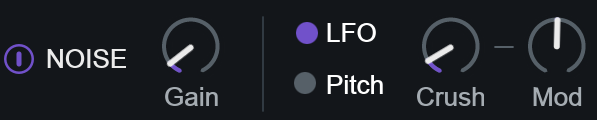
| NAME | DESCRIPTION |
|---|---|
| ENABLE | Enables/disables the Noise oscillator. |
| GAIN | Adjusts the level of Noise oscillator. |
| LFO/PITCH | Selects the modulation source used by the Crush Mod control. |
| CRUSH | Adjusts the amount of aliasing distortion applied to the noise oscillator. At the maximum value, the Noise oscillator will output white noise. |
| MOD | Adjusts the amount of modulation applied to the Crush parameter. The modulation source is determined by the LFO or Pitch selection to the left of the Crush knob. This Mod parameter allows for bidirectional modulation. |
LFO MOD SOURCE
These parameters define the waveshape and speed of the LFO modulation source. All Mod knobs in the current synth view (except for the Crush Mod control, which can toggle between LFO or Pitch modulation sources) use this LFO as their modulation source.
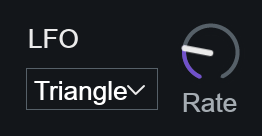
| NAME | DESCRIPTION |
|---|---|
| SHAPE | Selects the low frequency oscillator waveform shape. |
| RATE | Adjusts the speed of the low frequency oscillator. |
Advanced View: Mix
Adjusts stereo pan position and pass filter controls of the module’s output signal.
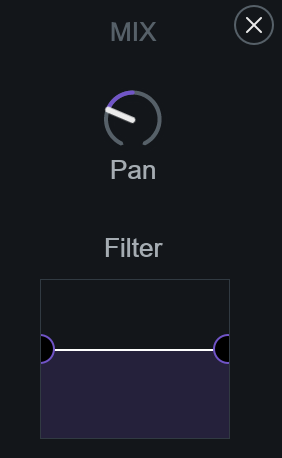
PAN
Controls the stereo pan position of the module’s output signal.
FILTER
Adjusts the center frequencies of high-pass and low-pass filters applied to the module’s output signal. Clicking and dragging on a node will adjust the center frequency of that filter. Clicking and dragging in the space below the two nodes will move both nodes at the same time.
Polyvox
Overview
Polyvox is a voice generator that allows you to create vocal harmonies based on your vocal. Voice generators come in all shapes and sizes but are based on a similar fundamental concept: sampling an incoming audio signal and then creating multiple additional versions of this audio signal using time/pitch stretching to achieve different intervals, such as an octave down, a third up, and so on. Voice generators are most commonly used on voice but there are many examples of this type of technology being used in guitar effects as well, usually some combination of pitch/whammy adjustment.
Controls
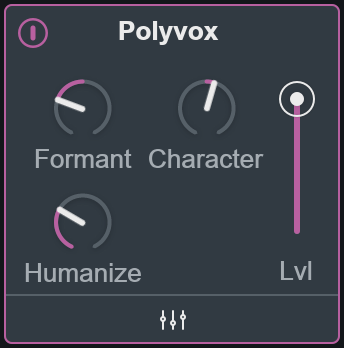
ENABLE
Enables/disables Polyvox module processing.
FORMANT
Transposes the vocal formants of the signals it reproduces. This type of control is often talked about as the difference between deeper voiced and higher, chipmunk-style sounds.
CHARACTER
Controls the relationship between the incoming vocal’s formant envelopes and how they are applied to the outgoing sound.
A higher value will cause the formants themselves to shift more in the direction of the pitch of the audio (e.g. sing a higher pitch, formants scale upwards). Interestingly, this parameter can be used to increase naturality, if, say, the generated voices were consistently a lot higher or lower than the original source, or it can be used to push a voice into a sonic realm the human voice-box isn’t capable of. Pro tip: This is a lot safer than Helium.
By default, the voices generated by Polyvox will sound like your voice singing at potentially different pitches. The algorithm preserves the formants of an incoming vocal exactly as is – crucial for a natural sound.
HUMANIZE
Varies time and pitch offset amount applied to the generated voices. This reduces phase cancellation and can increase realism slightly.
A higher Humanize value will start to introduce more extreme variations to the point of detuning, a very powerful auditory sensation, especially when done in unison.
LVL
Controls the output level of the Polyvox module.
Note
You can also control the Polyvox output level by dragging the node labeled ‘P’ that appears in the anemone visualization when the Polyvox module is enabled.
ADVANCED VIEW BUTTON
You can open the Advanced View window by clicking on the mixer button at the bottom of the module’s main panel:
Advanced View: Mix
Adjusts stereo pan position and pass filter controls of the module’s output signal.
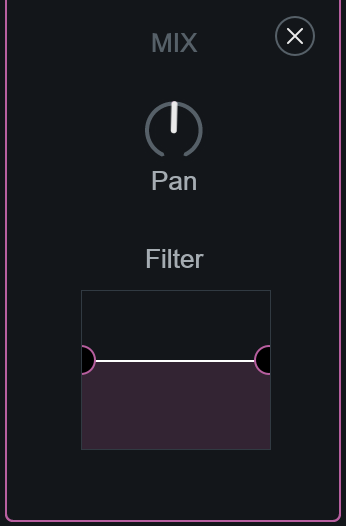
PAN
Controls the stereo pan position of the module’s output signal.
FILTER
Adjusts the center frequencies of high-pass and low-pass filters applied to the module’s output signal. Clicking and dragging on a node will adjust the center frequency of that filter. Clicking and dragging in the space below the two nodes will move both nodes at the same time.
Chorus
Overview
Chorus is a modulation effect that can simulate the slight variations in timing and pitch that occur when multiple performers play or sing the same part. This effect applies a short delay to the input signal and modulates the delay time using an LFO. The modulation of delay time introduces slight pitch variations in the chorused signal. Chorus can be used to add subtle depth and movement to your voice. When using aggressive modulation settings, Chorus can be used to add a more synthetic sounding vibrato effect.
Controls
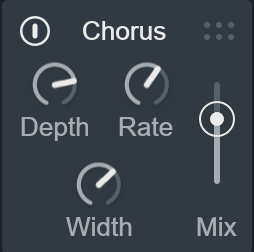
Depth
Adjusts the intensity of LFO modulation.
Rate
Adjusts the speed of LFO modulation.
Width
Adjusts the perceived stereo image of the processed output.
Mix
Adjusts the balance of dry (unprocessed) and wet (processed) audio at the output of the effect. 0 = dry (unprocessed); 100 = wet (processed).
Delay
Controls
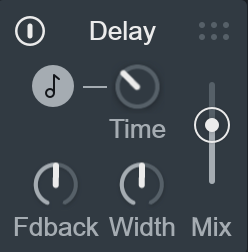
ENABLE
Enables/disables the Delay effect processing.
HOST SYNC
Enables/disables host tempo sync behavior for the Time control.
TIME
Determines the amount of time that will pass before each successive repeat of a dry audio input signal.
WIDTH
Adjusts the perceived stereo image of the processed signal.
FEEDBACK
Adjusts the amount of delayed signal that is fed back into the input of the delay.
MIX
Adjusts the balance of dry (unprocessed) and wet (processed) audio at the output of the effect. 0 = dry (unprocessed); 100 = wet (processed).
Distort
Overview
The Distort effect adds grit, attitude, and perceptual power to your vocal track. The Distort effect utilizes waveshaper distortion and several different algorithms to affect your vocal. A waveshaper creates complex harmonics in an audio signal by mapping the input signal (dry) to a new output signal (wet) based on the current “shape” of the waveshaper’s curve. There’s something unique and fun about the way a waveshaper sonically transforms a vocal, the most important areas of which are the tonal elements from 300 Hz to 900 Hz and the sibilant presence from 8 kHz to 15 kHz.
Controls
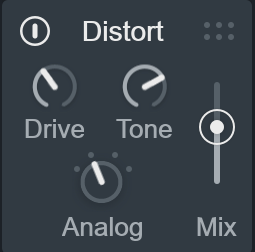
ENABLE
Enables/disables the Distort effect.
DRIVE
Increases the amount of overdrive applied to the selected distortion type.
TONE
Applies filtering to the distorted signal, effectively modifying the tone of the processed output.
TYPE
The Distort effect offers the following waveshapes:
- WARM
- ANALOG
- EDGY
- FUZZ
MIX
Adjusts the balance of dry (unprocessed) and wet (processed) audio at the output of the effect. 0 = dry (unprocessed); 100 = wet (processed).
Filter
Overview
The Filter effect offers four filters with adjustable resonance specially selected with vocal processing in mind.
Controls
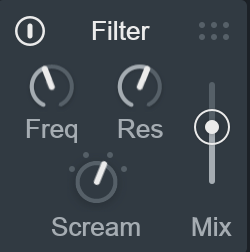
ENABLE
Enables/disables the Filter effect.
FREQ
Adjusts the center frequency of the filter.
RES
Adjusts the amount of emphasis applied to a narrow band of frequencies surrounding the center frequency of the filter.
TYPE
You can choose between the following 4 filter types:
- NY LP: A low pass filter that lends a warm, “buttery” quality to the low-end of a vocal fundamental. Based on an analog filter design originally developed in the 1960s in upstate New York.
- NY HP: A high pass filter that enhances the high frequency presence of a vocal. Based on an analog filter design originally developed in the 1960s in upstate New York.
- SCREAM: A very sharp resonant filter with a lot of amplification around the center frequency for aggressive peaks and overdrive.
- COMBO: Combines both flat HP and LP filters in a single sweepable control. Moving it downward engages a low-pass filter, moving it up engages a high-pass filter. In the center neither filter is applied.
MIX
Adjusts the balance of dry (unprocessed) and wet (processed) audio at the output of the effect. 0 = dry (unprocessed); 100 = wet (processed).
Ring Mod
Overview
Ring modulation is an effect that multiplies the frequency content of two input waveforms and outputs a new waveform that includes frequency content from both input sources and it’s own unique frequency content. The output waveform contains partials (inharmonic frequency content) that are responsible for the metallic sound characteristic of ring modulation. VocalSynth’s Ring Mod effect can be used as a Tremolo effect by setting the Freq control to lower values.
Controls
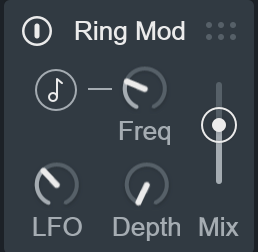
ENABLE
Enables/disables Ring Mod effect processing.
HOST SYNC
Enables/disables host tempo sync behavior for the Freq control.
Host Sync Mode Parameter Availability
When host sync is enabled, the LFO and Depth controls will be disabled.
FREQ
Adjusts the timing of frequency modulation. When Host Sync is enabled, musical note values are used to determine the timing of the effect. When Host Sync is disabled, the unit used to determine the timing of the effect is Hertz. At lower values the timing is slower, functioning as a Tremolo. At higher values the timing is fast, functioning as a Ring Mod.
LFO
Adjusts the rate of triangle-wave LFO modulation.
DEPTH
Adjusts the intensity of the triangle-wave LFO modulation.
MIX
Adjusts the balance of dry (unprocessed) and wet (processed) audio at the output of the effect. 0 = dry (unprocessed); 100 = wet (processed).
Shred
Overview
Shred comes with all new processing under the hood and the addition of a bite-sized 3 step sequencer in VocalSynth 2. The Shred effect takes chunks of audio and repeats them. The captured audio can be repeated at 3 different rates (each step has it’s own repeat rate), the rate and capture length values are always synced to the tempo of your session. Shred also allows you to choose from a number of sequence rhythms (based on Euclidean Rhythms) to vary the musical timing of switching between the different steps.
Controls
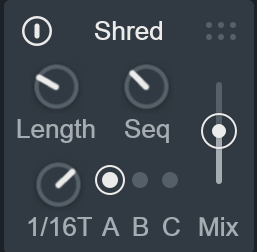
ENABLE
Enables/disables Shred effect processing.
LENGTH
Sets how often Shred captures new buffers of audio to repeat. This value is synced to the timing of your session and presented in musical note units (from 2 bars to 1/64T in length).
SEQ
Determines the Euclidean rhythm sequence used to switch between the different steps. There are 8 different rhythm sequences to choose from.
Tip
If you want Shred to repeat at one constant rate, set the Seq knob to 1. When Seq is set to 1, Shred will only repeat step A.
STEP REPEAT RATE
Sets how often the captured audio is repeated for the currently selected step when it is triggered by the sequencer. Each step has an independent Repeat Rate setting
Setting the repeat rate of the different sequence steps
The Repeat Rate knob only sets the rate value for the currently selected step. The currently selected sequence step will display a thin circle around the step’s activity light.
STEP ACTIVITY LIGHTS
The circles directly above each step label (A/B/C) turn white when the associated step is triggered to repeat. The rhythm used for triggering the steps is determined by the SEQ parameter setting.
MIX
Adjusts the balance of dry (unprocessed) and wet (processed) audio at the output of the effect. 0 = dry (unprocessed); 100 = wet (processed).
Transform
Overview
Transform is a convolution effect modeling a variety of guitar cabinets, speakers, and other devices that are key to significantly shaping a vocal sound. Re-amping a vocal through guitar amps is a commonly used production effect. The Transform effect’s impulse responses provide a natural post-filtering counterpart to distortion and filtering.
Controls
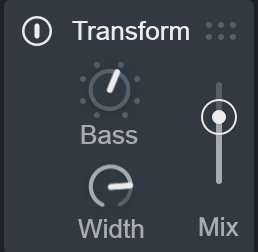
ENABLE
Enables/disables Transform effect processing.
TYPE
The following Impulse Responses (IR) are available in the Transform effect:
| Impulse Response | Description |
|---|---|
| HOLLOW | An IR based on a recording of someone knocking on an empty briefcase and, weirdly, this imparts a really cool sound. |
| BRIGHT | Samples an air pump that made a high, airy sound we thought sounded cool. |
| CREEP | An IR that various folks at iZotope have used and enjoyed for years but the original source has been lost to the ages. After asking around to see if anyone remembered, many explanations of Creep were volunteered, none of which can be printed. |
| BASS | A heavy mid scoop which is often used to give vocals a more polished, broadcast sound. |
| RADIO | Places your voice inside a 1960s transistor radio speaker/cabinet. |
| STERLING | A smaller amplifier with a low end drop-off and a heavy emphasis around 3 to 5 kHz for are more biting sound. |
| OXFORD | A popular 2x10 cabinet with a heavy mid range bump 700 Hz to 3 kHz and a steeper cutoff above 4 kHz. |
| CAMBRIDGE | A popular 2x10 cabinet with a “smile curve” mid range dip and a more gradual cutoff above 5 kHz. |
What is an Impulse Response?
An Impulse Response is a snapshot of a system’s output when it is presented with a brief input signal.
WIDTH
Adjusts the amount of stereo widening or narrowing effect that is blended into the transformed audio.
MIX
Adjusts the balance of dry (unprocessed) and wet (processed) audio at the output of the effect. 0 = dry (unprocessed); 100 = wet (processed).
Presets
Overview
Choose from a wide variety of factory presets and save your own custom vocal processing chains in the VocalSynth preset manager window. You can open the preset manager by clicking the button labeled Presets in the header area of VocalSynth.

Tip
You can quickly cycle through presets in the preset list by clicking the previous or next buttons to the right of the Presets button.
You can load, save, and manage presets in the preset manager window. You can load the settings associated with a preset by selecting it from the list.
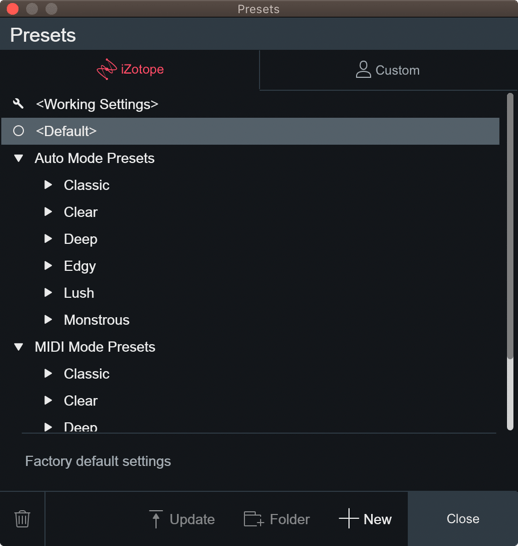
The Presets window is divided into two tabs:
- iZotope: lists all factory presets installed with VocalSynth 2.
- Custom: lists all custom presets you have saved or modified in VocalSynth 2.
There are two global options that appear in the iZotope and Custom tabs at the top of the preset list:
- Working Settings: Loads your most recent changes that are not otherwise associated with a preset.
- Default: Loads the factory default settings.
Dirty state indicator
When you make changes to a preset an asterisk (*) will be shown at the beginning of the preset name to indicate that it has been modified. You can add a new preset to save your settings or update the preset to dismiss the dirty state indicator.
Modify Custom Preset Names and Comments
You can modify preset file/folder names and preset comments when the Custom tab is selected.
- Edit custom preset name: Single-click twice on a preset name in the Custom tab to open an inline edit field. Press return to dismiss the inline edit field and save your changes.
- Edit custom preset comment: The area below the preset list displays descriptive text about the currently selected preset. Single-click the comment text box to open an inline edit field, press return to save changes to the comment.
Preset Manager Controls
The following buttons are located in the footer of the Presets window:

- Deletes the currently selected custom preset or preset folder.
- Update: Saves changes to a modified custom preset.
- Folder: Adds a new custom preset folder.
- New: Creates a new preset based on the current settings.
- Close: Dismiss the Presets window. Note: Double-clicking on a preset or preset folder will also close the Presets window.
Organize Custom Presets
In the Custom tab, you can click and drag presets or folders over other folders in the list to move them into that folder.
Preset Locations
Factory presets are installed to the following locations:
- Windows:
C:\Program Files\iZotope\VocalSynth 2\Global Presets\ - Mac:
/Library/Application Support/iZotope/VocalSynth 2/Global Presets/
Custom presets are saved to the following locations:
- Windows:
C:\users\username\Documents\iZotope\VocalSynth 2\Global Presets\ - Mac:
~/Documents/iZotope/VocalSynth 2/Global Presets/
Options
Overview
You can modify VocalSynth 2 configuration and preferences, check for updates and see your current authorization status in the Options dialog.
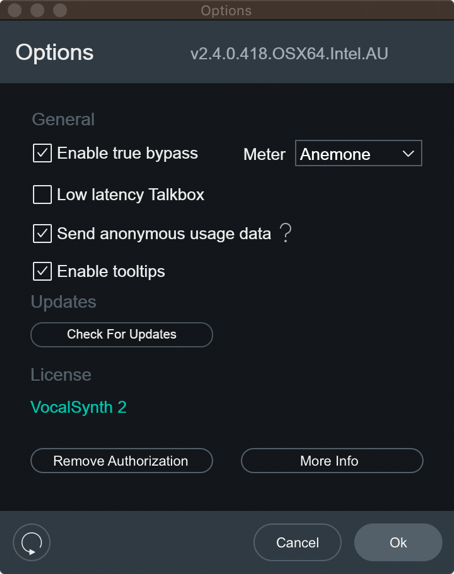
You can open the VocalSynth Options dialog by pressing the gear button on the right side of the plug-in header area.

The footer area of the Options dialog includes the following controls:

- Reset: Reverts all options to their factory default values.
- Ok: Saves changes and closes the Options dialog.
- Cancel: Closes the Options dialog without saving any recent changes.
General
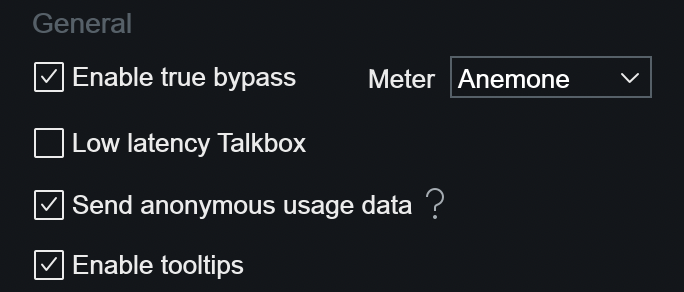
- Enable True Bypass: To ensure seamless transitions (no audible clicks or ramp up times) when enabling/disabling modules, the DSP is always running in the background. Enabling True Bypass means that when disabling a module or effect that particular DSP is fully disabled rather than running in the background. This saves on CPU resources and latency. Optimizing performance by enabling True Bypass means that you may hear audible transitions when enabling/disabling modules or effects. This may make it harder to do A/B comparisons.
- Low Latency Talkbox: VocalSynth’s Talkbox is able to intelligently analyze an incoming audio signal, extracting an accurate map/envelope of the formants without need for the hardware. With more latency comes more intelligibility but this compromises the ability for live performance. This parameter allows you to toggle between two types of algorithms, one optimized for live performance, and one for studio use, or the final bounce, which increases intelligibility. The algorithm for studio use has approximately 50 ms of latency at 44.1 kHz. This, coincidentally, is roughly the amount of time it takes all frequencies to pass (a 20 Hz cycle is 50 ms long).
- Send Anonymous Usage Data: When enabled, anonymous usage data will be sent to help iZotope improve
VocalSynth and other products in the future.
- ?: Opens the iZotope Analytics Opt-in policy in your web browser.
- Enable Tooltips: When enabled, control descriptions will be displayed in a tooltip when you hover your cursor over a parameter.
- Meter: Selects the meter to display in the center of the VocalSynth 2 interface. You can choose between:
- Anemone: New to VocalSynth 2, displays visualizations based on enabled module activity.
- Wave: Displays the wave meter visualization from VocalSynth 1.
Updates
The state of this button changes depending on if there is an available update, or if it is detected that you do not have iZotope’s Product Portal application installed.

- Download Product Portal: To stay up to date with new versions of VocalSynth and other iZotope products, download the iZotope Product Portal application.
- Check for Updates: Manually check for available updates. Clicking this button will open the Product Portal application and check for updates.
- Download Update: If an update is available, a small pink dot will appear here and on the options gear button in the main plug-in interface. Clicking the ‘Download Update’ button in the options window will launch the Product Portal application and display the Updates page.
Authorization
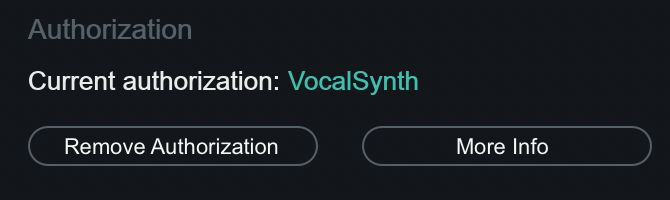
Displays your current authorization status and allows you to authorize or remove authorization. Read more about authorizing VocalSynth in the Authorization chapter.
- Current Authorization Status: displays the current authorization state of the product.
- Remove Authorization: removes the current authorization.
- More information: opens iZotope’s Authorization Support page in a web browser.
DAW Setup
Overview
The sections below outline how to setup VocalSynth 2 in popular DAWs.
To learn more about how the different modes work, see the Global Modes chapter.
Ableton Live
The following instructions apply to Ableton Live 9 and Ableton Live 10.
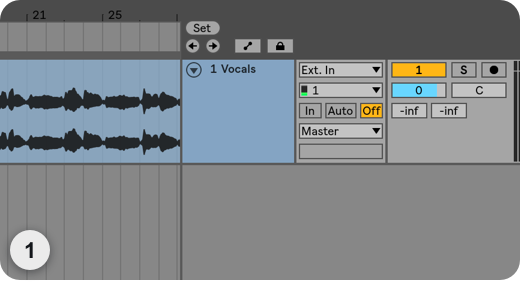
AUTO MODE | Ableton Live
Make sure there is audio on the track VocalSynth 2 is inserted on and press play.
MIDI MODE | Ableton Live
This mode uses a MIDI keyboard or the piano roll as a MIDI input.
More Information: MIDI Mode
See the MIDI Mode section of the Global Modes chapter to learn more about MIDI Mode.
- Create an Audio Track and insert VocalSynth 2.
- Create a MIDI Track and choose “In” from the Monitor drop down.
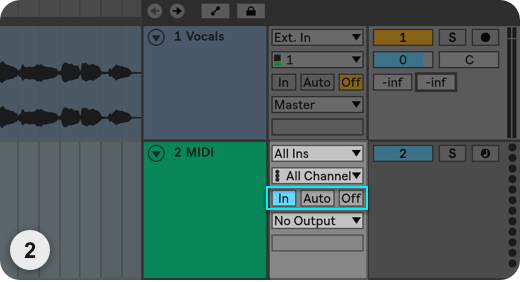
- On the MIDI Track’s “MIDI To” dropdown, choose the name of the Audio Track that has VocalSynth 2 on it. In
the next dropdown menu, select “VocalSynth 2.”
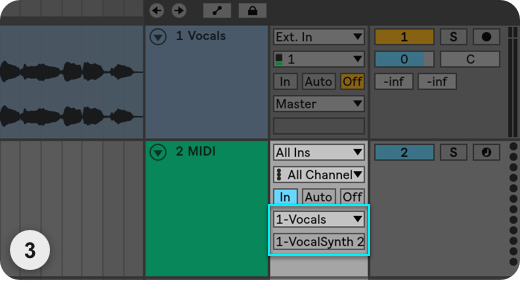
SIDECHAIN MODE | Ableton Live
The audio routed into VocalSynth’s sidechain input will be modulated by your vocal track, allowing you to make any audio source “talk.”
More Information: Sidechain Mode
See the Sidechain Mode section of the Global Modes chapter to learn more about Sidechain Mode.
- Create an Audio Track (1) and insert VocalSynth 2.
- Create a second Audio Track (2) and make sure there is some audio on Audio Track (2).
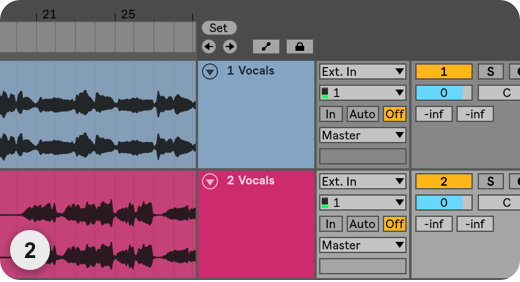
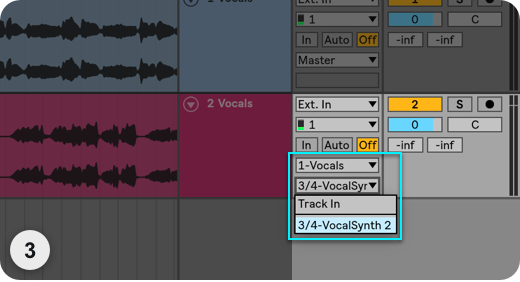
- On Audio Track (2), find the “Audio To” dropdown and choose Audio Track (1). In the next dropdown menu,
select “VocalSynth 2.”
Cubase
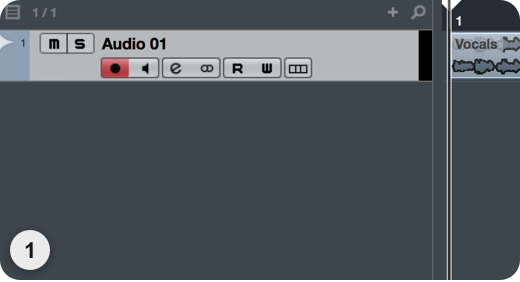
AUTO MODE | Cubase
Make sure there is audio on the track VocalSynth 2 is inserted on and press play.
MIDI MODE | Cubase
This mode uses a MIDI keyboard or the piano roll as a MIDI input.
More Information: MIDI Mode
See the MIDI Mode section of the Global Modes chapter to learn more about MIDI Mode.
Note: Plug-in Formats
- Use VST3 instances of VocalSynth 2 when using MIDI Mode in Cubase.
- MIDI mode will not work as expected when using VST2 instances of VocalSynth 2 in Cubase.
- Create an Audio Track and a MIDI Track.
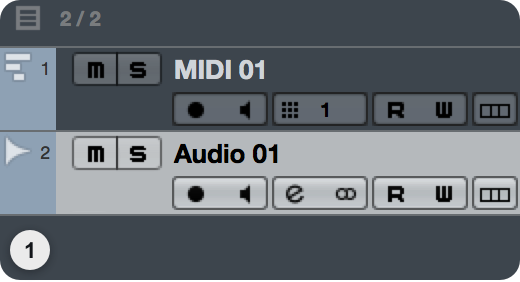
- Insert VocalSynth 2 on the Audio Track (VST3 only, not VST2).
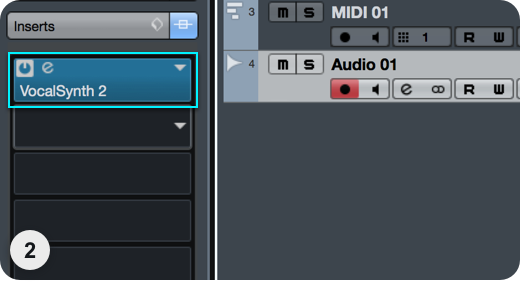
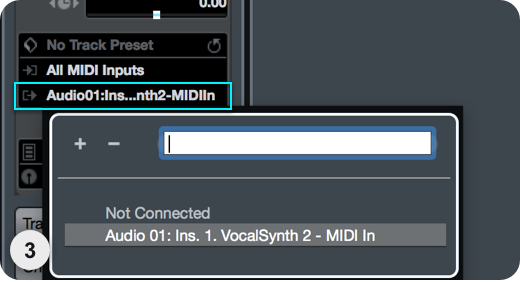
- Select VocalSynth 2 in the Output section of your MIDI Track.
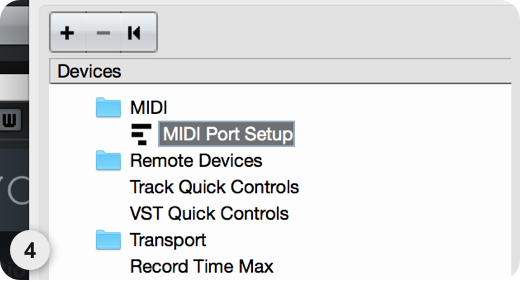
- If you are using a live MIDI device, make sure it is configured by going to Devices/Device Setup, and
navigating to the MIDI Port Setup option.
SIDECHAIN MODE | Cubase
The audio routed into VocalSynth’s sidechain input will be modulated by your vocal track, allowing you to make any audio source “talk.”
More Information: Sidechain Mode
See the Sidechain Mode section of the Global Modes chapter to learn more about Sidechain Mode.
Note: Plug-in Formats
- Use VST3 instances of VocalSynth 2 when using Sidechain Mode in Cubase.
- Sidechain mode will not work as expected when using VST2 instances of VocalSynth 2 in Cubase.
- Create two Audio Tracks.
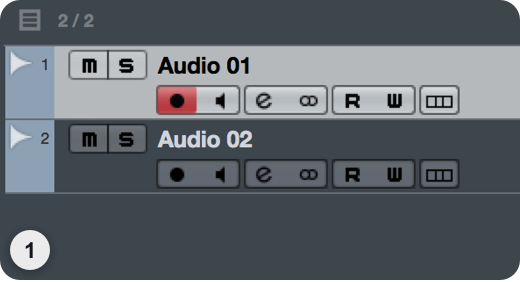
- Insert VocalSynth 2 on one of the two Audio Tracks (VST3 only) and activate sidechain.
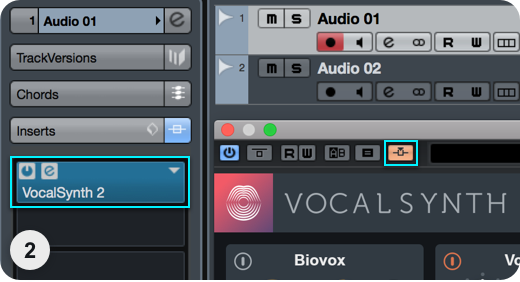
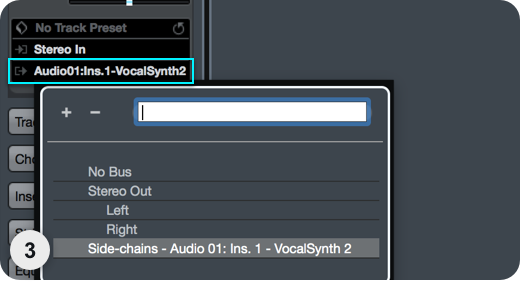
- On Audio Track 2, navigate to the Output section and set the Output to the sidechain input for VocalSynth.
FL Studio
AUTO MODE | FL Studio
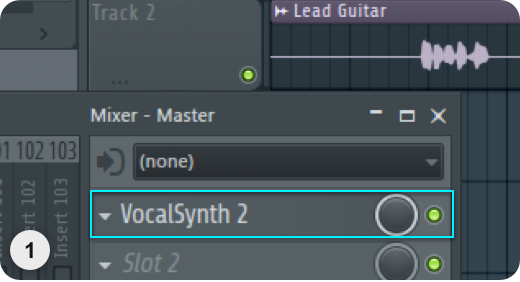
Make sure there is audio on the track VocalSynth 2 is inserted on and press play.
MIDI MODE | FL Studio
This mode uses a MIDI keyboard or the piano roll as a MIDI input.
More Information: MIDI Mode
See the MIDI Mode section of the Global Modes chapter to learn more about MIDI Mode.
Note: Plug-in Formats
- Use VST3 instances of VocalSynth 2 when using MIDI Mode in FL Studio.
- MIDI mode will not work as expected when using VST2 instances of VocalSynth 2 in FL Studio.
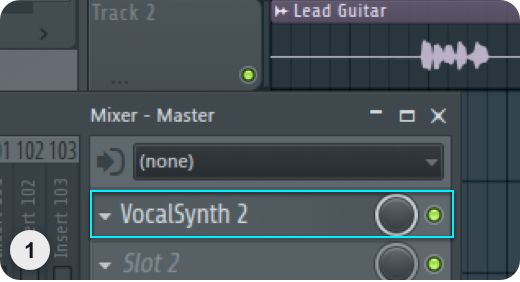
- Create an Audio Track and insert VocalSynth 2 as a VST3 (not VST2) onto this track.
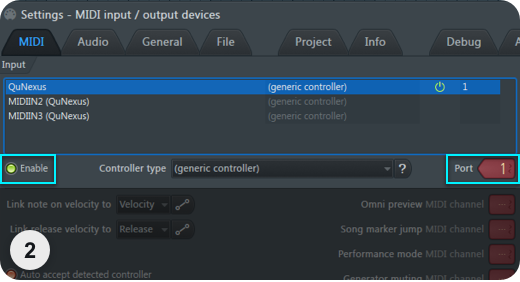
- Go to Options/MIDI Settings. Under “Input,” select your MIDI keyboard and the desired Port, then click
“Enable.” If you don’t have a keyboard, insert a MIDI Out instrument into your project and select the port
in the MIDI Out window.
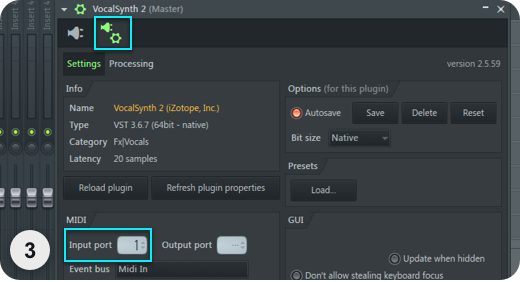
- Open VocalSynth 2 and click the gear icon to open the plug-in settings. Make sure the MIDI Input Port
matches the Port you selected for your device.
SIDECHAIN MODE | FL Studio
The audio routed into VocalSynth’s sidechain input will be modulated by your vocal track, allowing you to make any audio source “talk.”
More Information: Sidechain Mode
See the Sidechain Mode section of the Global Modes chapter to learn more about Sidechain Mode.
Note: Plug-in Formats
- Use VST3 instances of VocalSynth 2 when using Sidechain Mode in FL Studio.
- Sidechain mode will not work as expected when using VST2 instances of VocalSynth 2 in FL Studio.
- Create two Audio Tracks: one with VocalSynth 2 inserted as a VST3 (not VST2), and one with the audio you
want to send to VocalSynth 2.
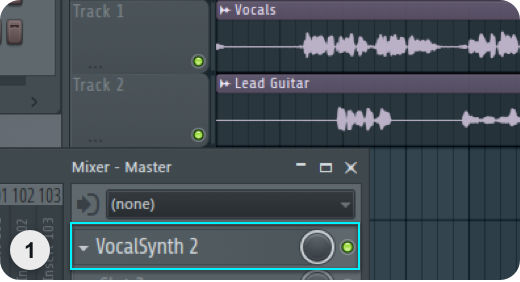
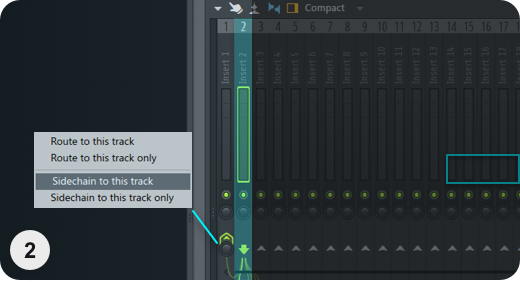
- In the FL Studio Mixer window, select Track 2 then, right-click on the upward arrow at the bottom of your
VocalSynth 2 track and select “Sidechain to this track.”
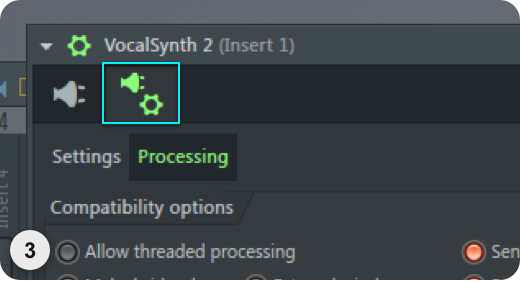
- Open the VocalSynth 2 window, and click on the gear icon in the upper left corner of the plug-in window
to open the plug-in settings.
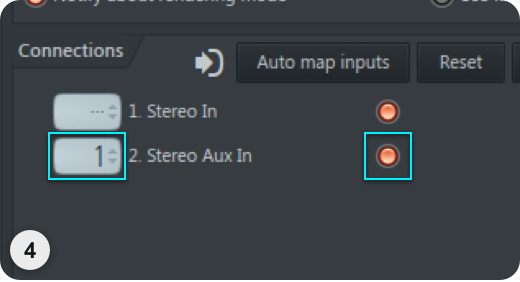
- In Processing, enable the “Stereo Aux In” option, then left-click in the grey box to select the Sidechain
input.
Logic Pro X
AUTO MODE | Logic Pro X
Make sure there is audio on the track VocalSynth 2 is inserted on and press play.
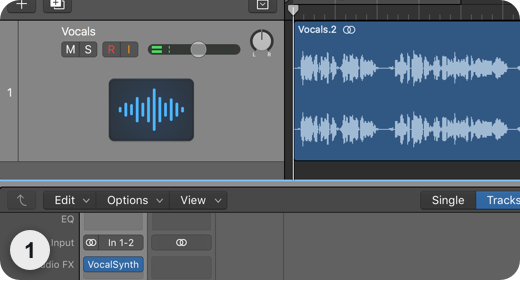
MIDI MODE | Logic Pro X
This mode uses a MIDI keyboard or the piano roll as a MIDI input.
More Information: MIDI Mode
See the MIDI Mode section of the Global Modes chapter to learn more about MIDI Mode.
- “Advanced Tools” need to be enabled in Logic’s Preferences menu to use MIDI mode in VocalSynth 2. To
enable “Advanced Tools” in Logic:
- Navigate to: “Logic Pro X” menu > “Preferences” > “Advanced Tools…”.
- Check the “Show Advanced Tools” box.
- Select “Enable All” at the bottom of the window.
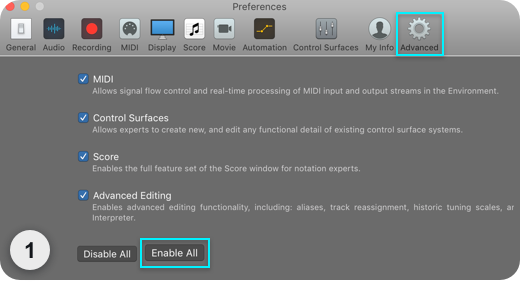
- Create an Audio Track and mute it.
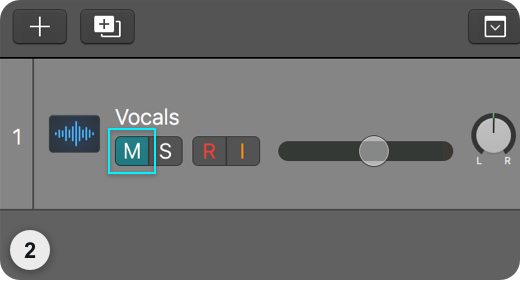
- **Create a Software Instrument Track and insert VocalSynth 2 into the Instrument slot.
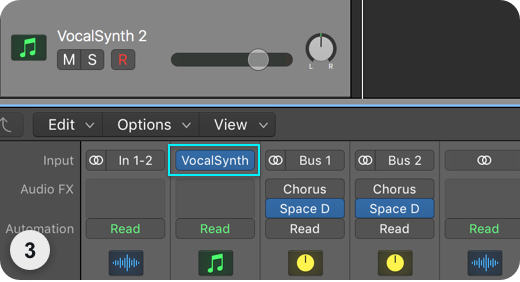
- In the VocalSynth 2 plug-in window, navigate to the Sidechain dropdown menu and select the Audio track
you want to apply VocalSynth to.
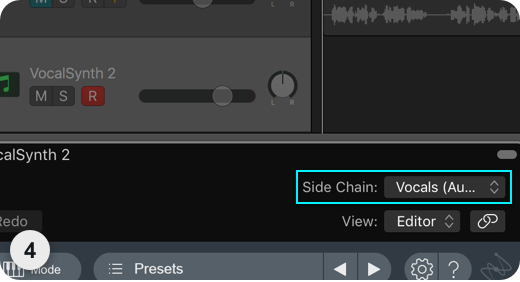
SIDECHAIN MODE | Logic Pro X
The audio routed into VocalSynth’s sidechain input will be modulated by your vocal track, allowing you to make any audio source “talk.”
More Information: Sidechain Mode
See the Sidechain Mode section of the Global Modes chapter to learn more about Sidechain Mode.
- “Advanced Tools” need to be enabled in Logic’s Preferences menu to use Sidechain mode in VocalSynth 2.
To enable “Advanced Tools” in Logic:
- Navigate to: “Logic Pro X” menu > “Preferences” > “Advanced Tools…”.
- Check the “Show Advanced Tools” box.
- Select “Enable All” at the bottom of the window.
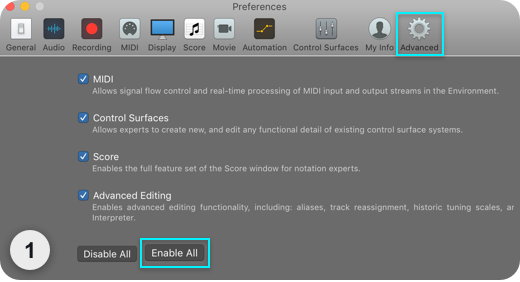
- Create two Audio Tracks with audio on both. Try vocals on Track 1 and the instrument on Track 2.
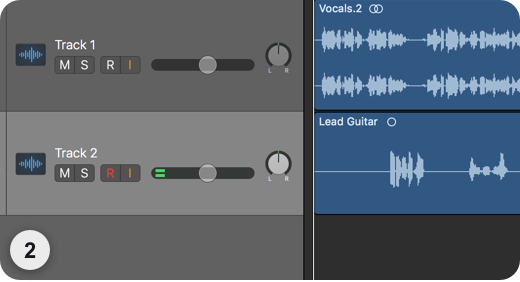
- Insert VocalSynth as a plug-in on Track 1.
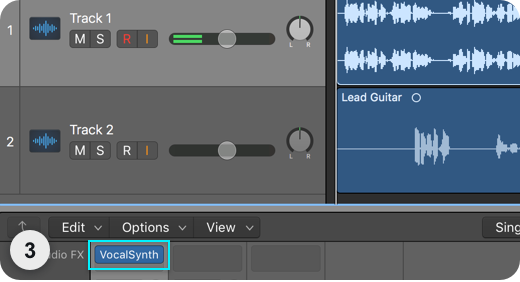
- From the VocalSynth 2 plug-in window, find the Sidechain menu and choose Track 2.
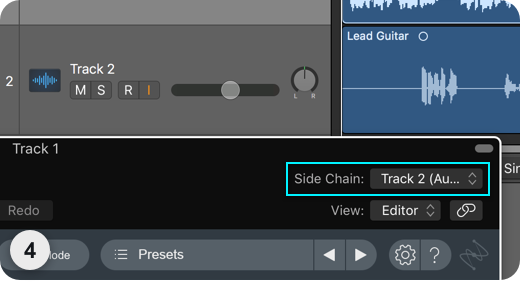
Pro Tools
AUTO MODE | Pro Tools
Make sure there is audio on the track VocalSynth 2 is inserted on and press play.
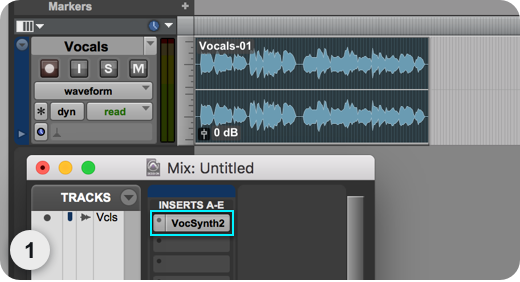
MIDI MODE | Pro Tools
This mode uses a MIDI keyboard or the piano roll as a MIDI input.
More Information: MIDI Mode
See the MIDI Mode section of the Global Modes chapter to learn more about MIDI Mode.
- Create an Audio Track and a MIDI Track.
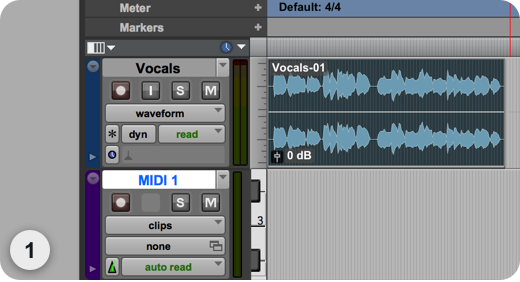
- Insert VocalSynth 2 onto the Audio Track.
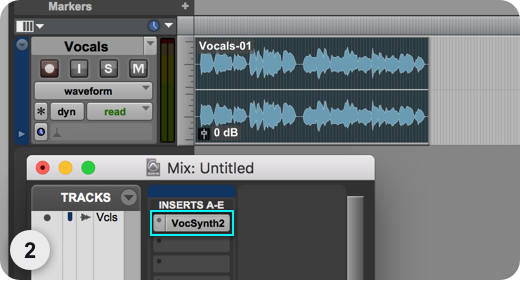
- In the Output dropdown menu of the MIDI Track, select any MIDI channel you want for VocalSynth 2.
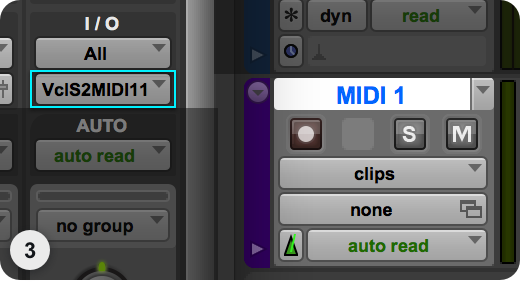
SIDECHAIN MODE | Pro Tools
The audio routed into VocalSynth’s sidechain input will be modulated by your vocal track, allowing you to make any audio source “talk.”
More Information: Sidechain Mode
See the Sidechain Mode section of the Global Modes chapter to learn more about Sidechain Mode.
- Create an Audio Track (1) and insert VocalSynth 2.
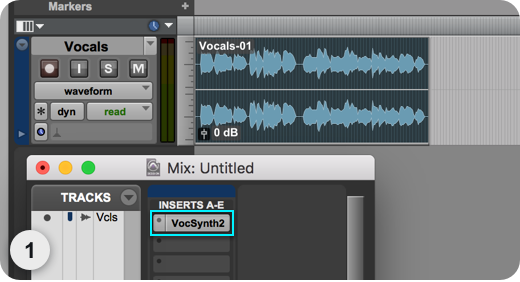
- Create a second Audio track (2) and make sure there is some audio on it.
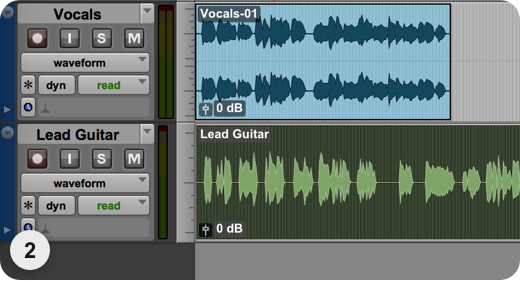
- On Audio Track (2), set the Output to any open Bus.
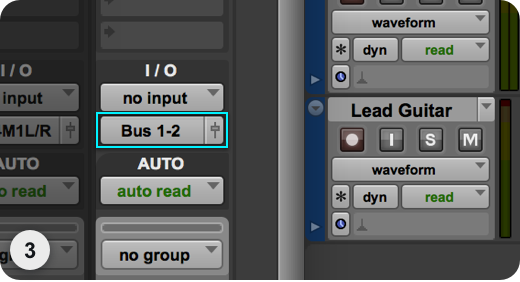
- From the VocalSynth 2 plug-in window (Track 1), select the Bus you set in Step 3 from the key input
dropdown.
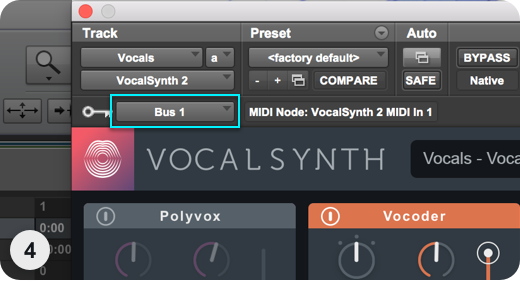
REAPER
AUTO MODE | REAPER
Make sure there is audio on the track VocalSynth 2 is inserted on and press play.
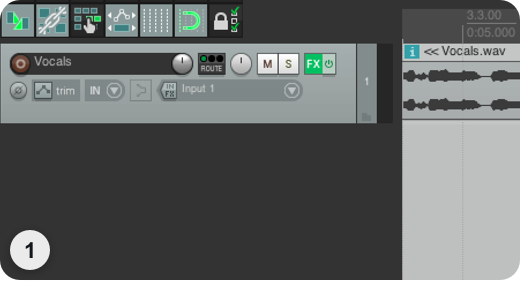
MIDI MODE | REAPER
This mode uses a MIDI keyboard or the piano roll as a MIDI input.
More Information: MIDI Mode
See the MIDI Mode section of the Global Modes chapter to learn more about MIDI Mode.
- Create an Audio Track and insert VocalSynth 2.
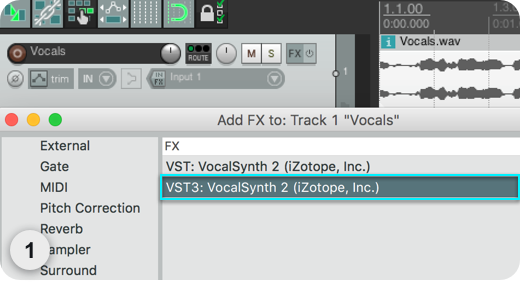
- Click “Input 1” to open the dropdown and choose your MIDI device.
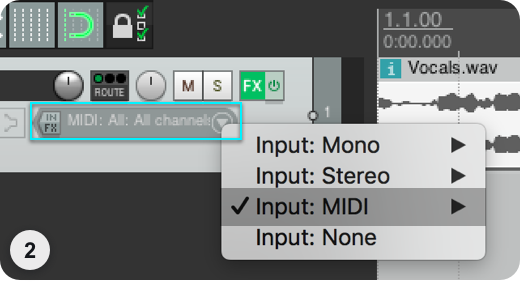
- Click the speaker to turn on “Record Monitoring” and record-enable your Track.
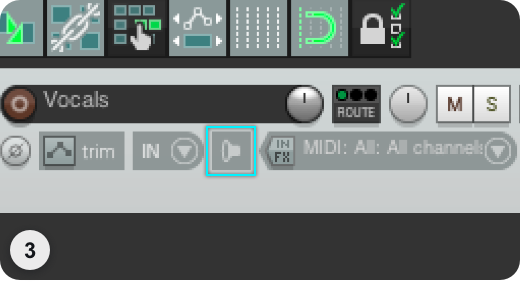
SIDECHAIN MODE | REAPER
The audio routed into VocalSynth’s sidechain input will be modulated by your vocal track, allowing you to make any audio source “talk.”
More Information: Sidechain Mode
See the Sidechain Mode section of the Global Modes chapter to learn more about Sidechain Mode.
- Create an Audio Track (1) and insert VocalSynth 2.
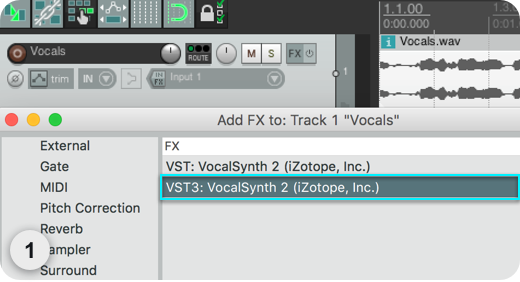
- Create a second Audio track (2) and make sure there is some audio on Audio Track (2).
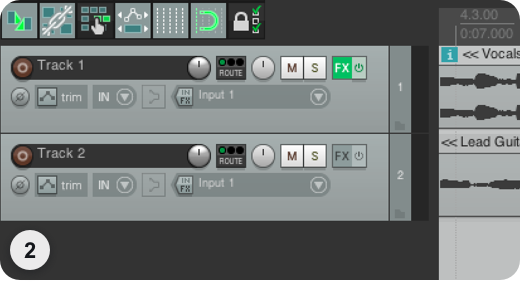
- On Track (1), click the Route button, select “Add new receive,” choose Track (2), choose “pre-fader” and
choose 3/4 instead of 1/2.
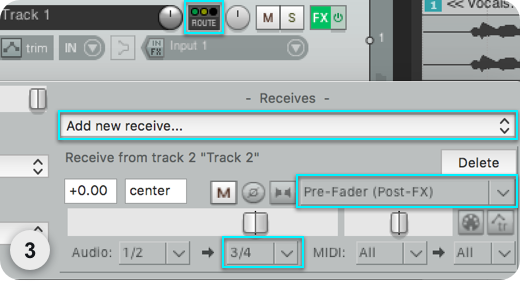
- Bring the fader of Audio Track (2) to off.
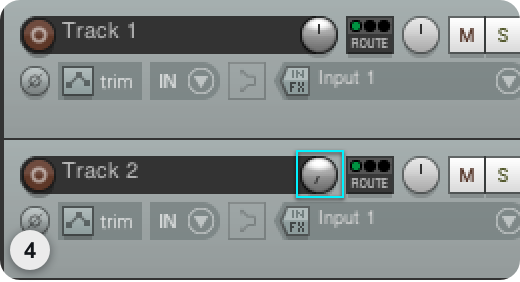
Reason
AUTO MODE | Reason
Make sure there is audio on the track VocalSynth 2 is inserted on and press play.
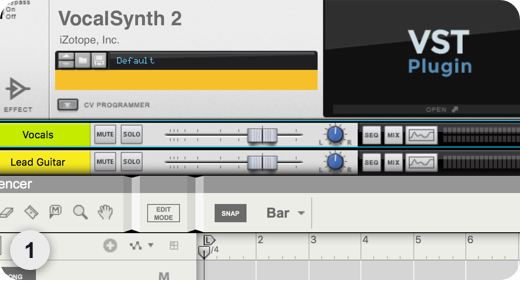
MIDI MODE | Reason
This mode uses a MIDI keyboard or the piano roll as a MIDI input.
More Information: MIDI Mode
See the MIDI Mode section of the Global Modes chapter to learn more about MIDI Mode.
- Create an Audio Track and and insert VocalSynth 2.
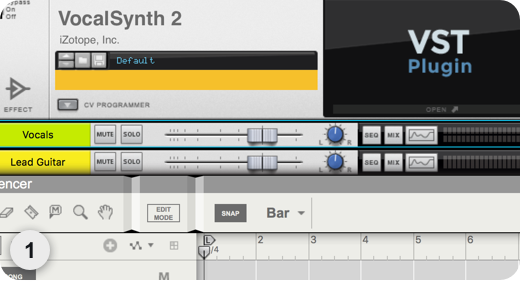
- Open Preferences/Sync. Under “External Control: Bus A,” choose your MIDI Device.
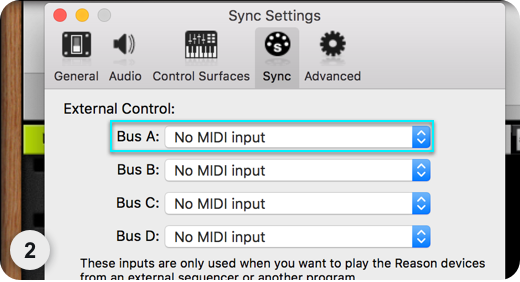
- Open Adv. MIDI Panel from the “Hardware Interface” at the top of the rack.
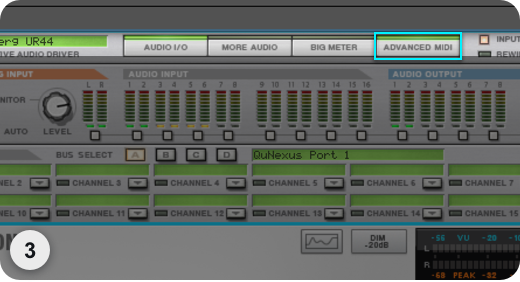
- In any channel from the Adv. MIDI Panel, from the triangle button dropdown, choose your Audio Track and
then the VocalSynth 2 plug-in.
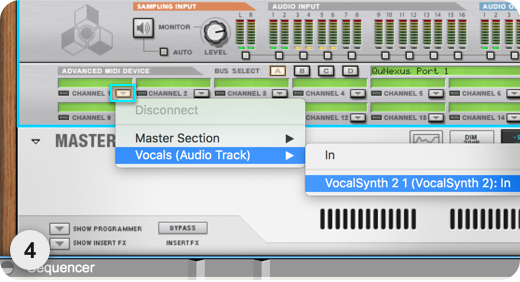
SIDECHAIN MODE | Reason
The audio routed into VocalSynth’s sidechain input will be modulated by your vocal track, allowing you to make any audio source “talk.”
More Information: Sidechain Mode
See the Sidechain Mode section of the Global Modes chapter to learn more about Sidechain Mode.
- Create two Audio Tracks, and make sure there is audio on one of the tracks.
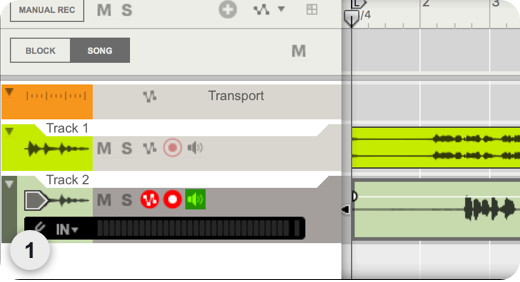
- Insert VocalSynth 2 onto Track 1.
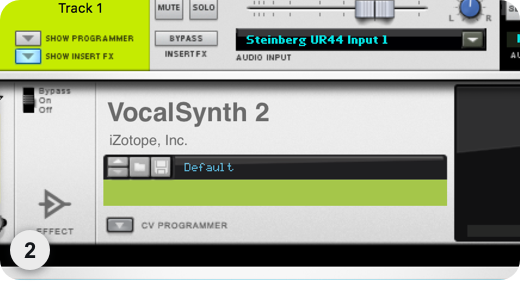
- Press Tab to flip to the back of the rack, and press the CV Programmer button on Track 1.
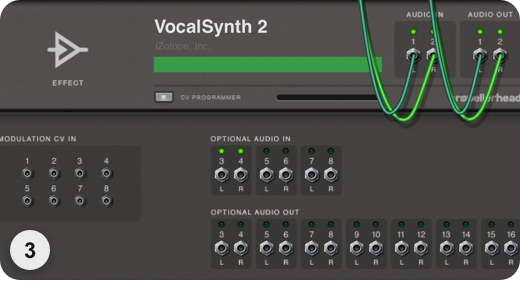
- Expand track 2 and connect the Output cables from Track 2 to “Optional Audio In” 3-4 of Track 1.
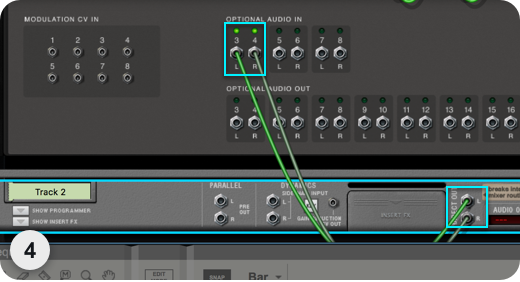
Studio One
AUTO MODE | Studio One
Make sure there is audio on the track VocalSynth 2 is inserted on and press play.
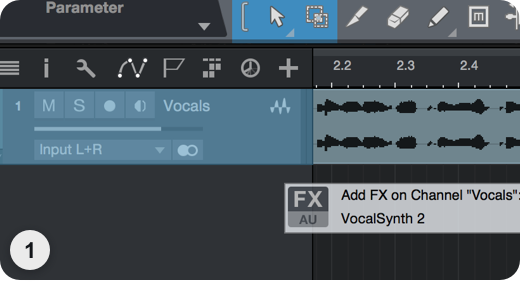
MIDI MODE | Studio One
This mode uses a MIDI keyboard or the piano roll as a MIDI input.
More Information: MIDI Mode
See the MIDI Mode section of the Global Modes chapter to learn more about MIDI Mode.
- Create an Audio Track and insert VocalSynth 2 (VST3) on the track.
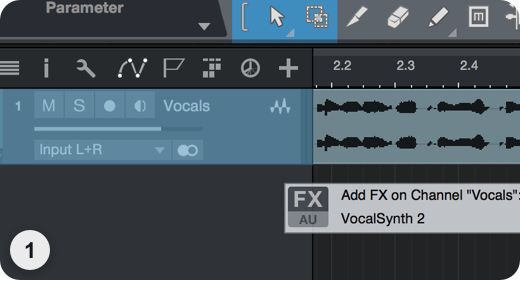
- Create an Instrument Track and select “VocalSynth 2” in the output section.
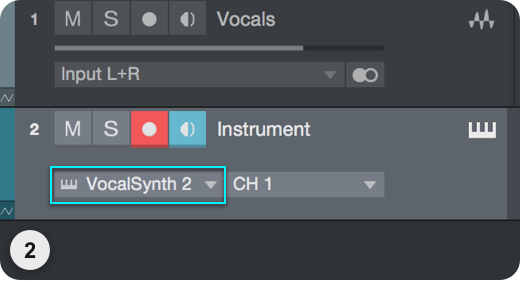
- If you are using a live MIDI device, make sure to set the input of this track to your MIDI device. If
you do not see your device available, open the Studio One Preferences and select the External Devices
option to configure it.
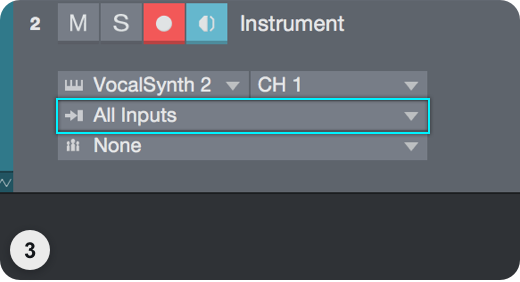
SIDECHAIN MODE | Studio One
The audio routed into VocalSynth’s sidechain input will be modulated by your vocal track, allowing you to make any audio source “talk.”
More Information: Sidechain Mode
See the Sidechain Mode section of the Global Modes chapter to learn more about Sidechain Mode.
- Create an Audio Track (1) and insert VocalSynth 2.
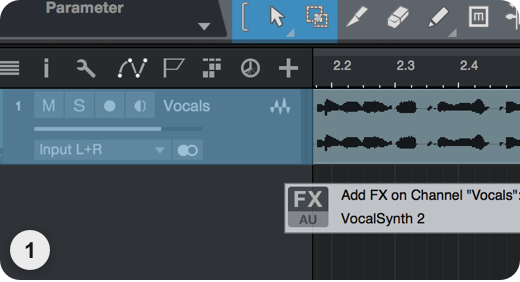
- Create a second Audio Track (2) and make sure there is some audio on Audio Track (2).
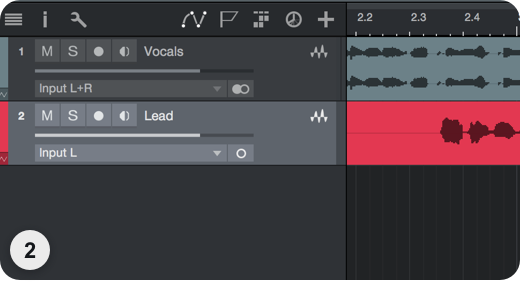
- Open the Console View, click “+” in the Sends section of Track (2), and select VocalSynth 2 under
Sidechains.
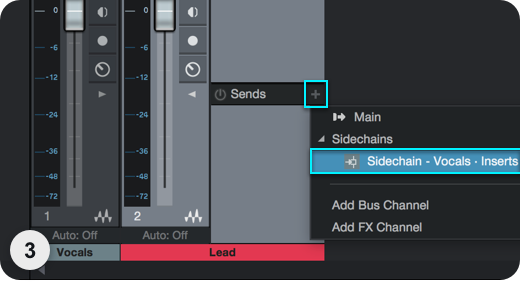
- Turn the Pre/Post-fader toggle to Pre-Fader (the toggle will turn yellow) and turn down the volume fader
for the sidechain’s Audio Track.
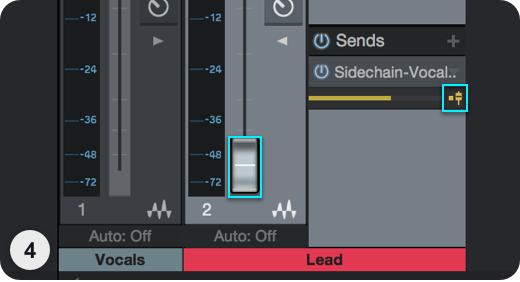
Authorization
Overview
The first time you open VocalSynth 2, the Authorization window will appear.
The Authorization window allows you to:
- TRIAL: Start or continue a Trial period evaluation prior to purchasing.
- DEMO: Continue evaluating the product with Demo limitations (after the 10 day Trial period has been exceeded).
- AUTHORIZE: Authorize the product with a serial number.
Trial and Demo Modes
A 10 day trial period will start when you first open the VocalSynth 2 plug-in. After the 10 day trial period has expired, VocalSynth 2 will enter demo mode. To disable Trial or Demo mode, you must authorize the product with a valid serial number.
Trial Mode
Trial mode begins when VocalSynth 2 is first instantiated in a DAW/NLE. The authorization wizard window will display the number of days remaining in your trial period.
Clicking on the “Continue” button will dismiss the Authorization window and allow you to continue evaluating VocalSynth 2 in trial mode.
Demo Mode
After 10 days, VocalSynth 2 will operate in Demo mode. VocalSynth 2 will periodically output silence when operating in demo mode. If you would like to continue evaluating VocalSynth 2 in demo mode, click the “Demo” button.
Authorizing VocalSynth 2
There are three methods for authorizing VocalSynth 2:
- Online Authorization: Use this method to authorize VocalSynth 2 on a machine that is connected to the internet.
- Offline Authorization: Use this method to authorize VocalSynth 2 on a machine that is not connected to the internet.
- iLok Authorization: Use this method to authorize VocalSynth 2 using an iLok.
More Information
For information on authorization, please visit the iZotope website: https://www.izotope.com/authorization
Additional help authorizing VocalSynth 2
- Check out the Customer Care pages on the iZotope website: http://www.izotope.com/support
- Contact our Customer Care department at support@izotope.com
More information on iZotope’s Customer Care department and policies can be found in the iZotope Customer Care chapter.
Customer Care
Purchasing VocalSynth 2
If you are using the demo version of VocalSynth 2 and would like the full version, you can purchase VocalSynth 2 direct from the iZotope online store: https://www.izotope.com/en/shop.html
Once your purchase is complete, you will be sent an email confirmation and a full version serial number that can be used to fully authorize your current installation of VocalSynth 2.
iZotope Customer Care policy
iZotope is happy to provide professional technical Customer Care to all registered users absolutely free of charge. https://support.izotope.com/hc/en-us/
We also offer valuable pre-sales technical Customer Care to customers who may be interested in purchasing an iZotope product. Before contacting iZotope Customer Care, you can search our Product Knowledgebase to see if the solution to your problem has already been published.
- How long does iZotope provide customer support for purchased products? You can email us with any question for 12 months after you buy any iZotope product. Past 12 months, we’ll still help you with your account and authorization but will not provide technical support for in-depth product questions. If you need more detailed help on how to use the product, please check out our FAQs and Tutorials.
- How long does iZotope support its products? Although we can’t guarantee it, we do our best to keep our products up to date with the operating systems and plug-in hosts that we support. Sometimes, other companies make changes that we’re not able to support, but we actively work with other companies to avoid these sorts of compatibility problems. We also do our best to address bug fixes within the product itself to ensure our products operate in accordance with our specifications.
We will provide software updates for 12 months from product release. After 12 months, no software updates will be provided.
For details on what operating systems and plug-in host software are officially supported for a product, please check that product’s Specs page.
Contacting iZotope Customer Care
For additional help with VocalSynth 2:
- Check out the Customer Care pages on our website: https://support.izotope.com/hc/en-us/
- Contact our Customer Care department at support@izotope.com
iZotope’s highly trained Customer Care team is committed to responding to all requests within one (1) business day and frequently respond faster. Please try to explain your problem with as much detail and clarity as possible. This will ensure our ability to solve your problem accurately, the first time around. Please include all system specs and the build/version of VocalSynth 2 that you are using.
Once your Customer Care request is submitted, you will receive a confirmation email from iZotope Customer Care. If you do not receive this email within a few minutes, please check your spam folder and make sure our responses are not getting blocked. To prevent this from happening please add support@izotope.com to your list of allowed email addresses.
International distribution
Customer Care is also available from our international distributors worldwide for any customers who purchased their iZotope products through a certified iZotope distributor.
Check with your local distributor for availability. If you would like help locating your local distributor please contact iZotope Customer Care.
Thanks for using VocalSynth 2!
-The iZotope Team
License Information
Table of Contents
Anti-Grain Geometry
Version 2.4
Copyright (c) 2002-2005 Maxim Shemanarev (McSeem).
Redistribution and use in source and binary forms, with or without modification, are permitted provided that the following conditions are met:
-
Redistributions of source code must retain the above copyright notice, this list of conditions and the following disclaimer.
-
Redistributions in binary form must reproduce the above copyright notice, this list of conditions and the following disclaimer in the documentation and/or other materials provided with the distribution.
-
The name of the author may not be used to endorse or promote products derived from this software without specific prior written permission.
THIS SOFTWARE IS PROVIDED BY THE AUTHOR ‘‘AS IS’’ AND ANY EXPRESS OR IMPLIED WARRANTIES, INCLUDING, BUT NOT LIMITED TO, THE IMPLIED WARRANTIES OF MERCHANTABILITY AND FITNESS FOR A PARTICULAR PURPOSE ARE DISCLAIMED. IN NO EVENT SHALL THE AUTHOR BE LIABLE FOR ANY DIRECT, INDIRECT, INCIDENTAL, SPECIAL, EXEMPLARY, OR CONSEQUENTIAL DAMAGES (INCLUDING, BUT NOT LIMITED TO, PROCUREMENT OF SUBSTITUTE GOODS OR SERVICES; LOSS OF USE, DATA, OR PROFITS; OR BUSINESS INTERRUPTION) HOWEVER CAUSED AND ON ANY THEORY OF LIABILITY, WHETHER IN CONTRACT, STRICT LIABILITY, OR TORT (INCLUDING NEGLIGENCE OR OTHERWISE) ARISING IN ANY WAY OUT OF THE USE OF THIS SOFTWARE, EVEN IF ADVISED OF THE POSSIBILITY OF SUCH DAMAGE.
Better Enums
Version 0.11.1
Copyright (c) 2012-2016, Anton Bachin. All rights reserved.
Redistribution and use in source and binary forms, with or without modification, are permitted provided that the following conditions are met:
-
Redistributions of source code must retain the above copyright notice, this list of conditions and the following disclaimer.
-
Redistributions in binary form must reproduce the above copyright notice, this list of conditions and the following disclaimer in the documentation and/or other materials provided with the distribution.
THIS SOFTWARE IS PROVIDED BY THE COPYRIGHT HOLDERS AND CONTRIBUTORS “AS IS” AND ANY EXPRESS OR IMPLIED WARRANTIES, INCLUDING, BUT NOT LIMITED TO, THE IMPLIED WARRANTIES OF MERCHANTABILITY AND FITNESS FOR A PARTICULAR PURPOSE ARE DISCLAIMED. IN NO EVENT SHALL THE COPYRIGHT HOLDER OR CONTRIBUTORS BE LIABLE FOR ANY DIRECT, INDIRECT, INCIDENTAL, SPECIAL, EXEMPLARY, OR CONSEQUENTIAL DAMAGES (INCLUDING, BUT NOT LIMITED TO, PROCUREMENT OF SUBSTITUTE GOODS OR SERVICES; LOSS OF USE, DATA, OR PROFITS; OR BUSINESS INTERRUPTION) HOWEVER CAUSED AND ON ANY THEORY OF LIABILITY, WHETHER IN CONTRACT, STRICT LIABILITY, OR TORT (INCLUDING NEGLIGENCE OR OTHERWISE) ARISING IN ANY WAY OUT OF THE USE OF THIS SOFTWARE, EVEN IF ADVISED OF THE POSSIBILITY OF SUCH DAMAGE.
C++ Rest SDK
Version 2.10.15
Main Library:
Copyright (c) 2014, Peter Thorson. All rights reserved.
Redistribution and use in source and binary forms, with or without modification, are permitted provided that the following conditions are met:
- Redistributions of source code must retain the above copyright notice, this list of conditions and the following disclaimer.
- Redistributions in binary form must reproduce the above copyright notice, this list of conditions and the following disclaimer in the documentation and/or other materials provided with the distribution.
- Neither the name of the WebSocket++ Project nor the names of its contributors may be used to endorse or promote products derived from this software without specific prior written permission.
THIS SOFTWARE IS PROVIDED BY THE COPYRIGHT HOLDERS AND CONTRIBUTORS “AS IS” AND ANY EXPRESS OR IMPLIED WARRANTIES, INCLUDING, BUT NOT LIMITED TO, THE IMPLIED WARRANTIES OF MERCHANTABILITY AND FITNESS FOR A PARTICULAR PURPOSE ARE DISCLAIMED. IN NO EVENT SHALL PETER THORSON BE LIABLE FOR ANY DIRECT, INDIRECT, INCIDENTAL, SPECIAL, EXEMPLARY, OR CONSEQUENTIAL DAMAGES (INCLUDING, BUT NOT LIMITED TO, PROCUREMENT OF SUBSTITUTE GOODS OR SERVICES; LOSS OF USE, DATA, OR PROFITS; OR BUSINESS INTERRUPTION) HOWEVER CAUSED AND ON ANY THEORY OF LIABILITY, WHETHER IN CONTRACT, STRICT LIABILITY, OR TORT (INCLUDING NEGLIGENCE OR OTHERWISE) ARISING IN ANY WAY OUT OF THE USE OF THIS SOFTWARE, EVEN IF ADVISED OF THE POSSIBILITY OF SUCH DAMAGE.
Bundled Libraries:
****** Base 64 Library (base64/base64.hpp) ******
base64.hpp is a repackaging of the base64.cpp and base64.h files into a single header suitable for use as a
header only library. This conversion was done by Peter Thorson (webmaster@zaphoyd.com) in 2012. All
modifications to the code are redistributed under the same license as the original, which is listed below.
base64.cpp and base64.h
Copyright (C) 2004-2008 René Nyffenegger
This source code is provided ‘as-is’, without any express or implied warranty. In no event will the author be held liable for any damages arising from the use of this software.
Permission is granted to anyone to use this software for any purpose, including commercial applications, and to alter it and redistribute it freely, subject to the following restrictions:
-
The origin of this source code must not be misrepresented; you must not claim that you wrote the original source code. If you use this source code in a product, an acknowledgment in the product documentation would be appreciated but is not required.
-
Altered source versions must be plainly marked as such, and must not be misrepresented as being the original source code.
-
This notice may not be removed or altered from any source distribution.
René Nyffenegger rene.nyffenegger@adp-gmbh.ch
****** SHA1 Library (sha1/sha1.hpp) ******
sha1.hpp is a repackaging of the sha1.cpp and sha1.h files from the shallsha1 library
(http://code.google.com/p/smallsha1/) into a single header suitable for use as a header only library. This
conversion was done by Peter Thorson (webmaster@zaphoyd.com) in 2013. All modifications to the code are
redistributed under the same license as the original, which is listed below.
Copyright (c) 2011, Micael Hildenborg All rights reserved.
Redistribution and use in source and binary forms, with or without modification, are permitted provided that the following conditions are met:
- Redistributions of source code must retain the above copyright notice, this list of conditions and the following disclaimer.
- Redistributions in binary form must reproduce the above copyright notice, this list of conditions and the following disclaimer in the documentation and/or other materials provided with the distribution.
- Neither the name of Micael Hildenborg nor the names of its contributors may be used to endorse or promote products derived from this software without specific prior written permission.
THIS SOFTWARE IS PROVIDED BY Micael Hildenborg ‘‘AS IS’’ AND ANY EXPRESS OR IMPLIED WARRANTIES, INCLUDING, BUT NOT LIMITED TO, THE IMPLIED WARRANTIES OF MERCHANTABILITY AND FITNESS FOR A PARTICULAR PURPOSE ARE DISCLAIMED. IN NO EVENT SHALL Micael Hildenborg BE LIABLE FOR ANY DIRECT, INDIRECT, INCIDENTAL, SPECIAL, EXEMPLARY, OR CONSEQUENTIAL DAMAGES (INCLUDING, BUT NOT LIMITED TO, PROCUREMENT OF SUBSTITUTE GOODS OR SERVICES; LOSS OF USE, DATA, OR PROFITS; OR BUSINESS INTERRUPTION) HOWEVER CAUSED AND ON ANY THEORY OF LIABILITY, WHETHER IN CONTRACT, STRICT LIABILITY, OR TORT (INCLUDING NEGLIGENCE OR OTHERWISE) ARISING IN ANY WAY OUT OF THE USE OF THIS SOFTWARE, EVEN IF ADVISED OF THE POSSIBILITY OF SUCH DAMAGE.
****** MD5 Library (common/md5.hpp) ******
md5.hpp is a reformulation of the md5.h and md5.c code from http://www.opensource.apple.com/source/cups/cups-59/cups/md5.c
to allow it to function as a component of a header only library. This conversion was done by Peter Thorson
(webmaster@zaphoyd.com) in 2012 for the WebSocket++ project. The changes are released under the same license
as the original (listed below)
Copyright (C) 1999, 2002 Aladdin Enterprises. All rights reserved.
This software is provided ‘as-is’, without any express or implied warranty. In no event will the authors be held liable for any damages arising from the use of this software.
Permission is granted to anyone to use this software for any purpose, including commercial applications, and to alter it and redistribute it freely, subject to the following restrictions:
- The origin of this software must not be misrepresented; you must not claim that you wrote the original software. If you use this software in a product, an acknowledgment in the product documentation would be appreciated but is not required.
- Altered source versions must be plainly marked as such, and must not be misrepresented as being the original software.
- This notice may not be removed or altered from any source distribution.
L. Peter Deutsch
ghost@aladdin.com
****** UTF8 Validation logic (utf8_validation.hpp) ******
utf8_validation.hpp is adapted from code originally written by Bjoern Hoehrmann bjoern@hoehrmann.de. See
http://bjoern.hoehrmann.de/utf-8/decoder/dfa/ for details.
The original license:
Copyright (c) 2008-2009 Bjoern Hoehrmann bjoern@hoehrmann.de
Permission is hereby granted, free of charge, to any person obtaining a copy of this software and associated documentation files (the “Software”), to deal in the Software without restriction, including without limitation the rights to use, copy, modify, merge, publish, distribute, sublicense, and/or sell copies of the Software, and to permit persons to whom the Software is furnished to do so, subject to the following conditions:
The above copyright notice and this permission notice shall be included in all copies or substantial portions of the Software.
THE SOFTWARE IS PROVIDED “AS IS”, WITHOUT WARRANTY OF ANY KIND, EXPRESS OR IMPLIED, INCLUDING BUT NOT LIMITED TO THE WARRANTIES OF MERCHANTABILITY, FITNESS FOR A PARTICULAR PURPOSE AND NONINFRINGEMENT. IN NO EVENT SHALL THE AUTHORS OR COPYRIGHT HOLDERS BE LIABLE FOR ANY CLAIM, DAMAGES OR OTHER LIABILITY, WHETHER IN AN ACTION OF CONTRACT, TORT OR OTHERWISE, ARISING FROM, OUT OF OR IN CONNECTION WITH THE SOFTWARE OR THE USE OR OTHER DEALINGS IN THE SOFTWARE.
Eigen
Version 3.4.99
Distributed under the Mozilla Public License v2.0 (MPLv2.0).
Full text of the license is available here: https://www.mozilla.org/en-US/MPL/2.0/
To receive a copy of the source code for the Eigen library distributed with this product under the under the terms of the MPLv2.0 please contact dev-support@izotope.com.
FreeType
Version 2.4.6
Portions of this software are copyright © 2011 The FreeType Project (www.freetype.org). All rights reserved.
GLEW
The OpenGL Extension Wrangler Library Copyright (C) 2002-2008, Milan Ikits <milan ikits[]ieee org> Copyright (C) 2002-2008, Marcelo E. Magallon <mmagallo[]debian org> Copyright (C) 2002, Lev Povalahev All rights reserved.
Redistribution and use in source and binary forms, with or without modification, are permitted provided that the following conditions are met:
- Redistributions of source code must retain the above copyright notice, this list of conditions and the following disclaimer.
- Redistributions in binary form must reproduce the above copyright notice, this list of conditions and the following disclaimer in the documentation and/or other materials provided with the distribution.
- The name of the author may be used to endorse or promote products derived from this software without specific prior written permission.
THIS SOFTWARE IS PROVIDED BY THE COPYRIGHT HOLDERS AND CONTRIBUTORS “AS IS” AND ANY EXPRESS OR IMPLIED WARRANTIES, INCLUDING, BUT NOT LIMITED TO, THE IMPLIED WARRANTIES OF MERCHANTABILITY AND FITNESS FOR A PARTICULAR PURPOSE ARE DISCLAIMED. IN NO EVENT SHALL THE COPYRIGHT OWNER OR CONTRIBUTORS BE LIABLE FOR ANY DIRECT, INDIRECT, INCIDENTAL, SPECIAL, EXEMPLARY, OR CONSEQUENTIAL DAMAGES (INCLUDING, BUT NOT LIMITED TO, PROCUREMENT OF SUBSTITUTE GOODS OR SERVICES; LOSS OF USE, DATA, OR PROFITS; OR BUSINESS INTERRUPTION) HOWEVER CAUSED AND ON ANY THEORY OF LIABILITY, WHETHER IN CONTRACT, STRICT LIABILITY, OR TORT (INCLUDING NEGLIGENCE OR OTHERWISE) ARISING IN ANY WAY OUT OF THE USE OF THIS SOFTWARE, EVEN IF ADVISED OF THE POSSIBILITY OF SUCH DAMAGE.
Mesa 3-D graphics library Version: 7.0
Copyright (C) 1999-2007 Brian Paul All Rights Reserved.
Permission is hereby granted, free of charge, to any person obtaining a copy of this software and associated documentation files (the “Software”), to deal in the Software without restriction, including without limitation the rights to use, copy, modify, merge, publish, distribute, sublicense, and/or sell copies of the Software, and to permit persons to whom the Software is furnished to do so, subject to the following conditions:
The above copyright notice and this permission notice shall be included in all copies or substantial portions of the Software.
THE SOFTWARE IS PROVIDED “AS IS”, WITHOUT WARRANTY OF ANY KIND, EXPRESS OR IMPLIED, INCLUDING BUT NOT LIMITED TO THE WARRANTIES OF MERCHANTABILITY, FITNESS FOR A PARTICULAR PURPOSE AND NONINFRINGEMENT. IN NO EVENT SHALL BRIAN PAUL BE LIABLE FOR ANY CLAIM, DAMAGES OR OTHER LIABILITY, WHETHER IN AN ACTION OF CONTRACT, TORT OR OTHERWISE, ARISING FROM, OUT OF OR IN CONNECTION WITH THE SOFTWARE OR THE USE OR OTHER DEALINGS IN THE SOFTWARE.
Copyright (c) 2007 The Khronos Group Inc.
Permission is hereby granted, free of charge, to any person obtaining a copy of this software and/or associated documentation files (the “Materials”), to deal in the Materials without restriction, including without limitation the rights to use, copy, modify, merge, publish, distribute, sublicense, and/or sell copies of the Materials, and to permit persons to whom the Materials are furnished to do so, subject to the following conditions:
The above copyright notice and this permission notice shall be included in all copies or substantial portions of the Materials.
THE MATERIALS ARE PROVIDED “AS IS”, WITHOUT WARRANTY OF ANY KIND, EXPRESS OR IMPLIED, INCLUDING BUT NOT LIMITED TO THE WARRANTIES OF MERCHANTABILITY, FITNESS FOR A PARTICULAR PURPOSE AND NONINFRINGEMENT. IN NO EVENT SHALL THE AUTHORS OR COPYRIGHT HOLDERS BE LIABLE FOR ANY CLAIM, DAMAGES OR OTHER LIABILITY, WHETHER IN AN ACTION OF CONTRACT, TORT OR OTHERWISE, ARISING FROM, OUT OF OR IN CONNECTION WITH THE MATERIALS OR THE USE OR OTHER DEALINGS IN THE MATERIALS.
gsl
Copyright (c) 2015 Microsoft Corporation. All rights reserved.
This code is licensed under the MIT License (MIT).
Permission is hereby granted, free of charge, to any person obtaining a copy of this software and associated documentation files (the “Software”), to deal in the Software without restriction, including without limitation the rights to use, copy, modify, merge, publish, distribute, sublicense, and/or sell copies of the Software, and to permit persons to whom the Software is furnished to do so, subject to the following conditions:
The above copyright notice and this permission notice shall be included in all copies or substantial portions of the Software.
THE SOFTWARE IS PROVIDED “AS IS”, WITHOUT WARRANTY OF ANY KIND, EXPRESS OR IMPLIED, INCLUDING BUT NOT LIMITED TO THE WARRANTIES OF MERCHANTABILITY, FITNESS FOR A PARTICULAR PURPOSE AND NONINFRINGEMENT. IN NO EVENT SHALL THE AUTHORS OR COPYRIGHT HOLDERS BE LIABLE FOR ANY CLAIM, DAMAGES OR OTHER LIABILITY, WHETHER IN AN ACTION OF CONTRACT, TORT OR OTHERWISE, ARISING FROM, OUT OF OR IN CONNECTION WITH THE SOFTWARE OR THE USE OR OTHER DEALINGS IN THE SOFTWARE.
IcoMoon
IcoMoon-Free licensed under: CC BY 4.0
Intel® Integrated Performance Primitives (Intel® IPP)
Version 2019.0.5
LIMITATION OF LIABILITY. IN NO EVENT WILL INTEL BE LIABLE FOR ANY DIRECT, INDIRECT, INCIDENTAL, SPECIAL, EXEMPLARY, OR CONSEQUENTIAL DAMAGES (INCLUDING, BUT NOT LIMITED TO, PROCUREMENT OF SUBSTITUTE GOODS OR SERVICES; LOSS OF USE, DATA, OR PROFITS; OR BUSINESS INTERRUPTION) HOWEVER CAUSED AND ON ANY THEORY OF LIABILITY, WHETHER IN CONTRACT, STRICT LIABILITY, OR TORT (INCLUDING NEGLIGENCE OR OTHERWISE) ARISING IN ANY WAY OUT OF THE USE OF THIS SOFTWARE, EVEN IF ADVISED OF THE POSSIBILITY OF SUCH DAMAGE. YOU AGREE TO INDEMNIFY AND HOLD INTEL HARMLESS AGAINST ANY CLAIMS AND EXPENSES RESULTING FROM YOUR USE OR UNAUTHORIZED USE OF THE SOFTWARE.
No support. Intel may make changes to the Software, at any time without notice, and is not obligated to support, update or provide training for the Software.
Termination. Intel may terminate your right to use the Software in the event of your breach of this Agreement and you fail to cure the breach within a reasonable period of time.
Feedback. Should you provide Intel with comments, modifications, corrections, enhancements or other input (“Feedback”) related to the Software Intel will be free to use, disclose, reproduce, license or otherwise distribute or exploit the Feedback in its sole discretion without any obligations or restrictions of any kind, including without limitation, intellectual property rights or licensing obligations.
Compliance with laws. You agree to comply with all relevant laws and regulations governing your use, transfer, import or export (or prohibition thereof) of the Software.
Governing law. All disputes will be governed by the laws of the United States of America and the State of Delaware without reference to conflict of law principles and subject to the exclusive jurisdiction of the state or federal courts sitting in the State of Delaware, and each party agrees that it submits to the personal jurisdiction and venue of those courts and waives any objections. The United Nations Convention on Contracts for the International Sale of Goods (1980) is specifically excluded and will not apply to the Software.
Other names and brands may be claimed as the property of others.
JsonCpp
Version 1.2.1
Copyright (c) 2007-2010 Baptiste Lepilleur and The JsonCpp Authors
Permission is hereby granted, free of charge, to any person obtaining a copy of this software and associated documentation files (the “Software”), to deal in the Software without restriction, including without limitation the rights to use, copy, modify, merge, publish, distribute, sublicense, and/or sell copies of the Software, and to permit persons to whom the Software is furnished to do so, subject to the following conditions:
The above copyright notice and this permission notice shall be included in all copies or substantial portions of the Software.
THE SOFTWARE IS PROVIDED “AS IS”, WITHOUT WARRANTY OF ANY KIND, EXPRESS OR IMPLIED, INCLUDING BUT NOT LIMITED TO THE WARRANTIES OF MERCHANTABILITY, FITNESS FOR A PARTICULAR PURPOSE AND NONINFRINGEMENT. IN NO EVENT SHALL THE AUTHORS OR COPYRIGHT HOLDERS BE LIABLE FOR ANY CLAIM, DAMAGES OR OTHER LIABILITY, WHETHER IN AN ACTION OF CONTRACT, TORT OR OTHERWISE, ARISING FROM, OUT OF OR IN CONNECTION WITH THE SOFTWARE OR THE USE OR OTHER DEALINGS IN THE SOFTWARE.
LibXML2
Version 2.7.8
Except where otherwise noted in the source code (e.g. the files hash.c, list.c and the trio files, which are covered by a similar licence but with different Copyright notices) all the files are:
Copyright (C) 1998-2003 Daniel Veillard. All Rights Reserved.
Permission is hereby granted, free of charge, to any person obtaining a copy of this software and associated documentation files (the “Software”), to deal in the Software without restriction, including without limitation the rights to use, copy, modify, merge, publish, distribute, sublicense, and/or sell copies of the Software, and to permit persons to whom the Software is fur- nished to do so, subject to the following conditions:
The above copyright notice and this permission notice shall be included in all copies or substantial portions of the Software.
THE SOFTWARE IS PROVIDED “AS IS”, WITHOUT WARRANTY OF ANY KIND, EXPRESS OR IMPLIED, INCLUDING BUT NOT LIMITED TO THE WARRANTIES OF MERCHANTABILITY, FIT- NESS FOR A PARTICULAR PURPOSE AND NONINFRINGEMENT. IN NO EVENT SHALL THE DANIEL VEILLARD BE LIABLE FOR ANY CLAIM, DAMAGES OR OTHER LIABILITY, WHETHER IN AN ACTION OF CONTRACT, TORT OR OTHERWISE, ARISING FROM, OUT OF OR IN CON- NECTION WITH THE SOFTWARE OR THE USE OR OTHER DEALINGS IN THE SOFTWARE.
Except as contained in this notice, the name of Daniel Veillard shall not be used in advertising or otherwise to promote the sale, use or other deal- ings in this Software without prior written authorization from him.
Material Docs Theme
Copyright (c) 2016 Digitalcraftsman digitalcraftsman@protonmail.com
Copyright (c) 2016 Martin Donath martin.donath@squidfunk.com
Permission is hereby granted, free of charge, to any person obtaining a copy of this software and associated documentation files (the “Software”), to deal in the Software without restriction, including without limitation the rights to use, copy, modify, merge, publish, distribute, sublicense, and/or sell copies of the Software, and to permit persons to whom the Software is furnished to do so, subject to the following conditions:
The above copyright notice and this permission notice shall be included in all copies or substantial portions of the Software.
THE SOFTWARE IS PROVIDED “AS IS”, WITHOUT WARRANTY OF ANY KIND, EXPRESS OR IMPLIED, INCLUDING BUT NOT LIMITED TO THE WARRANTIES OF MERCHANTABILITY, FITNESS FOR A PARTICULAR PURPOSE AND NON-INFRINGEMENT. IN NO EVENT SHALL THE AUTHORS OR COPYRIGHT HOLDERS BE LIABLE FOR ANY CLAIM, DAMAGES OR OTHER LIABILITY, WHETHER IN AN ACTION OF CONTRACT, TORT OR OTHERWISE, ARISING FROM, OUT OF OR IN CONNECTION WITH THE SOFTWARE OR THE USE OR OTHER DEALINGS IN THE SOFTWARE.
nanomsg
Version 0.5-beta
Copyright (c) 2012-2013 Martin Sustrik All rights reserved.
Copyright (c) 2013 GoPivotal, Inc. All rights reserved.
Permission is hereby granted, free of charge, to any person obtaining a copy of this software and associated documentation files (the “Software”), to deal in the Software without restriction, including without limitation the rights to use, copy, modify, merge, publish, distribute, sublicense, and/or sell copies of the Software, and to permit persons to whom the Software is furnished to do so, subject to the following conditions:
The above copyright notice and this permission notice shall be included in all copies or substantial portions of the Software.
THE SOFTWARE IS PROVIDED “AS IS”, WITHOUT WARRANTY OF ANY KIND, EXPRESS OR IMPLIED, INCLUDING BUT NOT LIMITED TO THE WARRANTIES OF MERCHANTABILITY, FITNESS FOR A PARTICULAR PURPOSE AND NONINFRINGEMENT. IN NO EVENT SHALL THE AUTHORS OR COPYRIGHT HOLDERS BE LIABLE FOR ANY CLAIM, DAMAGES OR OTHER LIABILITY, WHETHER IN AN ACTION OF CONTRACT, TORT OR OTHERWISE, ARISING FROM, OUT OF OR IN CONNECTION WITH THE SOFTWARE OR THE USE OR OTHER DEALINGS IN THE SOFTWARE.
“nanomsg” is a trademark of Martin Sustrik.
Netlib numeralgo na10 Aberth’s method
All the software contained in this library is protected by copyright. Permission to use, copy, modify, and distribute this software for any purpose without fee is hereby granted, provided that this entire notice is included in all copies of any software which is or includes a copy or modification of this software and in all copies of the supporting documentation for such software.
THIS SOFTWARE IS BEING PROVIDED “AS IS”, WITHOUT ANY EXPRESS OR IMPLIED WARRANTY. IN NO EVENT, NEITHER THE AUTHORS, NOR THE PUBLISHER, NOR ANY MEMBER OF THE EDITORIAL BOARD OF THE JOURNAL “NUMERICAL ALGORITHMS”, NOR ITS EDITOR-IN-CHIEF, BE LIABLE FOR ANY ERROR IN THE SOFTWARE, ANY MISUSE OF IT OR ANY DAMAGE ARISING OUT OF ITS USE. THE ENTIRE RISK OF USING THE SOFTWARE LIES WITH THE PARTY DOING SO.
ANY USE OF THE SOFTWARE CONSTITUTES ACCEPTANCE OF THE TERMS OF THE ABOVE STATEMENT.
AUTHOR:
DARIO ANDREA BINI
UNIVERSITY OF PISA, ITALY
E-MAIL: bini@dm.unipi.it
REFERENCE:
NUMERICAL COMPUTATION OF POLYNOMIAL ZEROS BY MEANS OF
ABERTH'S METHOD
NUMERICAL ALGORITHMS, 13 (1996), PP. 179-200
SOFTWARE REVISION DATE:
JUNE, 1996
SOFTWARE LANGUAGE:
FORTRAN
readerwriterqueue
Copyright (c) 2013-2015, Cameron Desrochers All rights reserved.
Redistribution and use in source and binary forms, with or without modification, are permitted provided that the following conditions are met:
- Redistributions of source code must retain the above copyright notice, this list of conditions and the following disclaimer.
- Redistributions in binary form must reproduce the above copyright notice, this list of conditions and the following disclaimer in the documentation and/or other materials provided with the distribution.
THIS SOFTWARE IS PROVIDED BY THE COPYRIGHT HOLDERS AND CONTRIBUTORS “AS IS” AND ANY EXPRESS OR IMPLIED WARRANTIES, INCLUDING, BUT NOT LIMITED TO, THE IMPLIED WARRANTIES OF MERCHANTABILITY AND FITNESS FOR A PARTICULAR PURPOSE ARE DISCLAIMED. IN NO EVENT SHALL THE COPYRIGHT HOLDER OR CONTRIBUTORS BE LIABLE FOR ANY DIRECT, INDIRECT, INCIDENTAL, SPECIAL, EXEMPLARY, OR CONSEQUENTIAL DAMAGES (INCLUDING, BUT NOT LIMITED TO, PROCUREMENT OF SUBSTITUTE GOODS OR SERVICES; LOSS OF USE, DATA, OR PROFITS; OR BUSINESS INTERRUPTION) HOWEVER CAUSED AND ON ANY THEORY OF LIABILITY, WHETHER IN CONTRACT, STRICT LIABILITY, OR TORT (INCLUDING NEGLIGENCE OR OTHERWISE) ARISING IN ANY WAY OUT OF THE USE OF THIS SOFTWARE, EVEN IF ADVISED OF THE POSSIBILITY OF SUCH DAMAGE.
Copyright (c) 2011 Google Inc. All rights reserved.
Redistribution and use in source and binary forms, with or without modification, are permitted provided that the following conditions are met:
-
Redistributions of source code must retain the above copyright notice, this list of conditions and the following disclaimer.
-
Redistributions in binary form must reproduce the above copyright notice, this list of conditions and the following disclaimer in the documentation and/or other materials provided with the distribution. Neither the name of Google Inc. nor the names of its contributors may be used to endorse or promote products derived from this software without specific prior written permission.
THIS SOFTWARE IS PROVIDED BY THE COPYRIGHT HOLDERS AND CONTRIBUTORS “AS IS” AND ANY EXPRESS OR IMPLIED WARRANTIES, INCLUDING, BUT NOT LIMITED TO, THE IMPLIED WARRANTIES OF MERCHANTABILITY AND FITNESS FOR A PARTICULAR PURPOSE ARE DISCLAIMED. IN NO EVENT SHALL THE COPYRIGHT OWNER OR CONTRIBUTORS BE LIABLE FOR ANY DIRECT, INDIRECT, INCIDENTAL, SPECIAL, EXEMPLARY, OR CONSEQUENTIAL DAMAGES (INCLUDING, BUT NOT LIMITED TO, PROCUREMENT OF SUBSTITUTE GOODS OR SERVICES; LOSS OF USE, DATA, OR PROFITS; OR BUSINESS INTERRUPTION) HOWEVER CAUSED AND ON ANY THEORY OF LIABILITY, WHETHER IN CONTRACT, STRICT LIABILITY, OR TORT (INCLUDING NEGLIGENCE OR OTHERWISE) ARISING IN ANY WAY OUT OF THE USE OF THIS SOFTWARE, EVEN IF ADVISED OF THE POSSIBILITY OF SUCH DAMAGE.
TinyXML
Copyright (c) 2000-2002 Lee Thomason (www.grinninglizard.com)
This software is provided ‘as-is’, without any express or implied warranty. In no event will the authors be held liable for any damages arising from the use of this software.
Permission is granted to anyone to use this software for any purpose, including commercial applications, and to alter it and redistribute it freely, subject to the following restrictions:
-
The origin of this software must not be misrepresented; you must not claim that you wrote the original software. If you use this software in a product, an acknowledgment in the product documentation would be appreciated but is not required.
-
Altered source versions must be plainly marked as such, and must not be misrepresented as being the original software.
-
This notice may not be removed or altered from any source distribution.
Tipue Search
Copyright (c) 2017 Tipue
Permission is hereby granted, free of charge, to any person obtaining a copy of this software and associated documentation files (the “Software”), to deal in the Software without restriction, including without limitation the rights to use, copy, modify, merge, publish, distribute, sublicense, and/or sell copies of the Software, and to permit persons to whom the Software is furnished to do so, subject to the following conditions:
The above copyright notice and this permission notice shall be included in all copies or substantial portions of the Software.
THE SOFTWARE IS PROVIDED “AS IS”, WITHOUT WARRANTY OF ANY KIND, EXPRESS OR IMPLIED, INCLUDING BUT NOT LIMITED TO THE WARRANTIES OF MERCHANTABILITY, FITNESS FOR A PARTICULAR PURPOSE AND NONINFRINGEMENT. IN NO EVENT SHALL THE AUTHORS OR COPYRIGHT HOLDERS BE LIABLE FOR ANY CLAIM, DAMAGES OR OTHER LIABILITY, WHETHER IN AN ACTION OF CONTRACT, TORT OR OTHERWISE, ARISING FROM, OUT OF OR IN CONNECTION WITH THE SOFTWARE OR THE USE OR OTHER DEALINGS IN THE SOFTWARE.
vectorize
Copyright (c) 2012 Aaron Wishnick. All rights reserved.
Redistribution and use in source and binary forms, with or without modification, are permitted provided that the following conditions are met:
-
Redistributions of source code must retain the above copyright notice, this list of conditions and the following disclaimer.
-
Redistributions in binary form must reproduce the above copyright notice, this list of conditions and the following disclaimer in the documentation and/or other materials provided with the distribution.
-
Neither the name of the nor the names of its contributors may be used to endorse or promote products derived from this software without specific prior written permission.
THIS SOFTWARE IS PROVIDED BY THE COPYRIGHT HOLDERS AND CONTRIBUTORS “AS IS” AND ANY EXPRESS OR IMPLIED WARRANTIES, INCLUDING, BUT NOT LIMITED TO, THE IMPLIED WARRANTIES OF MERCHANTABILITY AND FITNESS FOR A PARTICULAR PURPOSE ARE DISCLAIMED. IN NO EVENT SHALL BE LIABLE FOR ANY DIRECT, INDIRECT, INCIDENTAL, SPECIAL, EXEMPLARY, OR CONSEQUENTIAL DAMAGES (INCLUDING, BUT NOT LIMITED TO, PROCUREMENT OF SUBSTITUTE GOODS OR SERVICES; LOSS OF USE, DATA, OR PROFITS; OR BUSINESS INTERRUPTION) HOWEVER CAUSED AND ON ANY THEORY OF LIABILITY, WHETHER IN CONTRACT, STRICT LIABILITY, OR TORT (INCLUDING NEGLIGENCE OR OTHERWISE) ARISING IN ANY WAY OUT OF THE USE OF THIS SOFTWARE, EVEN IF ADVISED OF THE POSSIBILITY OF SUCH DAMAGE.
xsimd
Copyright (c) 2016, Johan Mabille, Sylvain Corlay, Wolf Vollprecht and Martin Renou Copyright (c) 2016, QuantStack All rights reserved.
Redistribution and use in source and binary forms, with or without modification, are permitted provided that the following conditions are met:
-
Redistributions of source code must retain the above copyright notice, this list of conditions and the following disclaimer.
-
Redistributions in binary form must reproduce the above copyright notice, this list of conditions and the following disclaimer in the documentation and/or other materials provided with the distribution.
-
Neither the name of the copyright holder nor the names of its contributors may be used to endorse or promote products derived from this software without specific prior written permission.
THIS SOFTWARE IS PROVIDED BY THE COPYRIGHT HOLDERS AND CONTRIBUTORS “AS IS” AND ANY EXPRESS OR IMPLIED WARRANTIES, INCLUDING, BUT NOT LIMITED TO, THE IMPLIED WARRANTIES OF MERCHANTABILITY AND FITNESS FOR A PARTICULAR PURPOSE ARE DISCLAIMED. IN NO EVENT SHALL THE COPYRIGHT HOLDER OR CONTRIBUTORS BE LIABLE FOR ANY DIRECT, INDIRECT, INCIDENTAL, SPECIAL, EXEMPLARY, OR CONSEQUENTIAL DAMAGES (INCLUDING, BUT NOT LIMITED TO, PROCUREMENT OF SUBSTITUTE GOODS OR SERVICES; LOSS OF USE, DATA, OR PROFITS; OR BUSINESS INTERRUPTION) HOWEVER CAUSED AND ON ANY THEORY OF LIABILITY, WHETHER IN CONTRACT, STRICT LIABILITY, OR TORT (INCLUDING NEGLIGENCE OR OTHERWISE) ARISING IN ANY WAY OUT OF THE USE OF THIS SOFTWARE, EVEN IF ADVISED OF THE POSSIBILITY OF SUCH DAMAGE.
Yoga
Version 1.9.0
MIT License
Copyright (c) 2014-present, Facebook, Inc.
Permission is hereby granted, free of charge, to any person obtaining a copy of this software and associated documentation files (the “Software”), to deal in the Software without restriction, including without limitation the rights to use, copy, modify, merge, publish, distribute, sublicense, and/or sell copies of the Software, and to permit persons to whom the Software is furnished to do so, subject to the following conditions:
The above copyright notice and this permission notice shall be included in all copies or substantial portions of the Software.
THE SOFTWARE IS PROVIDED “AS IS”, WITHOUT WARRANTY OF ANY KIND, EXPRESS OR IMPLIED, INCLUDING BUT NOT LIMITED TO THE WARRANTIES OF MERCHANTABILITY, FITNESS FOR A PARTICULAR PURPOSE AND NONINFRINGEMENT. IN NO EVENT SHALL THE AUTHORS OR COPYRIGHT HOLDERS BE LIABLE FOR ANY CLAIM, DAMAGES OR OTHER LIABILITY, WHETHER IN AN ACTION OF CONTRACT, TORT OR OTHERWISE, ARISING FROM, OUT OF OR IN CONNECTION WITH THE SOFTWARE OR THE USE OR OTHER DEALINGS IN THE SOFTWARE.
ZeroMQ
Copyright (c) 2007-2015 iMatix Corporation
Copyright (c) 2009-2011 250bpm s.r.o.
Copyright (c) 2010-2011 Miru Limited
Copyright (c) 2011 VMware, Inc.
Copyright (c) 2012 Spotify AB
Copyright (c) 2013 Ericsson AB
Copyright (c) 2014 AppDynamics Inc.
Distributed under the GNU Lesser General Public License v3 (LGPLv3) with the following “Static linking exception”:
The copyright holders give you permission to link this library with independent modules to produce an executable, regardless of the license terms of these independent modules, and to copy and distribute the resulting executable under terms of your choice, provided that you also meet, for each linked independent module, the terms and conditions of the license of that module. An independent module is a module which is not derived from or based on this library. If you modify this library, you must extend this exception to your version of the library.
Full text of the license is available here: https://www.gnu.org/licenses/lgpl-3.0.txt
To receive a copy of the source code for the ZeroMQ library distributed with this product under the under the terms of the LGPLv3 please contact dev-support@izotope.com.
zlib
Copyright (c) 1995-2004 Jean-loup Gailly and Mark Adler.
This software is provided ‘as-is’, without any express or implied warranty. In no event will the authors be held liable for any damages arising from the use of this software.
Permission is granted to anyone to use this software for any purpose, including commercial applications, and to alter it and redistribute it freely, subject to the following restrictions:
-
The origin of this software must not be misrepresented; you must not claim that you wrote the original software. If you use this software in a product, an acknowledgment in the product documentation would be appreciated but is not required.
-
Altered source versions must be plainly marked as such, and must not be misrepresented as being the original software.
-
This notice may not be removed or altered from any source distribution.
Jean-loup Gailly jloup@gzip.org
Mark Adler madler@alumni.caltech.edu
EULA
End User License Agreement
READ CAREFULLY THE TERMS AND CONDITIONS OF THIS END USER LICENSE AGREEMENT (“AGREEMENT”) BEFORE YOU CLICK ON THE “ACCEPT” BUTTON OR OTHERWISE DOWNLOAD, INSTALL OR USE THE PRODUCT. DOING SO AND/OR USING THE LICENSED SOFTWARE OR ANY TECHNOLOGY, IDEA, DATA AND DATABASES, ALGORITHMS, PRESETS, INFORMATION OR DOCUMENTATION CONTAINED THEREIN OR PROVIDED THEREWITH (COLLECTIVELY, THE “SOFTWARE”) ESTABLISHES A BINDING AGREEMENT BETWEEN YOU AS THE PERSON LICENSING THE SOFTWARE, EITHER ON BEHALF OF YOURSELF AS AN INDIVIDUAL OR OF ANY THIRD-PARTY ENTITY (“YOU” OR “LICENSEE”) AND IZOTOPE, INC. (“IZOTOPE”). YOU (WHETHER AN INDIVIDUAL OR DULY AUTHORIZED REPRESENTATIVE OF A LEGAL ENTITY) WARRANT AND AGREE THAT YOU HAVE THE LEGAL CAPACITY AND AUTHORITY TO ENTER INTO A BINDING AGREEMENT, THAT YOU SHALL ADHERE TO THE TERMS AND CONDITIONS SET FORTH IN THIS AGREEMENT, AND THAT YOU SHALL USE THE SOFTWARE ONLY IN ACCORDANCE WITH THIS AGREEMENT AND WITH ALL APPLICABLE LAWS.
-
General Terms. If You purchase the Software on a subscription basis, either monthly or annual, your use of the Software is further governed by iZotope’s Subscription Terms and Conditions (“Subscription Terms” https://www.izotope.com/subscription-terms), which terms are incorporated herein by this reference. In the event of any conflict between this Agreement and the Subscription Terms, the Subscription Terms shall take precedence for subscribers; provided, however, that, with respect to the download, installation and use of the Software by any user, this Agreement, and the Subscription Terms as applicable, shall take precedence over any other agreement between You and iZotope, including but not limited to purchase order or procurement terms and conditions.
-
License Grant. Subject to the terms and conditions of this Agreement, iZotope hereby grants to You, the Licensee, a non-exclusive license to use the Software accompanying this Agreement whether in printed, “online” or electronic form, either on a stand-alone computer or on a network, on any one computer at any one time. If more than one user will be using the Software at any one time, You must obtain from iZotope an additional license (or licenses, as applicable) for each additional concurrent user of the Software. The Software is “in use” on a computer when loaded into memory (RAM). You may make one copy of the Software solely for backup or archival purposes if all copyright and other notices are reproduced on that copy, or You may copy the Software to a single hard disk provided that You keep the original solely for backup or archival purposes. If the Software is an upgrade, You must have a license for the Software from which it is upgraded. If You receive the Software in more than one media, that does not affect the number of licenses You are receiving or any other term of this Agreement.
-
Restrictions on Use. You may not modify, adapt, decompile, disassemble or otherwise reverse engineer the Software, except to the extent this restriction is expressly prohibited by applicable law, nor may You create derivative works based upon the Software, or permit third parties to do so. You may not loan, rent, lease or license the Software, or use the Software as a service bureau, as an application service provider, to perform consulting or training services for a third party or in any commercial time share arrangement, but You may permanently transfer your rights under this Agreement provided that You transfer this Agreement, the Software, and all accompanying printed materials and retain no copies, and the recipient agrees to the terms of this Agreement. Any such transfer must include the most recent update and all prior versions.
-
Intellectual Property Ownership. The copyrights, patents, trade secrets, trademarks, and all other intellectual property rights in the Software (including any images, photographs, animations, video, audio, music and text incorporated therein or provided therewith) are owned by iZotope or its licensors and are protected by the copyright, trademark, patent and other intellectual property laws of the United States and other countries, as well as by international treaty provisions. iZotope retains all rights not expressly granted in this Agreement. You shall not remove any product identification, trademark, copyright or other notices contained in or provided with the Software.
-
Feedback. iZotope shall have a royalty-free, worldwide, transferable, sublicenseable, irrevocable, perpetual license to use or incorporate into the Software any suggestions, ideas, enhancement requests, feedback, recommendations or other information provided by You relating to the features, functionality or operation of the Software (“Feedback”); provided, however, that iZotope shall have no obligation to use or incorporate into the Software any Feedback, and You shall have no obligation to provide Feedback.
-
Registration Information. When You activate the Software, iZotope may collect your name and email address and other contact information that You choose to provide (“Registration Information”). You agree that iZotope may use this Registration Information to contact You regarding your purchase and to deliver notifications relative to your use of the Software. iZotope does not collect or retain any financial information from or about You (such as payment card information).
-
Usage Information. When You activate and/or use the Software, iZotope may collect certain information about your computer or mobile device and your interaction with the Software via the internet (“Usage Information”). iZotope analyzes this Usage Information for purposes of improving the Software, as well as to provide You with a more relevant user experience. Usage Information is generally collected in the aggregate form, without identifying any user individually, although IP addresses, computer and session ids in relation to purchases and downloads/installations of the Software may be tracked as part of iZotope’s customer order review, statistical analysis, and fraud and piracy prevention efforts. iZotope may send this Usage Information to a web or third-party cloud server for storage or further processing by iZotope and/or its partners, subsidiaries or affiliates, including, but not limited to, Google Analytics https://marketingplatform.google.com/about/analytics/terms/us/ and Mixpanel https://mixpanel.com/legal/terms-of-use/, in accordance with such third party’s terms of service. The Software allows You the choice to opt in and share your Usage Information or to opt out, if You do not wish to provide iZotope with such Usage Information. For instructions on how to change your selection relative to the sharing of Usage Information, which You may do at any time, please visit: https://www.izotope.com/en/analytics-opt-in.html.
-
Privacy. iZotope’s collection and use of Registration and Usage Information is as provided in iZotope’s Privacy Policy, located at https://www.izotope.com/en/privacy-policy.html, which forms a part of this Agreement and to which you agree by means of your download, installation and use of the Software.
-
Support. Subject to the limited warranty stated herein, and further subject to your not being in violation of any term or condition of this Agreement, iZotope shall provide technical support and bug fixes, exclusive of any upgrades or new features, for the Software to the original purchaser for a period of twelve (12) months from the original purchase date and from the release date, respectively. Where your use of the Software is on a subscription basis, support shall be as provided for in the Subscription Terms. For support resources and assistance, please visit: https://www.support.izotope.com/hc/en-us.
-
Limited Warranty. iZotope warrants that, for a period of thirty (30) days from the date the Software is made available to You for download, the Software shall substantially conform to the applicable user documentation provided with the Software. Any implied warranties that may exist despite the disclaimer herein shall be limited to thirty (30) days (“Warranty Period”). This limited warranty is void if You buy from an unauthorized reseller, You violate any term or condition of this Agreement, or if the failure of the Software is due to accident, abuse or misapplication.
-
Your Remedies. iZotope’s sole obligation and your exclusive remedy for any breach of warranty shall be, at iZotope’s sole option, either the return of the purchase price that You paid for the Software or the repair or replacement of the Software, media and documentation; provided, however, that, in all instances, You return the Software, together with all media and documentation and a copy of your receipt, to the location where You obtained it during the Warranty Period. Outside the United States, neither these remedies nor any support services are available without proof of purchase from an authorized non-US source.
-
Disclaimer. THE SOFTWARE IS PROVIDED “AS IS.” TO THE MAXIMUM EXTENT PERMITTED BY APPLICABLE LAW, EXCEPT FOR THE EXPRESS WARRANTY SET FORTH HEREIN, IZOTOPE DISCLAIMS ALL OTHER WARRANTIES, EXPRESS OR IMPLIED, INCLUDING BUT NOT LIMITED TO THE IMPLIED WARRANTIES OF NON-INFRINGEMENT, MERCHANTABILITY AND FITNESS FOR A PARTICULAR PURPOSE. IZOTOPE DOES NOT WARRANT THAT THE SOFTWARE WILL MEET YOUR REQUIREMENTS OR THAT THE SOFTWARE WILL OPERATE UNINTERRUPTED OR ERROR FREE. THE WARRANTY AND REMEDIES SET FORTH HEREIN ARE EXCLUSIVE AND IN LIEU OF ALL OTHERS, ORAL OR WRITTEN, EXPRESS OR IMPLIED. No dealer, distributor, agent or employee of iZotope is authorized to change or add to the warranty and/or remedies set forth herein. Any third-party software furnished with or accompanying the Software is not warranted by iZotope.
-
Limitation Of Liability. TO THE MAXIMUM EXTENT PERMITTED BY APPLICABLE LAW, IN NO EVENT SHALL IZOTOPE BE LIABLE FOR ANY AMOUNTS EXCEEDING THE AMOUNTS RECEIVED FROM YOU FOR YOUR LICENSE OF THE SOFTWARE, REGARDLESS OF THE FORM OF ACTION, AND WHETHER ARISING OUT OF THE USE OF OR INABILITY TO USE THE SOFTWARE (INCLUDING, WITHOUT LIMITATION, DAMAGES OR COSTS FOR LOSS OF PROFITS, BUSINESS, GOODWILL, DATA OR OTHER ASSETS, OR COMPUTER PROGRAMS), EVEN IF IZOTOPE HAS BEEN ADVISED OF THE POSSIBILITY OF SUCH DAMAGES. Some jurisdictions do not allow exclusion or limitation of liability for consequential or incidental damages, so this limitation may not apply to You.
-
License Termination. This Agreement, together with the license rights granted to You herein, shall terminate automatically if You fail to comply with any of its terms. Upon termination, You must immediately cease using and destroy all copies of the Software.
-
Licenses to U.S. Government. This paragraph applies to all acquisitions of the Software by or for the federal government, or by any prime contractor or subcontractor (at any tier) under any contract, grant, cooperative agreement or other activity with the United States Government (collectively, the “U.S. Government”). By clicking “I ACCEPT”, You are agreeing on behalf of the U.S. Government that the Software and any documentation related thereto are respectively “commercial computer software” and “commercial computer software documentation” within the meaning of the acquisition regulation(s) applicable to this procurement. This Agreement alone shall govern the U.S. Government’s use of the Software and shall supersede any conflicting contractual terms or conditions, except as may be set forth in the Subscription Terms, where the U.S. Government’s use of the Software is on a subscription basis. If the license granted by this Agreement fails to meet the U.S. Government’s needs or is inconsistent in any respect with federal law, the U.S. Government shall return the Software unused to iZotope. Contractor/Manufacturer is iZotope, Inc., 7 Avenue de Lafayette, P.O. Box 121232, Boston, MA 02112-0232.
-
General. The export of the Software from the United States and re-export from any other country is governed by the US Department of Commerce under the export control laws and regulations of the United States and by any applicable law of such other country, and the Software may not be exported or re-exported in violation of any such laws or regulations. This Agreement is the complete and exclusive statement of the agreement between You and iZotope and supersedes any proposal or prior agreement, oral or written, and any other communications relating to the subject matter of this Agreement. This Agreement shall be governed by and interpreted in accordance with the laws of the Commonwealth of Massachusetts, United States of America, without regard to its conflict of laws provisions, and any claim arising out of this Agreement shall be brought in state or federal court therein. ANY SUCH LEGAL PROCEEDING SHALL NOT BE HEARD BEFORE A JURY. EACH PARTY HEREBY WAIVES ANY RIGHT TO A JURY TRIAL. To the extent permitted by applicable law, You agree that You will not bring any class action lawsuit against iZotope or be a representative plaintiff or plaintiff class member in any such lawsuit. The application of the United Nations Convention of Contracts for the International Sale of Goods is expressly excluded. This Agreement is in the English language only, which language shall be controlling in all respects, and all versions of this Agreement in any other language shall be for accommodation purposes only. Should You have any questions about this Agreement or iZotope’s software use policies, please contact legal@izotope.com. If You desire to contact iZotope for any other reason, in the US, please email sales@izotope.com; outside the U.S., please contact the iZotope representative or affiliate serving your country or, if You are unsure whom to contact, iZotope at the above location.
1.4.0