From the Classroom Panel, you can open the Teacher Panel, which allows you to view the session being presented to students as well as supporting information.
This topic describes the basic navigational information that applies to all Teacher Panel pages regardless of the program content that is selected.
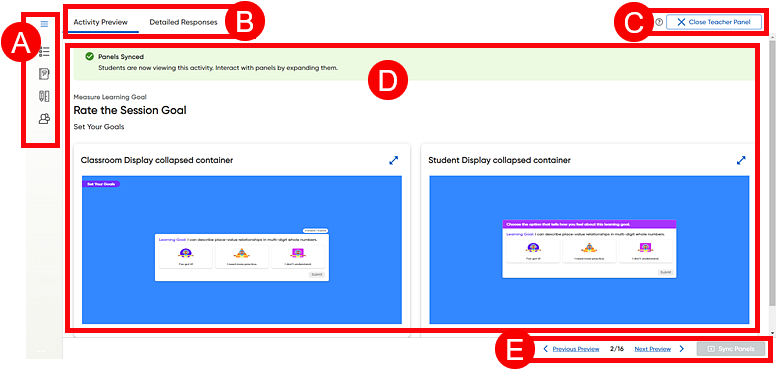
➔ Click a letter or outlined area to view details.
The Teacher Panel includes the following information:
Left Navigation Panel |
|||||||||||||
|
The top left corner of the page provides links to manage the Classcraft session and view the students who have joined the session.
Below the Menu button, the left panel provides the following links:
The left panel links are detailed below.
|
||||||||||||
Activity Preview and Detailed Responses Tabs |
|||||||||||||
|
At the top of the Classroom Panel page are two tabs that control what is displayed on the main session area:
● Activity tab – This tab opens by default and shows the material being presented to the students for teaching purposes.
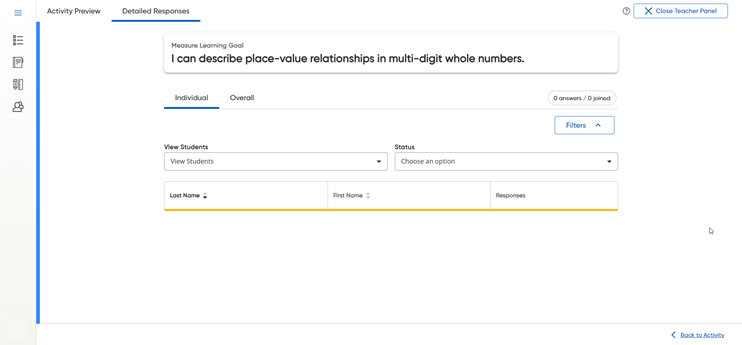
● Detailed Responses tab – Clicking this tab shows an aggregated view of the student responses and allows you to select anonymous student responses to present to the class.
|
||||||||||||
Help Link and Close Teacher Panel Button |
|||||||||||||
|
The Help icon and Close Teacher Panel button are both located in the top right corner of the Teacher Panel.
Help Icon
➔ Click the question mark icon to open the Classcraft Teacher Help.
Close Teacher Panel Button ➔ Click Close Teacher Panel button to close the Teacher Panel. Your Classroom Panel page remains open.
|
||||||||||||
Main/Active Session Area |
|||||||||||||
|
The main area of the page displays the content as determined by the selected tab—Activity or Responses.
|
||||||||||||
Page Navigation Arrows and Sync Panels Button |
|||||||||||||
|
In the bottom right corner of the Teacher Panel page are page navigation arrows and a Sync Panels button.
|


 to display the descriptions of the menu icons in the left
panel.
to display the descriptions of the menu icons in the left
panel.
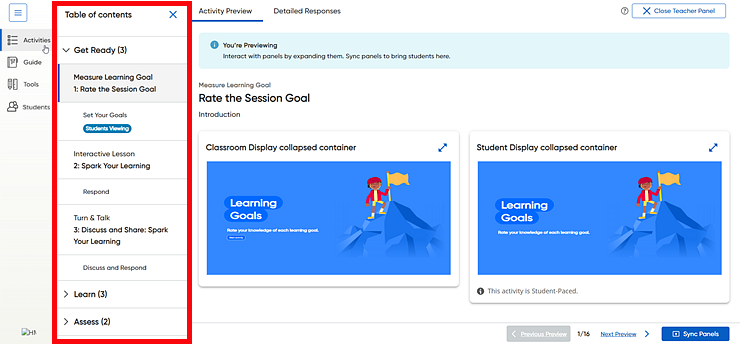
 to view the table of contents list
for the content included in the session. You can move
through the content list to view the various sections.
to view the table of contents list
for the content included in the session. You can move
through the content list to view the various sections.
 to view
the
to view
the 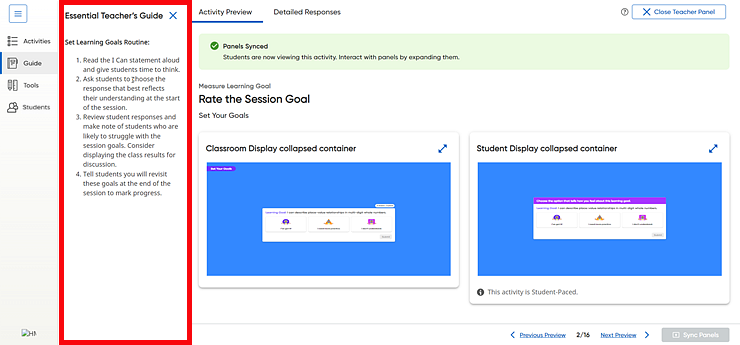
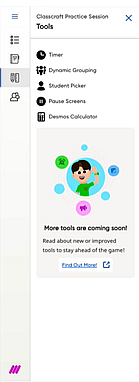
 to view
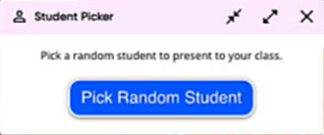
the list of tools available for the session.
to view
the list of tools available for the session. 



 to see your student roster for this
Classcraft session.
to see your student roster for this
Classcraft session.