Configurations
The Configurations page allows Enterprise Steam Admins to add, edit, and deactivate users and roles. Users can be added either individually using the Enterprise Steam SQLite database or through an existing LDAP directory.
Note: Only Admins have access to the Configurations page.
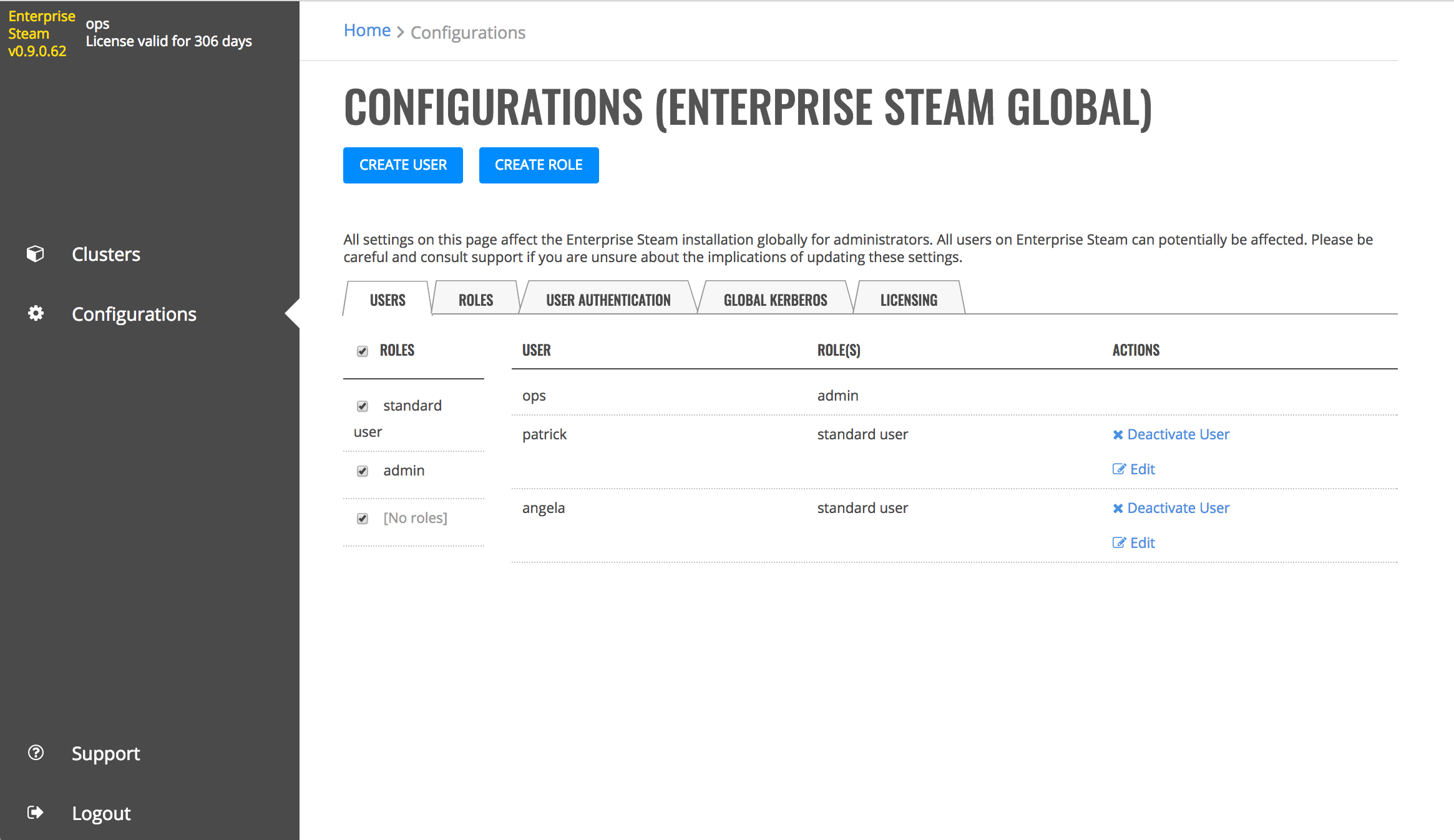
Users tab
The Configurations page consists of the following tabs.
- The Users tab shows the current list of users and their assigned role(s).
- The Roles tab provides a table of the permissions assigned to each role.
- The User Authentication tab allows you to connect Enterprise Steam to your current user database.
- The Global Kerberos tab allows you to enable Kerberos for your Enterprise Steam Environment and to specify an Enterprise Steam principal. This represents the Kerberos principal used for Enterprise Steam monitoring.
- The Licensing tab provides information on your Enterprise Steam License.
Configure LDAP Connection Settings
Enterprise Steam ships with a built-in SQLite database. By default, Enterprise Steam uses this database to store user and cluster management metadata. You can use this database, or you can configure Enterprise Steam to work with your existing LDAP directory.
- Navigate to the Configurations page and select the User Authentication tab.
- Select LDAP in the User DB Type drop down menu, then configure the LDAP connection settings. (Refer to the table below and the image that follows.)
Field Description Example Host The LDAP host server address ldap.0xdata.loc Port The LDAP server port 389 SSL-Enabled Enable this if your LDAP supports SSL. Bind DN The Distinguished Name used by the LDAP server if extended access is required. This can be left blank if anonymous bind is sufficient. cn=admin,dc=0xdata,dc=loc Bind DN Password/Confirm The password for the Bind DN user h2o User Base DN The location of the LDAP users, specified by the DN of your user subtree ou=users,dc=0xdata,dc=loc User Base Filter The LDAP search filter used to filter users department=IT User Name Attribute The User Attribute that contains the username uid Group DN The Distinguished Name used for group synch cn=jettygroup,ou=groups,dc=0xdata,dc=loc Group Base DN The location of your LDAP groups, specified by the DN of your user subtree ou=groups,dc=0xdata,dc=loc Group Name Attribute The Group Attribute that contains the username cn Static Member Attribute The attribute for static group entries memberUid Search Request Size Limit Limit the size of search results. 0 indicates unlimited. Search Request Time Limit Limit the time allotted for completing search results. 0 indicates unlimited. 0 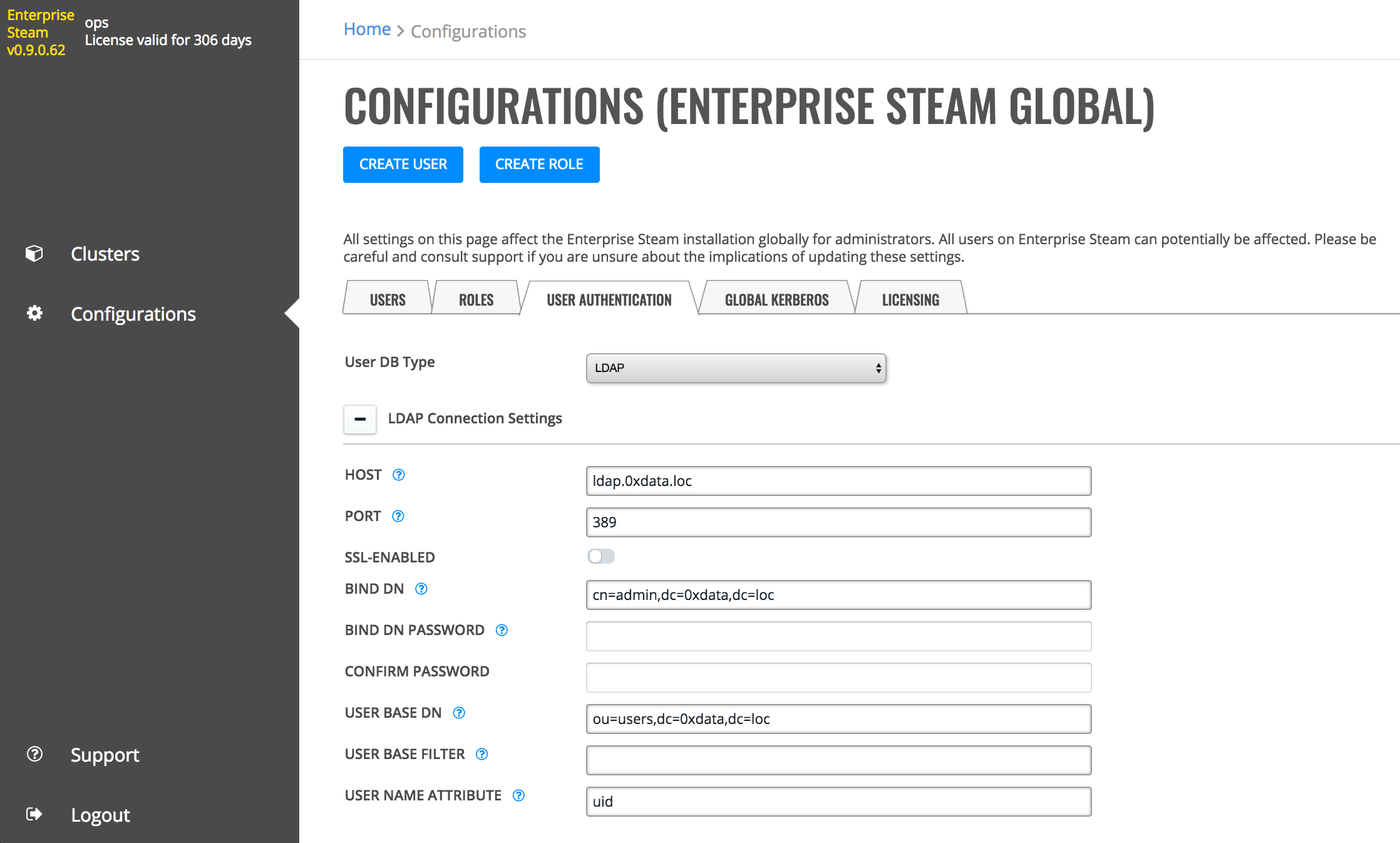
- Click Test Config when you are done. A valid response message indicates that the configuration was successful.
- Click Save Config.
After LDAP is configured, users can log in to Enterprise Steam using their LDAP username and password.
Note: The Reset button clears all user-specified information in this form and resets any default values.
Kerberos Authentication (Optional)
Keytab files are used for authenticating to remote systems that use Kerberos without requiring a password. A keytab file includes pairs of Kerberos principals and encrypted keys. When using Enterprise Steam with Kerberos Authentication, a default keytab file for the Enterprise Steam environment is required. This default keytab file is used for accessing and monitoring YARN. In addition, individual users will be required to submit their client keytab file in order to launch YARN clusters.
The Kerberos Authentication tab allows Admins to upload a default keytab file for monitoring YARN. When Kerberos Authentication is enabled, the User page becomes visible, and Enterprise Steam users will be required to upload their client keytab file on this page.
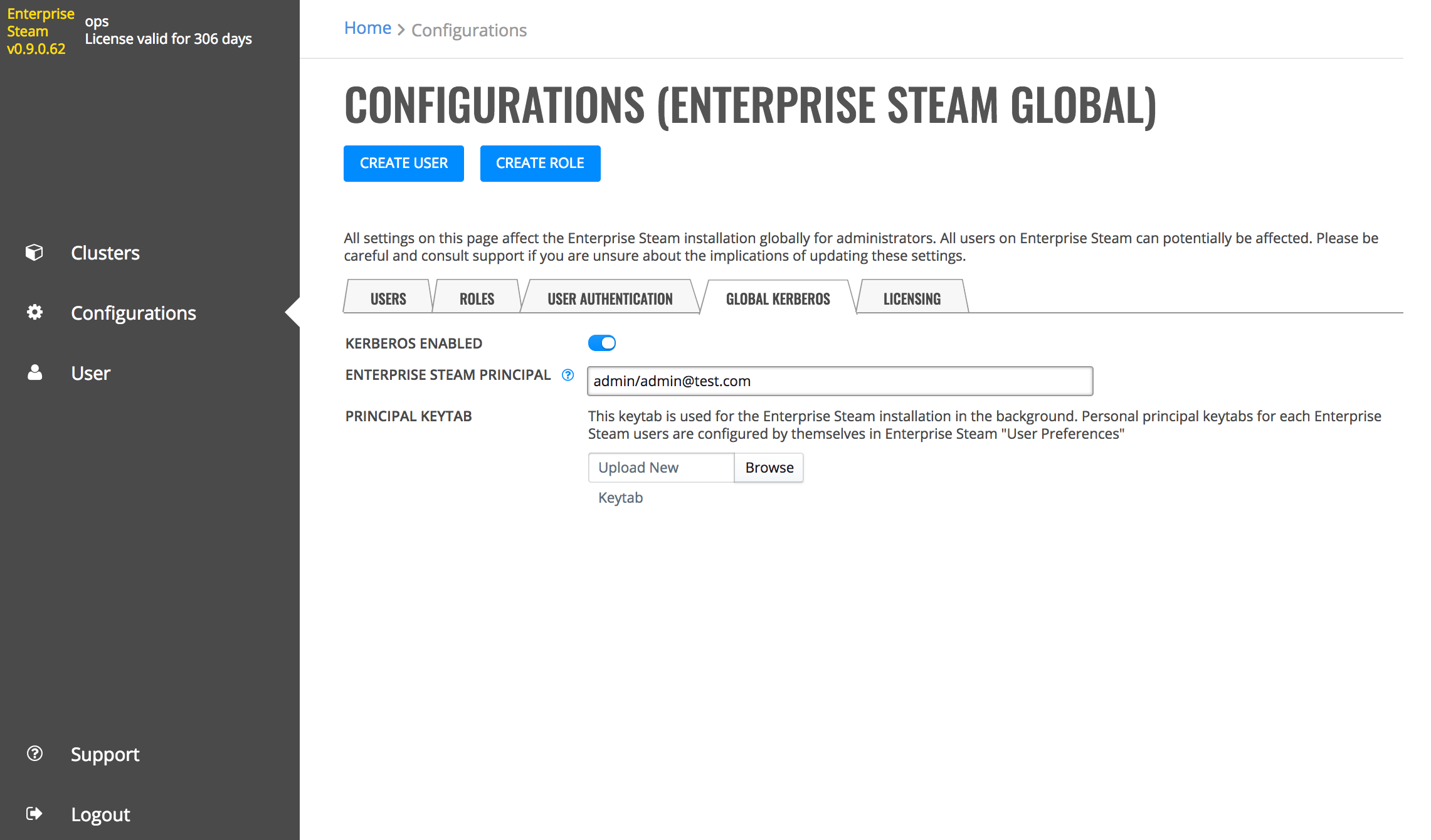
- Navigate to the Configurations page and select the Global Kerberos tab.
- Click the Kerberos Enabled button to enable Kerberos. Note that when this is enabled, the User page will become enabled. (Refer to the User section.)
- Specify the Enterprise Steam Principal in the entry field.
- Specify the default Keytab file that will be used in this Enterprise Steam installation for monitoring YARN. Note that individual/personal principal Keytabs are configured on the User page. Users will see this page when they log into their Enterprise Steam accounts.
Users
This section describes how to add, edit, and deactivate Enterprise Steam users.
Adding Users
Admins can add users into the Enterprise Steam SQLite database from within the UI.
- Click the Create User button.
- Enter the name of the user. Note that the name must match with a username in your YARN system.
- Specify and confirm a password for the user.
- Specify the role(s) for this user. Note that Enterprise Steam ships with two default roles: admin and standard user.
- Click Create User when you are done.
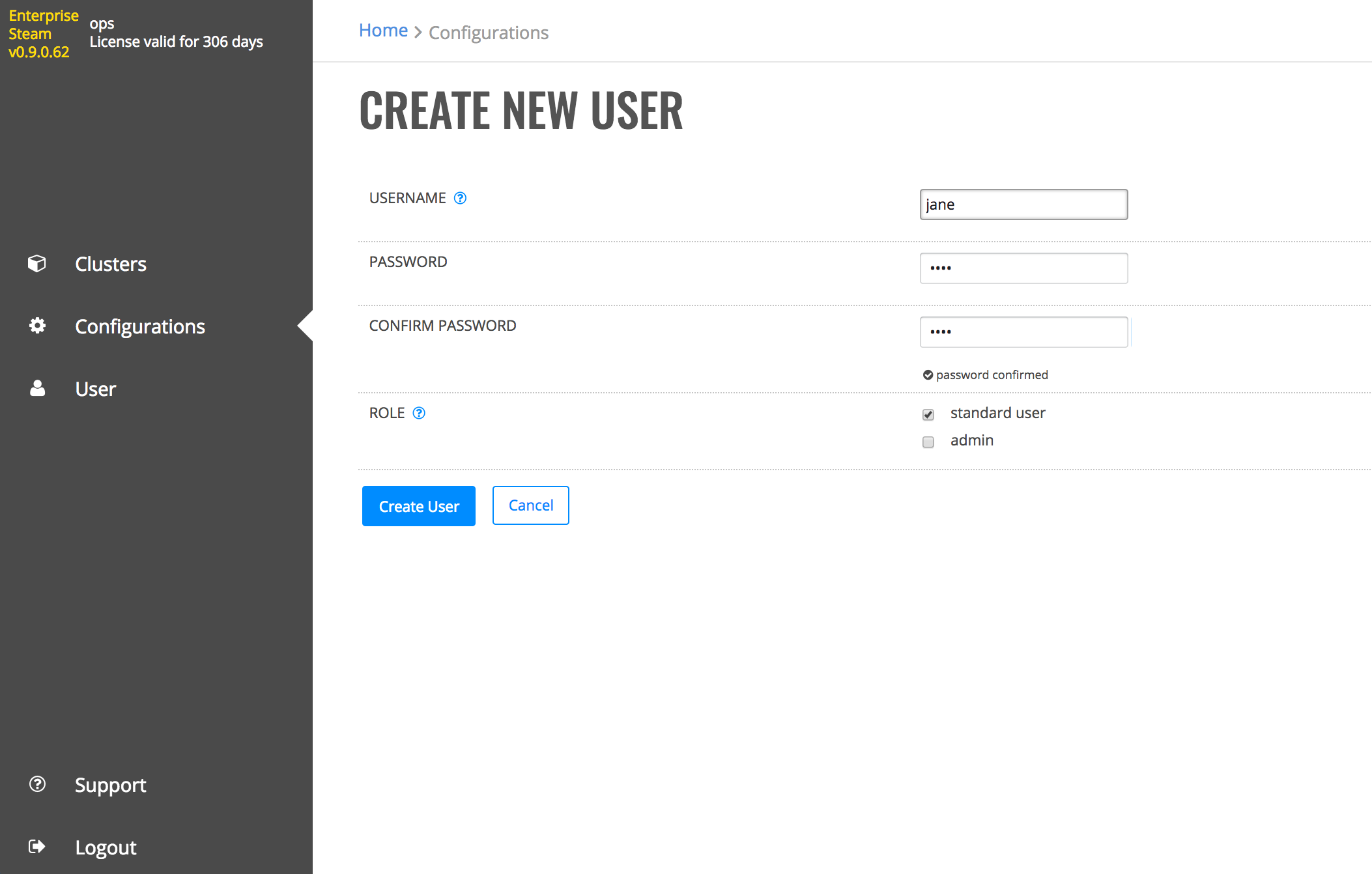
Create user
Upon successful completion, the new user will appear in the list of Enterprise Steam users.
Editing Users
This section describes how to edit a user’s role.
On the Users tab, click the Edit link beside the user you want to edit. This opens the Edit User Details form. Change the user’s roles, then click Confirm when you are done.
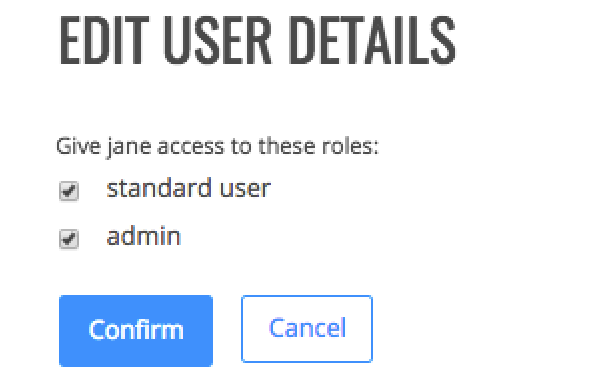
Edit user
Note: A message will display in the UI if you remove all roles from a user.
Deactivating/Reactivating Users
On the Users tab, click the Deactivate User link for the user whose Enterprise Steam access you want to revoke. Click Reactivate User to once again grant access for that user.
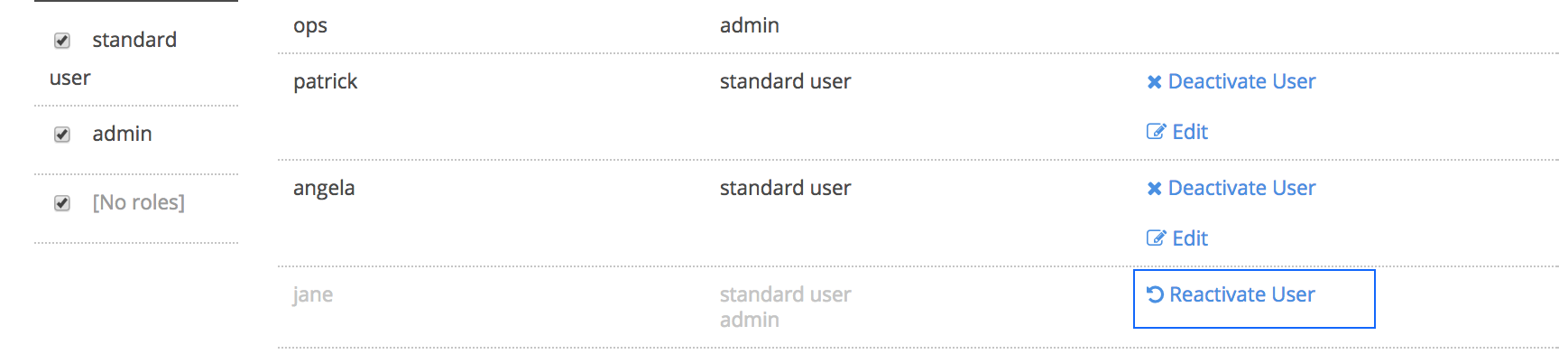
Deactivate/reactivate user
Roles
Roles determine the activities/permissions that an Enterprise Steam user can perform within your environment. Enterprise Steam ships with two default roles: admin and standard user. These default roles are sufficient for most Enterprise Steam deployments and, in general, should not be changed. You can create additional roles, however, if you require more granularity in the way that your users access and utilize Enterprise Steam.
Creating Roles
- To create a new role, click on the Create Role button.
- Specify a name and description for the role.
- Select the permissions that will be granted to this role.
- Click Create Role at the bottom of the form when you are done.
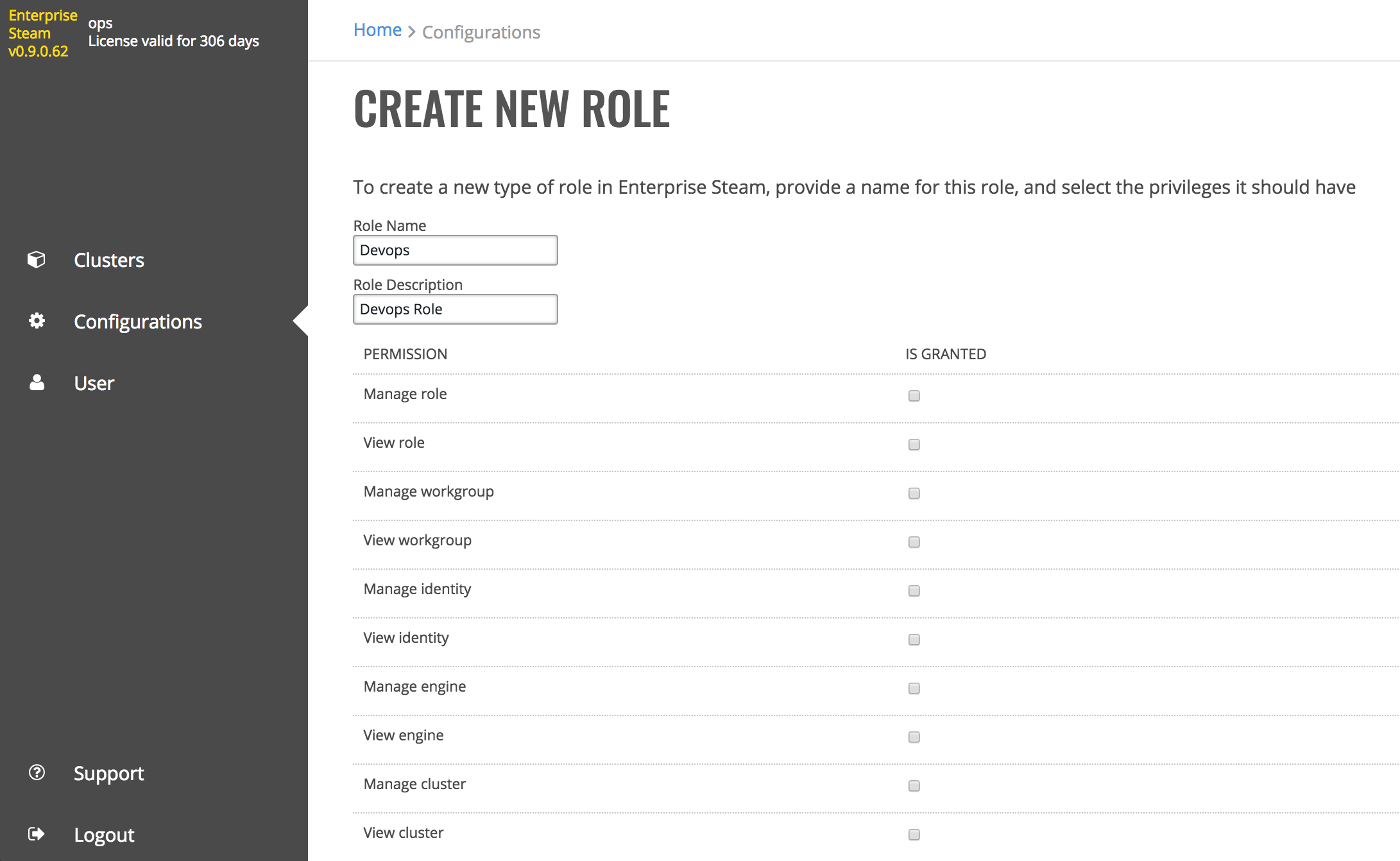
Create Role
Changing Permissions
Admins can add or remove permissions for each role directly on this page.
- Select the checkbox for the correspoding permission and role that you want to change
- Click Review Changes at the bottom of the page. A popup displays, providing you with a summary of the changes.
- Click the Confirm button beside each change that you want to make, then click Save Changes to complete the update.
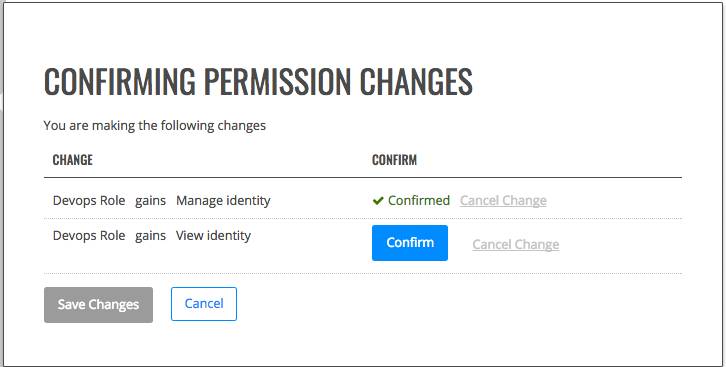
Change permissions
Deleting Roles
On the Roles tab, scroll down to the bottom of the page, and click the trashcan icon under the Role column that you want to delete. A confirmation page will display, prompting you to confirm the deletion. Click Confirm to remove the role.

Delete Role