Note: ● District data administrators may restrict your ability to add/edit user and class data. If you do not have access and require support, you must contact the district data administrator team that manages rostering for your district. ● When you create or edit user and class accounts manually, the updates directly alter the rostering data stored in the centralized data store and impact all HMH Rostering Platforms. If your district is using HMH recommended best practices of integrating to Clever, ClassLink, or a SIS, then all rostering changes should take place in the rostering system and not using the manual entry options. To learn more, see the HMH Rostering Service Overview topic.
|
To edit user account information, you must locate the user within the district/school/class in which the user is rostered.
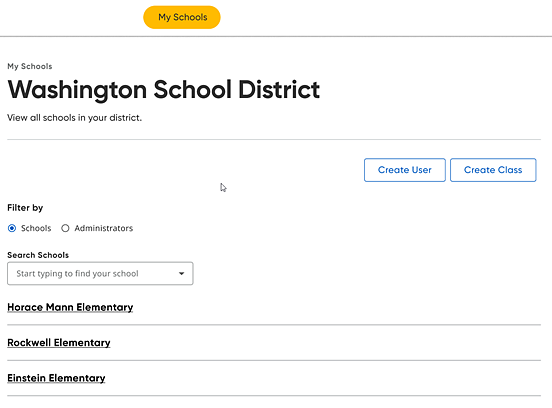
1. Navigate to the My Schools page as follows:
– From Ed or Heinemann Flight, click My Schools in the top banner.
– From NWEA, click any link referring to Add Students or Manage Users.
2. On the My Schools page, proceed as follows depending on your user role.
– If you are a district administrator with more than one school in your district or a school administrator tied to multiple schools, select a school from the list of schools.
– If you are a school administrator, the School page is the first page that appears.
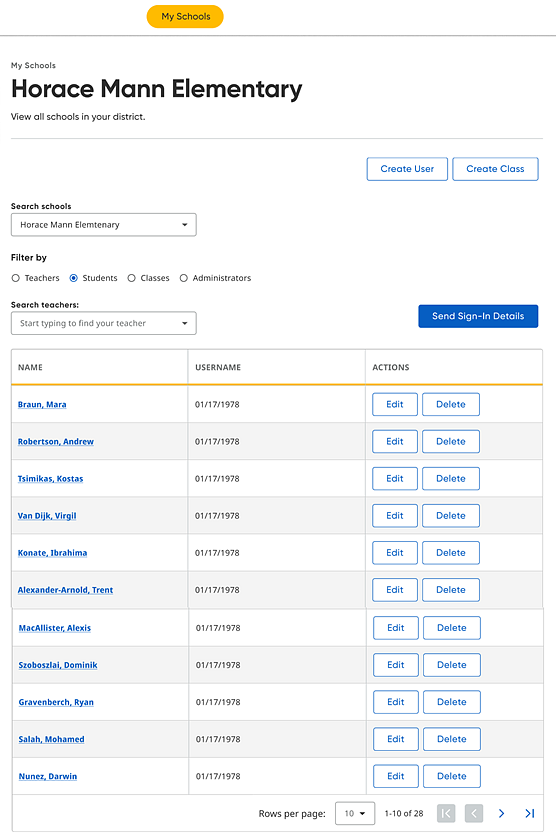
The School page allows you to view all the users and classes associated with the selected school.
3. Locate the user account to be edited, by doing the following:
a. In the Filter by area, click the option button of the user role to be edited (Teachers, Students, Administrators). The page updates to list all the user account types for the selected school.
b. If necessary, narrow the list of users using the Search students / teachers / administrators field.
The list of user accounts that meet your search criteria displays on the page.
Note: You can use buttons in the ACTIONS column to edit or delete a user account or you can click a user name link to view more details about the user account and select further actions from that page. (Continue to step 3 for details.)
4. In the ACTIONS column of the user to be edited, click the Edit button. The Edit User page appears.
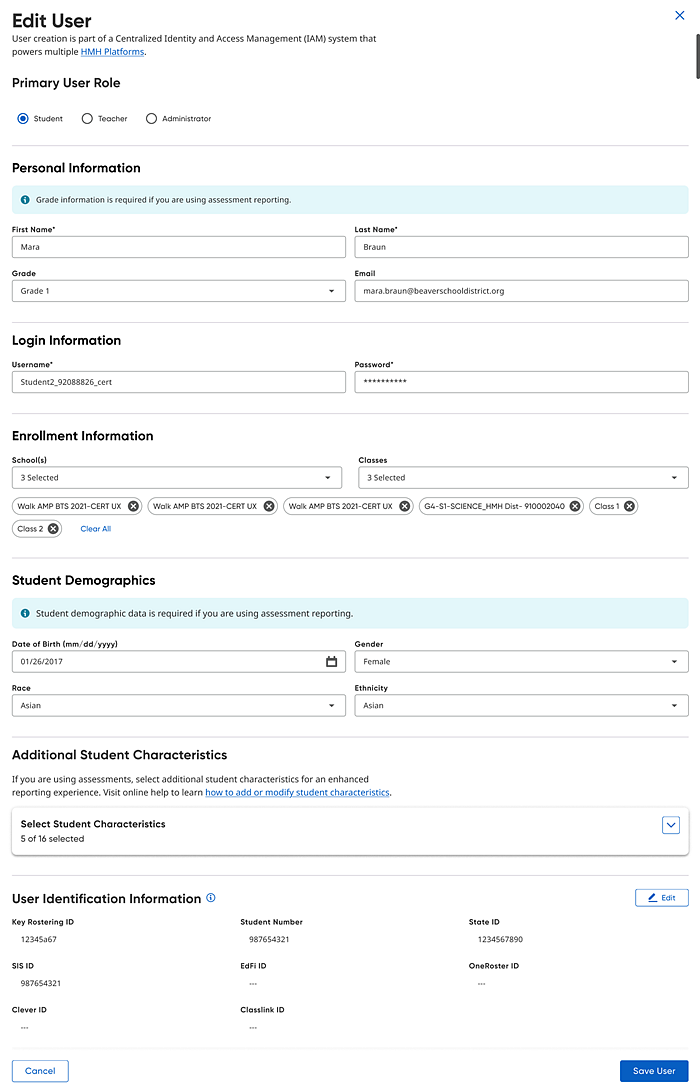
5. Edit any of the user information fields, as needed. Refer to the tables below for details on the fields associated with the user type to be edited.
– Student
Field |
Action |
First Name |
Type the student's first name. |
Last Name |
Type the student's last name. |
Grade |
Select the student's grade from the list. Note: If you select Other, reporting in Ed/Flight may be limited. |
Type the student's email address. Note: HMH strongly recommends sharing emails on all user accounts as it can be used in matching data when rostering IDs change and used in integrations with other integrated solutions. Failure to provide it could lead to duplicate users and/or loss of data or loss of feature interoperability's now and in the future. For NWEA users, the email must be globally unique. |
|
Username |
Type the student's username. Note: Students who log in to NWEA use a separate workflow with a secure test browser and session-specific credentials. Username and password will not apply. If you use HMH best practice recommendations of setting up SSO, this username must match your SSO username, which is typically the email for the user. |
Password |
Type the student's password. The password is case-sensitive and must be at least five characters. Note: See Passphrase Recommendation for more information on setting up passwords. |
School |
Select the school from the School list. Note: For school administrators, this field defaults to their school. |
Classes |
(Optional) Select the student's class or classes from the list. |
Date of Birth |
(Required for NWEA) Type the student's date of birth (mm/dd/yyyy). |
Gender |
(Required for NWEA) Select the student's gender from the list. |
Race |
(Required for NWEA) Select the student's race from the list. |
Ethnicity |
(Required for NWEA) Select the student's ethnicity from the list. |
Student Characteristics |
(Optional) Select any characteristics that apply to the student. Note: If you select IEP, then you need to go into NWEA and setup this characteristic tied to Individualized Education Plan (IEP) for it to be present in NWEA reporting. |
Key Rostering ID |
(Optional) Type the student's Key Rostering ID. The Key Rostering ID is considered the unique ID used for this account if you are trying to link the account to a rostering solution: – For Clever, this will be the Clever ID. – For ClassLink or OneRoster, this will be the sourcedID. – For SFF, this will be the LASID value. We do not recommend editing this field as it should be set by your automated rostering provider only.
|
Student Number |
(Optional) Type the student's number. Note: This field is considered to be a local ID that is unique across all users in the district, known by the student, and will not change. |
State ID |
(Required for NWEA users in some states) Type the student's State ID. Note: StateID is expected to be unique across all students in the state and may have state-specific length and values required. |
SIS ID |
(Optional) If your student has a unique ID from your Student Information System that you want stored, type the student's SIS ID. |
EdFi ID |
(Optional) If your district supports the EdFi standard, type the student's EdFi User ID. |
OneRoster ID |
(Optional) Type the student's OneRoster ID. Note: If your provider is using the IMS Global OneRoster standards, this value is typically set based on automated rostering and should not need to be edited. |
Clever ID |
(Optional) Type the student's Clever ID. Note: If you are using Clever API, this value is typically set based on automated rostering and should not need to be edited. |
ClassLink ID |
(Optional) Type the student's ClassLink ID. Note: This value is typically set based on automated rostering and should not need to be edited. |
– Teacher or Administrator
Field |
Action |
Select Additional Access – School |
Click to view additional access roles for the school-level role, and then select any roles that apply to this teacher/administrator account. If you have multiple accounts for the same user, you can change the email and remove those accounts and import new ones or setup one account tied to one or multiple roles/schools. Note: We do not support different roles per school at this time. |
Select Additional Access – District |
Click to view additional access roles for the district-level role, and then select any roles that apply to this teacher/administratoraccount. |
First Name |
Type the teacher/administrator's first name. |
Last Name |
Type the teacher/administrator's last name. |
Type the teacher/administrator's email address. Note: Email accounts can be used in matching data when rostering IDs change and used in integrations with other integrated solutions. Failure to provide it could lead to duplicate users and/or loss of data or loss of feature interoperability's now and in the future. For NWEA users, the email must be globally unique. |
|
Username |
Type the teacher/administrator's username. Note: If you use HMH best practice recommendations of setting up SSO, this username must match your SSO username, which is typically the email for the user. |
Password |
Type the teacher/administrator's password. Note: If you plan to use the platform login page instead of SSO, HMH recommends that you instruct your staff to reset their password by clicking the Reset Password link on the Sign In page and following the reset password workflow. If you prefer to use SSO (which is the HMH recommended best practice) see About Single Sign On (SSO) for details. |
School(s) |
a. If you are a district administrator, find and select the school to be associated with the teacher/administrator by doing either of the following: – Click the arrow and select the school from the list. – Type all or part of the school name to find then select the school. b. If the teacher/administrator is associated with more than one school, select another school from the list. Note: If you are a school administrator, this field defaults to your school. |
Classes |
(Teacher only) Select the teacher's classes from the list. Not available for administrators. |
Key Rostering ID |
(Optional) Type the teacher/administrator's Key Rostering ID. Note: Student and Staff IDs are expected to be district unique across all users in the district. StateID is expected to be unique across all students in the state and may have state-specific length and values required. |
Alternate ID |
(Optional) Type the teacher/administrator's Alternate ID. |
Staff Number |
(Optional) Type the teacher/administrator's staff number. HMH recommends that you provide a staff number because this field may affect the ability to import or export Ed data. If you leave this field empty, a staff number is automatically generated. Note: After the teacher/administrator account is created, the Staff Number field cannot be edited. Staff IDs are expected to be district unique across all users in the district. |
OneRoster ID |
(Optional) Type the teacher/administrator's OneRoster ID. Note: If your provider is using the IMS Global OneRoster standards, this value is typically set based on automated rostering and should not need to be edited. |
Clever ID |
(Optional) Type the teacher/administrator's Clever ID. Note: If you are using Clever API, this value is typically set based on automated rostering and should not need to be edited. |
ClassLink ID |
(Optional) Type the teacher/administrator's ClassLink ID. Note: This value is typically set based on automated rostering and should not need to be edited. |
6. Click Save User. The user information is updated.
See Also: