Note: ● District data administrators may restrict your ability to add/edit user and class data. If you do not have access and require support, you must contact the district data administrator team that manages rostering for your district. ● When you create or edit user and class accounts manually, the updates directly alter the rostering data stored in the centralized data store and impact all HMH Rostering Platforms. If your district is using HMH recommended best practices of integrating to Clever, ClassLink, or a SIS, then all rostering changes should take place in the rostering system and not using the manual entry options. To learn more, see the HMH Rostering Service Overview topic.
|
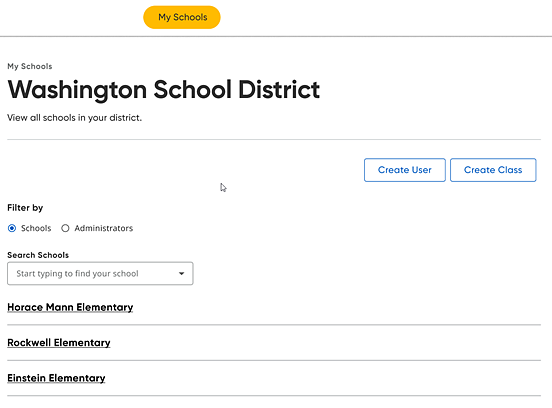
1. Navigate to the My Schools page as follows:
– From Ed or Heinemann Flight, click My Schools in the top banner.
– From NWEA, click any link referring to Add Students or Manage Users.
2. On the My Schools page, click Create User.
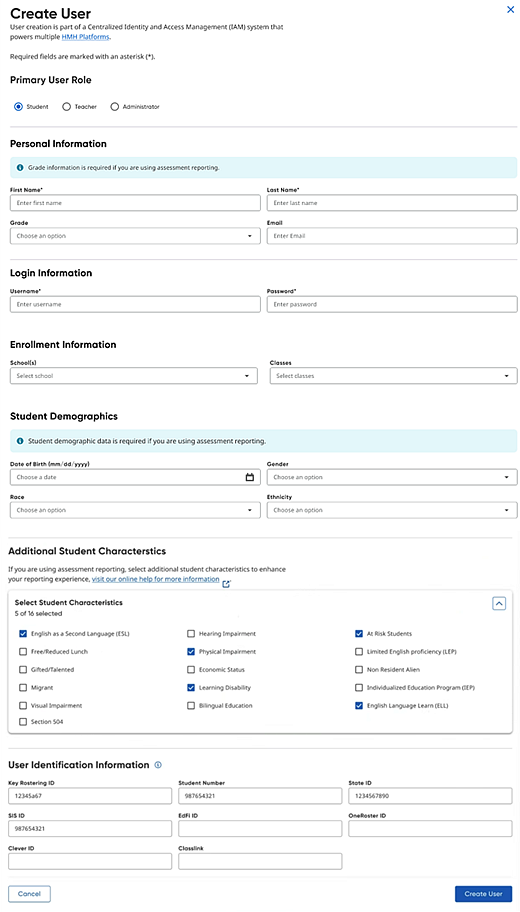
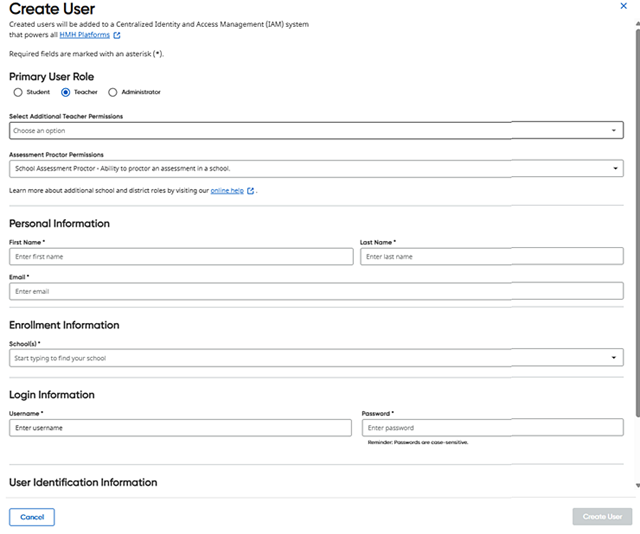
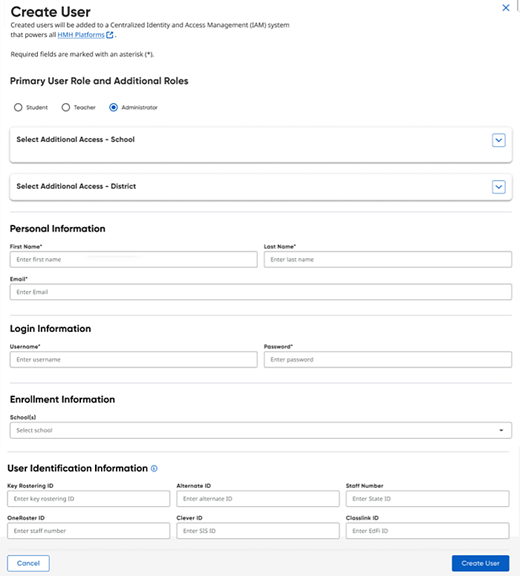
The Create User page appears.
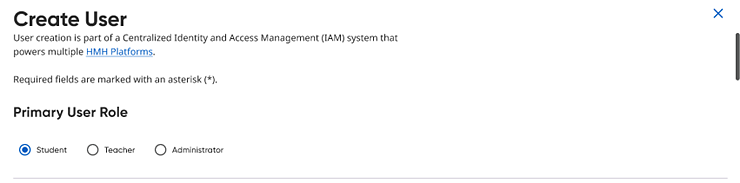
3. In the Primary User Role area, select the option button for the user role to be created (Student, Teacher, Administrator).
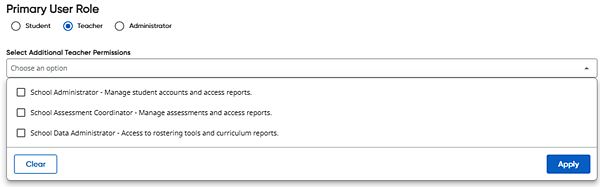
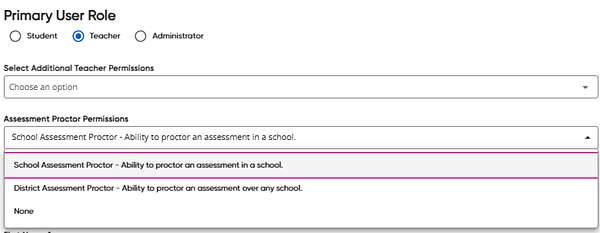
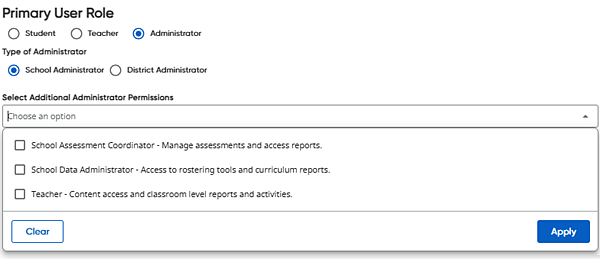
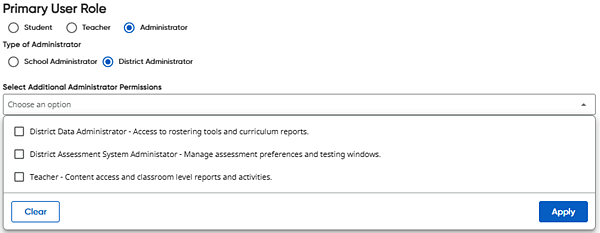
4. Depending on the user role you are creating, complete the fields as follows. (Click user role to view details.)
|
|
Note: If you are creating a primary role of TEACHER and then go to additional roles, you can pick EITHER School Administrator or School Data Administrator, but not both. These are the same role; the only difference is that the School Data Administrator role includes rostering rights. (School Administrator does not include rostering rights.)
|
|
|
|
5. Click Create User. A message appears to inform you that the user has successfully been added.
6. Click the X to close the message.
See Also:

 Student