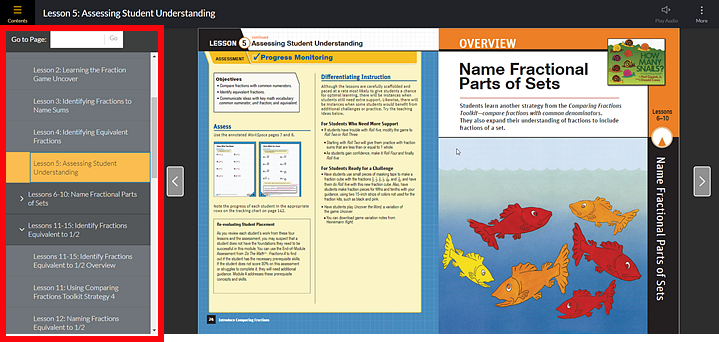
Student and Teacher digital editions (also referred to as "eBooks," "myBook," "edition," "lessons," or "magazine" among possible other names) include content from the product and a table of contents to easily navigate within the eBook.
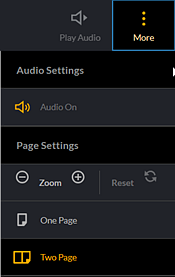
Depending on the product and content, the eBook may default to a two-page view when first opened. If the two-page view is available, you can switch to one-page view using the More option.
Warning:
If you lose your Internet connection while working in an eBook, any annotations
that you continue to make will not be saved. Be aware that if the Internet
connection is lost, a warning (like the example below) displays at the
top of the eBook page.
Below is an example of an eBook within a teacher's account followed by a table detailing the functionality of each component on the page.
➔ Click a letter or outlined area to move to the table descriptions.
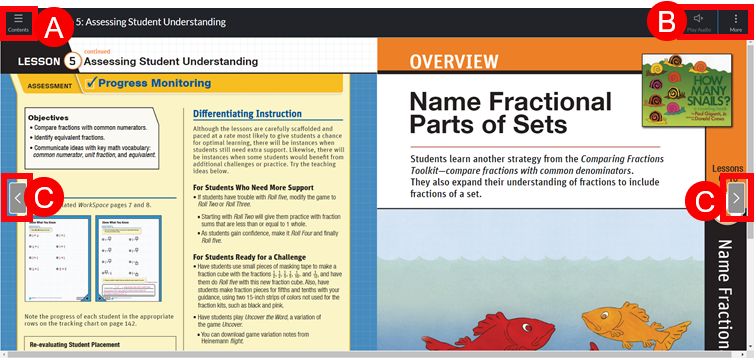
Note: Some lower grade level eBooks (K–2), depending on the program and content, offer more visual versions of the navigation functions. Navigation details for this type of lower grade level eBook are highlighted in gray in the following table.
|
Area |
Component |
Details |
|
|
|
||
|
For lower grade levels (K–2), you can click the Contents button to display either of the following (depending on the program and content): |
||
|
For most eBooks, you can click to play an audio version of the onscreen text. While listening to the audio, you can click Pause Audio to pause it.
|
||
|
For some lower grade levels, (K–2), the audio of the eBook is on by default because the audio drives the instruction and is more robust than the onscreen text, which may be minimal. Click the Audio button to view the audio controls, which allow you to pause the audio, turn off the audio, and turn on or off the closed captioning (CC) of the eBook.
|
||
|
For some lower grade levels, (K–2), the Replay button allows you to start the current screen again from the beginning. |
||
|
|
The More option allows you to view and set additional functions, including the following: Audio Settings options ● Audio Off/Audio On ● Read-Along Highlight (if available) Page Settings options (if available) ● Zoom and Reset ● One Page view ● Two Page view |
|
|
Click the arrows to move to the previous or the next page(s) in the eBook. |
||
|
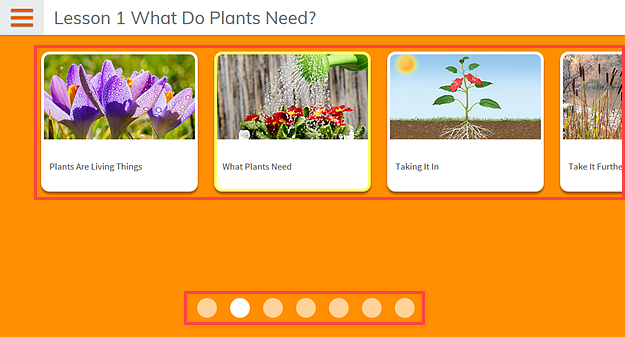
For some program lower grade level eBooks (K–2), click the arrows to move to the previous or the next page(s) in the eBook. Some pages also offer navigation circles at the bottom of the page. You can click one of the circles to move to another section of the lesson.
|
||
See Also:


 For
higher grade levels (3 and up), you can click
For
higher grade levels (3 and up), you can click