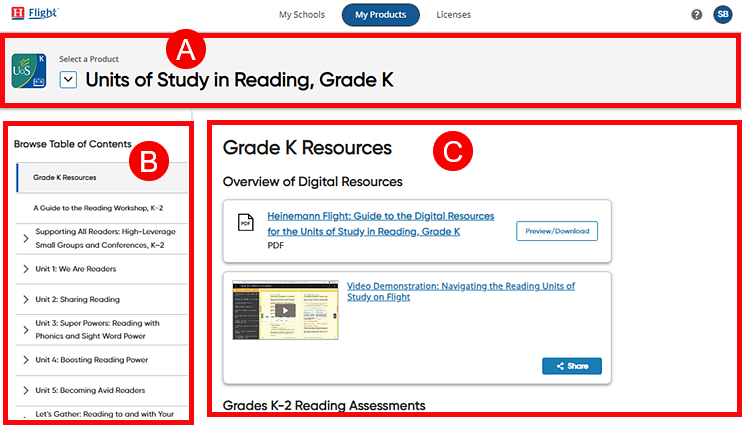
The Product Content page displays all the available content for the selected product.
➔ Click a letter or outlined area to view Product Content page details.
The content on the page differs depending on the product and level selected.
|
Product Name |
|
|
|
The top of the page identifies the selected product and selected lesson; if you open the Product Content page using other options, the selected module/unit, standard, or content category is identified at the top of the page.
|
|
Table of Contents |
|
|
|
The table of contents for the selected product displays in the left panel and highlights the selected module or lesson.
➔ Click within the table of contents to move to the content page of another lesson, week, or module.
|
|
Content Resource Cards |
|
|
|
The content are displayed as individual resource cards, and each card provides the name and type of content.
Depending on the type of content, a content card may allow you to do any of the following:
– Click the title to view a description of the resource.
– Click Open to open an eBook resource.
– Click Preview/Download to view a PDF resource on a PDF-resource page, which offers several navigation and viewing options.
|
See Also:


