
1. In the banner, click the My Products tab. The My Products page appears.
– If you have not been assigned a product license, the page prompts you to assign a license for yourself. For details, see the Use Quick Assign to Assign Product Licenses topic.
– If you have been assigned one or more product license, the page displays the product content of the first product (in alphabetic order) that you are entitled to access.

The Select a Product list shows all the products available to you.
2. To view a different product, click the Select a Product list and select the product from the list. The My Products page updates to show the content of the selected product.
3. Note the following about the Product Content page:
– The table of contents for the selected product displays in the left panel and highlights the selected module or lesson.
– The contents for the selected module/lesson appear as individual content resource cards.
Note: The labels used for content segments in the table of contents can vary; labels may be modules, units, lessons, assessments, games, or some other label, depending on the selected product.
4. Locate the content resource you want to view by doing the following:
– Click within the table of contents to move to the content page of another module, lesson, or assessment. The page updates to display the content associated with your selection.
– Scroll down the page to view the list of content resource cards.
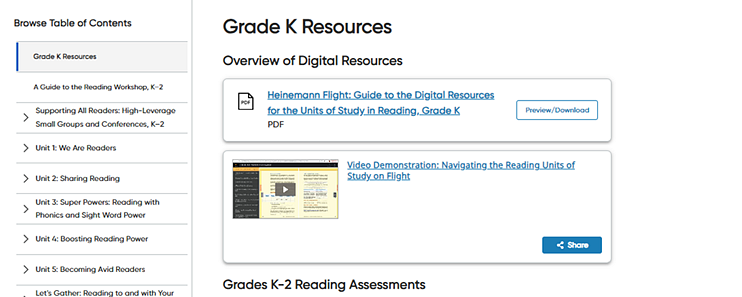
5. Depending on the type of content, view and/or open the content resource as follows:
Content Type |
Steps |
||
Video |
➔ Click the arrow in the content resource card to view a video. |
||
Games |
➔ Click the resource card or the title to play a game. |
||
E-Book |
➔ Within a resource card, click the Open button. The eBook opens in a new browser window. |
||
➔ Within a resource card, click the title or the Preview/Download button. The PDF appears on the page for you to view.
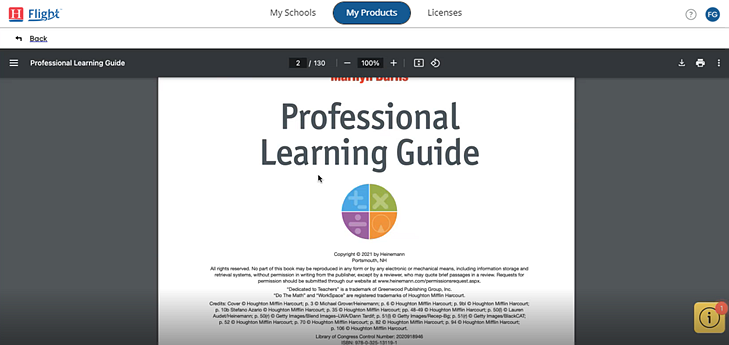
Note: Depending on the browser you are using, the PDF-resource page may look slightly different than the examples shown here.
The PDF-resource page offers several navigation and viewing options, detailed as follows. – In the upper left corner of the page, click the Back link to return to the previous Product Content page.
– In
the top left of the PDF navigation bar, click the menu icon
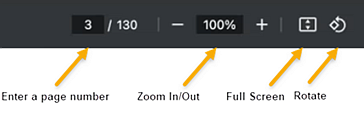
– In the center of the PDF navigation bar, do any of the following:
○ Type a number in the page number field to move to that page. ○ In the percentage field, type a number or click the minus/plus Zoom In/Out icons to adjust the display of the page. ○ Click
the Full Screen icon ○ Click
the Rotate icon
– In the top left of the PDF navigation bar, do any of the following:
○ Click
the Download PDF icon
○ Click
the Print icon ○ Click
the vertical ellipsis 2-Page
View icon |
See Also:

 to view the contents of the PDF. The left panel displays the PDF
contents and highlights the page or section that is currently
open. You can view and navigate the contents in either of the
following ways:
to view the contents of the PDF. The left panel displays the PDF
contents and highlights the page or section that is currently
open. You can view and navigate the contents in either of the
following ways: 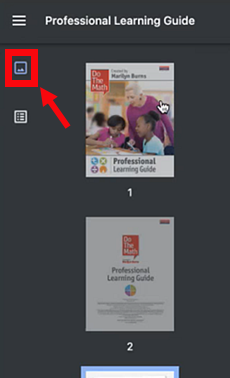

 to display the PDF in full-page view.
 to rotate the view
of the PDF page.
to rotate the view
of the PDF page.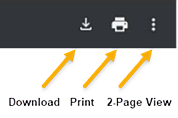
 to download a copy of the PDF to your computer's download file.
 to print the PDF.
 to view 2 pages on the PDF
page; click again to return to the single-page view.
to view 2 pages on the PDF
page; click again to return to the single-page view.