Populating a Recovery VRA
When a VPG is defined, the recovery host to use for each virtual machine in the VPG is specified. If required, you can edit the recovery host for a single or multiple protected virtual machines.
After evacuating the recovery host, populate the host to enable easier rebalancing of the environment after evacuation of the host. This will empower the VM administrator with smoother maintenance operations for host maintenance.
|
Note:
|
Only one instance of the populate host operation can run at a time in the environment. |
Populating a recovery host VRA for selected VMs
To populate a recovery host VRA for selected VMs:
|
1.
|
In the Zerto User Interface, click SETUP > VRAs. |
|
2.
|
Select the VRAs to change and click Actions > Populate Host. |
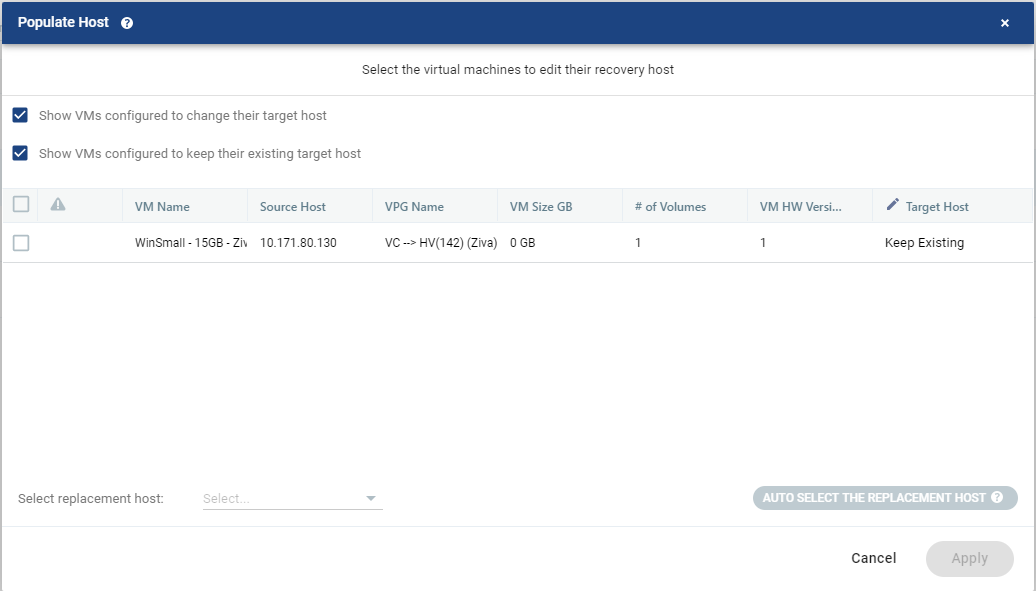
The Populate Host window is displayed, listing all the virtual machines being recovered on that host.
|
•
|
Show VMs configured to change their target host displays VMs which were not marked to keep their existing host, including VMs which should have a recommendation but don't have one. |
|
•
|
Show VMs configured to keep their existing target host displays VMs which were marked to keep their existing host. |
|
3.
|
Review the list and select the virtual machines to change the target host to another specified target host. |
|
Note:
|
You can change the host to be under different clusters by manually changing them from the drop-down list. |
|
4.
|
To change the target host for the selected VM, do one of the following: |
|
•
|
From the bottom left of the window, in the Select replacement host area, click the drop-down list to get a list of available target hosts. Select the target host. |
|
•
|
In the Target Host column, click the pencil icon which appears to the right of the IP address . |
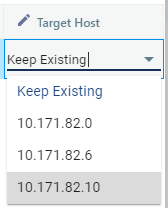
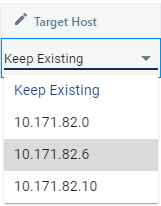
A drop-down list of available target hosts appears, including the option to Keep Existing host. Select the new target host.
|
•
|
From the bottom right of the window, click Auto Select the Replacement Host to automatically select the most suitable host for that virtual machine. Auto-selection is based on a load-balancing algorithm. |
You can move some virtual machines to one replacement target host, and then by repeating the operation, you can move other virtual machines to a different target host.
After selection of the new Target Host, validation is performed to make sure the selected target host can be used. For example, the datastores used by both the VRAs are accessible from both hosts.
Any implications of the change, such as whether synchronization might be required after the change is also displayed.
|
•
|
During this operation you cannot edit the affected VPGs, nor attempt a failover, move, failover test, or clone operation. |
|
•
|
At the end of the operation a Bitmap Sync might be required to resynchronize the protected machines with the recovery VRAs. |
Automatically populate a recovery host VRA for all VMs
To automatically populate the recovery host VRA for all VMs:
|
1.
|
In the Zerto User Interface, click SETUP > VRAs. |
|
2.
|
Select the VRA to change and click Actions > Populate Host. |
The Populate Host window is displayed, listing all the virtual machines being recovered on that host and their automatically selected target host.
The auto-selection is based on a load-balancing algorithm.
Load-balancing is executed at the cluster level, meaning the suggested hosts must share the same cluster as the evacuated host.
|
•
|
Validation is performed to make sure the selected target host can be used. For example, the datastores used by both the VRAs are accessible from both hosts. |
|
•
|
Any implications of the change, such as whether synchronization might be required after the change is also displayed. |
|
•
|
During this operation you cannot edit the affected VPGs, nor attempt a failover, move, failover test, or clone operation. |
|
•
|
At the end of the operation a Delta Sync might be required to resynchronize the protected machines with the recovery VRAs. |
See also: