
Note: Only district administrators (or school administrators at an independent organization) have access to edit SSO settings.
If you need to edit your single sign on (SSO) connection(s), you can do so from your platform pages or from the rostering pages within the wizard.
● To edit single sign on connection(s) within the rostering pages wizard, see Define Login Options topic.
● To edit your single sign on (SSO) connection(s) from your platform pages, see steps below:
1. Log in as a district administrator, and do the following:
– For Ed users, open the My Schools page, and on the left panel, click Roster. On the Roster Dashboard, click the Roster Actions button and then click the Manage SSO Configuration option.
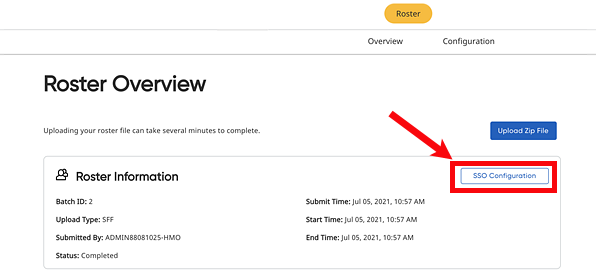
– For ThinkCentral or Holt McDougal Online users, click Import. The Roster Overview page appears. Click the SSO Configuration button.
The Single Sign On Settings page appears.
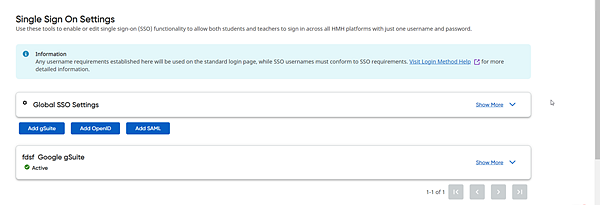
2. In the card of the connection to be edited, click Show More.
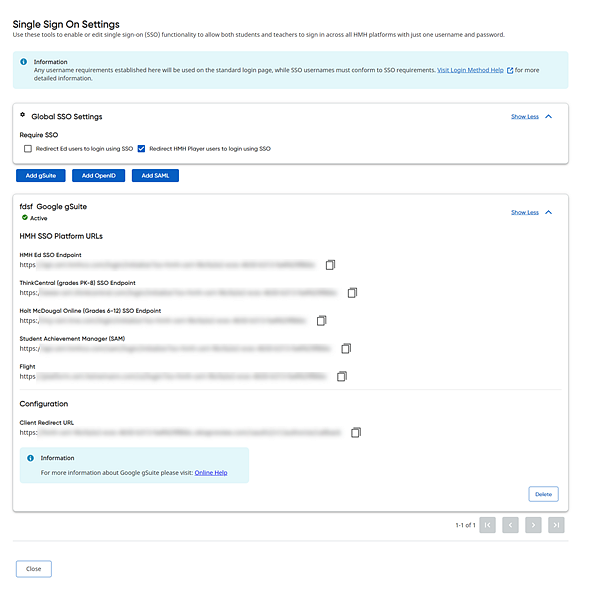
3. Edit your SSO connection as needed. Editing is limited to the SAML SSO connection; currently you can update your SAML SSO certificate by clicking the Choose File button in the Certificate area.
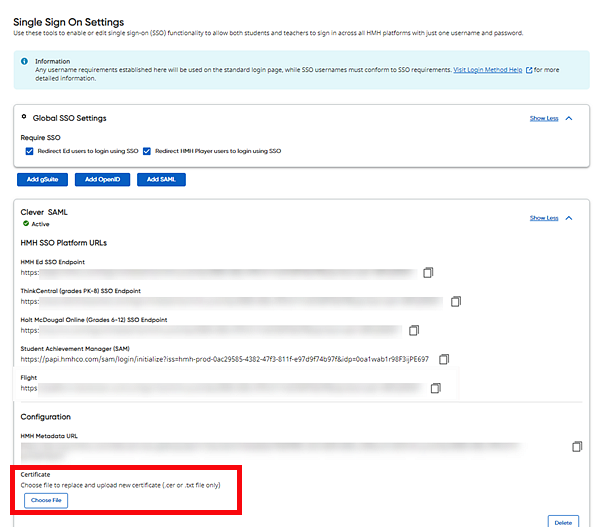
4. If you want to delete a connection and create a new one, then click Delete and create the new SSO URL.