
IMPORTANT: Do not miss Step 9 in the process below. The Custom Configuration is required.
Note: Current courses built with links via the HMH Ed Linking Tool 1.1 app will continue to work as is, but to add new HMH content to those existing courses, the HMH Ed Linking Tool 1.3 app in Schoology must be installed.
1. As a District Administrator, navigate to the Schoology App Center inside your Schoology account.
2. Locate and click the HMH Ed Linking Tool 1.3 app.
3. Click the Install LTI App button. A dialog appears requesting permission.
4. Click I Agree.
5. Click Continue.
6. Click Add to Organization.
7. In the Installed Apps list, locate the HMH Ed Linking Tool app and click the Configure button.
8. Make note of the Deployment ID and save for use in step 4 of the next task, Connect to Ed.
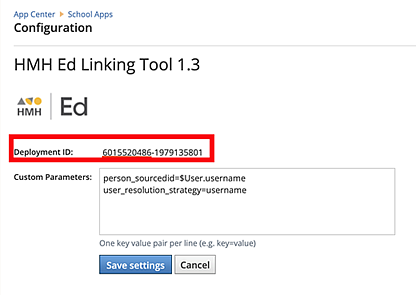
9. DO NOT SKIP THIS STEP: Add the custom configuration shown below that matches how you will share user Unique Identifier between Schoology and Ed. If you are unsure which one to use, review the Required Prework topic where Co-Rostering Identity matching is discussed.
– If you are matching Schoology.UniqueId to Ed.LASID, paste this code into the field as text:
person_sourcedid=$com.schoology.User.uniqueId
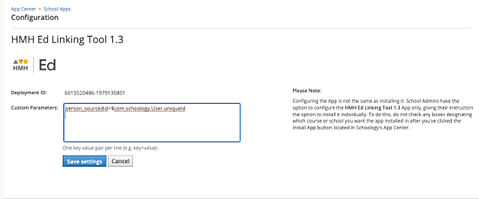
– If you are matching Schoology.LoginId to Ed.LASID, paste this code into the field as text:
person_sourcedid=$User.username
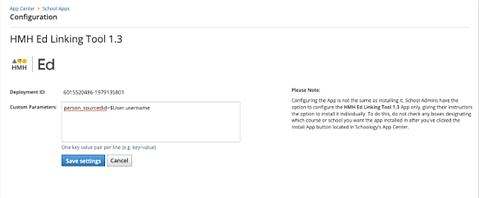
– If you are matching Schoology.UniqueId to Ed.USERNAME, paste this code into the field as text:
person_sourcedid=$com.schoology.User.uniqueId
user_resolution_strategy=username
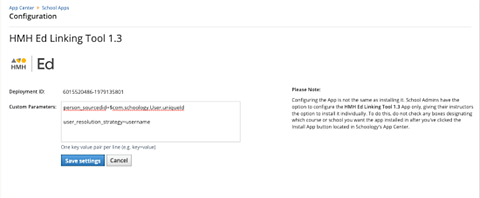
– If you are matching Schoology.LoginId to Ed.USERNAME, paste this code into the field as text:
person_sourcedid=$User.username
user_resolution_strategy=username
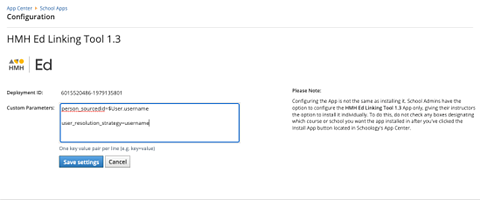
– If you are matching Schoology.Email to Ed.USERNAME, paste this code into the field as text:
user_resolution_strategy=email_to_username
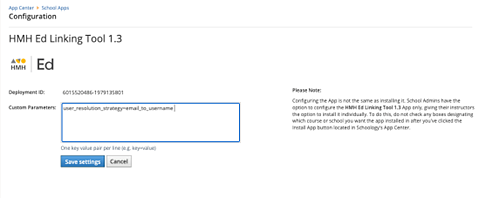
10. Click Save Settings.
11. Move to the Organizations App page, locate the HMH Ed Linking Tool app in the Installed Apps list, and then click the Install/Remove button.
12. Select the All Courses (or the designated courses which need the app) check box, and then click Submit.
See Next: Connect to Ed