Accessing the Zerto User Interface
You manage the protection and replication of virtual machines between the protected and recovery sites using the Zerto User Interface. On first access to the user interface, you might have to add a security certificate to set up secure communication, as described in
Adding a Security Certificate for the Zerto User Interface. Zerto also provides a set of RESTful APIs and PowerShell cmdlets to enable incorporating some of the disaster recovery functionality within scripts or programs.
Note: Microsoft Windows Explorer 9 is not supported and version 10 does not work well with the user interface. Zerto recommends using Chrome, Firefox, or later versions of Internet Explorer.
Note: It is required to exclude the Zerto Virtual Replication folder from antivirus scanning. Failure to do so may lead to the ZVR folder being incorrectly identified as a threat and in some circumstances corrupt the ZVR folder.
To use the Zerto Virtual Manager Web Client:
1. In a browser, enter the following URL:
https://zvm_IP:9669
where zvm_IP is the IP address of the Zerto Virtual Manager for the Azure site. Ensure that port 9669 is open and set as an inbound rule in the security group of the instance where Zerto Virtual Replication is installed.
2. Log in using the user name and password of the instance in Azure on which you installed the Zerto Cloud Appliance.
Adding a Security Certificate for the Zerto User Interface
Communication between the Zerto Virtual Manager and the user interface uses HTTPS. On the first login to the Zerto User Interface, you must install a security certificate in order to be able to continue working without each login requiring acceptance of the security.
To install a security certificate for the Zerto User Interface:
On first access to the Zerto User Interface, if you haven’t installed the security certificate, a security alert is issued.
Note the following:
■ To run this procedure run Microsoft Internet Explorer as administrator. The procedure is similar for Google Chrome and for Mozilla Firefox.
■ Access the Zerto User Interface using the IP and not the name of the machine where Zerto Virtual Replication is installed.
1. Click View Certificate.
The Certificate dialog is displayed.
2. Click Install Certificate.
The Certificate Import wizard dialog is displayed.
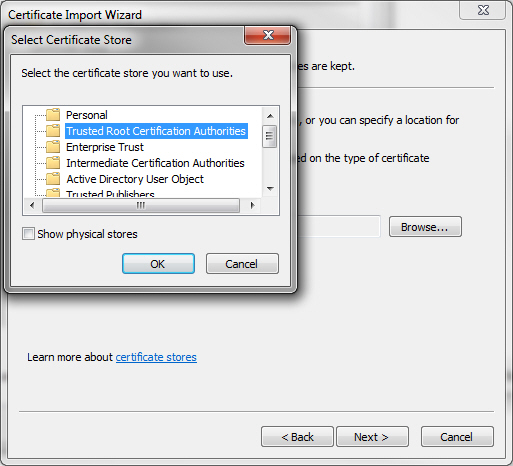
3. Follow the wizard: Place all the certificates in the Trusted Root Certification Authorities store: Select the Place all certificates in the following store option and browse to select the Trusted Root Certification Authorities store.
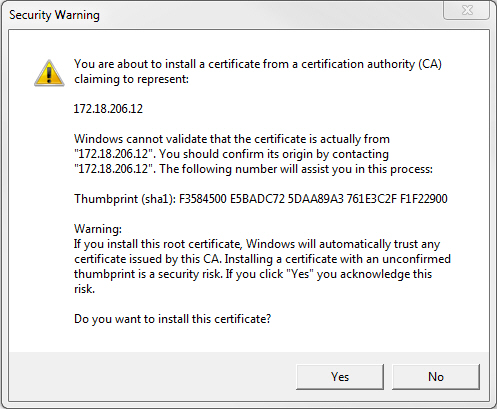
4. Continue to the end of the wizard. Click Yes when the Security Warning is displayed.
5. Click OK that the installation was successful.
6. Click OK when prompted and then Yes in the Security Alert dialog to continue.