Performing a Custom Installation
You can install Zerto Virtual Replication specifying the ports that will be used by Zerto Virtual Replication and full contact details.
To perform a custom install of Zerto Virtual Replication:
1. Run the Zerto Virtual Replication Installer for Hyper-V.
■ If the required version of Microsoft .NET Framework is not installed, you are prompted to install the required version of .NET Framework, which is included as part of the Zerto Virtual Replication installation package.
After .NET is installed, the machine automatically restarts and the Zerto Virtual Replication installation begins.
2. Follow the wizard until the Installation Type window appears, then select the option, Custom Installation.
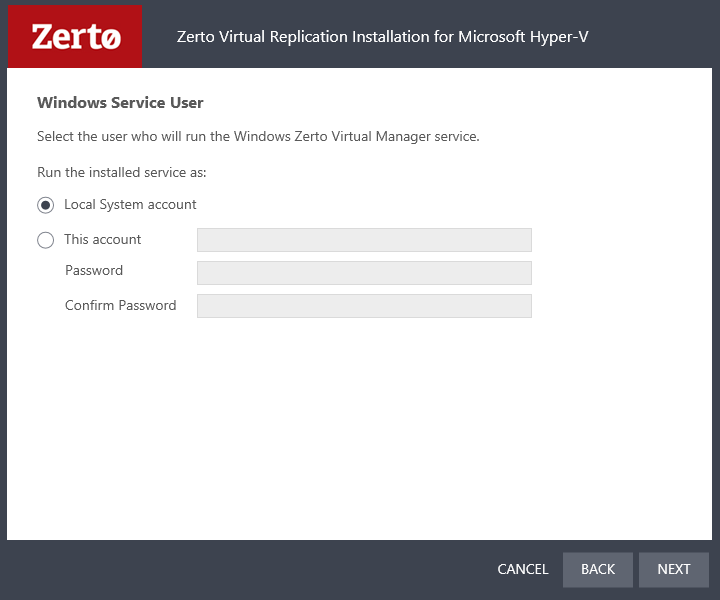
3. Click NEXT. The Windows Service User window appears.
4. Select either Local System account or This account:
■ Local System account: Use the Local System account to run the Zerto Virtual Manager service, which is installed as part of Zerto Virtual Replication. The Local System account has unrestricted access to local resources.
■ This account: Use a specific account as the user account to run the Zerto Virtual Manager service, which is installed as part of Zerto Virtual Replication. The account must have unrestricted access to local resources.
■ Password: The password to use to run the service under the specified account.
■ Confirm Password: Confirmation of the password.
5. Click NEXT.
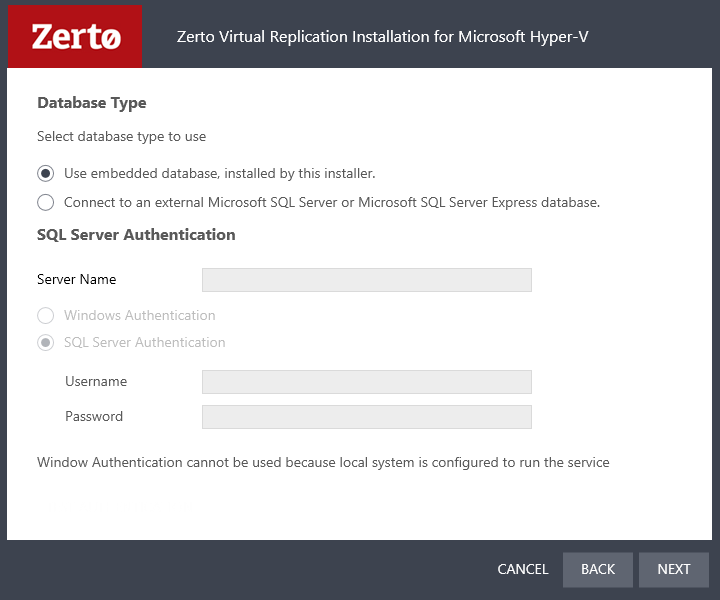
The Database Type window appears.
■ Information required by Zerto Virtual Replication is stored by default in a database embedded in the Zerto Virtual Manager. This information includes details of the site where the Zerto Virtual Manager is installed, details of the Virtual Replication Appliances and the volumes they use, and points-in-time recorded for recovery purposes.
■ By default an embedded SQL-based database is installed, but you can use an externally managed database, either Microsoft SQL Server or SQL Server Express.
■ Protection and recovery can only be performed when the database is running.
■ If you use an external database and it is down for any reason, protection ceases.
6. To use the
embedded database, leave the
default which is installed with this installation, then continue with
Step 9.
7. To use an external database, select the option, Connect to an external Microsoft SQL Server or Microsoft SQL Server Express database.
Zerto recommends that you use the external database when the:
■ Number of hosts is greater than 40
■ Number of sites is greater than 4
■ Number of protected virtual machines is greater than 400
■ Number of VPGs is greater than 200
8. If you selected an external database, the SQL Server Authentication area is enabled. Enter the following authentication details to enable access to the SQL Server database:
a) Server Name: The domain name and server instance to connect to, with the format: <server_name>\<instance_name> or <Server_IP>\<instance_name>
b) You must specify an authentication method. Select one of the following:
■ Windows Authentication
- or -
■ SQL Server Authentication
c) If you selected
Windows Authentication: This option is enabled only if a specific service user account was specified in Windows Service User, in
Step 3. In this case, the service account name and password are used.
d) If you selected SQL Server Authentication, the Test Authentication button is also displayed.
After you define the following, click Test Authentication:
■ Username: The user name for the SQL Server database.
■ Password: A valid password for the given user name.
The installer checks whether it can connect to the specified database with the specified username and password.
You can only continue when the authentication is successful.
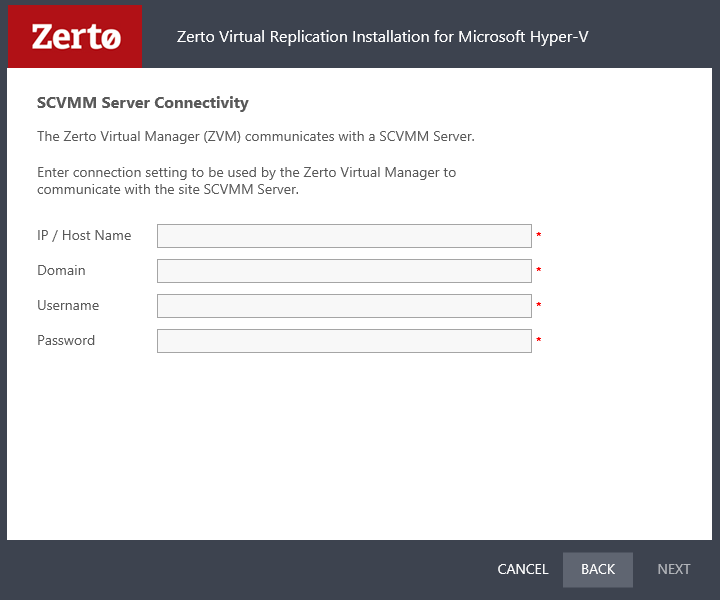
9. Click NEXT. The SCVMM Server Connectivity window appears.
10. Enter connection settings that the Zerto Virtual Manager uses to communicate with the SCVMM Server:
■ IP/Host name: The IP address or host name of the machine where the SCVMM runs.
■ Domain: The domain for a user with administrator level privileges to the System Center Virtual Machine Manager.
■ Username: The user name for a user with administrator level privileges to the System Center Virtual Machine Manager.
■ Password: A valid password for the given user name.
11. Click NEXT.
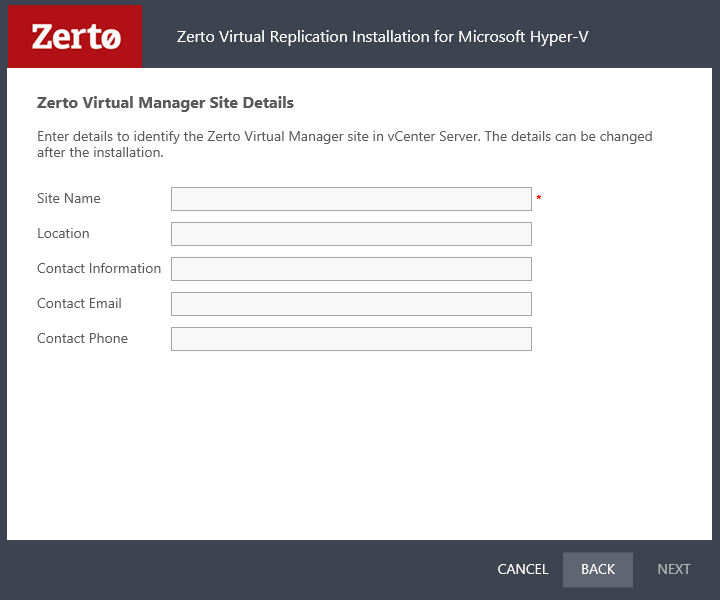
The Zerto Virtual Manager Site Details window appears, where you define general information about the site.
12. Enter the site details:
■ Site Name: A name to identify the site. This name is displayed in the Zerto User Interface. This field is mandatory.
■ Location: Information such as the address, or name of the site to identify it. This field is optional.
■ Contact Information: The name of the person to contact if a need arises. This field is optional.
■ Contact Email: The email address to contact if a need arises. This field is optional.
■ Contact Phone: The phone number to contact if a need arises. This field is optional.
13. Click NEXT.
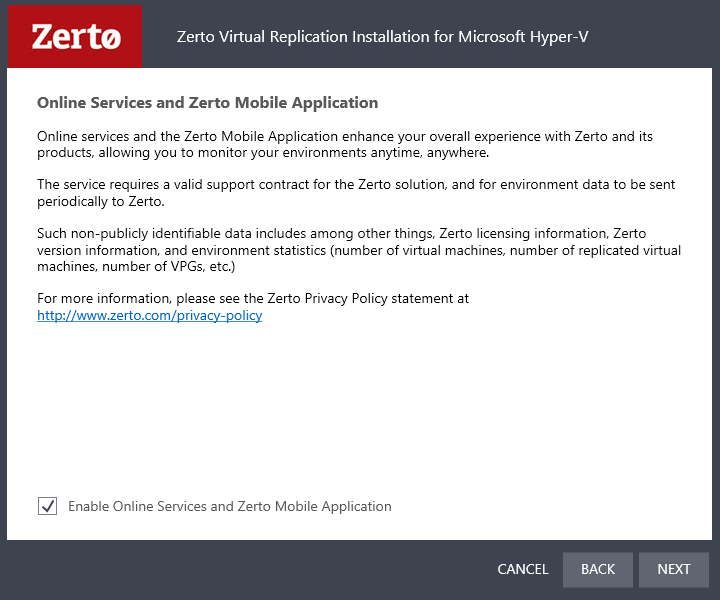
The Online Services and Zerto Mobile Application window appears.
The Online Services and Zerto Mobile Application are enabled by default.
■ You can disable these services by deselecting Enable Online Services and Zerto Mobile Application.
14. Click NEXT.
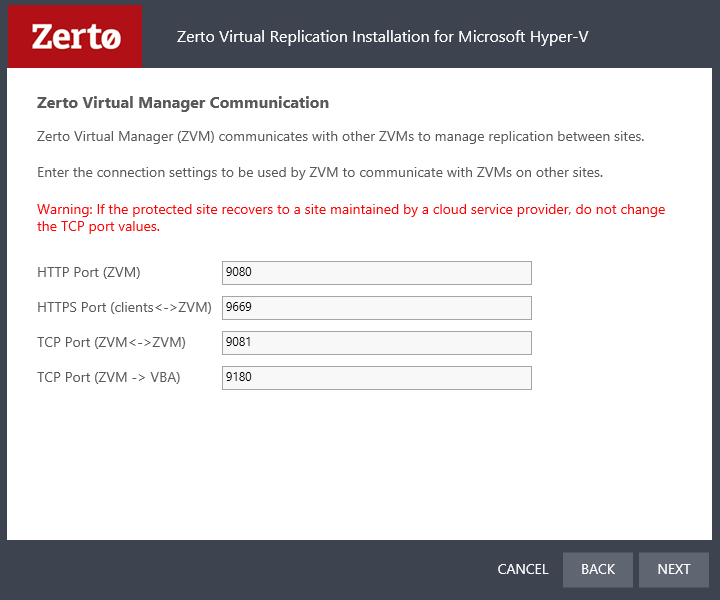
The Zerto Virtual Manager Communication window appears.
In this window you define the connection settings (ports) which are used by Zerto Virtual Manager to communicate with Zerto Virtual Managers on other sites.
Port Description Parameter | Default Port Number | Communication Direction | Between... | Comments |
HTTP Port (ZVM) | 9080 | Inbound | Zerto Virtual Manager - and - Zerto internal APIs, Cmdlets and a VSS Agent | |
HTTP Port (clients<->ZVM) | 9669 | Inbound | Zerto User Interface - and - Zerto Virtual Manager | |
TCP Port (ZVM<->ZVM) | 9081 | Inbound and outbound | Zerto Virtual Manager - and - Zerto Virtual Manager | ■ When both the protected and recovery sites belong to the same enterprise: ■ If you change this value, when pairing sites, use the TCP port value specified here. Pairing the sites is described in “Pairing Sites”, on page 27. ■ When an enterprise uses a cloud service provider to supply disaster recovery services: ■ Do not change this value |
TCP Port (ZVM->VBA) | 9180 | Inbound and outbound | Zerto Virtual Manager - and - Virtual Backup Appliance (VBA) | |
15. Click NEXT.
The installation performs checks to verify that the installation can proceed successfully.
16. After the checks complete successfully, click RUN and continue to the end of the installation.
As part of the installation, the Zeus driver (jFLR) is also installed. This installation is mandatory for the Zerto Virtual Replication installation.
a) During the installation, you are prompted with a Windows Security message to install the Zerto Storage controller, which will install the Zeus driver (jFLR).
b) Click Install, and continue with the installation.
If you do not install the additional software when prompted, the Zerto Virtual Replication installation will fail.
17. If you intend managing your disaster recovery
from this machine, you can select to open the Zerto Virtual Manager (ZVM) Interface at the end of the installation, logging in with the user name and password for the SCVMM connected to the Zerto Virtual Manager. In this user interface you set up Zerto Virtual Replication, as described in
“Initial Configuration”, on page 23.
18. You must exclude the Zerto Virtual Replication folder from antivirus scanning. Failure to do so may lead to the ZVR folder being incorrectly identified as a threat and in some circumstances corrupt the ZVR folder.
19. Add the machine to the relevant host boot configuration, so that on starting up the host, this machine, running the Zerto Virtual Manager, is also powered on automatically.
20. Install Zerto Virtual Replication on peer sites.
■ The installation creates the Zerto Virtual Manager and Virtual Backup Appliance as services, and the installation package to enable installing Virtual Replication Appliances on hosts.
■ Zerto Virtual Replication creates folders, such as C:\ZertoAgent, which must not be removed.