Protecting Virtual Machines to Hyper-V Hosts
You can protect virtual machines to Hyper-V. The procedure is the same whether you intend to protect one virtual machine or multiple virtual machines.
To create a virtual protection group (VPG):
1. In the Zerto User Interface, select ACTIONS > CREATE VPG.
The NEW VPG step of the Create VPG wizard is displayed.
2. Specify the name of the VPG and the priority of the VPG.
VPG Name – The VPG name must be unique. The name cannot be more than 80 characters.
Priority – Determine the priority for transferring data from the protected site to the recovery site when there is limited bandwidth and more than one VPG is defined on the protected site. When there are updates to virtual machines protected in VPGs with different priorities, first the updates from the VPG with the highest priority are passed over the WAN. Medium priority VPGs will only be able to use whatever bandwidth is left after the high priority VPGs have used it. This is also true between medium and low priorities. Note that updates to the protected virtual machines are always sent across the WAN before synchronization data, such as during a bitmap or delta sync. During a synchronization, only after updates to the virtual machines are sent over the WAN, based on the VPG priority, is synchronization data from the VPG sent, and the synchronization data from the VPG with the highest priority is passed over the WAN before data from medium and low priority VPGs.
3. Click NEXT.
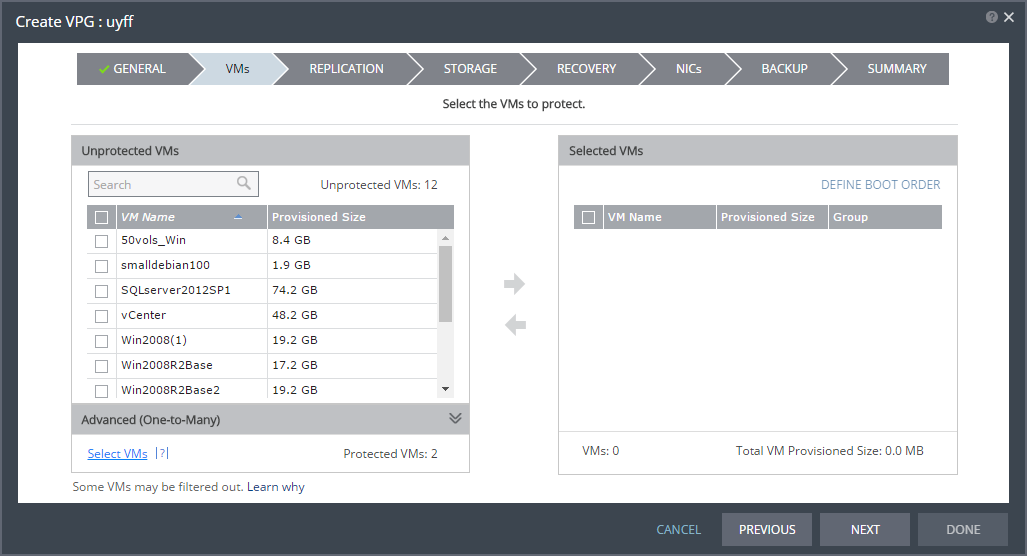
The VMs step is displayed.
4. Select the VMs that will be part of this VPG and click the arrow pointing right to include these VMs in the VPG.
Virtual machines that are not yet protected are displayed in the list. A VPG can include virtual machines that are not yet protected and virtual machines that are already protected. You can view protected virtual machines by clicking Select VMs in the Advanced (One-to-Many) section.
The Select VMs dialog is displayed.
Note: Virtual machines can be protected in a maximum of three VPGs. These VPGs cannot be recovered to the same site. Virtual machines protected in the maximum number of VPGs are not displayed in the Select VMs dialog.
Protecting virtual machines in several VPGs is enabled only if both the protected site and the recovery site, as well as the VRAs installed on these sites, are of version 5.0 and higher.
5. If you want to define the boot order of the virtual machines in the VPG, click DEFINE BOOT ORDER, otherwise go to the next step.
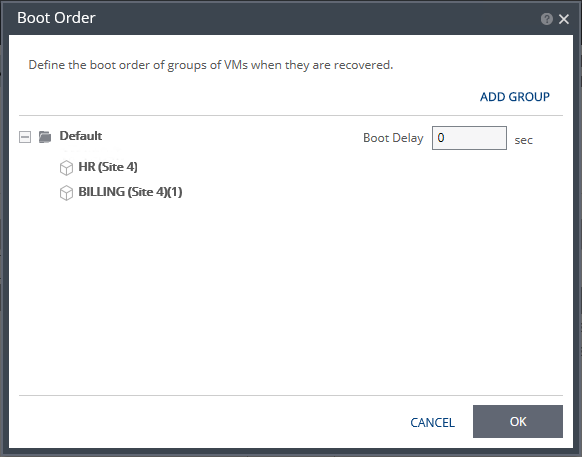
When virtual machines in a VPG are started in the recovery site, by default these machines are not started up in a particular order. If you want specific virtual machines to start before other machines, you can specify a boot order. The virtual machines are defined in groups and the boot order applies to the groups and not to individual virtual machines in the groups. You can specify a delay between groups during startup.
Note: Up to five virtual machines may boot on a host simultaneously. Following the boot, a 300 second delay occurs until the next boot batch.
Initially, virtual machines in the VPG are displayed together under the Default group. If you want specific machines to start before other virtual machines, define new groups with one or more virtual machines in each group.
a) Click ADD to add a new group.
b) To change the name of a group, click the Pencil icon next to the group. To delete a group, click the delete icon on the right side. You cannot delete the Default group nor a group that contains a virtual machine.
c) Drag virtual machines to move them from one group to another.
d) Drag groups to change the order the groups are started.
e) Optionally, in Boot Delay, specify a time delay between starting up the virtual machines in the group and starting up the virtual machines in the next group. For example, assume three groups, Default, Server, and Client, defined in this order. The boot delay defined for the Default group is 10, for the Server group is 100, and for the Client group 0. The virtual machines in the Default group are started together and after 10 seconds the virtual machines in the Server group are started. After 100 seconds the virtual machines in the Client group are started.
f) Click OK to save the boot order.
Click NEXT.
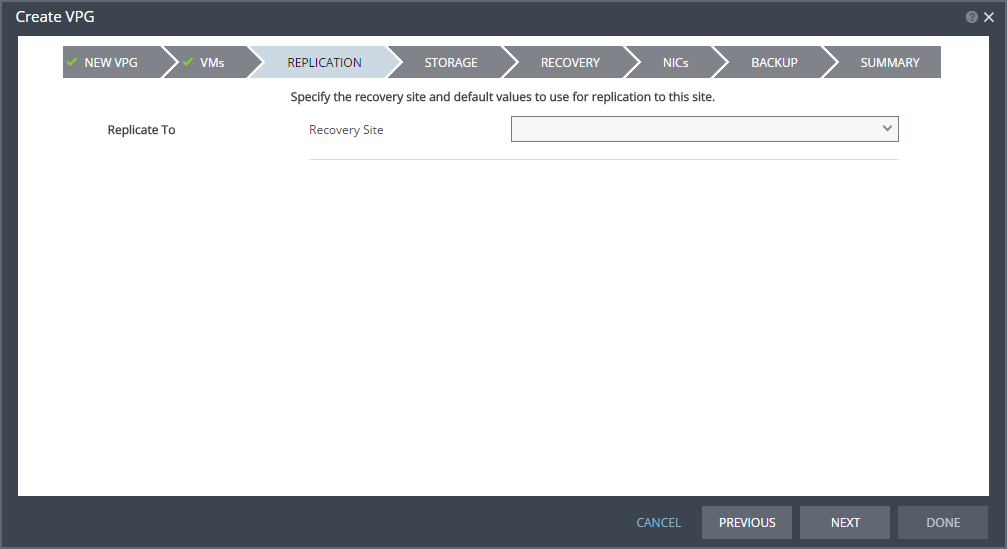
The REPLICATION step is displayed.
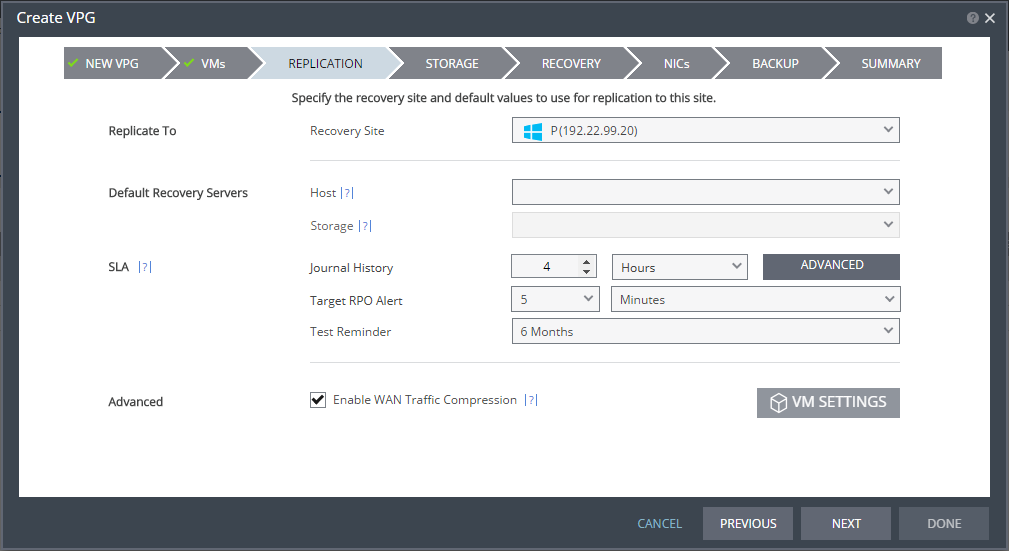
Note: If the protected site is paired with only one recovery site, the recovery step is displayed with the Recovery Site field automatically filled in and defaults set for the SLA and Advanced settings, as shown below.
6. Specify the recovery site.
Recovery Site – The site to which you want to recover the virtual machines. After specifying the recovery site, the host and storage on the site to use for the replication can be specified.
Host – The default cluster or host, in the recovery site that handles the replicated data.
Storage – The default storage volume to use for the recovered virtual machine files and for their data volumes. Every storage for the recovery host is included in the drop-down list. If a cluster is selected for the host, only storage accessible by every host in the cluster are displayed.
7. Optionally, change the SLA settings, which apply to every virtual machine in the group.
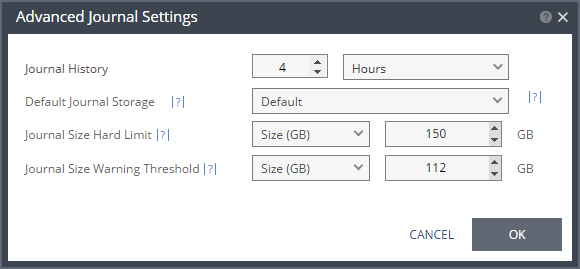
■ Journal History: The time that all write commands are saved in the journal.
The longer the information is saved in the journal, the more space is required for each journal in the VPG.
You can select the number of hours from 1 to 24 or the number of days from 2 to 30.
For additional journal-related fields, click ADVANCED.
The Advanced Journal Settings dialog is displayed.
Select the journal settings.
■ (for Hyper-V environments) Default Journal Storage:
-or-
■ (for vSphere environments) Default Journal Datastore:
The storage/datastore used for the journal data for each virtual machine in the VPG.
Select the storage/datastore accessible to the host.
When you select a specific journal storage/datastore, the journals for each virtual machine in the VPG are stored in this storage/datastore, regardless of where the recovery storage/datastore is for each virtual machine. In this case, all protected virtual machines must be recovered to the hosts that can access the specified journal storage/datastore.
Journal Size Hard Limit: The maximum size that the journal can grow, either as a percentage or a fixed amount.
The journal is always thin-provisioned.
■ Unlimited: The size of the journal is unlimited and it can grow to the size of the recovery datastore.
Note: If Unlimited is selected, the Size and Percentage options are not displayed.
■ Size (GB): The maximum journal size in GB.
■ The minimum journal size, set by Zerto Virtual Replication, is 8 GB, for Hyper-V and vSphere environments, and 10GB for Microsoft Azure environments.
■ Percentage: The percentage of the virtual machine volume size to which the journal can grow.
■ This value can be configured to more than 100% of the protected VM's volume size.
Journal Size Warning Threshold: The size of the journal that triggers a warning that the journal is nearing its hard limit.
■ Unlimited: The size of the journal is unlimited and it can grow to the size of the recovery datastore.
Note: If Unlimited is selected, the Size and Percentage options are not displayed.
■ Size (GB): The size in GB that will generate a warning.
■ Percentage: The percentage of the virtual machine volume size that will generate a warning.
Both the values of Size and Percentage must be less than the configured Hard Limit so that the warning will be generated when needed. In addition to the warning threshold, Zerto Virtual Replication will issue a message when the free space available for the journal is almost full.
Target RPO Alert – The maximum desired time between each automatic checkpoint write to the journal before an alert is issued.
Test Reminder – The time recommended between testing the integrity of the VPG. A warning is issued if a test is not done within this time frame.
8. Optionally, change the Advanced value.
Enable WAN Traffic Compression – Whether or not data is compressed before being transferred to the recovery site. Compressing the data is more efficient but results in a small performance degradation. Enable WAN traffic compression if network considerations are more critical than CPU usage considerations. When WAN compression is enabled, the compressed data is written in compressed format to the recovery site journal. Even if WAN compression is selected, Zerto Virtual Replication decreases the level of compression if it takes too many resources. The VRA automatically adjusts the compression level according to CPU usage, including totally disabling it if needed. Zerto recommends enabling WAN compression. Zerto Virtual Replication can also work with third-party WAN optimization and acceleration technologies, such as those supplied by Riverbed Technologies and Silver Peak. When third-party WAN optimization is implemented, Zerto recommends disabling VPG WAN compression.
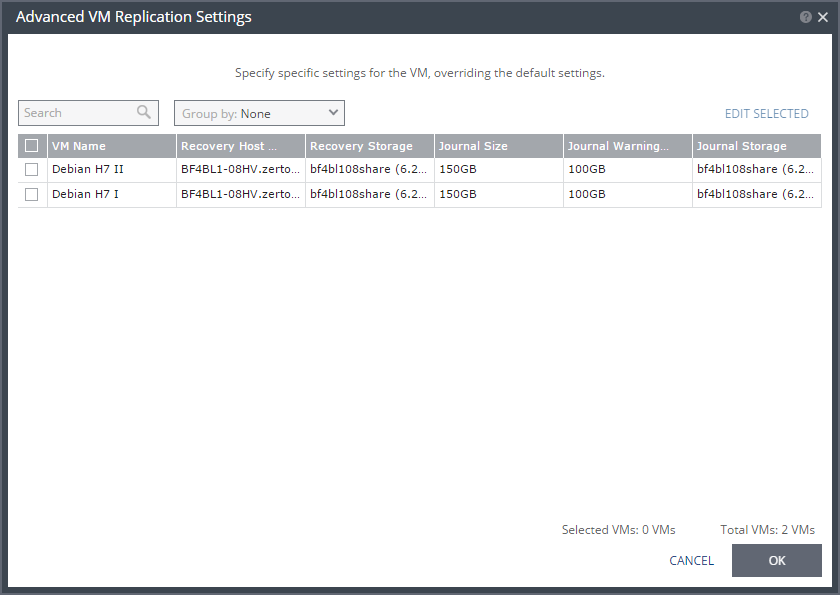
9. If you want to change the replication settings per virtual machine, click VM SETTINGS.
The Advanced VM Replication Settings dialog is displayed.
In this dialog, you can edit the values of one or more of the virtual machines in the VPG.
10. If you want to edit information in one field, click the field and update the information. If you want to edit information for several virtual machines at the same time, select the virtual machines and click EDIT SELECTED.
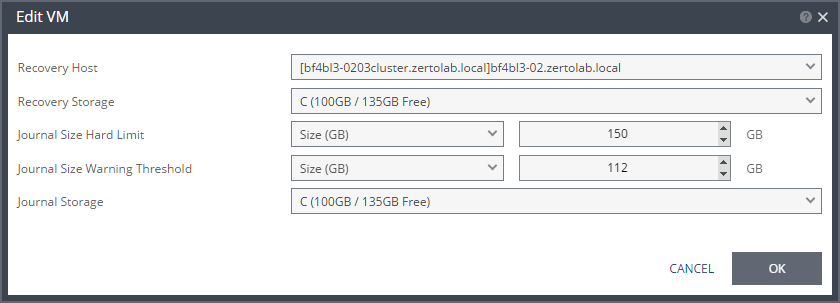
The Edit VM dialog is displayed.
Recovery Host – The cluster or host that will host the recovered virtual machine.
Recovery Storage – The location where the metadata files for the virtual machine are stored, such as the vhdx file. If a cluster is selected for the host, only storage that are accessible by every host in the cluster are displayed.
Journal Size Hard Limit: The maximum size that the journal can grow, either as a percentage or a fixed amount.
The journal is always thin-provisioned.
■ Unlimited: The size of the journal is unlimited and it can grow to the size of the recovery datastore.
Note: If Unlimited is selected, the Size and Percentage options are not displayed.
■ Size (GB): The maximum journal size in GB.
■ The minimum journal size, set by Zerto Virtual Replication, is 8 GB, for Hyper-V and vSphere environments, and 10GB for Microsoft Azure environments.
■ Percentage: The percentage of the virtual machine volume size to which the journal can grow.
■ This value can be configured to more than 100% of the protected VM's volume size.
Journal Size Warning Threshold: The size of the journal that triggers a warning that the journal is nearing its hard limit.
■ Unlimited: The size of the journal is unlimited and it can grow to the size of the recovery datastore.
Note: If Unlimited is selected, the Size and Percentage options are not displayed.
■ Size (GB): The size in GB that will generate a warning.
■ Percentage: The percentage of the virtual machine volume size that will generate a warning.
Both the values of Size and Percentage must be less than the configured Hard Limit so that the warning will be generated when needed. In addition to the warning threshold, Zerto Virtual Replication will issue a message when the free space available for the journal is almost full.
Journal Storage – The storage used for the journal data for each virtual machine in the VPG. To change the default, specify a host and then select the storage location accessible by this host to be used as the journal storage. When you select specific journal storage, the journals for each virtual machine in the VPG are stored in this storage, regardless of where the recovery storage is for each virtual machine. In this case, all the protected virtual machines must be recovered to hosts that can access the specified journal storage.
Click OK.
11. In the Advanced VM Replication Settings dialog, click OK.
12. Click NEXT.
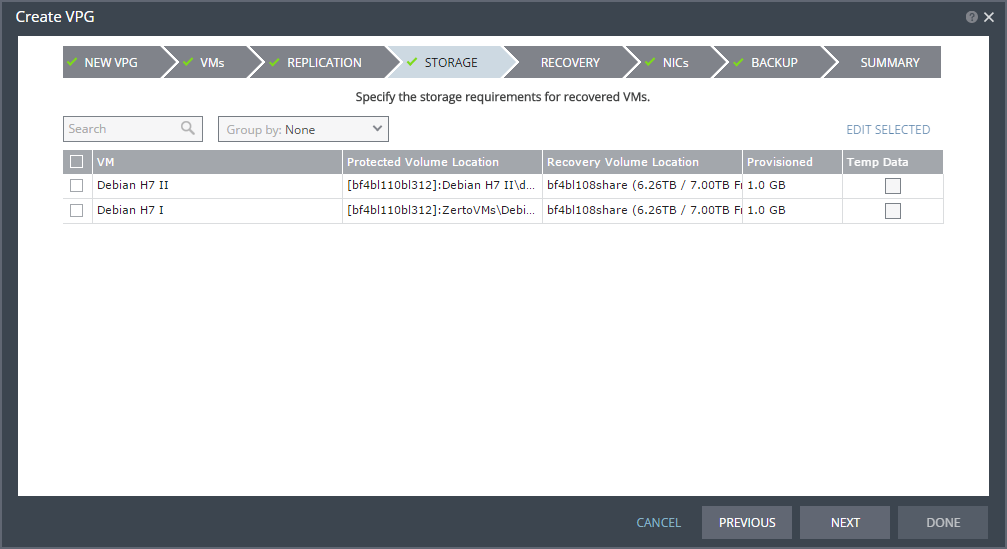
The STORAGE step is displayed. By default the storage used for the virtual machine definition is also used for the virtual machine data. For each virtual machine in the VPG, Zerto Virtual Replication displays its storage-related information.
Note: Steps that do not require input are marked with a check mark. You can jump directly to a step that has been marked with a check mark to edit the values for that step. Every step must be marked with a check mark before you can click DONE to create the VPG.
Temp Data – If the virtual machine to be replicated includes a temp data disk as part of its configuration, mark the recovery disk for this disk as a temp data disk. In this case, data is not replicated to the temp data disk after initial synchronization.
13. If you want to edit information in one field, click the field and update the information. If you want to edit information for several virtual machines at the same time, select the virtual machines and click EDIT SELECTED.
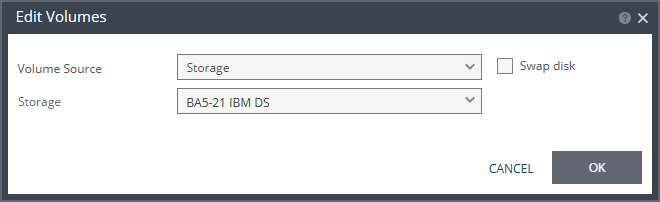
The Edit Volumes dialog is displayed.
14. Specify the volume source for recovery from one of the options.
Storage – A new volume is used for replicated data. Specify the storage to use to create disks for the replicated data.
The storage specified for the replication must have at least the same amount of space as the protected volume and then an additional amount for the journal. The amount of additional space needed for the journal can be fixed by specifying a maximum size for the journal, or can be calculated as the average change rate for the virtual machines in the VPG, multiplied by the length of time specified for the journal history.
Preseeded volume – Whether to copy the protected data to a virtual disk in the recovery site. Zerto recommends using this option particularly for large disks so that the initial synchronization will be faster since a Delta Sync can be used to synchronize any changes written to the recovery site after the creation of the preseeded disk. When not using a preseeded disk, the initial synchronization phase must copy the whole disk over the WAN. When using a preseeded virtual disk, you select the storage and exact location, folder, and name of the preseeded disk. Zerto Virtual Replication takes ownership of the preseeded disk, moving it from its source folder to the folder used by the VRA. Only disks with the same size as the protected disk can be selected when browsing for a preseeded disk. The storage where the preseeded disk is placed is also used as the recovery storage for the replicated data.
15. Specify the other volume options.
Temp Data disk – If the virtual machine to be replicated includes a temp data disk as part of its configuration, specify a mirror disk for replication that is marked as a temp data disk. In this case, data is not replicated to the temp data disk after initial synchronization.
16. Click OK.
17. Click NEXT.
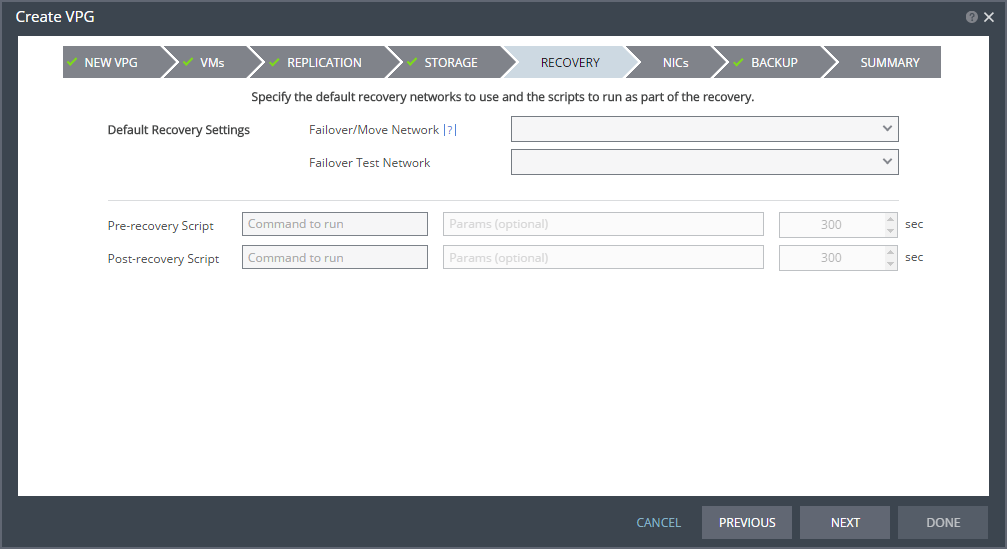
The RECOVERY step is displayed. Recovery details include the networks to use for failover, move, and for testing failover, and whether scripts should run as part of the recovery operation.
18. Select the default recovery settings. These are applied to every virtual machine in the VPG.
Failover/Move Network – The network to use during a failover or move operation in which the recovered virtual machines will run.
Failover Test Network – The network to use when testing the failover of virtual machines in the recovery site. Zerto recommends using a fenced-out network so as not to impact the production network at this site.
19. Enter the name of the script to run in the Command to run text box. You can then enter details about the script.
Pre-recovery Script – The information about a script that should run at the beginning of the recovery process.
Post-recovery Script – The information about a script that should run at the end of the recovery process.
For both types of scripts, enter the following information:
Text Box | Description |
Command to run | The full path of the script. The script must be located on the same machine as the Zerto Virtual Manager for the recovery site. |
Params | The parameters to pass to the script. Separate parameters with a space. |
Timeout | The time-out, in seconds, for the script to run. If the script runs before executing a failover, move, or test failover, and the script fails or the timeout value is reached, an alert is generated and the failover, move, or test failover is not performed. If the script runs after executing a failover, move, or test failover, and the timeout value is reached, an alert is generated. The default time-out value is specified in Performance and Throttling tab in the Site Settings dialog. |
20. Click NEXT.
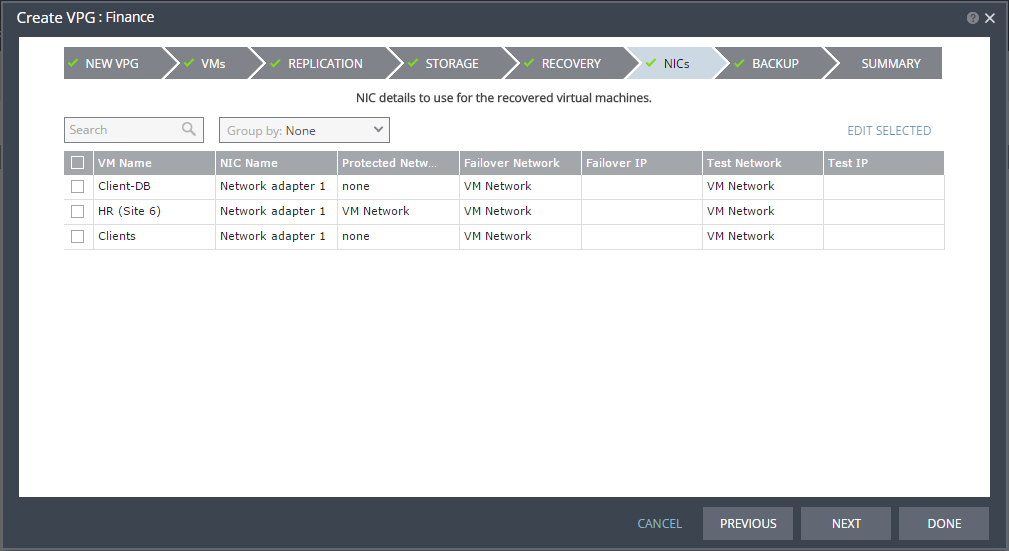
The NICs step is displayed. In this step, you can specify the NIC details to use for the recovered virtual machines after a failover, a test failover, or migration.
21. If you want to edit information in one field, click the field and update the information. If you want to edit information for several virtual machines at the same time, select the virtual machines and click
EDIT SELECTED. Otherwise, go to step
24.
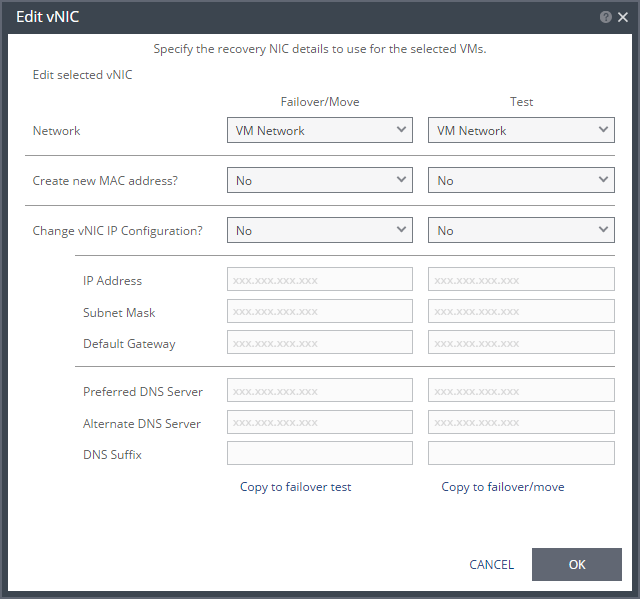
The Edit VNIC dialog is displayed.
22. Specify the network details to use for the recovered virtual machines after a failover or move operation, in the Failover/Move column, and for the recovered virtual machines when testing replication, in the Test column.
In each column, specify the following:
Network: The network to use for this virtual machine.
Create New MAC Address: Whether the Media Access Control address (MAC address) used on the protected site should be replicated on the recovery site. The default is to use the same MAC address on both sites. Note that if you check this option, to create a new MAC address, and the current IP address is not specified, the protected virtual machine static IP address might not be used for the recovered virtual machine.
Change vNIC IP Configuration: Whether or not to keep the default virtual NIC (vNIC) IP configuration. Configuration is possible only when the guest operating system is defined in the hypervisor manager and Integration Services are detected. The vNIC IP address is only changed after recovery for virtual machines with Microsoft Integration Services running.
To change the vNIC IP configuration, select Yes in the Failover/Move or Test column. If you select to use a statically-assigned IP address, set the IP address, subnet mask, and default gateway. Optionally, change the preferred and alternate DNS server IP addresses and the DNS suffix. If you leave the DNS server and suffix entries empty, or select to use DHCP, the IP address and DNS server configurations are assigned automatically, to match the protected virtual machine. You can change the DNS suffix.
If the virtual machine has multiple NICs but is configured to only have a single default gateway, fill in a 0 for each octet in the Default gateway field for the NICs with no default gateway.
Note: During a failover, move, or test failover, if the recovered virtual machine is assigned a different IP address than the original IP address, after the virtual machine has started it is injected with the correct IP address. If the same network is used for both production and test failovers, Zerto recommends changing the IP address for the virtual machines started for the test, so that there is no IP address clash between the test machines and the production machines.
Copy to failover test – Copies the settings in the Failover/Move column to the Test column.
Copy to failover/move – Copies the settings in the Test column to the Failover/Move column.
23. Click OK.
24. Click NEXT.
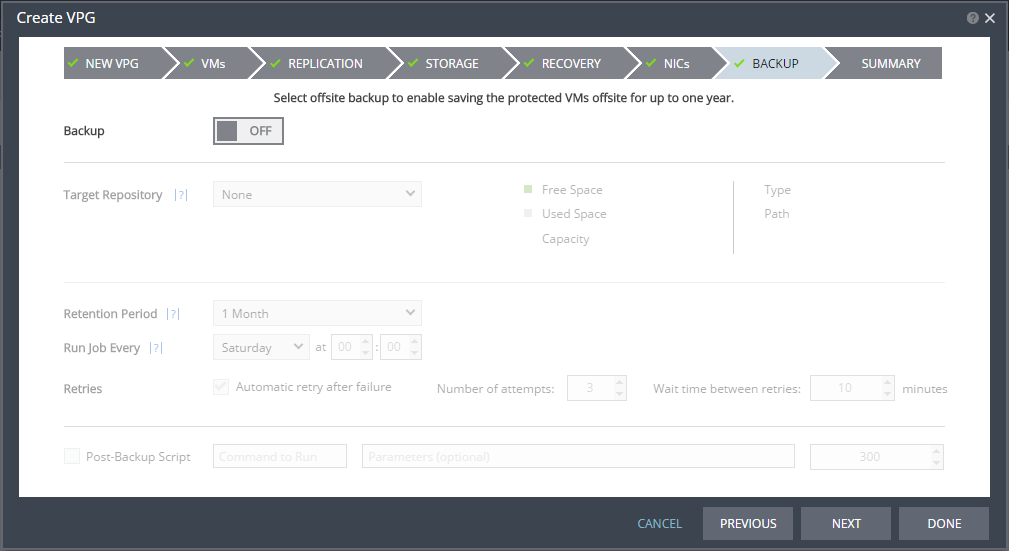
The BACKUP step is displayed. Backup properties govern the VPG backup, including the repository where the backups are saved. Backup extends the ability to recover virtual machines in a VPG going back one year.
25. By default, backup is off. If you do not want to change this value, go to step
26. Otherwise, toggle OFF to ON and enter the following information:
Target Repository – The name of the repository where the offsite backups are written. Repositories are configured via the
SETUP tab as described in
“Setting Up Offsite Backups”, on page 24.
Retention Period – The length of time to keep offsite backups, up to a maximum of one year. For details of how this affects the number of backups saved, see
“Offsite Backups”, on page 35.
Run Job Every – The day and time to start the backup.
Retries – Whether to rerun the backup job automatically if the job fails. If you select this option, you must also define the number of retries that will be attempted and the time to wait after a job fails before running the backup job again.
Post-Backup Script – The information about a script that should run at the end of the recovery process. Enter the following information:
Text Box | Description |
Command to run | The full path of the script. The script must be located on the same machine as the Zerto Virtual Manager for the recovery site. |
Parameters | The values of parameters to pass to the script. Separate parameters with a space. |
Timeout | The time-out, in seconds, for the script to run. If the timeout value is reached, an alert is generated. The default time-out value is specified in the Performance and Throttling tab of the Site Settings dialog. |
26. Click NEXT.
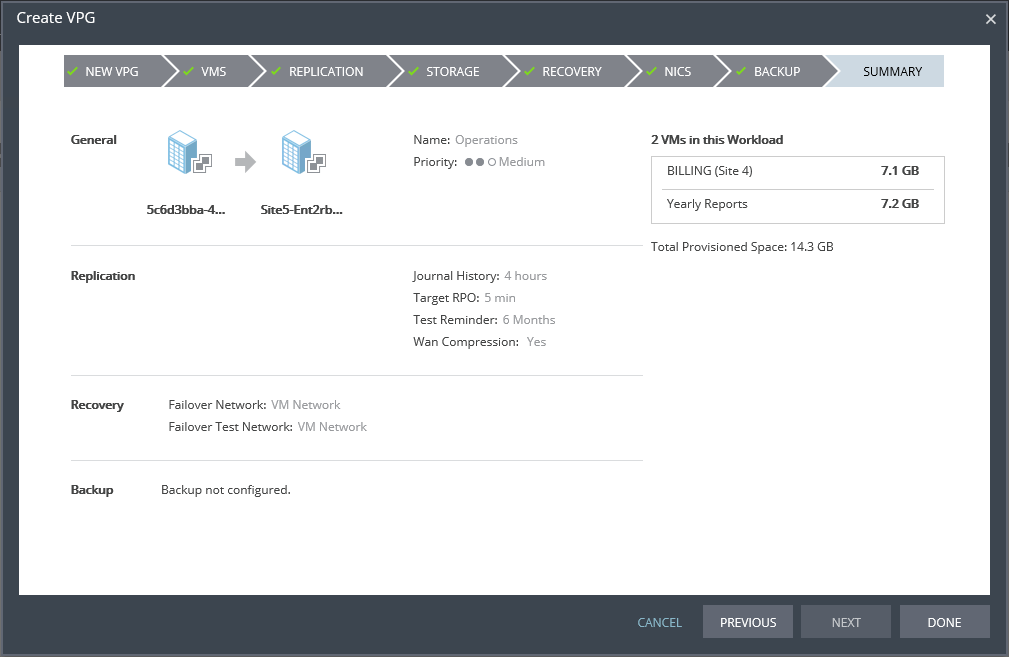
The SUMMARY step is displayed. It shows the VPG configuration that you defined in previous tabs.
27. Click DONE.
The VPG is created.
For details of what happens after saving the VPG, see
“What Happens After the VPG is Defined”, on page 34.