Initiating a Failover
You can initiate a failover, whereby the virtual machines in the virtual protection group are replicated to a set checkpoint in the recovery site. As part of the process you can also set up reverse replication, whereby you create a virtual protection group on the recovery machine for the virtual machines being replicated, pointing back to the protected site.
You can initiate a failover to the last checkpoint recorded in the journal, even if the protected site is no longer up. You can initiate a failover during a test, as described in
“Initiating a Failover During a Test”, on page 213.
If you have time to initiate the failover from the protected site you can. However, if the protected site is down, you initiate the failover from the recovery site.
Note: Any VPGs that are in the process of being synchronized, cannot be recovered, unless the synchronization is a bitmap synchronization.
To initiate a failover:
1. In the Zerto User Interface set the operation to LIVE and click FAILOVER.
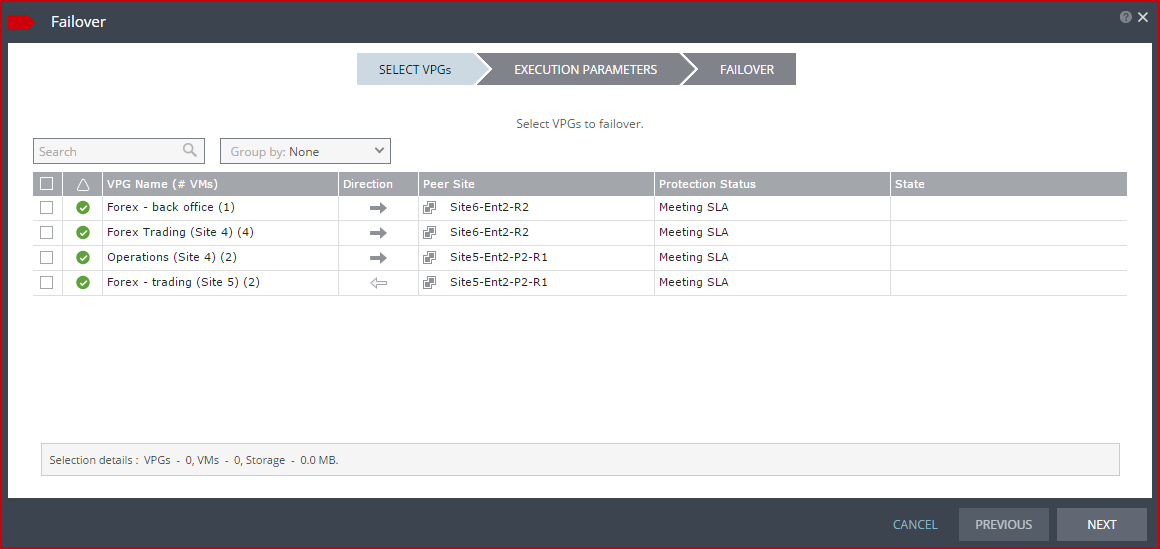
The Failover wizard is displayed.
2. Select the VPGs to failover. By default, all VPGs are listed.
At the bottom, the selection details show the amount of data and the total number of virtual machines selected.
The Direction arrow shows the direction of the process: from the protected site to the peer, recovery, site.
3. Click NEXT.
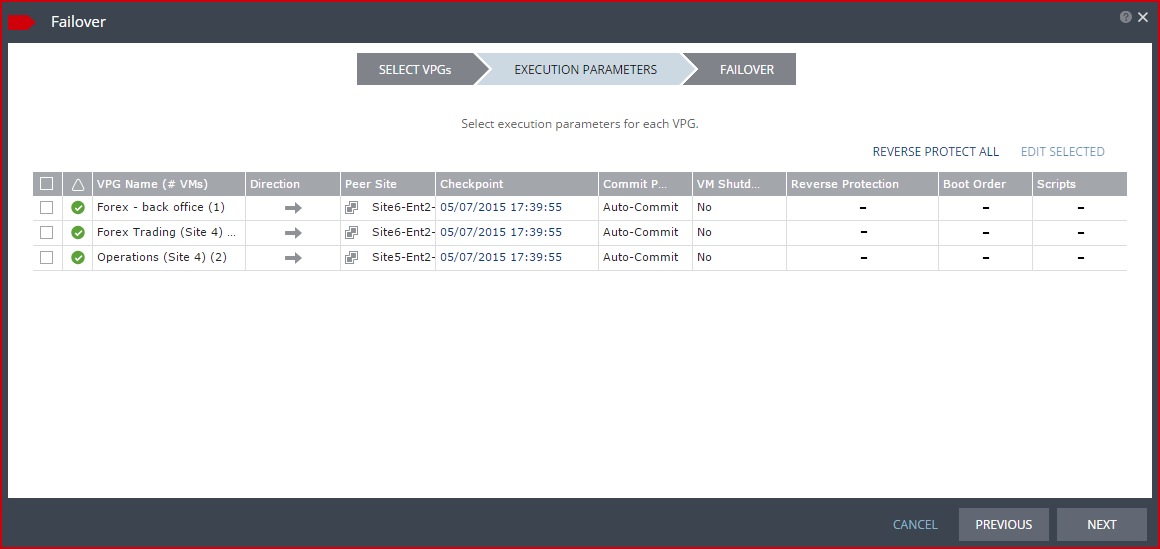
The EXECUTION PARAMETERS step is displayed.
You can change the following values to use for the recovery:
■ Commit Policy
■ Checkpoint to use
■ Force Shutdown
■ Reverse Protection settings
You can also see if a boot order and scripts are defined for the VPG.
4. By default, the last checkpoint added to the journal is displayed. If you want to use this checkpoint, go to the next step. If you want to change the checkpoint, click the checkpoint.
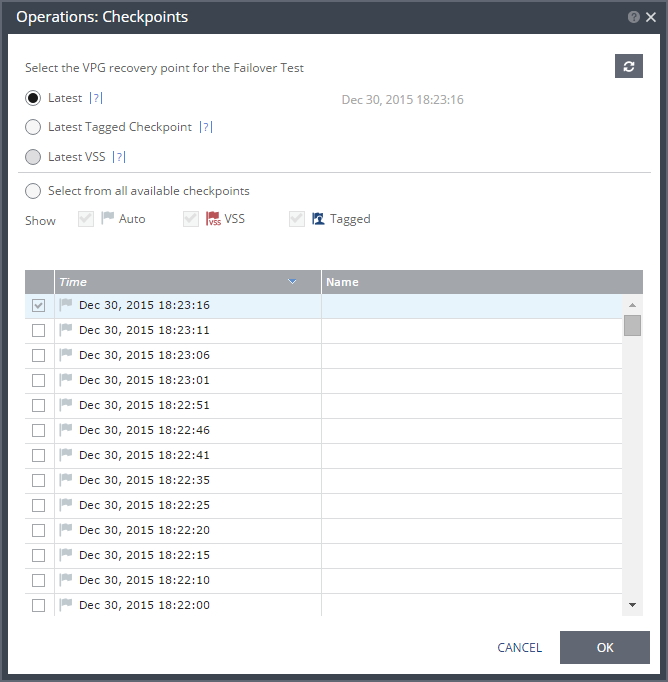
The {VPG-Name}: Checkpoints dialog is displayed.
5. Select the checkpoint to use. Click the refresh button to refresh the list. You can choose from one of the following checkpoints:
Latest – Recovery is to the latest checkpoint. This ensures that the data is crash-consistent for the recovery. When selecting the latest checkpoint, the checkpoint used is the latest at this point. If a checkpoint is added between this point and starting the failover, this later checkpoint is not used.
Latest Tagged Checkpoint – The recovery operation is to the latest checkpoint added in one of the following situations:
■ By a user.
■ When a failover test was previously performed on the VPG that includes the virtual machine.
■ When the virtual machine was added to an existing VPG after the added virtual machine was synchronized.
Latest VSS – When VSS is used, recovery is to the latest VSS snapshot, ensuring that the data is both crash‑consistent and application consistent to this point. The frequency of VSS snapshots determines how much data can be recovered. For details about VSS checkpoints, see
“Ensuring Transaction Consistency in Microsoft Windows Server Environments”, on page 138.
If you do not want to use the latest checkpoint, latest tagged checkpoint, or latest VSS checkpoint, choose Select from all available checkpoints. By default, this option displays all checkpoints in the system. You can choose to display only automatic, VSS, or tagged checkpoints, or any combination of these types.
6. Click OK.
7. To change the commit policy, click on the field or select the VPG and click EDIT SELECTED.
a) To commit the recovery operation automatically, without any checking, select Auto-Commit and 0 minutes.
b) If you do not want an automatic commit or rollback, select None. You must manually commit or roll back.
To allow checking before committing or rolling back, specify an amount of time to check the recovered machines, in minutes, before the automatic commit or rollback action is performed. During this time period, check that the new virtual machines are OK and then commit the operation or roll it back. The maximum amount of time you can delay the commit or rollback operation is 1440 minutes, which is 24 hours.
Checking that involves I/O is done on scratch volumes. The longer this period the more scratch volumes are used, until the maximum size is reached, at which point no more checking can be done. The maximum size of all the scratch volumes is determined by the journal size hard limit and cannot be changed. The scratch volumes reside on the storage defined for the journal.
To specify the shutdown policy, double-click the VM Shutdown field and select the shutdown policy:
No (default) – The protected virtual machines are not touched before starting the failover. This assumes that you do not know the state of the protected machines, or you know that they are not serviceable.
Yes – If the protected virtual machines have Microsoft Integration Services available, the virtual machines are gracefully shut down, otherwise the Failover operation fails. This is similar to performing a Move operation to a specified checkpoint.
Force Shutdown – The protected virtual machines are forcibly shut down before starting the failover. This is similar to performing a Move operation to a specified checkpoint. If the protected virtual machines have Microsoft Integration Services available, the procedure waits five minutes for the virtual machines to be gracefully shut down before forcibly powering them off.
8. To specify reverse protection, where the virtual machines in the VPG are moved to the recovery site and then protected in the recovery site, back to the original site, double-click the Reverse Protection field and click the REVERSE link.
The Edit Reverse VPG wizard is displayed.
You can edit the reverse protection configuration. The parameters are the same as described when you create a VPG, described in
“To create a virtual protection group (VPG):”, on page 37, with the following differences:
■ You cannot add or remove virtual machines to the reverse protection VPG.
■ By default, reverse replication is to the original protected disks. You can specify a different storage to be used for the reverse replication.
■ If Microsoft Integration Services is available, for each virtual machine in the VPG, the IP address of the originally protected virtual machine is used. Thus, during failback the original IP address of the virtual machine on the site where the machine was originally protected is reused. However, if the machine does not contain the utility, DHCP is used.
■ When committing the failover, you can reconfigure reverse protection, regardless of the reverse protection settings specified here.
■ When reverse protection is specified for a VPG residing on a vCD site that is replicating to either a vSphere or Hyper-V site, the boot order settings will not reserve the start delay vApp settings for virtual machines with the same order number.
IMPORTANT:
■ The virtual machines will be removed from the other VPGs that are protecting them if the following conditions apply:
■ The virtual machines are already protected in other VPGs
■ Reverse protection is specified
■ If there are no other virtual machines left to protect, the entire VPG will be removed.
Protecting virtual machines or vCD vApps in several VPGs is enabled only if both the protected site and the recovery site, as well as the VRAs installed on these sites, are of version 5.0 and higher.
9. Click NEXT.
■ A warning appears informing the user that the virtual machines will be removed from the other VPGs that are protecting them.
■ If there are no other virtual machines left to protect, the entire VPG will be removed.
10. Click OK. If a virtual machine is deleted from other VPGs, the journals of these VPGs are reset.
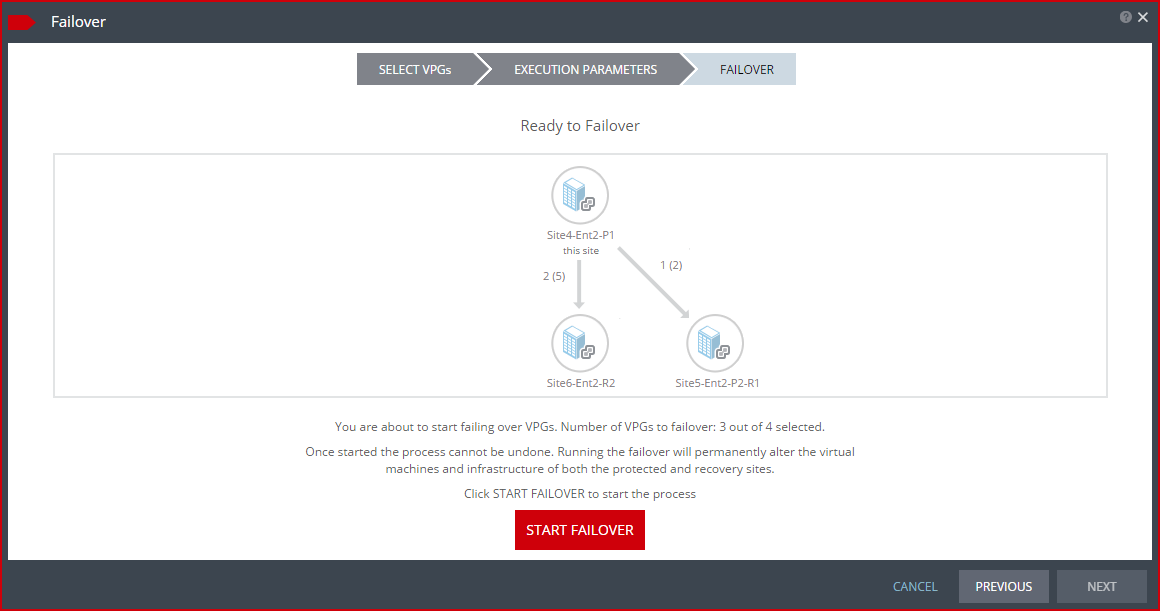
The FAILOVER step is displayed. The topology shows the number of VPGs and virtual machines being failed over to each recovery site. In the following example, 2 VPGs will be failed over to Site6-Ent2-R2, and they contain 5 virtual machines; and 1 VPG will be failed over to Site5-Ent2-P2-R2 and it contains 2 virtual machines.
11. Click START FAILOVER to start the failover.
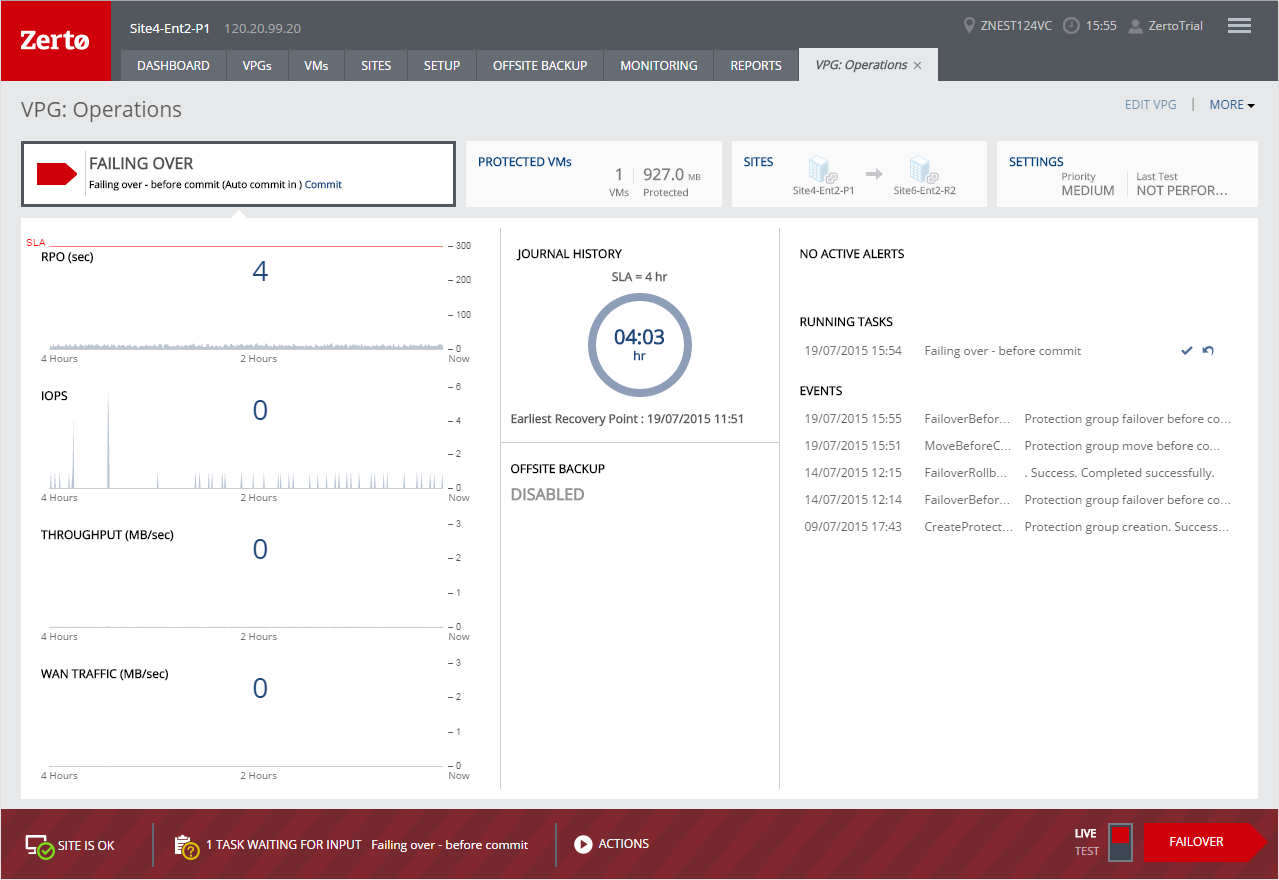
If a commit policy was set with a timeout greater than zero, you can check the failed over virtual machines on the recovery site before committing the failover operation.
The failover starts, by creating the virtual machines in the recovery site to the point-in-time specified: either the last data transferred from the protected site or to one of the checkpoints written in the journal.
Note: If a virtual machine exists on the recovery site with the same name as a virtual machine being failed over, the machine is created and named in the peer site with a number added as a suffix to the name, starting with the number 1.
If the original protected site is still up and reverse replication configured to use the protected virtual machines virtual disks, these virtual machines are powered off.
The status icon changes to orange and an alert is issued, to warn you that the procedure is waiting for either a commit or rollback.
All testing done during this period, before committing or rolling back the failover operation, is written to thin‑provisioned scratch virtual disks. These virtual disks are automatically defined when the machines are created on the recovery site for testing. The longer the test period the more scratch volumes are used, until the maximum size is reached, at which point no more testing can be done. The maximum size of all the scratch volumes is determined by the journal size hard limit and cannot be changed. The scratch volumes reside on the storage defined for the journal. Using these scratch volumes makes committing or rolling back the failover operation more efficient.
Note: You cannot take a snapshot of a virtual machine before the failover operation is committed and the data from the journal promoted to the moved virtual machine disks, since the virtual machine volumes are still managed by the VRA and not directly by the virtual machine. Using a snapshot of a recovered machine before the failover operation has completed will result in a corrupted virtual machine being created.
12. After checking the virtual machines on the recovery site, choose one of the following:
■ Wait for the specified Commit Policy time to elapse, and the specified operation, either Commit or Rollback, is performed automatically.
■ Click the
Commit or
Rollback icon (

) in the specific VPG tab.
■ .Click Commit. The Commit dialog is displayed to confirm the commit and, if necessary set, or reset, the reverse protection configuration. If the protected site is still up and you can set up reverse protection, you can reconfigure reverse protection by checking the Reverse Protection checkbox and then click the Reverse link. Configuring reverse protection here overwrites any of settings defined when initially configuring the move.
■ Click Rollback to roll back the operation, removing the virtual machines that were created on the recovery site and rebooting the machines on the protected site. The Rollback dialog is displayed to confirm the rollback.
You can also commit or roll back the operation via the TASKS popup dialog in the status bar, or by selecting MONITORING > TASKS.
If the original protected site is still up and reverse replication is configured to use the virtual disks of the protected virtual machines, these virtual machines are removed from this site, unless the original protected site does not have enough storage available to fail back the failed over virtual machines. Finally, data is promoted from the journal to the recovered virtual machines.
Note: If Reverse Protection is selected and the virtual machines are already protected in other VPGs, the virtual machines are deleted from the protected site and the journals of these VPGs are reset. This will result in the removal of these virtual machines from other VPGs that are protecting them, or the removal of the entire VPG, if no other virtual machines are left to protect.
Note: Protecting virtual machines in several VPGs is enabled only if both the protected site and the recovery site, as well as the VRAs installed on these sites, are of version 5.0 and higher.
During promotion of data, you cannot move a host on the recovered virtual machines. If the host is rebooted during promotion, make sure that the VRA on the host is running and communicating with the Zerto Virtual Manager before starting up the recovered virtual machines.
By default the virtual machines are started with the same IPs as the protected machines in the protected site. If you do not specify reverse protection, the original machines still exist in the protected site and this can create clashes. In this case, Zerto recommends ensuring that a different IP is assigned to the virtual machines when they start, when configuring each virtual machine NIC properties in the VPG, during the definition of the VPG. For details, refer to
“To create a virtual protection group (VPG):”, on page 37. f you have defined the new virtual machines so that they will be assigned different IPs, Zerto Virtual Replication changes the machine IPs. Changing IPs can take several seconds.
Note: If the virtual machines do not power on, the process continues and the virtual machines must be manually powered on. The virtual machines cannot be powered on automatically in a number of situations, such as when there is not enough resources in the resource pool or the required MAC address is part of a reserved range or there is a MAC address conflict or IP conflict, for example, if a clone was previously created with the MAC or IP address.
The following conversions are done to a protected virtual machine when it is recovered in vCenter Server:
■ Virtual machines are recovered in vCenter Server with the highest hardware version supported by the vCenter Server host version under which the virtual machine is recovered.
■ A Generation 1 virtual machine is recovered in vCenter Server with BIOS with the highest supported hardware version.
■ A Generation 2 virtual machine is recovered in vCenter Server with EUFI. The host in vCenter must support hardware version 8 or higher. Also the following restrictions apply for Generation 2 virtual machines:
■ The secure boot option for the machine in Hyper-V must be disabled.
■ The boot disk must be less than 2TB if the recovery host version is lower than ESXi 5.5.
■ All IDE disks are converted to SCSI disks. The boot disk is ported to a disk on a SCSI controller with location 0:0.
■ Recovered virtual machines use the VMware Virtual E1000 network adapter.