Performing an Installation
The Zerto Virtual Replication installation deploys the Zerto Virtual Manager (ZVM) and copies the installation software for the Virtual Replication Appliance (VRA).
A complete installation includes installing Zerto Virtual Replication on the protected and peer, recovery, sites. When both these sites are managed by a single vCenter Server, Zerto Virtual Replication is installed on only one site. In this case, Zerto recommends the following:
■ Install Zerto Virtual Replication in the site where protected machines will be recovered.
■ Make sure that the machine running the vCenter Server is also in the datacenter used for the recovery and not protection.
In all cases, Zerto recommends that you do not install Zerto Virtual Replication on the machine running the vCenter Server service.
You can install Zerto Virtual Replication using the defaults provided by Zerto or perform a custom install, in which you can determine the ports that will be used by Zerto Virtual Replication:
Performing an Express Installation
You can install Zerto Virtual Replication using the defaults provided by Zerto. Site information and information to connect to vCloud Director can be provided, if required, after the installation in the Zerto User Interface.
Note: You cannot install Zerto Virtual Replication on the same machine where another version of Zerto Virtual Replication has been installed, for example, if the Zerto Virtual Replication for Microsoft Hyper-V version has been installed on the machine.
To perform an express install of Zerto Virtual Replication:
1. Run Zerto Virtual Replication Installer.exe.
Note: If Microsoft .NET Framework 4 or higher is not installed, the installation fails. Install .NET Framework 4, which is included as part of the Zerto Virtual Replication installation package. Reboot the machine, and rerun the Zerto Virtual Replication installation.
2. Follow the wizard through the installation until the Installation Type dialog and select the Express Installation option.
3. Click Next.
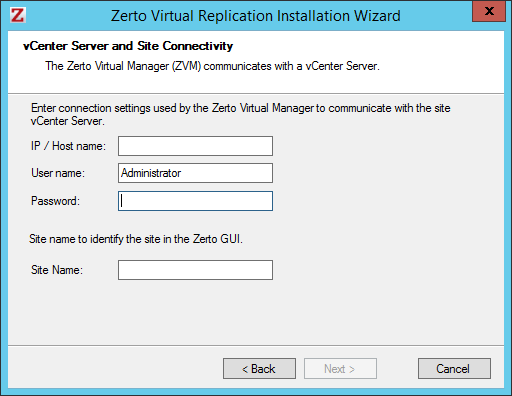
The vCenter Server and Site Connectivity dialog is displayed.
4. Specify the following:
IP / Host Name – The IP address or host name of the machine where the vCenter Server runs.
User Name – The user name of a user with administrator level privileges in the vCenter Server. The name can be entered using either of the following formats:
username
domain\username
Password – A valid password for the given user name.
Site Name – A name to identify the site.
5. Click Next.
The installation performs checks to make sure that the installation can proceed successfully.
6. After the checks complete successfully, click Next and continue to the end of the installation.
7. If you intend managing your disaster recovery from this machine, you can select to open the Zerto Virtual Manager (ZVM) Interface at the end of the installation, logging in with the user name and password for the vCenter Server connected to the Zerto Virtual Manager. In this user interface you set up Zerto Virtual Replication, as described in
Initial Configuration.
8. Set any antivirus software running on the machine not to scan the folder where Zerto Virtual Replication is installed.
Install Zerto Virtual Replication on the peer sites.
Performing a Custom Installation
You can install Zerto Virtual Replication providing specific details including the ports that will be used by Zerto Virtual Replication and full contact details. In addition, when performing a custom install, you can provide information to connect to vCloud Director.
To perform a custom install of Zerto Virtual Replication:
1. Run Zerto Virtual Replication Installer executable.
Note: If Microsoft .NET Framework 4 or higher is not installed, the installation fails. Install .NET Framework 4, which is included as part of the Zerto Virtual Replication installation package. Reboot the machine, and rerun the Zerto Virtual Replication installation.
2. Follow the wizard through the installation until the dialog for the Installation Type and select the Custom Installation option.
3. Click Next.
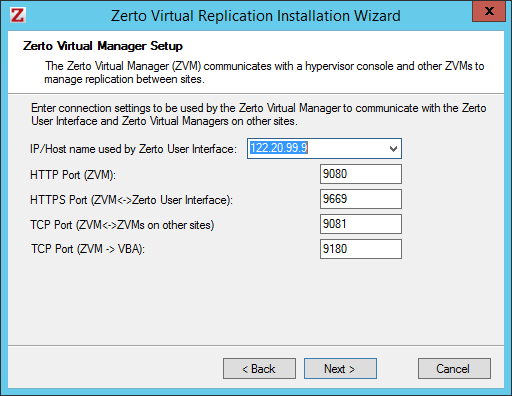
The Zerto Virtual Manager Setup dialog is displayed.
IP/Host name used by Zerto User Interface – The IP to access the Zerto Virtual Manager from the Zerto User Interface. If the machine has more than one NIC, select the appropriate IP from the list, otherwise the IP that is displayed is the only option.
HTTP Port (ZVM) – The port used for inbound communication between the Zerto Virtual Manager and Zerto internal APIs, Cmdlets and a VSS Agent.
HTTPS Port (ZVM <-> Zerto User Interface) – The port used for inbound communication between the Zerto User Interface and the Zerto Virtual Manager.
TCP Port (ZVM <-> ZVMs on other sites) – The port used for communication between Zerto Virtual Managers.
Both the protected and recovery sites belong to the same enterprise – If you change the value, when pairing sites, use the TCP port value you specify here. Pairing the sites is described in
Pairing Sites.
An enterprise using a cloud service provider to supply disaster recovery services – You must not change this value.
TCP Port (ZVM -> VBA) – The port used for communication between the Zerto Virtual Manager and the Virtual Backup Appliance.
4. Click Next.
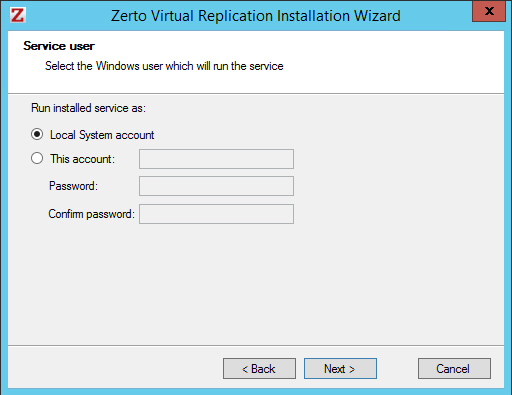
The Service User dialog is displayed.
5. Select either Local System account or This account:
Local System account – Use the Local System account to run the Zerto Virtual Manager service, which is installed as part of Zerto Virtual Replication. The Local System account has unrestricted access to local resources.
This account – Use a specific account as the user account to run the Zerto Virtual Manager service, which is installed as part of Zerto Virtual Replication. The account must have unrestricted access to local resources.
Password – The password to use to run the service under the specified account.
Confirm password – Confirmation of the password.
6. Click Next.
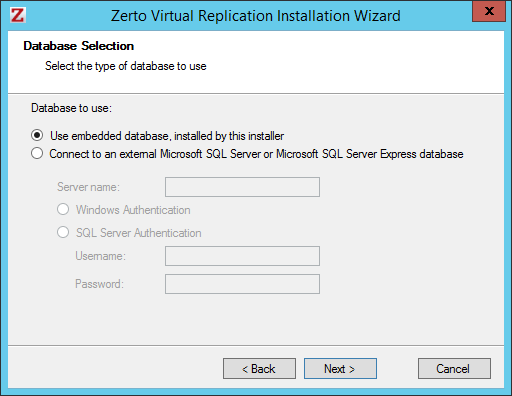
The Database Selection dialog is displayed. Information required by Zerto Virtual Replication is stored in a database embedded in the Zerto Virtual Manager. This information includes details of the site where the Zerto Virtual Manager is installed, details of the Virtual Replication Appliances and the volumes they use, and points-in-time recorded for recovery purposes. By default an embedded SQL-based database is used, but you can use an externally managed database, either Microsoft SQL Server or SQL Server Express.
Note: Protection and recovery can only be performed when the database is running. Therefore, if you use an external database and it is down for any reason, protection ceases.
7. To use the embedded database, leave the default or select the option to connect to an external Microsoft SQL Server database.
Zerto recommends using SQL Server with sites with more than 40 hosts that have virtual machines that require protecting and more than 400 virtual machines that need protecting.
If you select the external database option:
Server name – The domain name and server instance to connect to, with the format domain\instance.
Specify one of the following authentication options:
Windows Authentication – Use Windows authentication. This option is only enabled if a specific service user account was specified in the previous Service User dialog, in which case the service account name and password are used.
SQL Server Authentication – Use SQL Server authentication.
User Name – The user name for the SQL Server database.
Password – A valid password for the given user name.
8. Click Next.
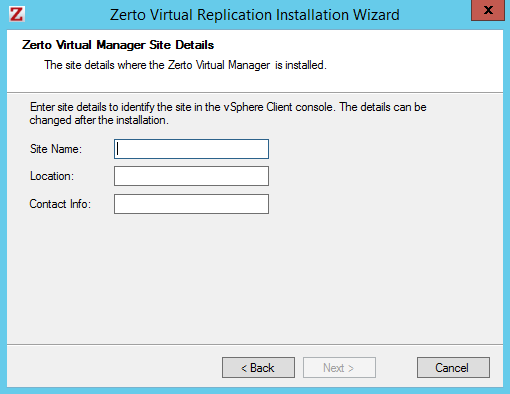
The Zerto Virtual Manager Site Details dialog is displayed.
9. Enter the site details:
Site Name – A name to identify the site. This name is displayed in the Zerto User Interface.
Location – Information such as the address of the site or a significant name to identify it.
Contact Info – Who to contact if a need arises, such as a phone number or email address.
10. Click Next.
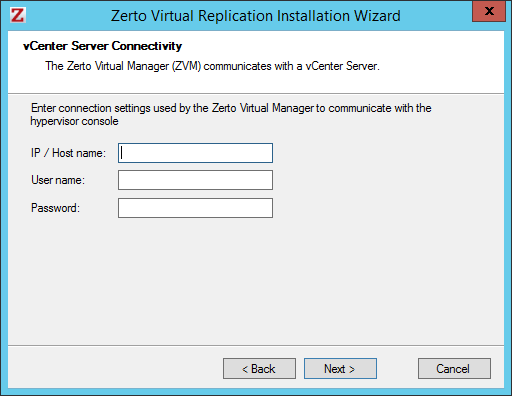
The vCenter Server Connectivity dialog is displayed.
11. Enter connection settings that the Zerto Virtual Manager uses to communicate with the vCenter Server:
IP / Host name – The IP address or host name of the machine where the vCenter Server runs.
User name – The user name of a user with administrator level privileges in the vCenter Server. The name can be entered using either of the following formats:
username
domain\username
Password – A valid password for the user name.
12. Click Next.
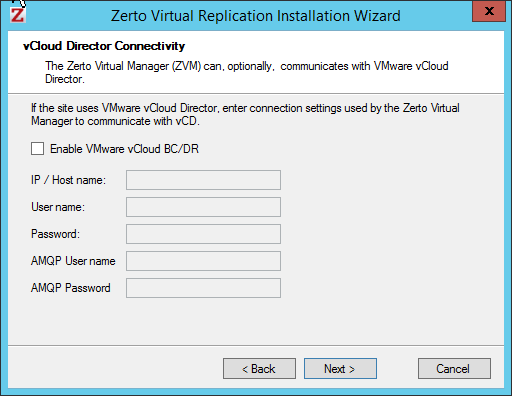
The vCloud Director Connectivity dialog is displayed.
13. When using vCloud Director and you have installed an AMQP server, click the Enable VMware vCloud BC/DR checkbox and enter the VMware vCloud Director access details:
IP / Host name – The IP address or host name of the machine where vCD runs. When connecting to vCD with multiple cells, enter the virtual IP for the network load balancing used by the cells.
User name – The user name for an administrator to vCD.
Password – A valid password for the given user name.
AMQP User name – The user name for the AMQP server.
AMQP Password – A valid password for the given AMQP user name.
If the vCD connection settings are not specified, for example, when you do not have an AMQP server installed, they can be set in the Advanced Settings dialog in the Site Configuration panel, in the Zerto User Interface after installation, as described in the Zerto Cloud Manager Administration Guide.
Zerto provides an AMQP installation kit if you do not have one installed for vCD. Run ZertoAMQPInstallWizard.exe as described in the Zerto Cloud Manager Administration Guide, with the following credentials:
User name – The AMQP user account Zerto will use. RabbitMQ prior to version 3.3 installs with a default administrator user: guest. In RabbitMQ version 3.3 and higher, specify a user with administrator privileges.
Password – The password for the user. RabbitMQ prior to version 3.3 installs with a default password of guest.
14. Click Next.
The Check Prerequisites dialog is displayed. The installation performs checks to make sure that the installation can proceed successfully.
15. After the checks complete successfully, click Next and continue to the end of the installation.
If you intend managing your disaster recovery from this machine, you can select to open the Zerto Virtual Manager (ZVM) Interface at the end of the installation, logging in with the user name and password for the vCenter Server connected to the Zerto Virtual Manager. In this user interface you set up Zerto Virtual Replication, as described in
Initial Configuration.
16. Set any antivirus software running on the machine not to scan the folder where Zerto Virtual Replication is installed.
Install Zerto Virtual Replication on the peer sites.
Note: If the vSphere Client console was open during the installation, close it and reopen it to ensure you have the Zerto Virtual Replication UI loaded.
After installing Zerto Virtual Replication, add the machine to the relevant host boot configuration, so that on starting up a host this machine running the Zerto Virtual Manager is also powered on automatically.