Changing a Recovery VRA For Virtual Machines
Note: The datastores used by the original VRA and the changed VRA must be accessible by both the original target host and by the changed target host.
To change a host VRA:
1. In the Zerto User Interface, select the VRA to change in the VRAs tab under the SETUP tab.
2. Click MORE > Change VM Recovery VRA.
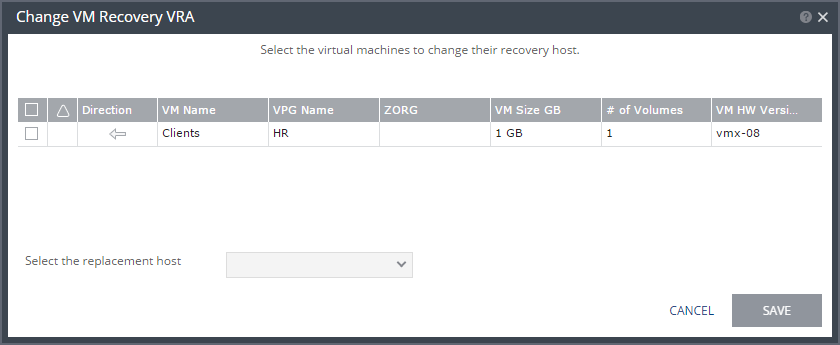
The Change VM Recovery VRA dialog is displayed, listing all the virtual machines that require a change to the recovery host.
3. Review the list and select the virtual machines to change the target host to another specified target host.
4. Select the target host for these virtual machines in the Select the replacement host drop-down list. You can move some virtual machines to one replacement target host and by repeating the operation, move other virtual machines to a different target host.
Validation is performed to make sure the selected target host can be used, for example the datastores used by both the VRAs are accessible from both hosts.
Any implications of the change, such as whether synchronization might be required after the change is also displayed.
5. Click SAVE.
The VPG target host definitions are changed and the affected target data, including the journals, storage vMotioned to the VRA under the replacement host. During this procedure you cannot edit the affected VPGs nor attempt a failover, move, failover test, or clone operation. At the end of the procedure a Delta Sync might be required to resynchronize the protected machines with the recovery VRAs.
In order not to affect the recoverability of other VPGs replicating to the VRA, a new virtual machine is created to handle moving the disks. This virtual machine is named Z-VRAH-ESXihostname-xx, where hostname is the name of the ESXi host where the original VRA is installed and xx is a unique index used for the virtual machine, with a format of yy-xxxx or xxxx.
6. Repeat this procedure from step
3 for all the virtual machines.
Note: .When a volume is moved using Storage vMotion, the datastore folder under which the volume is saved is the last datastore folder accessed by VMware.