If your organization uses iRead, then as an administrator, you also have access to the iRead reports for your district(s) and/or school(s). This includes the Current Topic & Usage Report, the Progress Report, and the Screener Results report.
An iRead Practice Report is also available; click here for details.
To open the iRead reports:
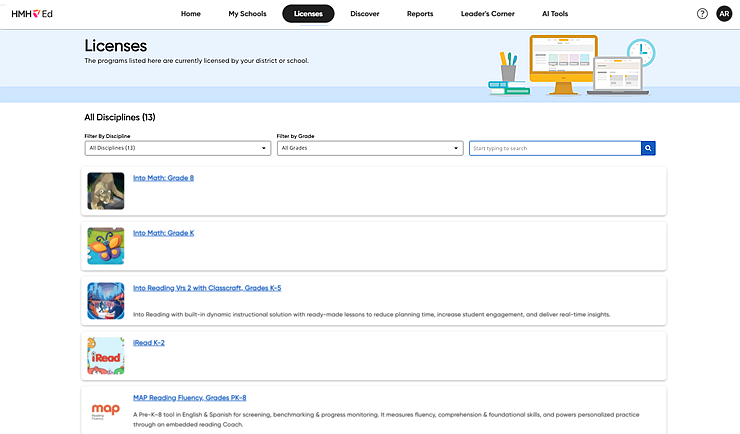
1. In the banner, click the Licenses tab. The Licenses page appears. All the HMH products purchased by your organization appear on this page, displayed as individual cards. If your district has access to iRead, then an iRead card is listed on this page.
2. Locate the iRead card, and then click the program title.
Note: If necessary, use the search field to narrow your search.
The Ordered Licenses tab displays a table showing each district/school's licenses for the selected program. The table breaks down the Teacher and Student licenses for each district or school by license total, start date, end date, and status.

3. Click the Product Settings tab. The iRead Screener Settings page appears.
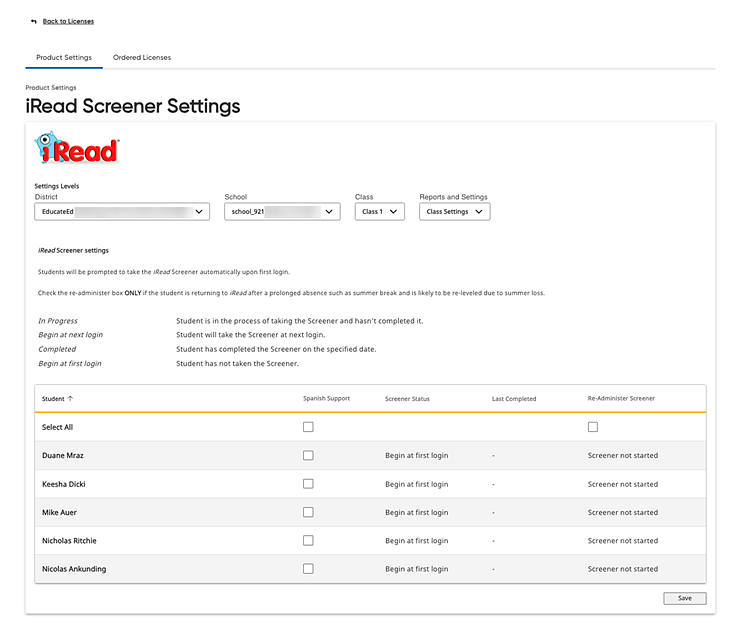
4. Depending on your role, select options from the lists at the top of the page, as follows:
– District administrators: select the district, school, and class from the lists and then select Class Reports from the Reports and Settings list.
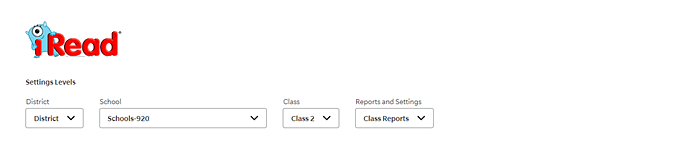
– School administrators: select the class from the Class list and then select Class Reports from the Reports and Settings list.

The page changes to display the iRead report page for the selected class.
Once students in the selected class begin using iRead, the Current Topic & Usage Report is the first report to appear at the top of this page. Additional reports may appear on the Class Reports page below this report, including a Screener Report, and, if available, a Progress Report.

For details about each report, click a report type below.
See Also:

 Current
Topic & Usage Report
Current
Topic & Usage Report