If your organization uses iRead , then as an administrator, you also have access to the iRead reports for your district(s) and/or school(s). This includes the iRead Progress Report.
To open the iRead Practice Report:
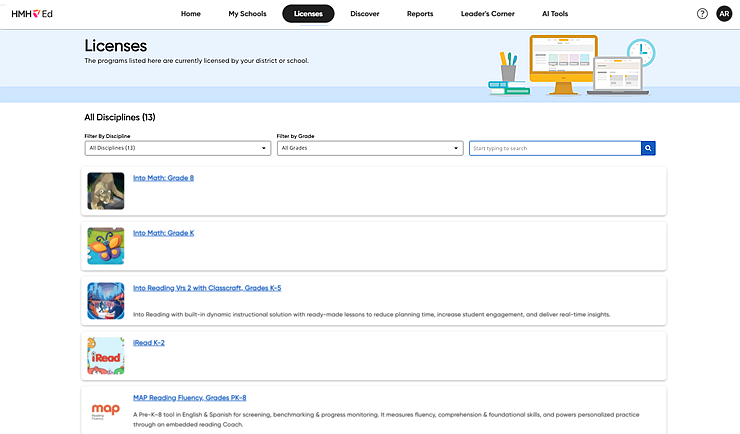
1. In the banner, click the Licenses tab. The Licenses page appears. All the HMH products purchased by your organization appear on this page, displayed as individual cards. If your district has access to iRead, then an iRead card is listed on this page.
2. Locate the iRead card, and then click the program title.
Note: If necessary, use the search field to narrow your search.
The Ordered Licenses – District/School Licenses tab displays a table showing each district/school's licenses for the selected program. The table breaks down the Teacher and Student licenses for each district or school by license total, start date, end date, and status.

3. Click the Product Settings tab. The iRead Screener Settings page appears.
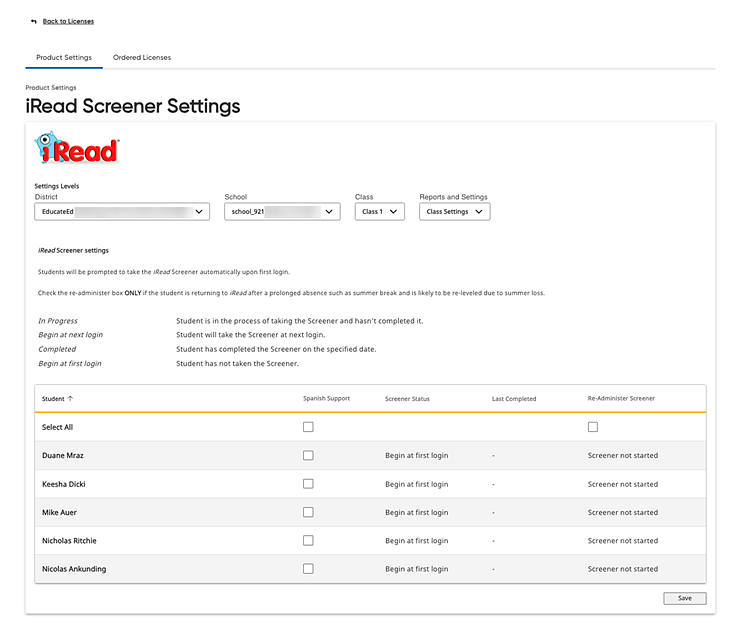
4. Depending on your role, select options from the lists at the top of the page, as follows:
– District administrators: select the district, school, and class from the lists and then select Student Reports from the Reports and Settings list.
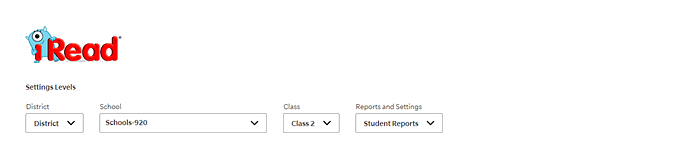
– School administrators: select the class from the Class list and then select Student Reports from the Reports and Settings list.

The page changes to display the iRead Practice Report page for the selected class. By default, the Practice Report shows the first student listed in the class and the current series in which the student is working.
The top of the report displays the selected student's name, the topic and series for which the report is showing data, and academic year.
The top row of boxes provides an overview of the student's status, including the student's grade level status, percentage completed for the grade level content, the average number of sessions per week, and placement in the initial Screener Report (below, on, or above grade level).

5. In the report, do any of the following:
– In the Student Name list, select another name to view that student's report data.
– In the Choose series list, select a range of series to view the data for a different set of series.
Note: This list includes only series that the student has started and/or completed and that the student placed on or below grade level. Not available in the Choose series list are series that the student placed above based on the Screener and series that the student has not yet started.
– Within the report, click a series number to view the practice data for that series.
– Note the following about the report table:
○ The topics for the selected series are listed in the first column of the table.
○ The second column, Cycles to Mastery, shows how many times it took to go through this topic before proceeding to the next series/topic.
○ All other columns in the report vary by series and show data that is specific to the selected series. Clicking these column headers displays a short description of the data contained in that column.
See Also: