Teams
|
|
|


The Team Organizer section is used to manage teams and distribution lists with the ability to create and edit teams, add or remove team members and view which users are members of which teams.
Teams are used for group email lists, such as Distribution Lists or Groups in Office 365 or Groups in Google Apps. Primarily used to communicate and collaborate with groups of people both internally and externally.
Like the Organization tab, the Teams tab uses a tree structure to illustrate the hierarchical layout of the Teams and their Members.
When loaded this section displays all Teams and their Member associations; and to highlight this association simply hover over the target node. Team to highlight its Members, Members to display the Teams it belongs to.
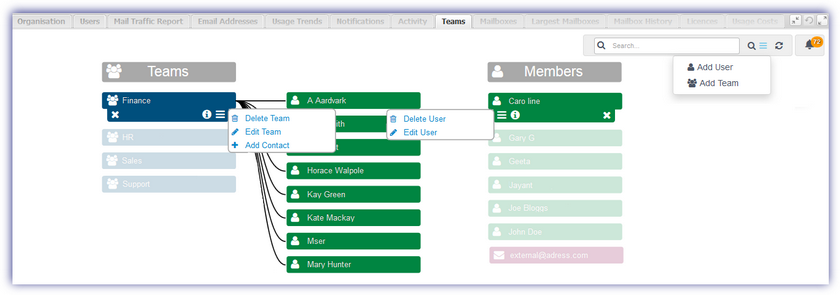
Members can be moved between Teams by dragging the Member node to the required Team node.
Depending upon the version of Google Apps or Microsoft Office365 deployed, information on each node may be displayed with the option to manage add, edit or delete teams and members as well as view the node state.
To differentiate between nodes we have applied the following color coding and corresponding icon:
|
Color |
Node |
Icon |
|
Member (main domain) |
|
|
|
Member (external email) |
|
|
|
Team |
|


The following display and management options are available for this section.
|
Icon |
Option |
|
|
Open or close the Search box by clicking upon the magnifying glass. Enter the search criteria and press return to dynamically display all matching results. Clear the search box by clicking the red X |
|
|
|
|
|
Click to refresh the data in the selected tab |
|
|
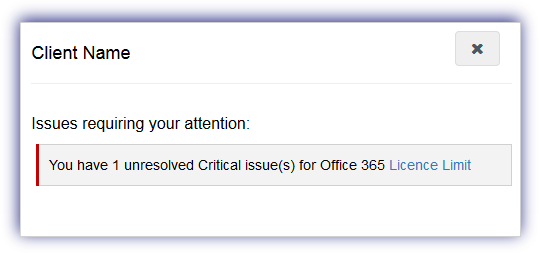
The notification alert button provides a visual indicator of the number of issues currently affecting the service requiring your attention and is based on the current highest severity level. Click the alert button to display information on all of the unresolved problems of this severity type and select the issue link to open the Notifications tab focused on these specific messages. Once finished in the notification alert dialog select X to close. Please note that the notification alert reflects the current highest level of severity. For example if the notification alert displays one critical issue, after resolving this issue any warning level messages are then displayed.
|


Node Navigation and Options
Depending on the type, there are a number of options available when clicking on the node to display the Toolbox: Close Toolbox, View Additional Properties and Additional Actions

Please note, due to the nature of external members there are no Additional Actions and they do not contain any Additional Properties information. As such these member types are locked with the only option available to Close Toolbox.