Enabling User Assigned Managed Identities and Setting Mandatory Permissions in Azure
Azure Managed Identities enables security best practices by allowing you to grant unique security credentials to users, groups and resources. Managed Identities is secure by default; users have no access to Azure resources until permissions are explicitly granted.
For installation of the ZCA to succeed in Azure, user assigned Managed Identities on the VM running the ZCA must be enabled and the permission level must be set to the following:
| • | Owner or Contributor |
| • | Storage Blob Data Contributor |
| • | Storage Queue Data Contributor |
Important:
Zerto requires Owner or Contributor role as this level of permissions is required to manage Resource Groups.
To enable user assigned Managed Identities on the ZCA VM:
| 1. | Create the user assigned managed identity. |
| 2. | Assign the user assigned managed identity to the ZCA VM. |
| 3. | Add a role to user assigned managed identity of the ZCA VM. |
Important:
When adding or deleting role assignments, it can take up to 30 minutes for changes to take effect. The following error message will appear: “The ZCA was not assigned a role.”
For further details, see https://docs.microsoft.com/en-us/azure/role-based-access-control/troubleshooting#rbac-changes-are-not-being-detected.
To create a user assigned Managed Identity:
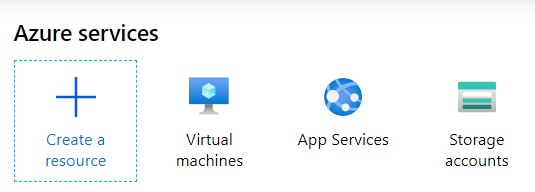
| 1. | In the Azure Portal, under Azure services navigate to Create a resource. |
The Azure Marketplace page is displayed.
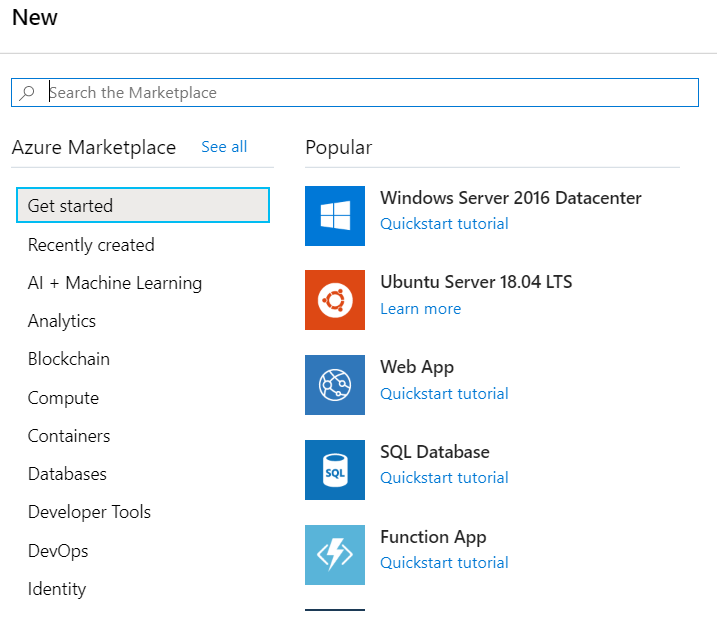
| 2. | In the Search, type User Assigned Managed Identity. |
The User Assigned Managed Identity page appears.
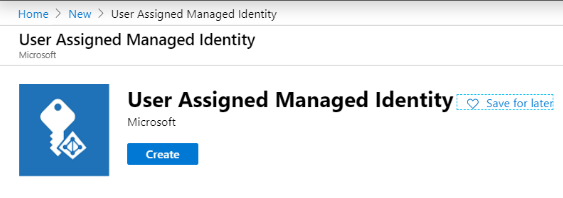
| 3. | Click Create. |
The Create user assigned managed identity page is displayed.
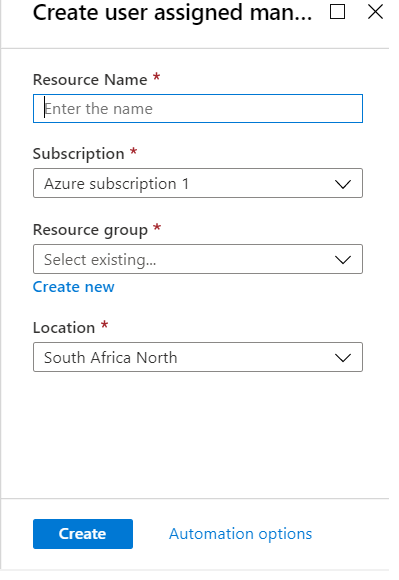
Specify the following:
| Resource Name | Enter the name of the resource. |
| Subscription: | Select the subscription to which the ZCA is associated. |
| Resource Group: | Select any resource group. |
| Location: | Select Any location. |
| 4. | Click Create. |
A user assigned managed identity is now created. Proceed to assigning the user managed identity to the ZCA VM.
To assign the user assigned managed identity to the ZCA VM:
| 1. | In the Azure portal, navigate to the desired VM and click Identity. |
| 2. | Click User assigned and then Add. Make sure System assigned status is Off. |
The Add user assigned managed identity window appears.
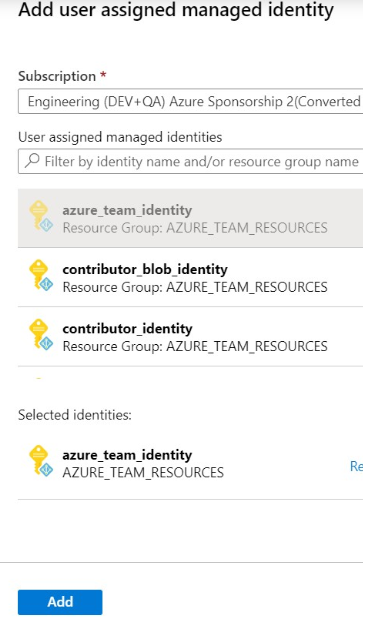
| 3. | Select the user-assigned identity you want to add to the VM. |
| 4. | Click Add and proceed to setting a role assignment on the ZCA VM. Only one user assigned managed identity can be set on the ZCA VM. |
To set the role on the user assigned managed identities:
| 1. | Navigate to All Services and click Subscriptions. |
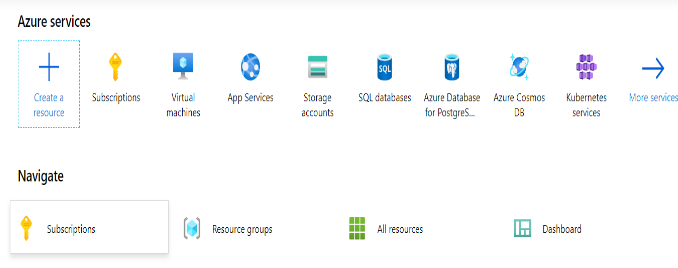
| 2. | Select the Subscription to which the ZCA is associated. |
| 3. | Navigate to Access control (IAM) and then click Add in the Add a role assignment area. |
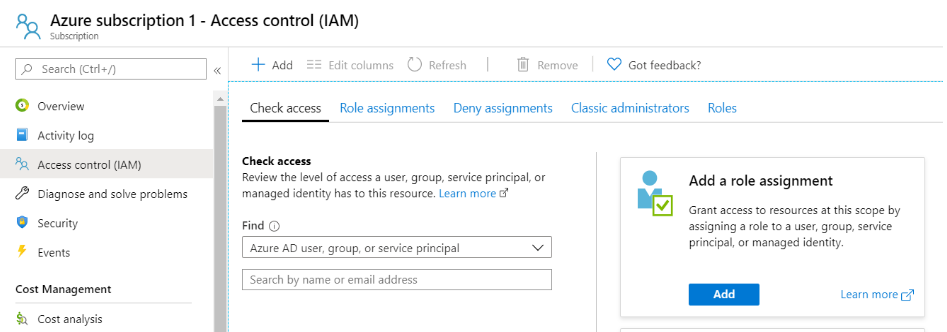
The Add role assignment window appears.
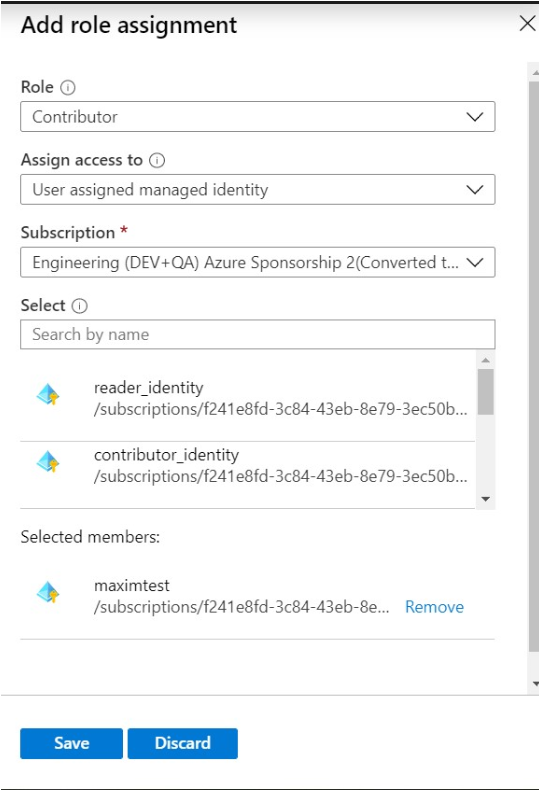
| 4. | In the Add role assignment window, configure the following: |
| Role: |
|
|||||||||
| Assign access to: | User Assigned Managed Identity | |||||||||
| Subscription: | The subscription to which the ZCA is associated | |||||||||
| Select: | Select the user assigned managed identity. |
| 5. | Click Save. |
| 6. | Now proceed to install or upgrade the ZVM for Azure environments. |