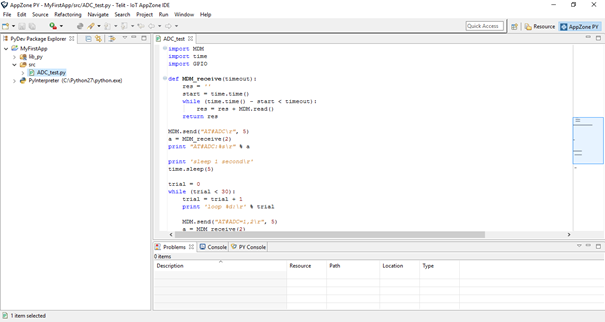
You can create new applications from scratch or use an example application.
To create a new application:
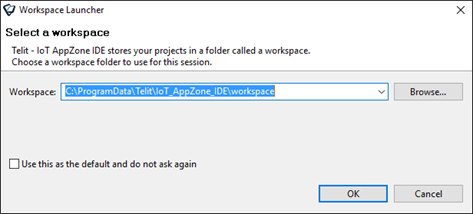
1. Click Start > All applications > Telit > AppZoneIDE > AppZoneIDE. The Workspace Launcher window opens.
2. In the Workspace field, type the location of the workspace or click Browse.
3. Click OK. The AppZone Python IDE opens.
4. From the menu select File > New > Project. The New Project window opens.
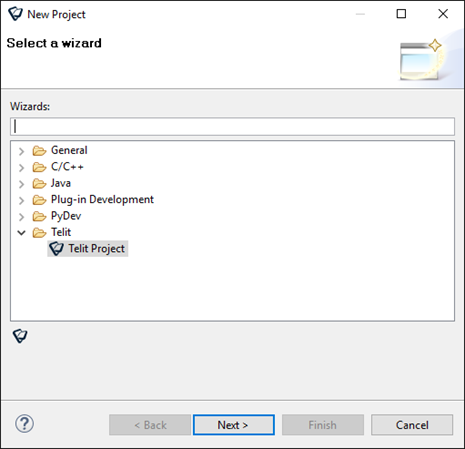
5. To create a new project, expand Telit and then select Telit Project.
6. Click Next. The Telit Project window opens.
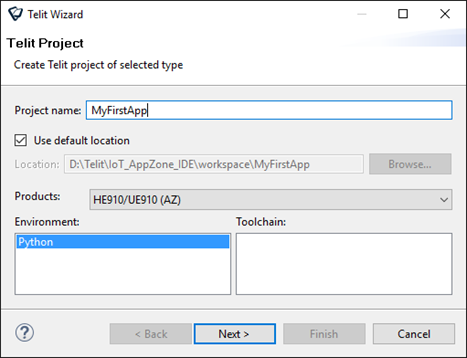
a. In the Project name field, type a name for the project.
b. To change the default location in which the project is saved:
i. Clear the Use default location checkbox.
ii. In the Location field type the new location or click Browse.
c. In the Products field, select the module for which you want to develop the application.
d. In the Environment field, select Python.
7. Click Next. The Telit Phy Project window opens.
8. If you have not yet configured the Python Interpreter:
a. Click the Please configure an interpreter before proceeding link.
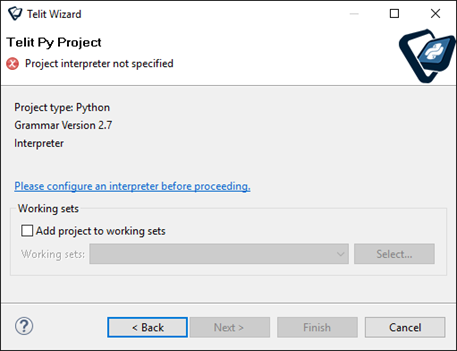
The Configure Interpreter window opens.
b. Click Manual Config.
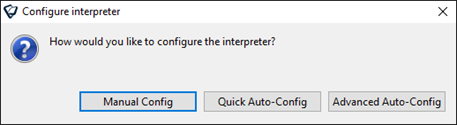
The Preferences window opens with Python Interpreter selected.
c. To define the Python interpreter, click New.
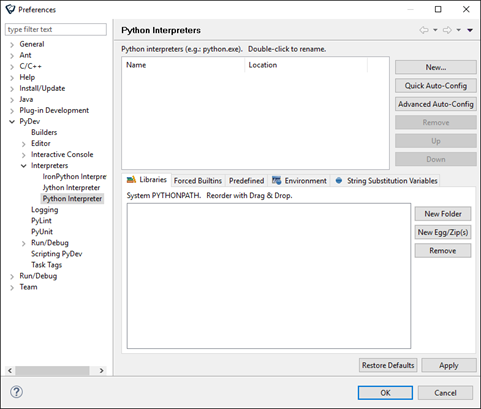
The Select Interpreter window opens.
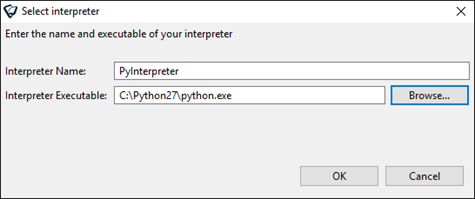
d. Enter the following information, and then click OK:
i. In the Interpreter Name field, type a name for the interpreter.
ii. In the Interpreter Executable, click Browse and select the complete path to the Python Interpreter.
The default path is: C:\Python27\python.exe.
A window enabling to add a selection folder to the Python path opens.
e. Click OK to continue.
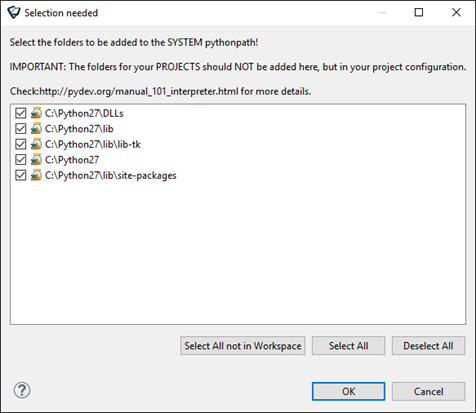
The new Python interpreter that you defined is added to the interpreters.
f. Click OK to close the Python interpreter definition window.
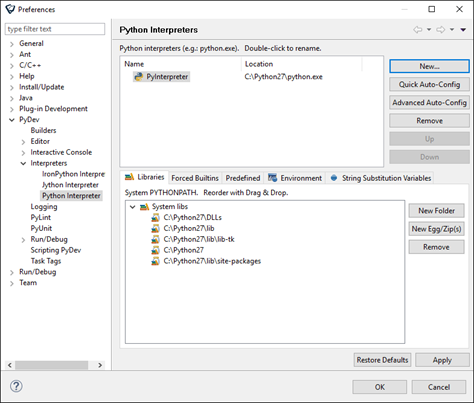
The Python interpreter is defined and the Telit Py Project window opens again.
9. Click Next.
A window enabling to select the project type opens.
10. Select the type of project that you want to create:
•To create an empty project:
1. In the New Empty File field, type a name for the project.
2. From the Select Code list, select Empty Project.
•To create a project based on an example template:
1. From the Select Code list, select Example template.
2. Select the checkbox next to the code that you want to use as an example. For a description of the sample applications, see Sample Applications.
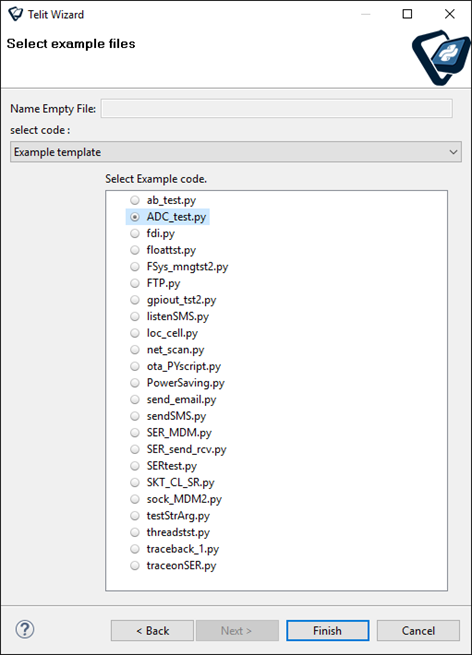
11. Click Finish.
12. A Default Eclipse preferences for PyDev window opens. Select your preferences, and then click OK.
The AppZone Python IDE opens.
If you created a project based on example application, AppZone Python contains the source files for that example.