Hydratec Standalone License Authorization: (server 69.84.146.164) 2019-06-28
An email will be sent with a user Product Key ID.
You will need to be connected to the internet and have Hydratec software installed on the workstation.
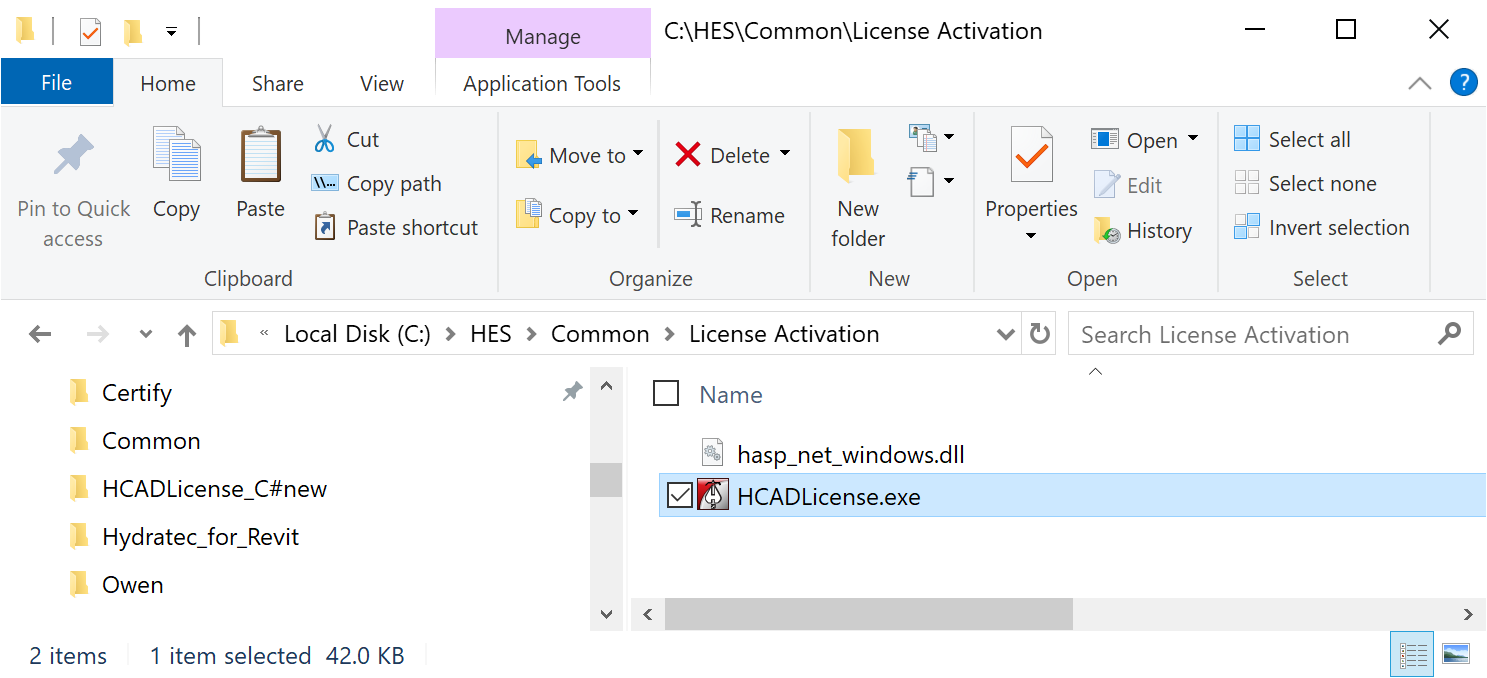
With file explorer, navigate to the application HCADLicense.exe in the folder :\HES\Common\License Activation
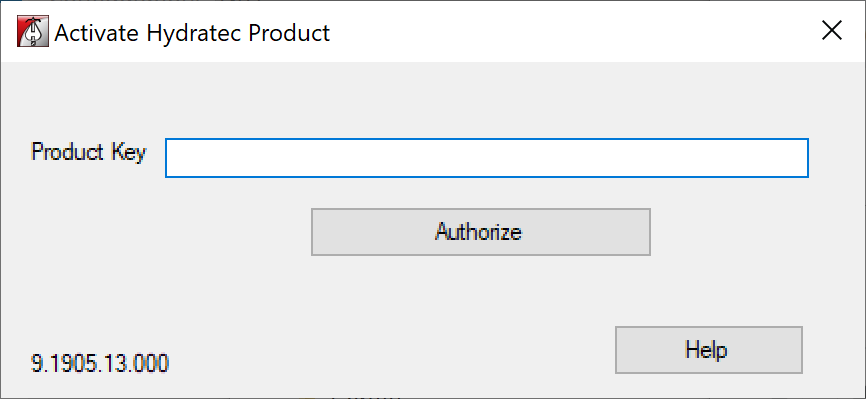
Double click to run the application. You will see the following screen.
Copy and paste the Product Key ID that was emailed into the Product Key box.
Pick the Authorize button.
If successful, you will see a dialog box stating "Activation Successful".
Your system is now authorized, and ready to use.
If activation is not successful, continue with the next set of instructions.
To manually authorize your software:
You will need to be connected to the internet.
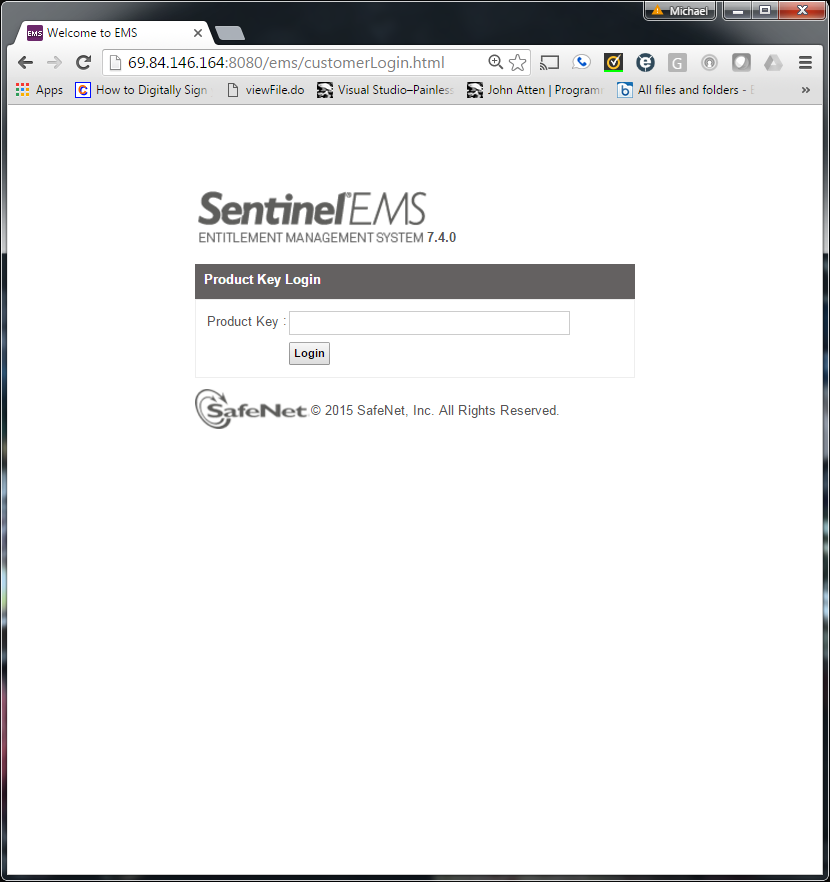
Please go to
http://69.84.146.164:8080/ems/customerLogin.html
Customer Portal
And enter your user Product Key ID
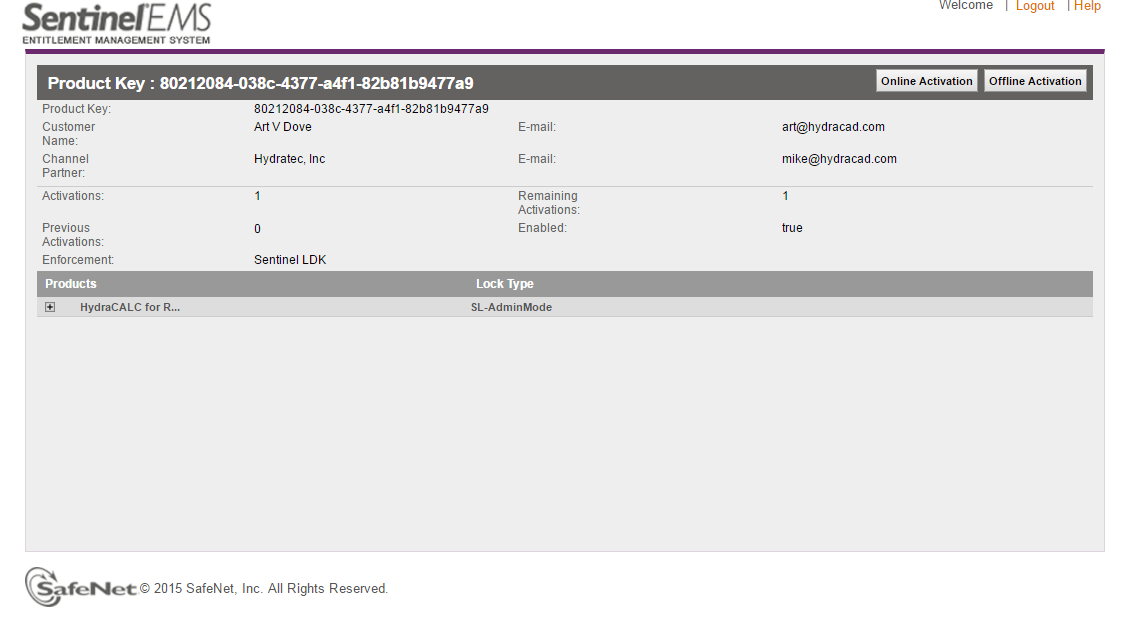
(this is an example) 80xxxxx4-03xc-4xx7-a4x1-82xxxxxxxxa9
Enter your user Product Key ID that was sent in the email.
Select Online Activation
If all goes well , you will get a message box that activation is successful.
Problems:
If Java is not installed on your computer, you will get a message about that.
We have not had much luck installing Java, so we recommend Offline Activation
Offline Activation:
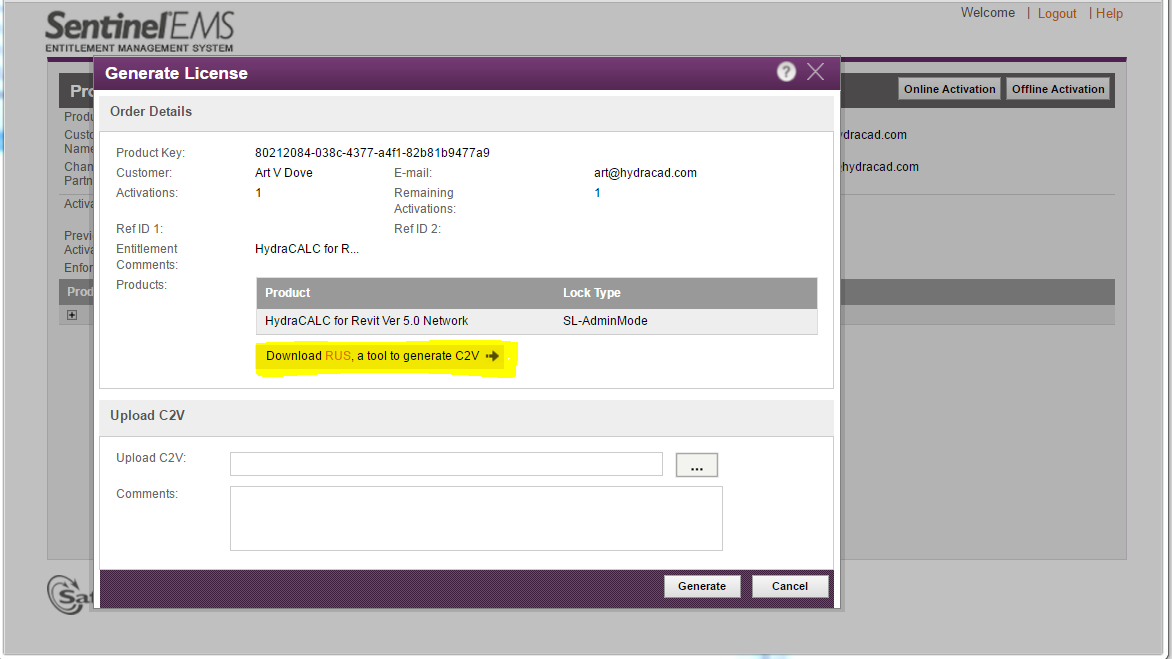
You will need to download RUS
Do Not exit this web page. We will be coming back here soon. It you did close it, go back to the beginning of this document as a guide to login to the Customer Portal with your ID
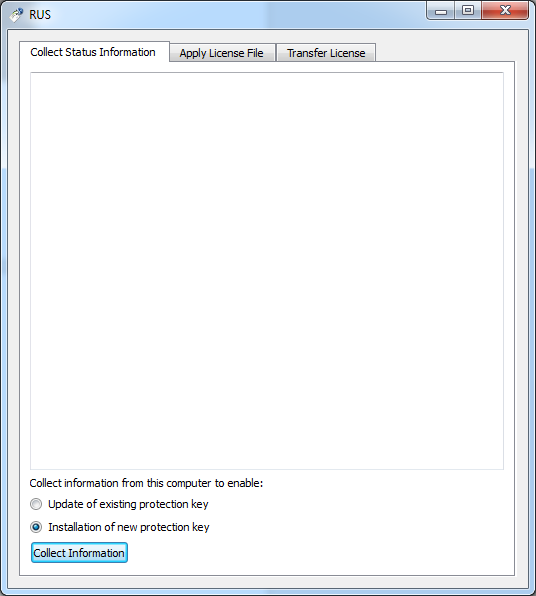
Find the downloaded program rus_mgcgx.exe, and run it.
Check, Installation of new protection key.
Pick the Collect Information button.
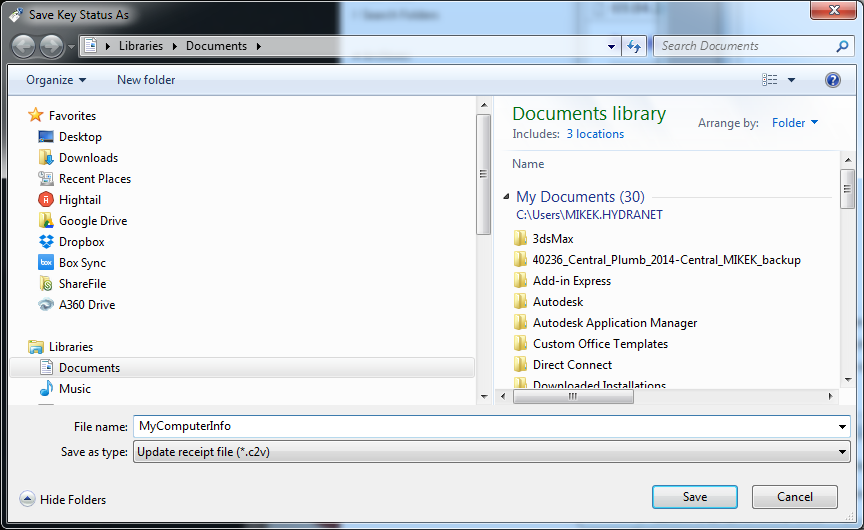
You will need to enter a name for the file. You will need to use this file later, so remember where you put it.
Leave the RUS program open, we will be coming back to it.
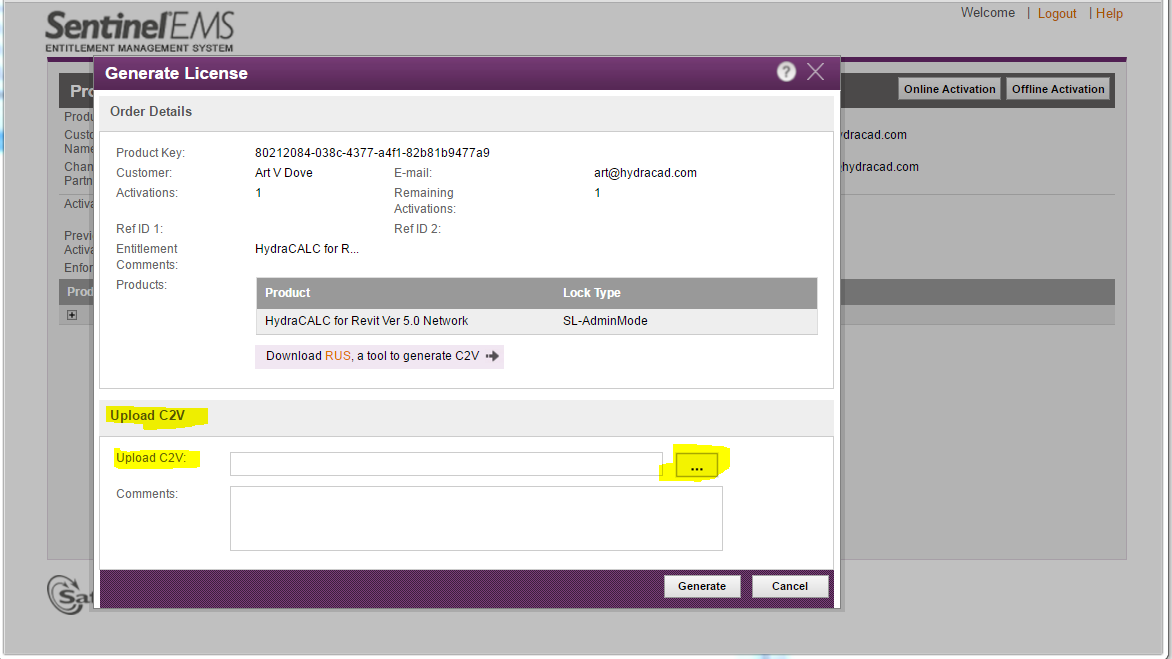
Switch back to EMS Customer Portal in your web browser.
Click the ...Browse button, and locate the .c2v file you previously made during the Collect Information section.
Then click the Generate button.
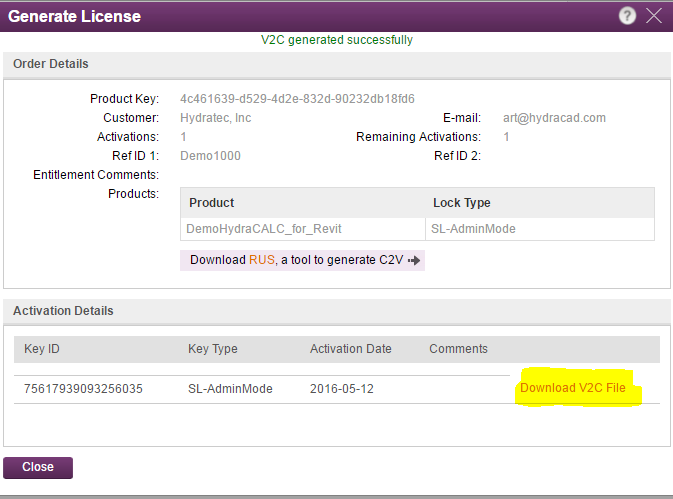
You will then need to download the V2C file.
Now, we’ll switch back to RUS to complete the activation.
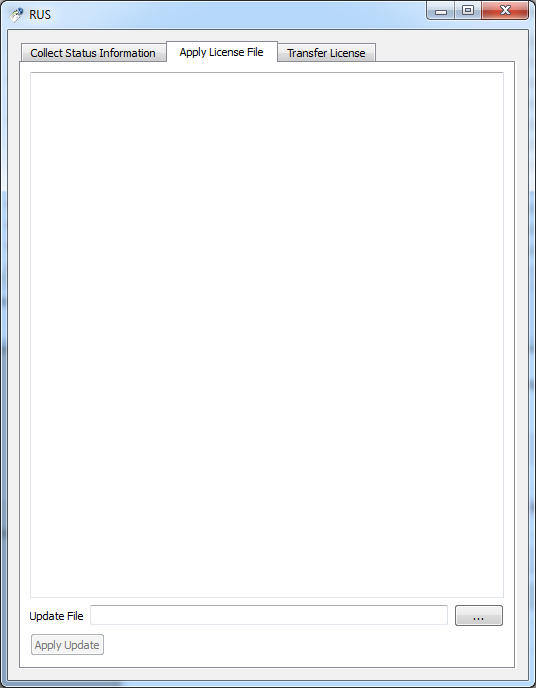
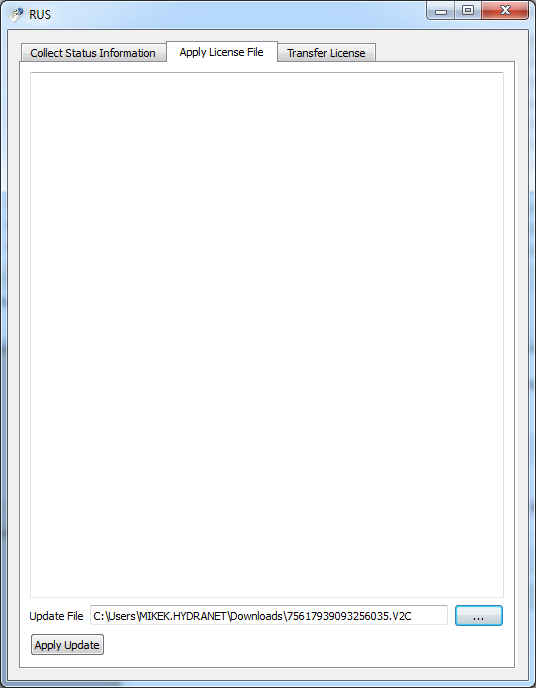
Click the ...browse button and locate the downloaded .V2C file
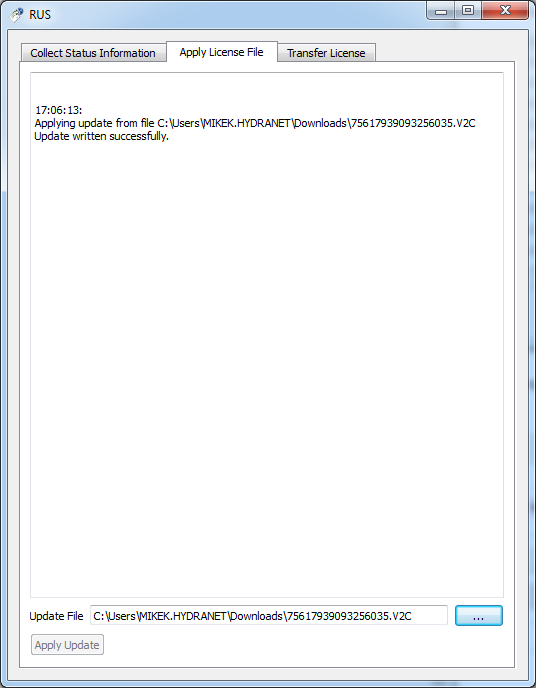
Click Apply Update.