HydraEntitlementTransfer Help
HydraEntitlementTransfer is a utility for moving your
Standalone Hydratec Entitlement(s) from one computer to another.
This will remove your license from one machine and apply that
same license to a different machine.
It is also a useful tool for seeing which entitlements are
currently installed on your machine, what products they contain, and when they
will expire.
Getting Started
You’ll need 3 pieces of hardware: a writable USB thumdrive,
the SOURCE machine with its working entitlement, and the DESTINATION machine
(with Hydratec software already installed).
Steps for moving the license (first time only)
1.
Plug the USB device into the DESTINATION Machine
so that we can capture that machine’s fingerprint.
2.
Open
“HydraEntitlementTransfer.exe” from
the “C:\HES\Common\Entitlement Transfer”
folder.
3.
It has placed the
fingerprint for the DESTINATION Machine on the USB device. It should appear in the dropdown with the tag
“*CURRENT MACHINE” 
4.
Remove the USB device from the DESTINATION Machine. We’re ready to go retrieve the license now.
5.
Attach the USB device to the SOURCE machine.
6.
Open
“HydraEntitlementTransfer.exe” from
the “C:\HES\Common\Entitlement Transfer”
folder.
7.
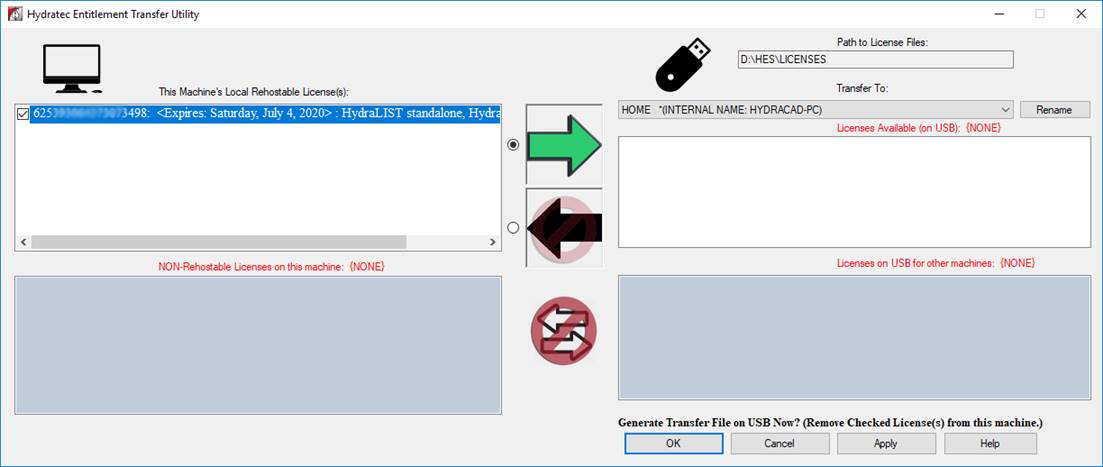
You should see at least
one entitlement in the upper left box of the dialogue. If there are more than one, you can choose
any number of these to transfer by checking their boxes. If there are none there, then this machine
currently has no standalone entitlements installed on it.
To
transfer to the USB, choose the right-facing
arrow.
8.
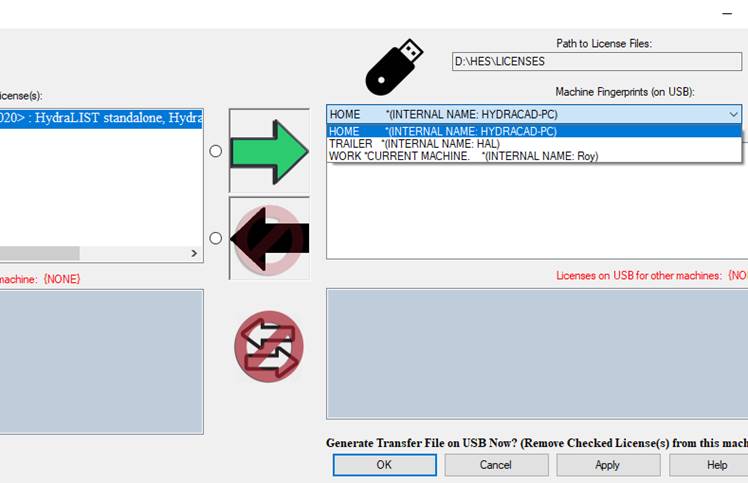
Choose the DESTINATION Machine
from the list of fingerprints on this USB. The dropdown is located in upper right
of dialogue.
If you
select the bottom option (the *CURRENT MACHINE), the license will be removed but retrievable
only on this machine.
9.
Hit the APPLY button at
the bottom of the dialogue.
10.
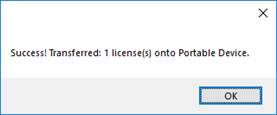
The checked entitlements
have now been removed from the SOURCE machine and moved over to the USB device. The SOURCE machine
no longer has an entitlement to use Hydratec software. These entitlements can only be retrieved
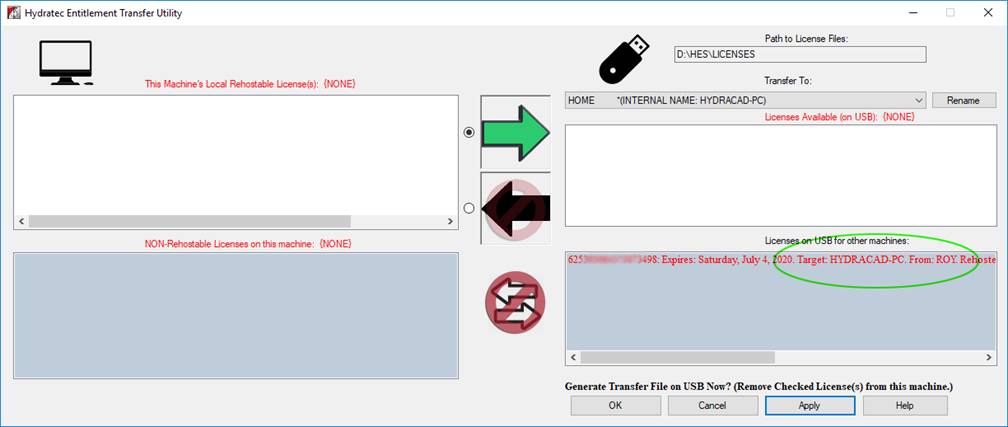
on the selected DESTINATION Machine. You should now see the entitlement move
over to “Licenenses on USB for other machines”. The intended DESTINATION Machine
is listed after Target.
11.
Detach USB device
from the SOURCE machine.
12.
Attach the USB device to the DESTINATION Machine.
13.
Open “HydraEntitlementTransfer.exe” from the
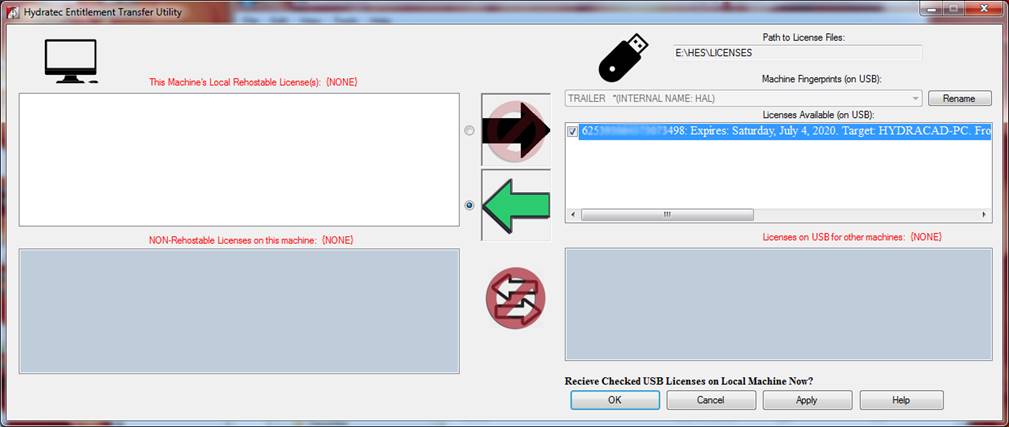
“C:\HES\Common\Entitlement Transfer” folder. Your license should now be in “Licenses
Available (on USB)” on the DESTINATION Machine.
14.
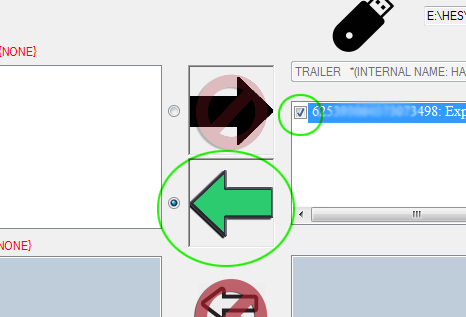
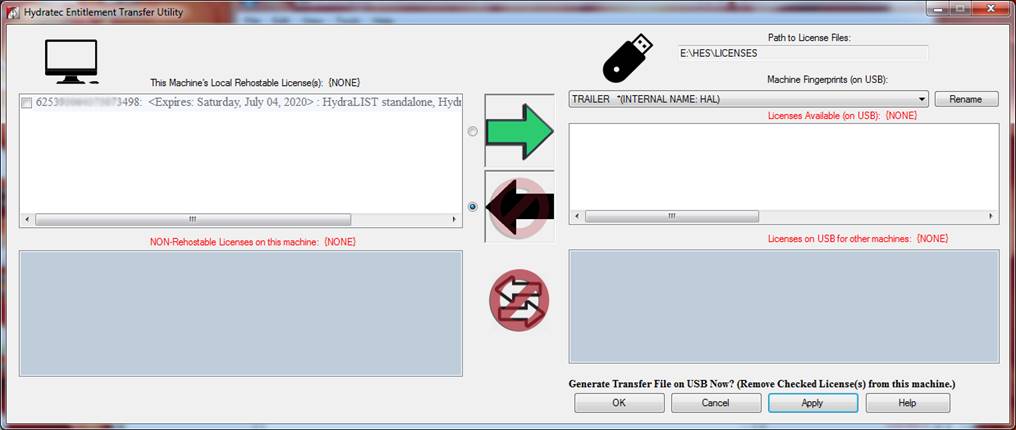
Select Left-Facing
Arrow, then checkmark any Available
licenses you wish to move to the Local machine.
15.
Hit the APPLY button
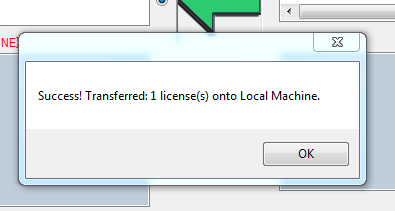
16.
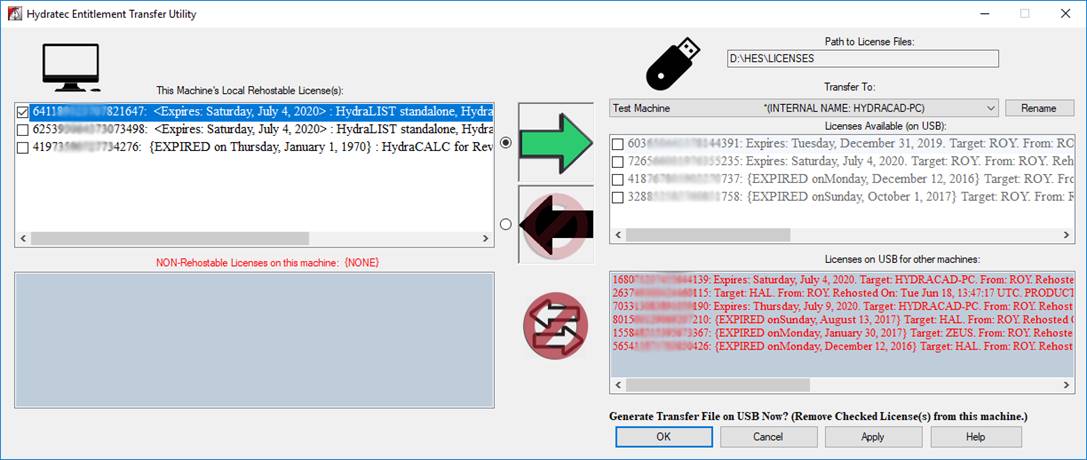
You should now see the
license move over to “This Machine’s Local Rehostable License(s)”
17.
The entitlement has been
transferred successfully and can now be used on the DESTINATION Machine.
Moving the license (Subsequent times)
Later entitlement transfers with the same USB device can begin at step 5 above. This is because the DESTINATION Machine’s
fingerprint is already on the thumbdrive.
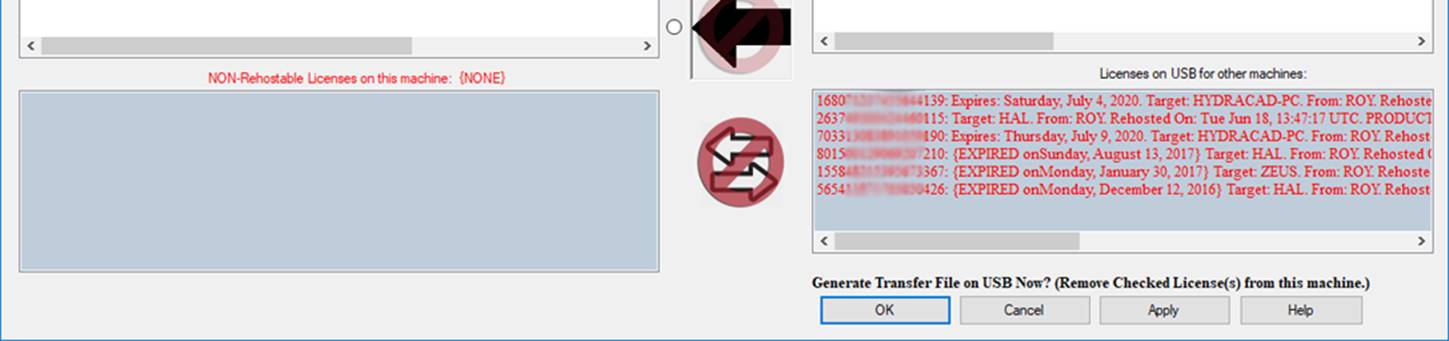
The bottom of the dialogue
The “NON-Rehostable Licenses” box contains any local licenses
that cannot be moved.
The “Licenses on USB for other machines:” contains all the
licenses that can only be applied when the USB is attached to the listed
“Target:” machines.
Renaming Machines
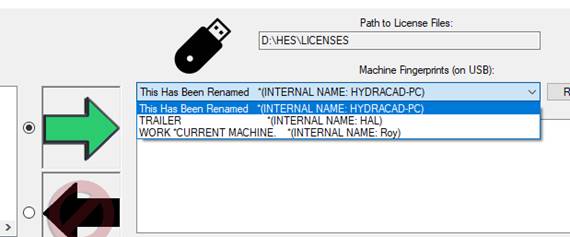
To give machines more recognizable names, you can rename what
the HydraEntitlementTransfer utility calls them.
1.
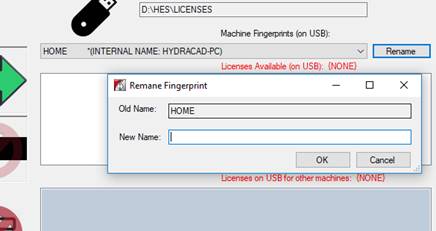
Select the machine you
wish to rename from the dropdown, then click the “Rename” button.
2.
Enter a “New Name” and
hit ‘OK’
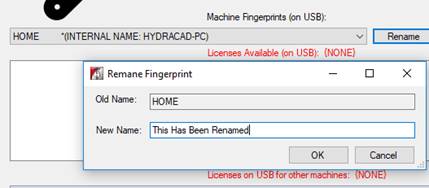
3.
The name for that machine
has been changed to something more recognizable.