Hydratec License Authorization: 2022-11-08
An email will be sent with a user Product Key ID.
You will need to be connected to the internet.
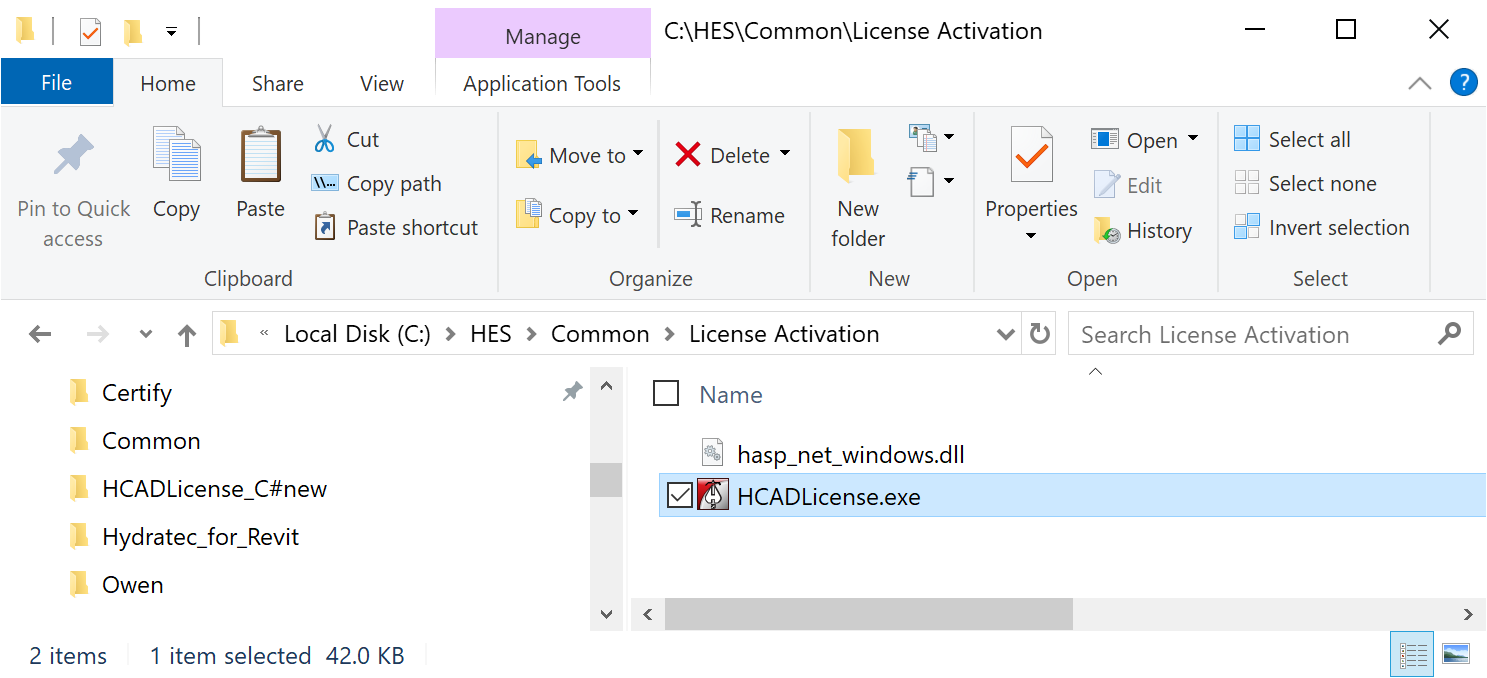
With file explorer, navigate to the application HCADLicense.exe in the folder :\HES\Common\License Activation
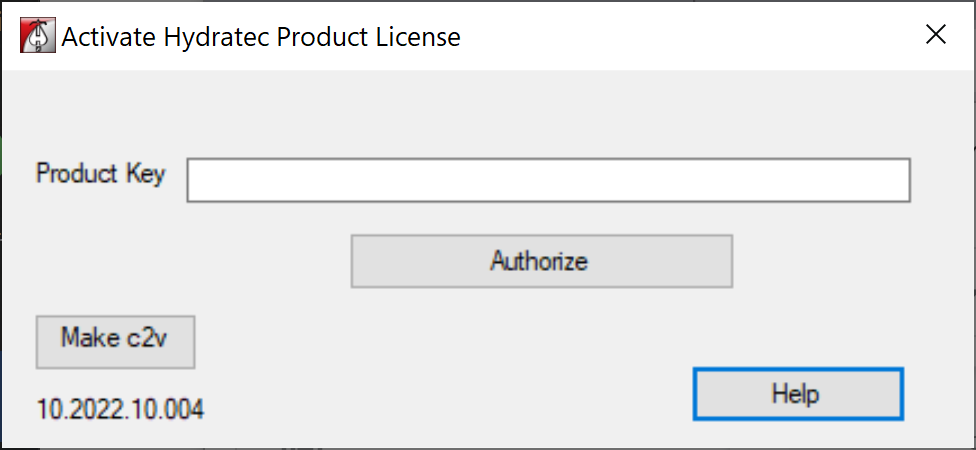
Double click to run the application. You will see the following screen.
Note: Version 10.2022.20.24 or later needed.
Click here to download the latest version. Hydratec License Activation App.zip
After download be sure to close the HcadLicense app before running the update.You may run the app from within the zip file.This will add/update file in the HES directory.
Copy and paste the Product Key ID that was emailed into the Product Key box.
Pick the Authorize button.
If successful, you will see a dialog box stating "Activation Successful".
Your system is now authorized, and ready to use.
If activation is not successful, continue with the next set of instructions.
Required files from your computer:
CurrentC2V.c2v in the folder :\HES\TEMP\
This file is automatically generated when the Authorize button is picked.
To manually authorize your software:
You will need to be connected to the internet.
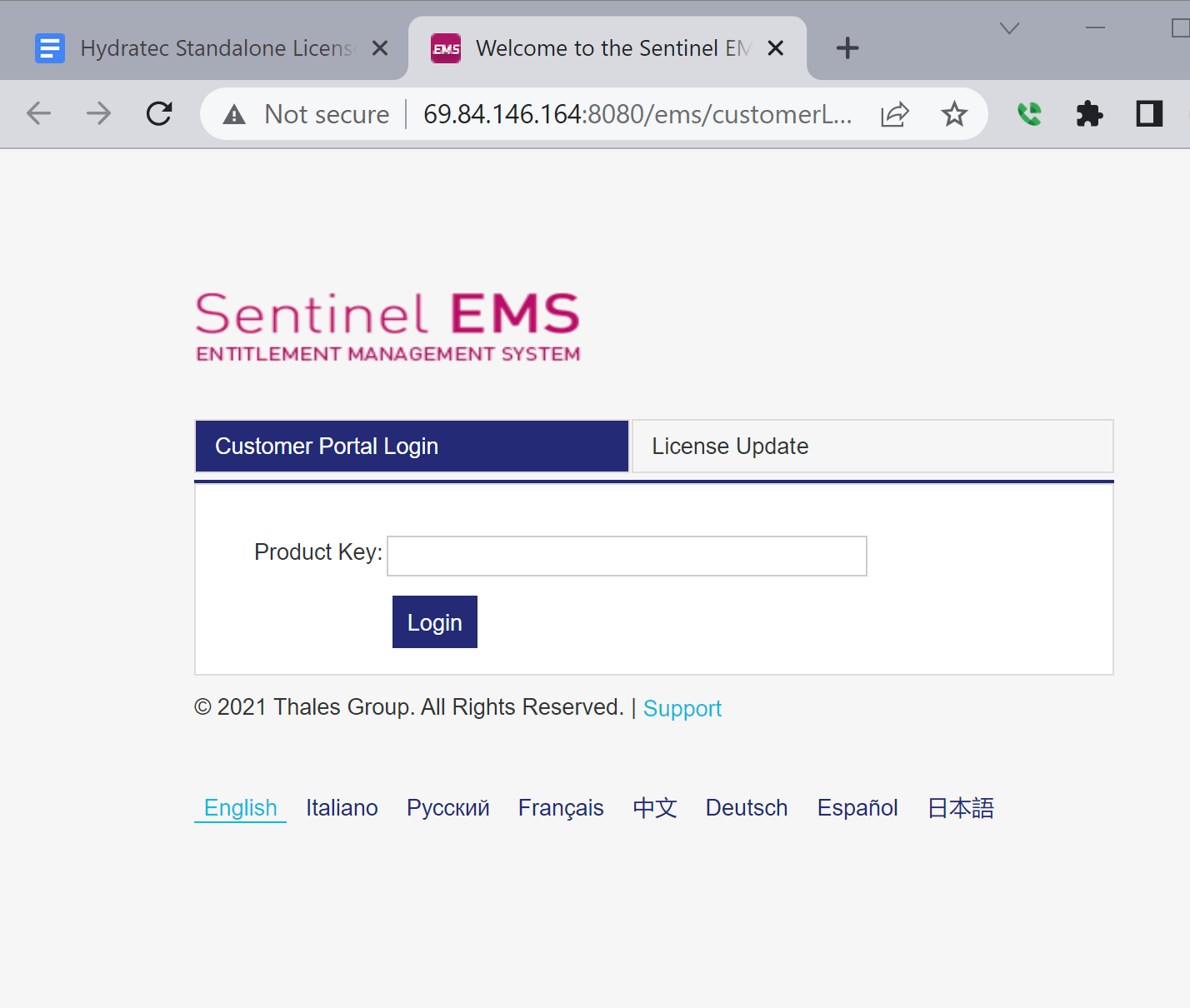
Please go to
http://69.84.146.164:8080/ems/customerLogin.html
Customer Portal
And enter your user Product Key ID
(this is an example) 802xxxxxxf-038c-a4f1-8942-8ssssssxxxbzz
Enter your user Product Key ID that was sent in the email.
Note: If you are unable to reach this page make a screen capture of the error and email to support@hydracad.com with the subject: Need assistance to Manually Apply Standalone Entitlement
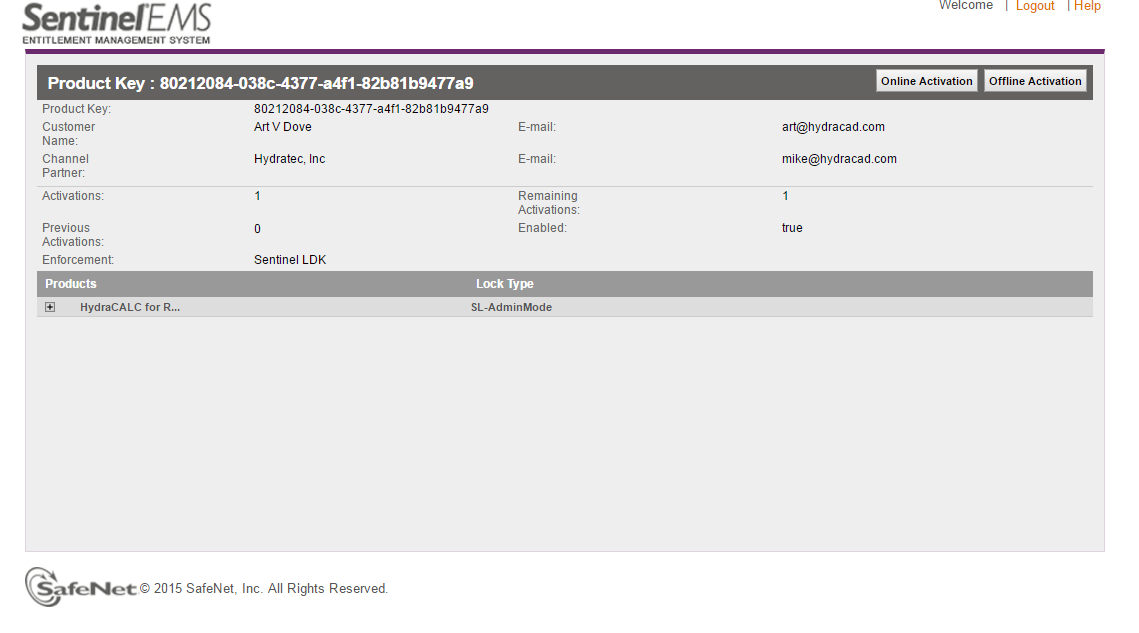
Select Offline Activation
Offline Activation:
Check the number of Activations. Verify that there is at least 1 Remaining.
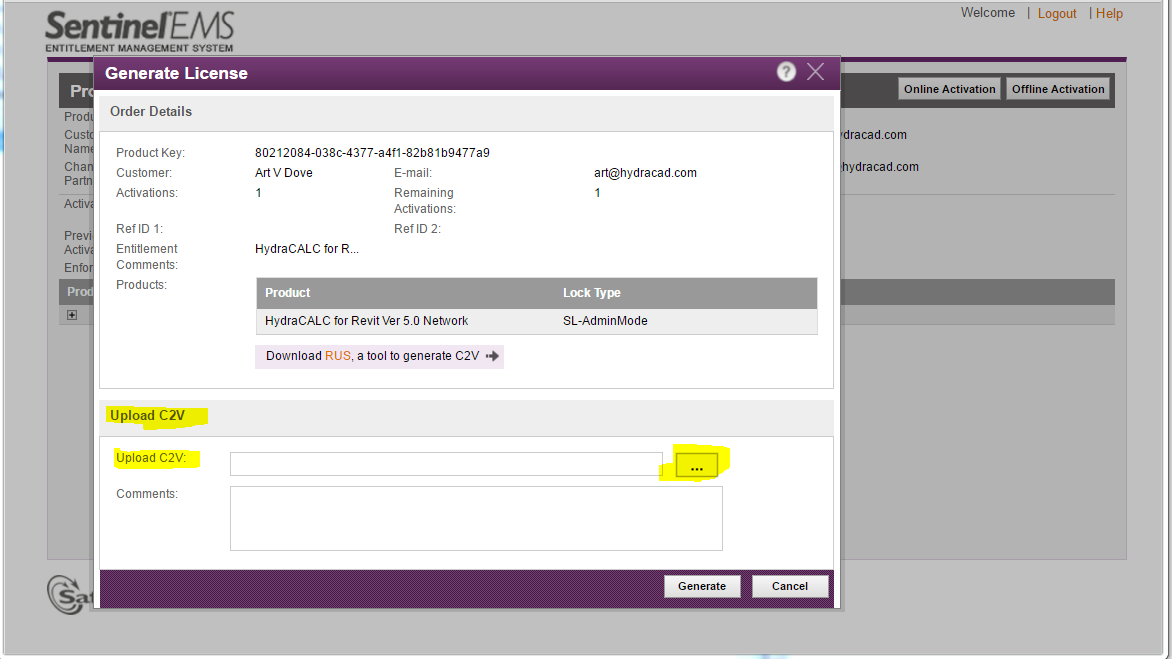
Click the ...Browse button, and locate CurrentC2V.c2v in the folder :\HES\TEMP\
Then click the Generate button.
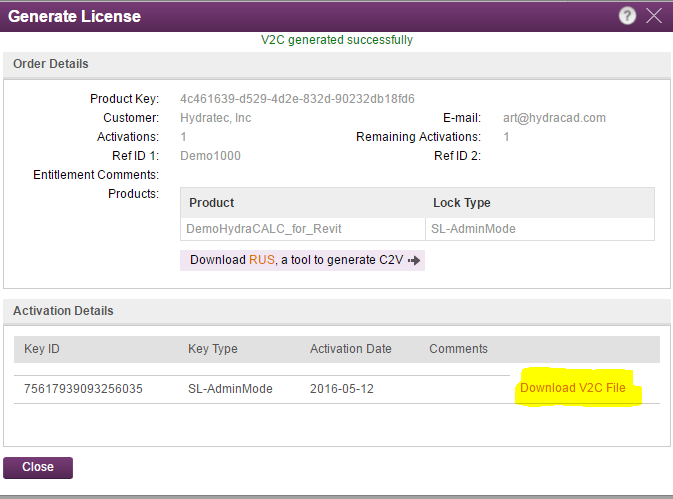
You will then need to download the V2C file.
Note: If you receive error messages and are unable to generate the V2C file, make a screen capture of the error and email to support@hydracad.com with the subject: Unable to Activate Entitlement
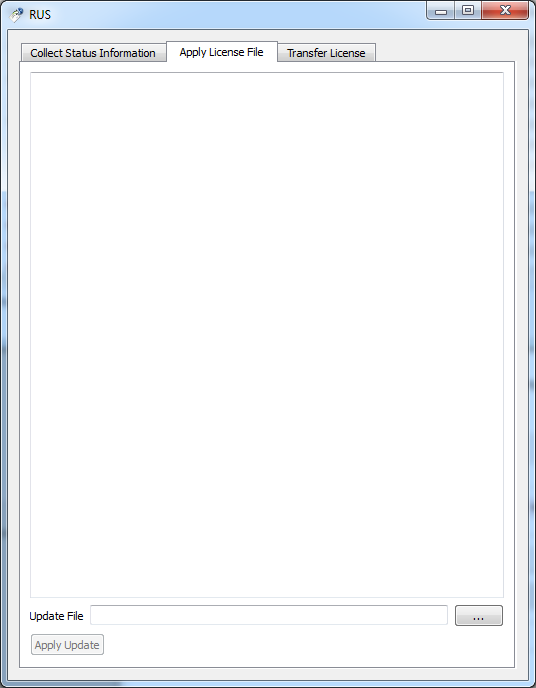
With file explorer, navigate to the application RUS_MGCGX.exe in the folder :\HES\Common\
Right click, and run as administrator. Pick Apply License File tab.
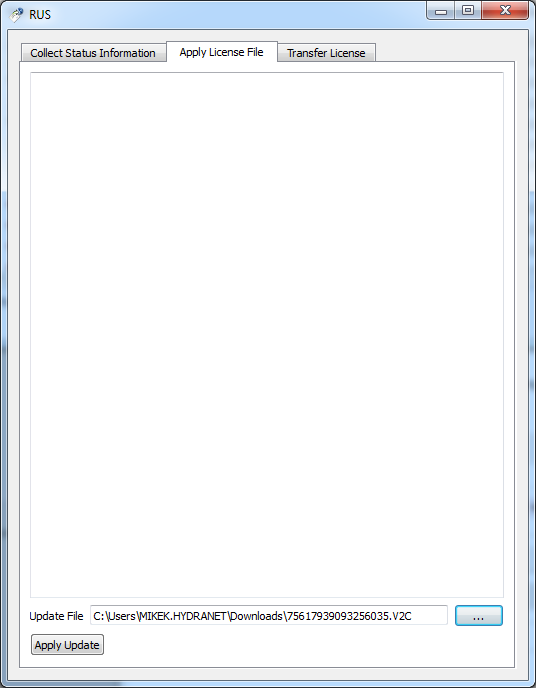
Click the ...browse button and locate the downloaded .V2C file
Click Apply Update.
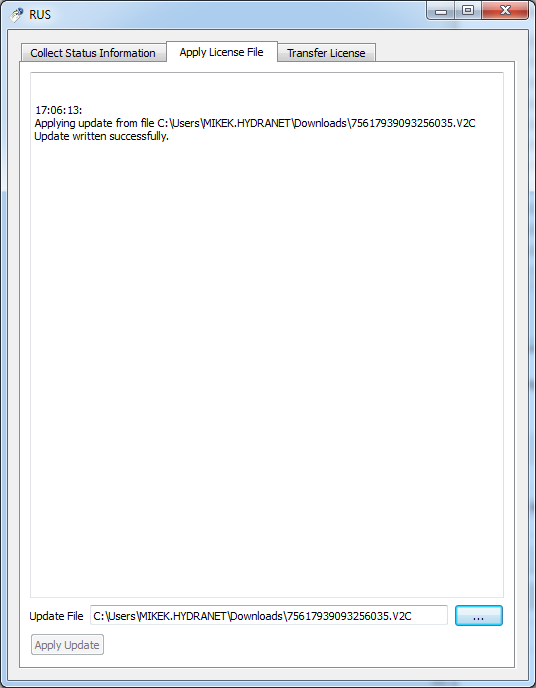
You should see Update written successfully.