FAQ
The FAQ list answers the most common questions we receive. If you cannot find your questions here, you can contact us at support@geovision.com.tw
Basic
- What are the differences between GV-Cloud Camera and Webcam?
GV-Cloud Camera Webcam Overview 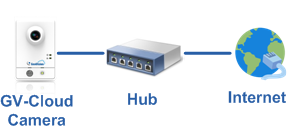
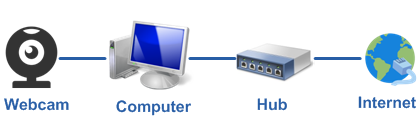
Versatility No distance limitation. The cameras can be installed anywhere with internet. Limited distance. Camera and computer need to be placed within 3 meters. Camera cannot be installed outdoor. Setup Easy setup. Only need to configure the network settings of the camera. Complicated setup. Need to install driver and software in your computer. Security More secured. Videos are stored in cloud storage with unlimited volume capacity and without risks of data loss or corruption. Subject to the stability of the computer. Videos can be lost or damaged in the event of a computer or hard drive failure. Cost Lower equipment cost. No extra equipment needed and consumes less energy (less than 15 W per camera) Higher equipment cost. Require a computer and hard disks for storing video. A computer typically consumes more than 250 W. - What do I need to prepare in order to use myGVcloud? What devices can I use to access the videos?
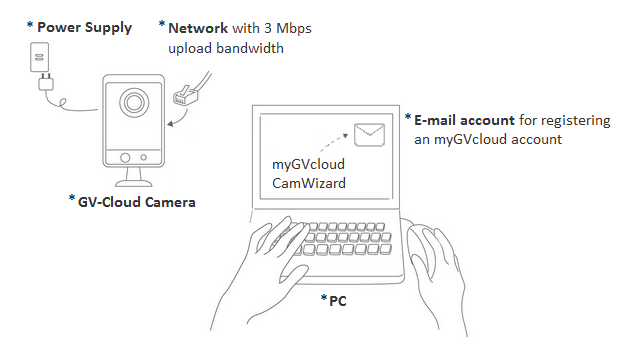
To set up GV-Cloud Camera, you will need the following items:
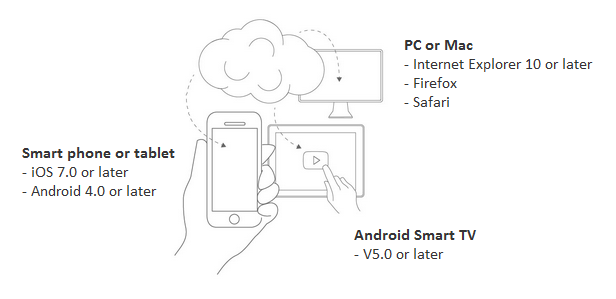
You can access the camera view using any of the following devices.
- Are GV-Cloud Cameras easy to set up?
Yes. GV-Cloud Cameras can be set up in 3 simple steps.
- Insert the memory card, and then connect the camera to power and network.
- Run myGVcloud Wizard on a computer.
- Register a myGVcloud account.
- Who will be able to access the videos of my GV-Cloud Camera?
To access the camera image, you will need the myGVcloud account you registered for the camera. You can choose to share the live view and / or recorded video of a GV-Cloud Camera with up to four other myGVcloud accounts.
- If someone breaks into my property, how will I be notified?
You can set up myGVcloud to send notification to your mobile device upon motion detection and / or tampering alarm using myGVcloud CamApp. You can choose to tap the notification to play back the recording. myGVcloud can also send notification to your e-mail address when a camera becomes disconnected.
- Will my camera be able to see at night without lighting?
GV-Cloud Camera comes with night vision that is capable of capturing clear image under poorly lit environment.
- How safe is cloud storage? Is my video secure on the cloud storage?
myGVcloud videos are stored on Amazon Web Services (AWS) and protected by one of the strongest encryptions available.
- If I need to completely delete a recording, how do I make sure a copy is not stored on the cloud storage somewhere?
Although you will not be able to manually delete recordings on the cloud storage, the videos will be automatically deleted after the keep days of your license plan. Amazon Web Services will not keep a copy of your recording passed the keep days.
- What do I do if I forgot my myGVcloud password?
Click “Forgot Password?” in the login page of myGVcloud Portal. You will be asked to type the account ID (your e-mail address) and a verification e-mail will be sent to your e-mail account. You can reset the password after clicking the link in the verification e-mail.
- What is the PIR sensor on GV-HCW Cameras?
GV-HCW Cameras come with passive infrared (PIR) sensor that can detect body temperature, allowing the camera to detect human movements in complete darkness.
- Do GV-Cloud Cameras support wireless connection?
GV-HCW Cameras come with wireless function and supports various wireless encryption including WEP, WPA, and WPA2.
- How much bandwidth do GV-Cloud Cameras need?
It is recommended to install GV-Cloud Cameras under network environments with at least 3 Mbps of upload bandwidth.
- Do I need to insert a memory card?
Yes. You will need to insert the supplied micro SD card. Videos stored in the micro SD card will be automatically backed up to a cloud storage, which can prevent data loss in the event of a power outage, earthquake, or hard disk failure.
- What types of SD cards are compatible with GV-Cloud Cameras?
GV-Cloud Cameras are compatible with the following specifications:
- SD / SDHC
- SD version 2.0 only
- Class 10
- Capacity: up to 32 GB
It is recommended to use Micro SD card of MLC NAND flash, Class 10 for better performance.
Subscription
- How long is the warranty for GV-Cloud Cameras?
GV-Cloud Cameras come with a 3-year warranty for hardware defects. The warranty conditions are as follows. http://www.geovision.com.tw/myGVcloud/warranty.asp
- How many GV-Cloud Cameras can be registered to a myGVcloud account?
Up to 36 GV-Cloud Cameras can be registered to a myGVcloud account.
- Can multiple people log into the same myGVcloud account and simultaneously access camera image?
Yes, you can log into the same myGVcloud account from multiple PC and mobile devices at the same time, and simultaneously access camera live view and play back recordings. In addition, there are two other ways you can share your camera image:
- Share the camera with up to four other myGVcloud accounts.
- Live stream the camera using YouTube to an unlimited number of audience. You will need a YouTube account.
- What types of myGVcloud license plans are available?
The following types of license plans are available.
- 5 GB (Free): You can store up to 5 GB of recordings from that camera in cloud storage before recycling begins.
- K7 / K15 / K30: You can store 7 / 15 / 30 days of recordings from that camera in cloud storage. Recordings from more than 7 / 15 / 30 days ago will be automatically recycled.
Functions License Plans 5 GB (Free) K7 K15 K30 Live View (Video & Audio) V V V V Mobile App - Motion Notification V V V V YouTube / UStream Live Streaming V V V V Recording V V V V Camera Settings V V V V Playback (Cloud & Local) V V V V Cloud Storage Storage Space 5 GB Unlimited Unlimited Unlimited Number of Days Stored Up to 30 days 7 days 15 days 30 days Camera Sharing Accounts Supported 4 4 4 4 Live View V V V V Playback (Cloud & Local) V V V V Note: The K7, K15, and K30 license plans are available in US and Japan. For other regions, please contact your local GeoVision sales representatives or distributors.
- How do I unsubscribe from myGVcloud services?
To unsubscribe from myGVcloud services, click Purchase in the top-right corner of myGVcloud Portal and click the Unsubscribe button.
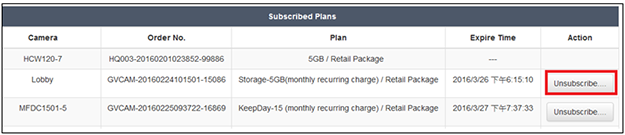
You will receive an automatic notification e-mail first, and then receive a second e-mail after GeoVision has finished processing the cancellation.

For “monthly recurring charge”, no refunds will be made for the remaining days before the end of the billing cycle. For “quarterly recurring charge”, no refunds will be made for the current month, but you will be refunded for the number of whole months remaining in the billing cycle.
Technical
- Can multiple myGVcloud accounts access the same GV-Cloud Camera?
You can share your GV-Cloud Camera with up to 4 other myGVcloud accounts. To share camera, log in to myGVcloud Portal, select Setup, and click Setting under Share Camera.
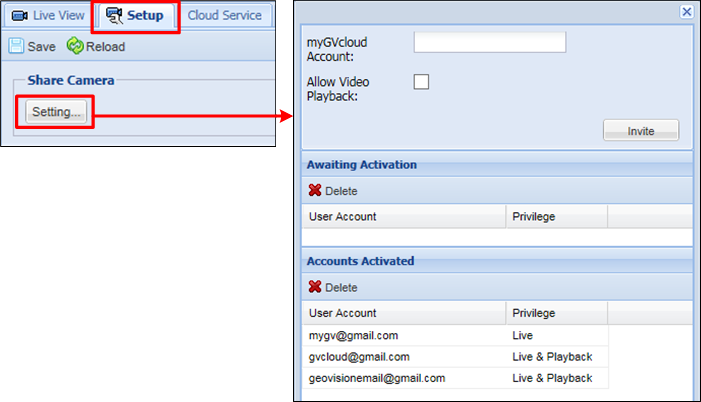
You can restrict access to live view only or allow both live view and playback.
- Why is there a delay when streaming live stream on YouTube?
You should expect a delay of about 30 seconds when watching live streaming on YouTube as stated by YouTube. The length of delay may vary depending on the network environment and Internet traffic. If you are experiencing a longer than expected latency, try refreshing the Web browser.
- Can myGVcloud camera be connected to GeoVision VMS or NVR?
Nope. myGVcloud is specifically designed for the Cloud surveillance, so all the video footages will be recorded on the cloud directly. Users can log on myGVcloud portal to watch the live view and playback through web browser or mobile app anytime, anyplace.
- Why can’t I download and install GeoVision plug-ins on camera Web interface when using IE?
When using Internet Explorer version 11.0.9600.17842, the GeoVision plug-ins required for accessing the live view on camera Web interface cannot be downloaded and installed due to the Protected Mode of Internet Explorer. Follow the steps below to disable the Protected Mode.
- Click Tools
 and select Internet options.
 - Select the Security tab, deselect Enable Protected Mode.
- Click Apply and OK. The warning message appears after the Protected Mode is disabled. Click OK.
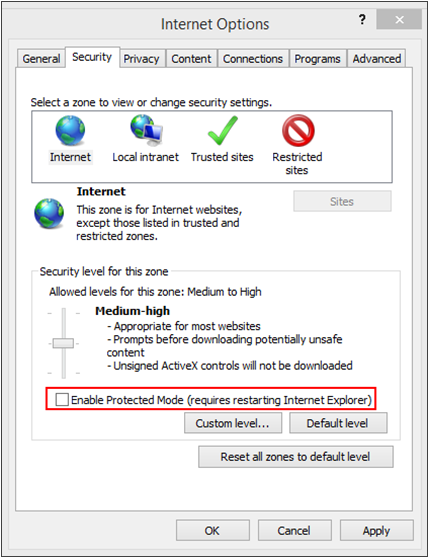
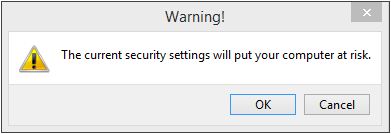
After refreshing the Web page, you can install the plug-ins.
- Click Tools
- Can I download the videos stored in cloud storage?
Yes. Follow the steps below.
- Log into myGVcloud Portal.
- Select Remote Playback or Timeline (Cloud).

- Search for the videos you want to play.
- Remote Playback: Select the videos and click the download button.
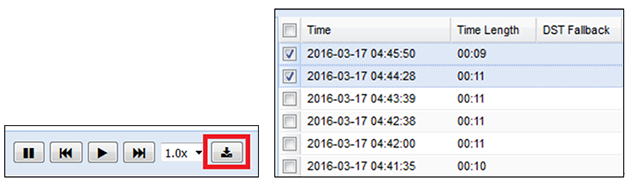
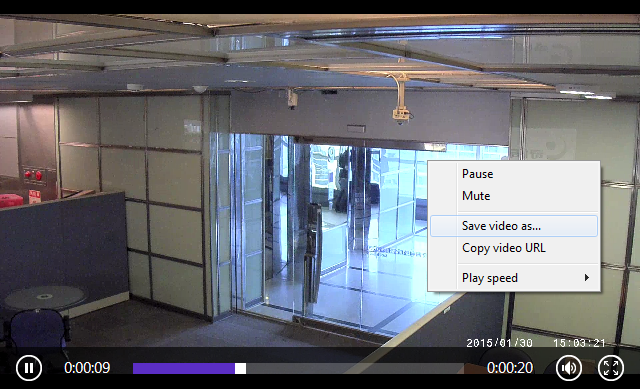
- Timeline (Cloud): Play back a video and right-click the live view to save the video.
- Can I play the videos saved in the micro SD card directly?
Yes. First, you need to unmount the micro SD card in myGVcloud Portal.
- Log into myGVcloud Portal.
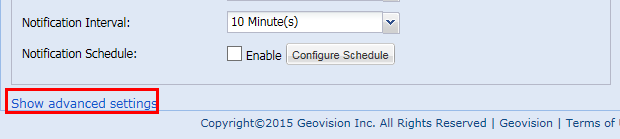
- Select Setup and click Show Advanced Settings at the bottom.
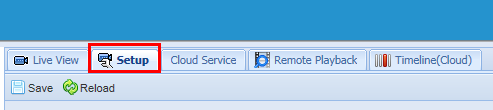
- Under Storage, click Unmount SD Card.
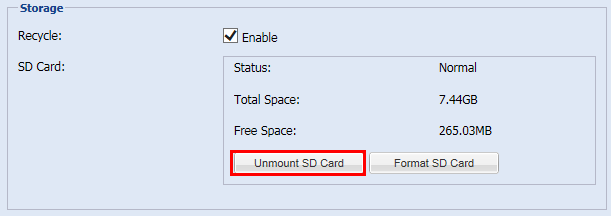
Next, remove the SD card from the camera, and connect it to a Windows PC to play back videos. Note that recordings will not be stored to cloud storage after the SD card is removed.
- How do I play back recordings of GV-Cloud cameras?
There are three ways to play back recorded videos of your GV-Cloud Cameras from your PC, mobile devices and Android smart TV.
- myGVcloud Portal: Log in www.mygvcloud.com using Web browsers.
- myGVcloud CamViewer: Install myGVcloud CamViewer on PC.
- myGVcloud CamApp: Install myGVcloud Cam App on Android or iOS mobile devices.
Follow the instructions below to see how each way works.
- myGVcloud Portal
After logging in, you will see the live view of the first camera and a list of all cameras assigned to your myGVcloud account. To play back a recorded video, select a camera in the Camera List and click Remote Playback of the selected camera.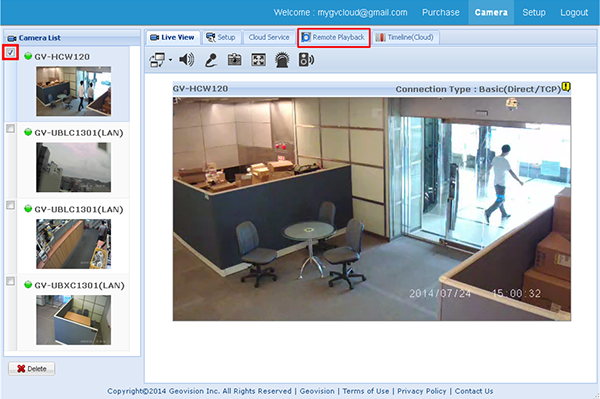
- myGVcloud CamViewer
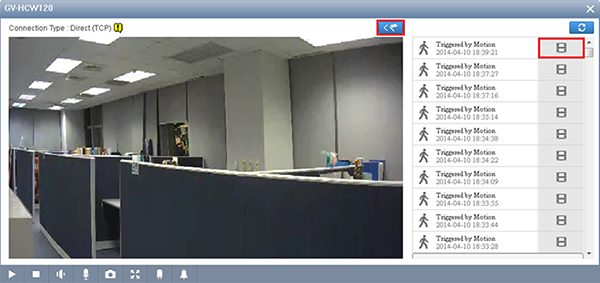
Once the login information is entered, you are able to access recorded videos associated with your myCloud account. To play back a recording, click the Event button and select a recorded event
  in the Event List.
- myGVcloud CamApp
Before accessing the playback function, you should drag one of the cameras associated with your myGVcloud account from the Camera List to the live view grid. To play back a recorded video, tap the Playback icon from the live view page.