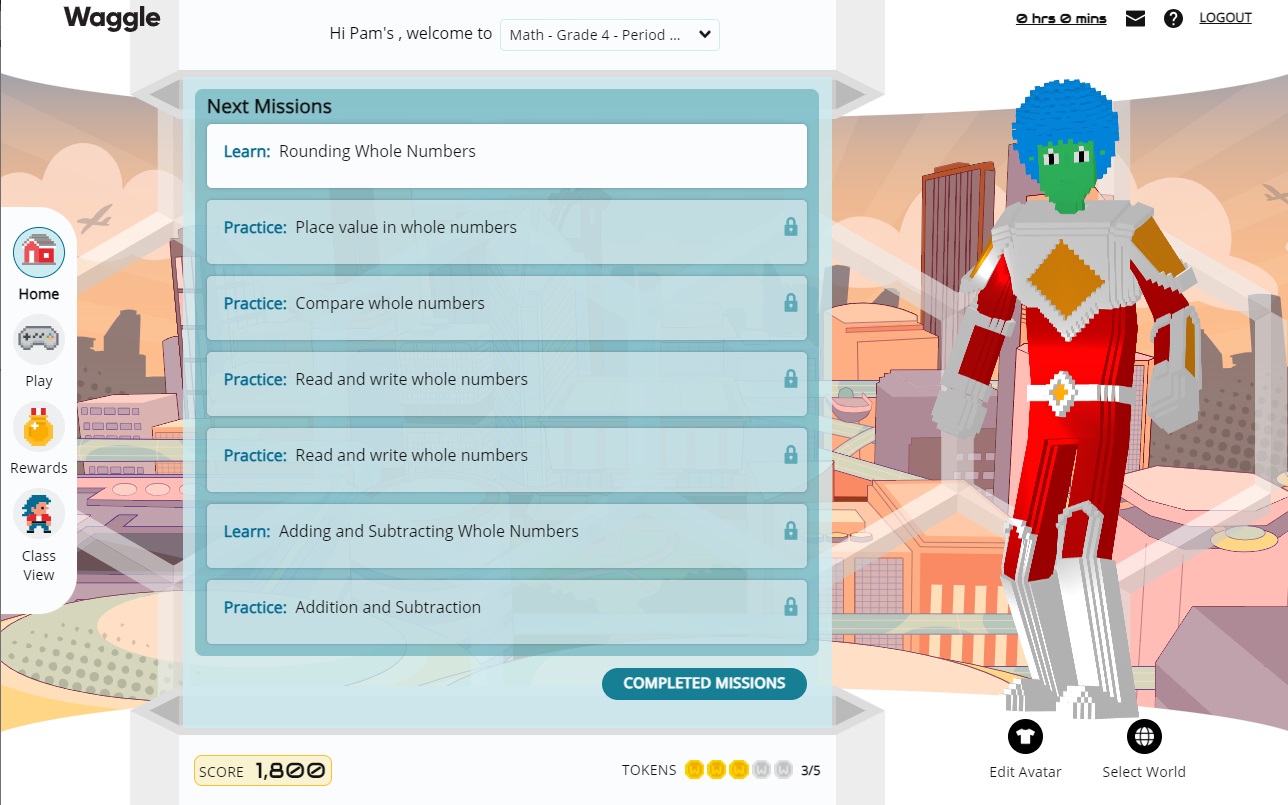
Students are assigned the below activities for Waggle.
Learn activities provide instruction, guided practice, and application.
Practice gives you practice activities designed just for you.
Play are games your teacher assigns you that offer practice in foundational skills:
For Math - math facts and fluency
For Literacy- vocabulary and word parts.
Skill Quiz is a quiz made up of five questions on a single skill.
Access and complete assignments from the home page of Waggle.
While students are working on your current mission, the other missions are locked. When the mission is completed, the next mission unlocks. After completing all Missions, it may take 5 minutes for the next assignments to appear on the dashboard.
To complete assignments:
Click the assignment name on the Waggle Home page to go to the assignment activity page. Help is available to guide to answering the questions:
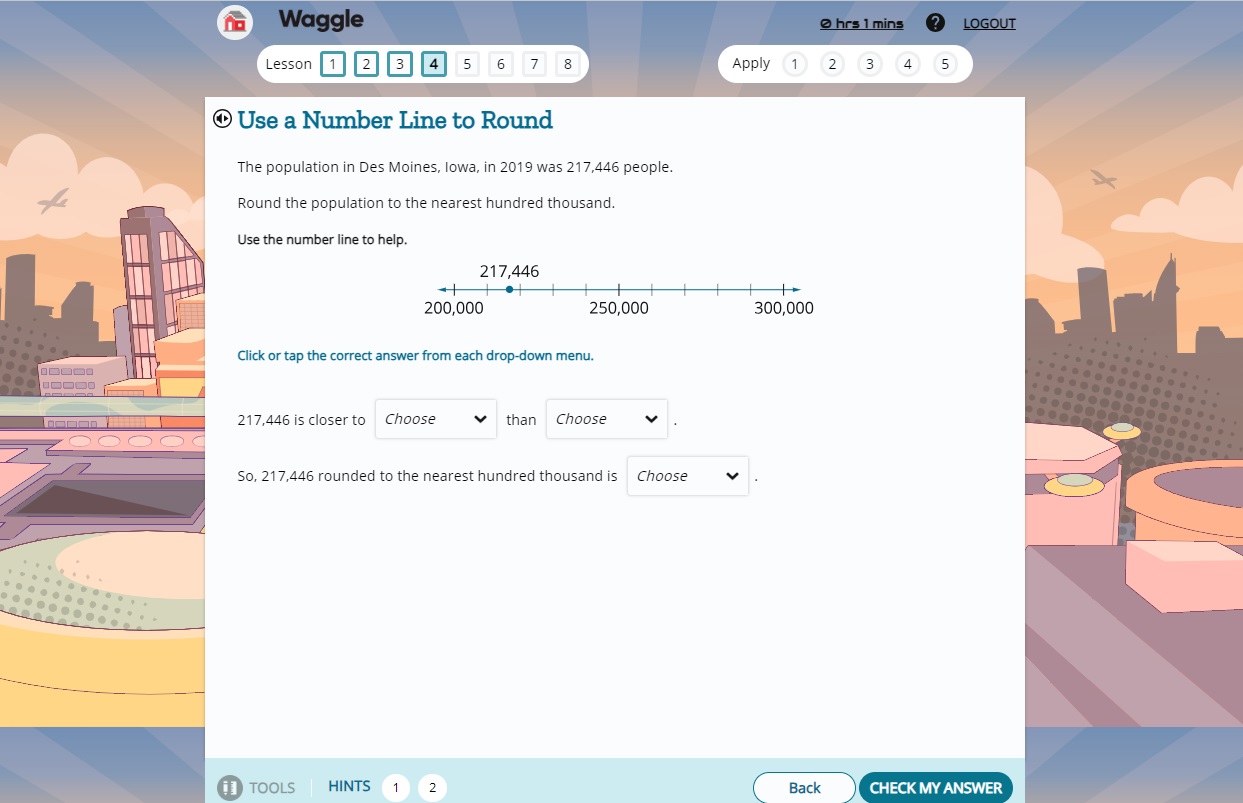
Tools: For Math activities, Math tools appear such as a ruler, compass, or a basic or scientific calculator.
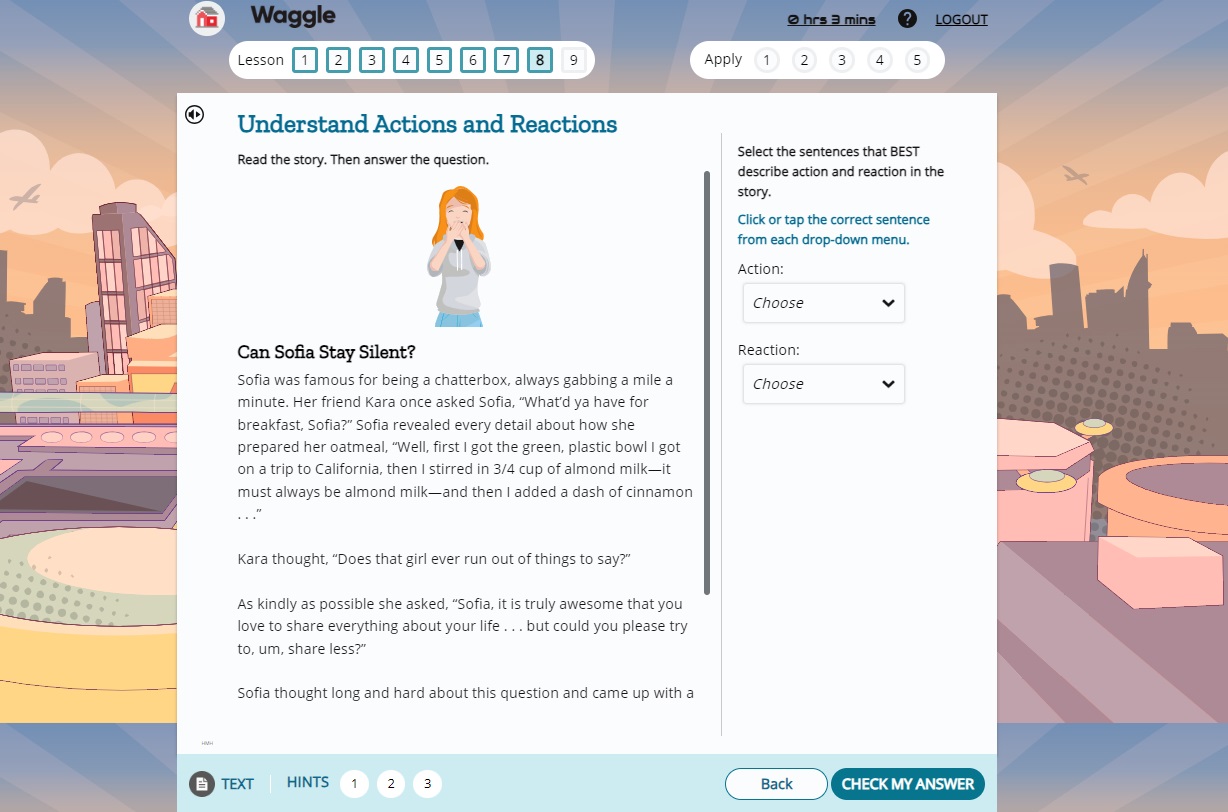
View Selection: For literacy activities, the reading passage appears.
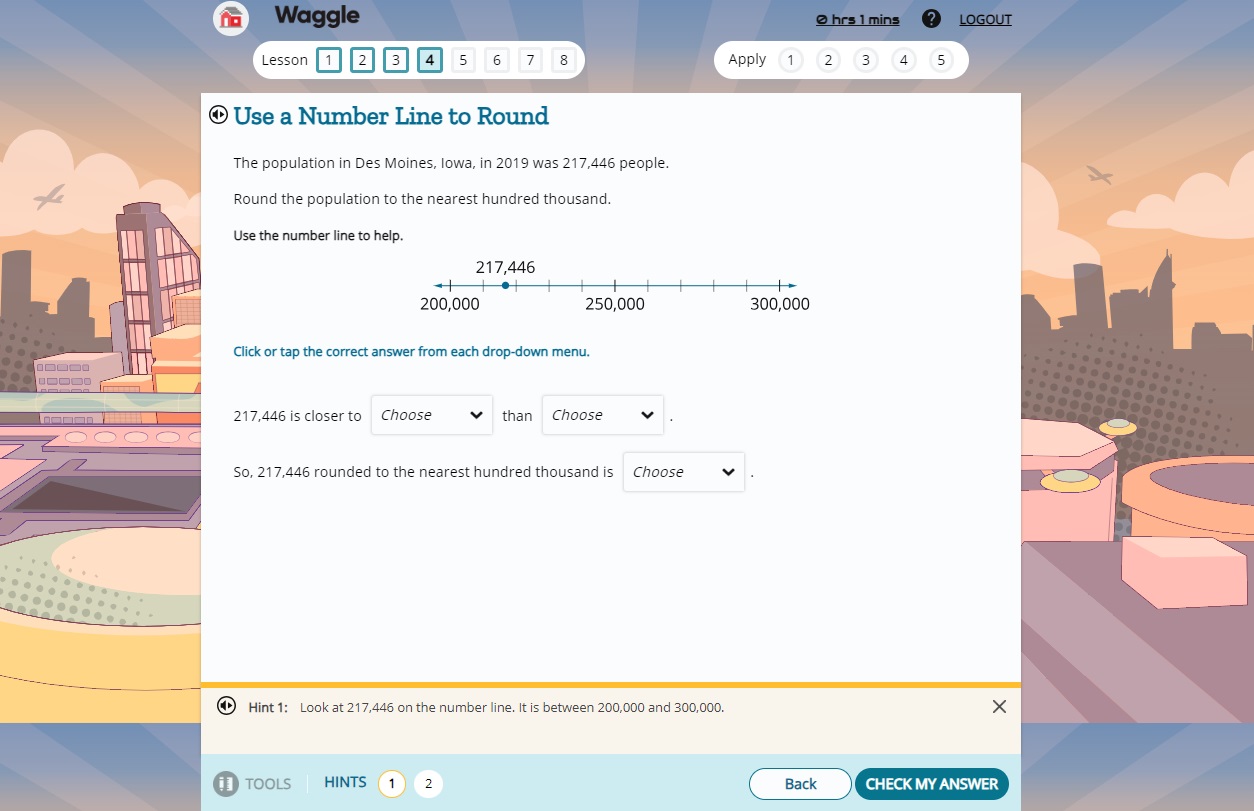
Hints: Depending on the activity type, support information offers help with entering the expected answer.
Note: Click the House icon at the top of the screen to return to the Waggle dashboard at any time before completing the assignment.
Follow the onscreen instructions for the assignment and enter answers to the questions.
Click Check My Answer.
If answers are correct, text appears to confirm answers.
If an answer is not correct, text appears to help enter the correct answers.
Note: A bar fills in at the top of the page to indicate progress in completing the assignment.
After finishing the last Practice question, a celebration screen opens that shows the points, any gems, and badges you earned in the Learning Goal, as well as an option to review answers. After returning to the student dashboard, the completed assignment will appear under Completed Missions.