on the resource
card. The icon changes to red
on the resource
card. The icon changes to red  ,
and the resource is saved on your My
Favorites page.
,
and the resource is saved on your My
Favorites page.
You can select resources as favorites and then access them from the My Favorites page in Teacher's Leader's Corner®.
1. In
Teacher's
Leader's
Corner, select
the favorites icon on the resource
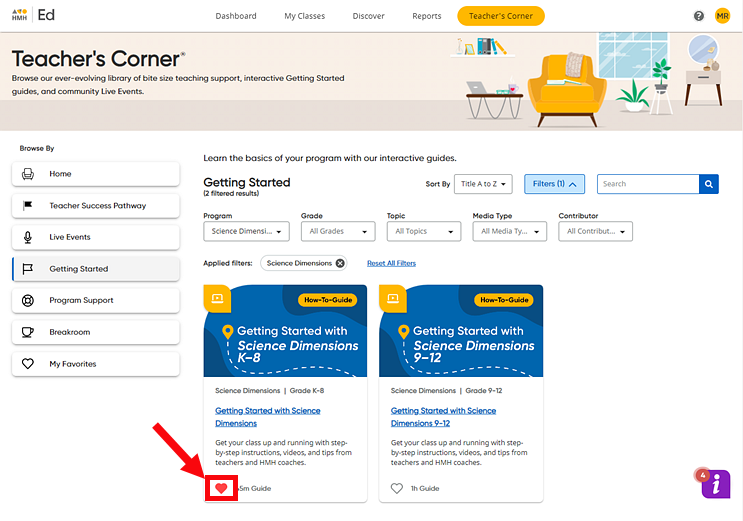
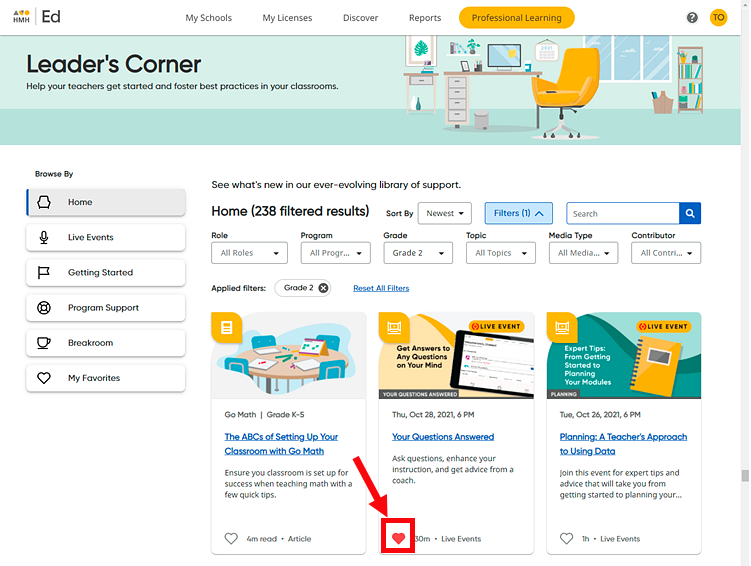
card. The icon changes to red ,
and the resource is saved on your My
Favorites page.
or
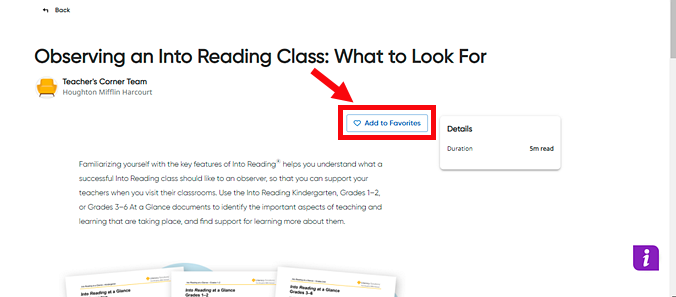
After opening a resource, click the Add to Favorites button. The resource is saved on your My Favorites page, and the button changes to Remove Favorite.
or
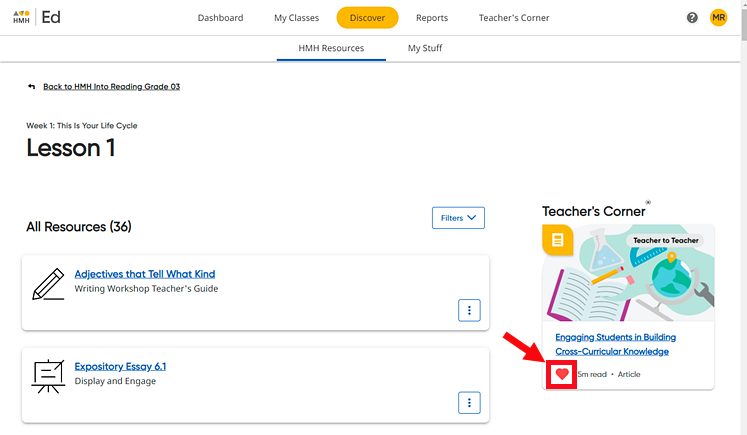
If available
on the HMH Resources – Lesson
page, select the favorites icon
on the Teacher's Corner card for
the lesson. The icon changes to red ,
and the resource is saved on your My
Favorites page.
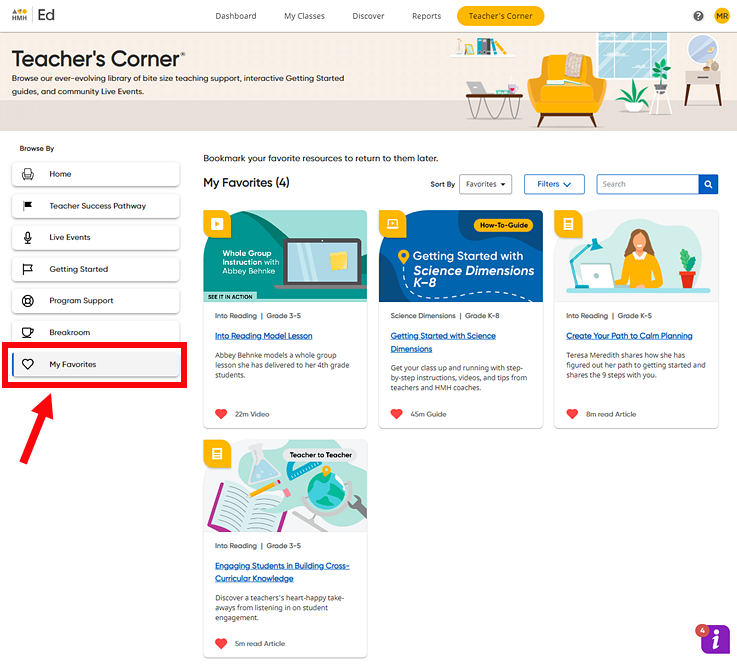
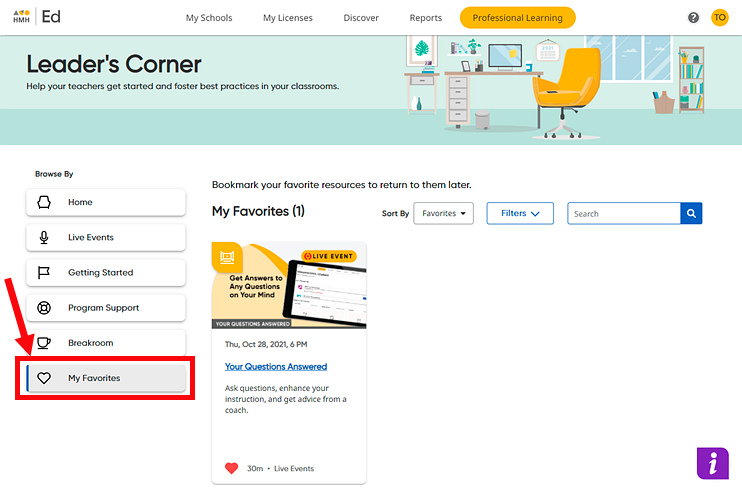
2. On the Teacher's Leader's Corner tab, click the My Favorites link in the Browse By panel on the left side of the page. The My Favorites page appears listing all the resources that you have selected.