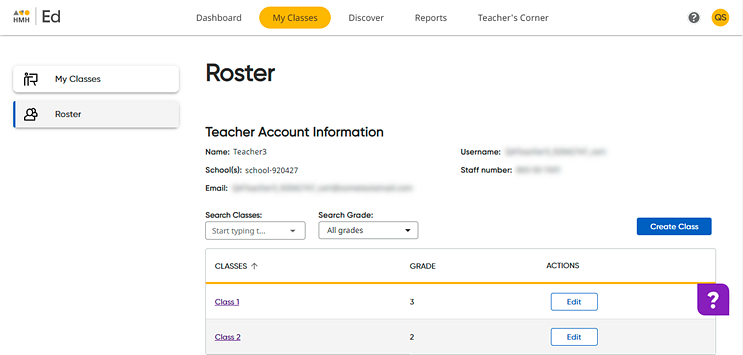
1. In the ERROR: Variable (Platform_Name) is undefined. banner, click the My Classes tab, and then on the left panel of the My Classes page, click Roster. The Roster page appears.
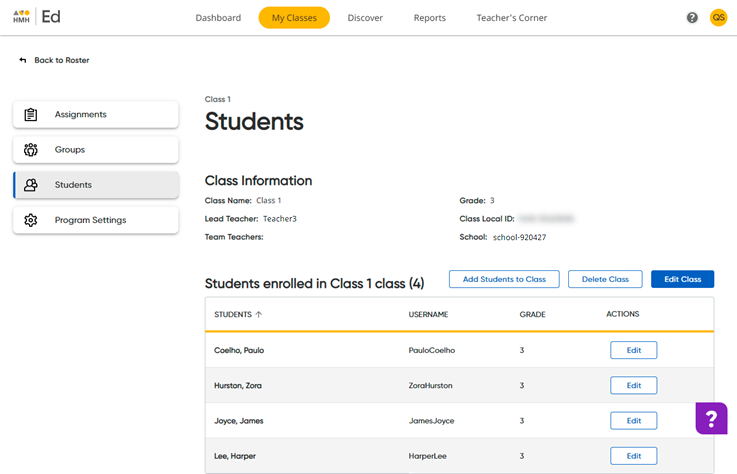
2. Locate the class to which you want to create groups and open the class by clicking the class name link in the CLASSES column. The Students page appears, showing class information and the list of students currently enrolled in the class.
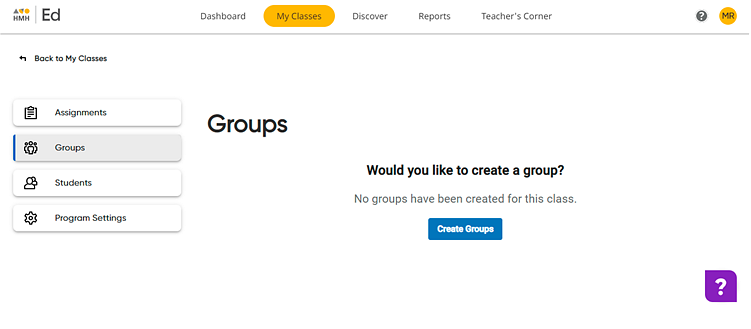
3. On the left panel, click Groups. The Groups page appears.
– If you have no saved groups, the following page appears.
– If you have previously created and saved groups, they appear on the page as group cards.
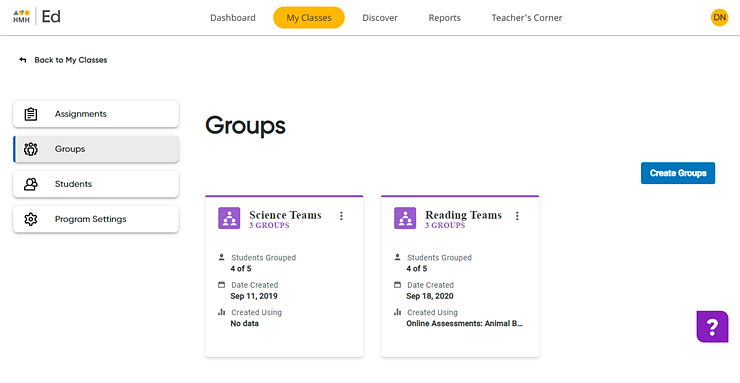
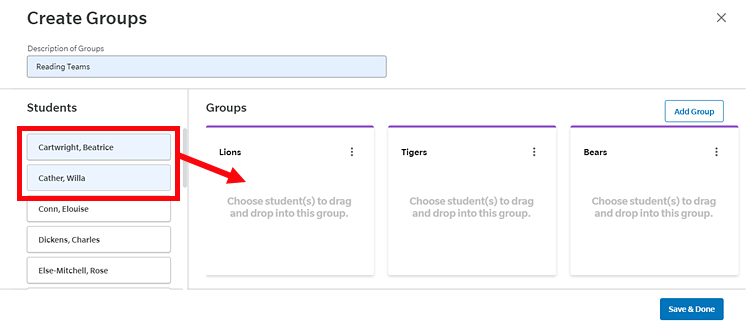
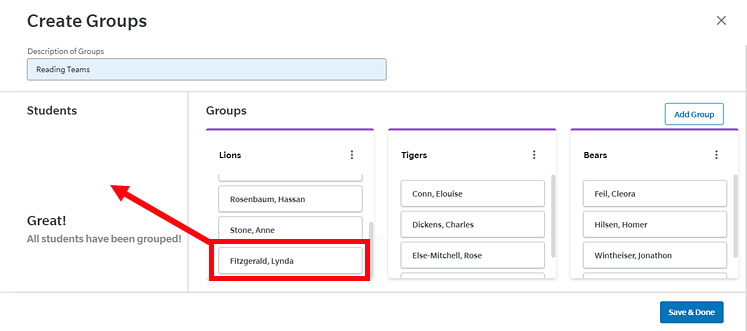
4. Click Create Groups. The Create Groups page appears. A list of the students for the selected class appears on the left side of the page. By default, three empty group cards appear.
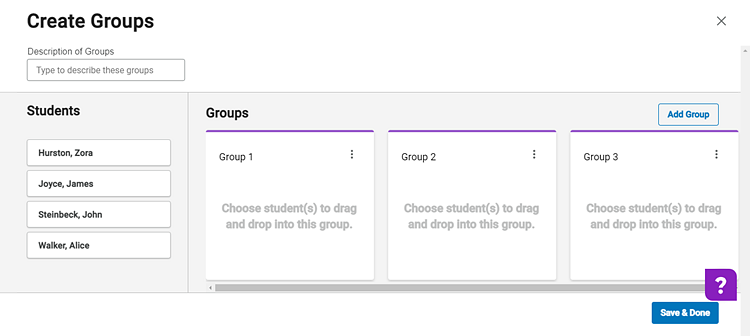
5. Refer to the following table for details about naming and managing groups.
|
Action |
Steps |
|
Describe the groups |
➔ In the Description of Groups field, type a name or description to identify the groups. Note: If you have multiple groupings for the same class, the Group Description allows you to quickly differentiate between them. |
|
Rename groups |
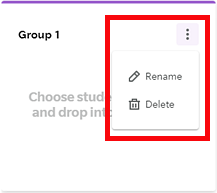
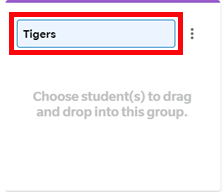
➔ Click the or ➔ Click the |
|
Add more groups |
➔ Click the Add Group button. A new group card appears. |
|
Delete groups |
➔ Click the |
6. Group the students as follows:
– Add students to groups by  selecting one or more student name(s) from the Students list and dragging the name(s) to the desired group card.
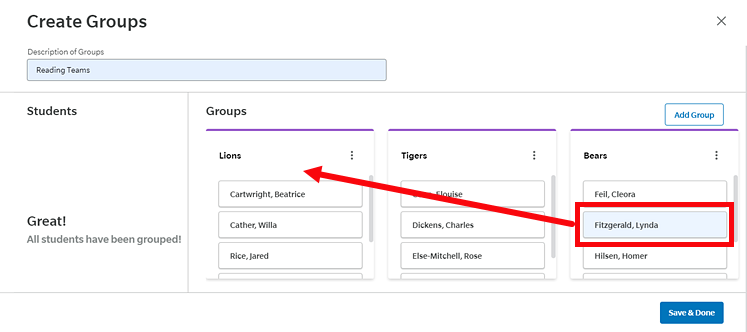
– Move a student or students from one group to another by clicking the student name(s) and then dragging the selected name(s) to the desired group.
– Remove students from groups by clicking the student name(s) and then dragging the name(s) to the left Students panel.
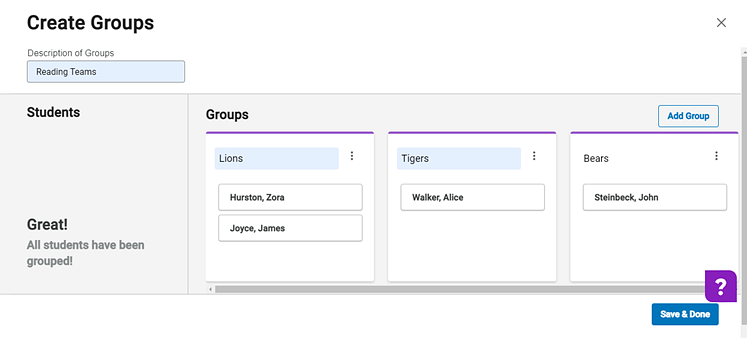
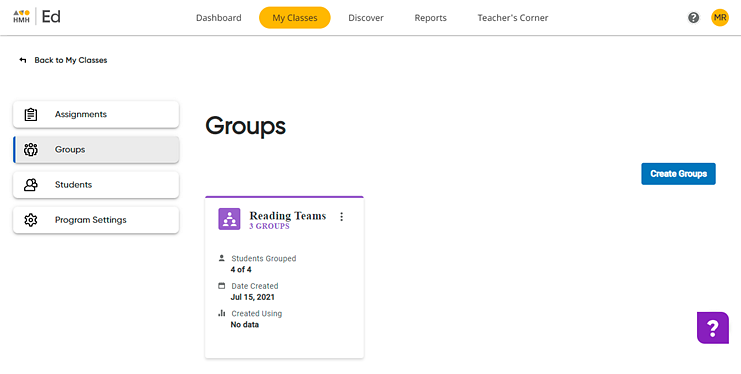
7. Click Save & Done to save the groups. Newly created saved groups display on the Groups page along with all the previously saved groups for the selected class.
|
Note: Each group card displays the number of saved groups, the number of students in groups, and the date the groups were created, and the data, if any used to create the group. This last section, Created Using, identifies the assessment (if any) that was used to sort the students for this group. If this section states "No data," then the group was created by sorting students manually. |
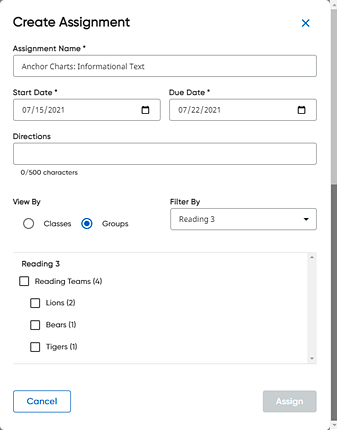
When you create assignments, your groups are available in the Create Assignment dialog box. You can assign content to an entire collection of groups or individual groups by selecting the group(s) in the View By area.
See Also: