The Teacher Success Pathway provides a new learning experience for teachers beginning in the 2022 school year. As you log in to Ed at the start of the year, you are prompted to build a profile by selecting the grades and subjects that you teach and the programs that you use. These profile selections build your Teacher Success Pathway, which provides you with ongoing support and personalizes your on-boarding experience. The pathways are designed to help you incorporate your HMH programs into your instructional block and include a variety of on-demand training items.
Note: These
grade, subject, and program selections determine the supporting videos,
materials, and events that you can access in your Teacher Success Pathway.
HMH recommends selecting all the pathways that are relevant to you.
After completing the initial log in Teacher Success Pathway prompts, you
have ability to edit your profile selections by clicking your username
initials in the upper right corner of the banner and then selecting Edit Profile from the user menu.
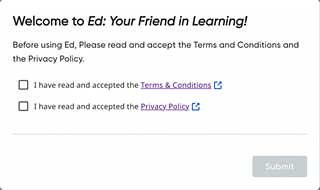
When you log in to Ed, a series of dialog boxes appear, prompting you to build your user profile.
1. If this is the first time ever you are logging in, select the check boxes to accept the Terms & Conditions and the Privacy Policy, and then click Submit.
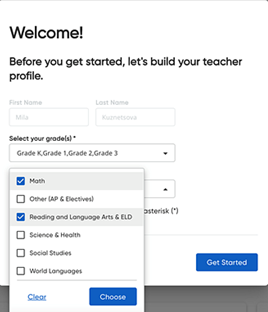
Your teacher profile dialog box appears.

2. In the Welcome dialog box, use the lists provided to select all the grades and subject areas for which you want to access support material and then click Get Started.
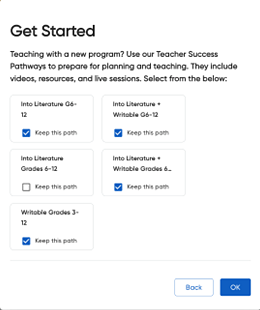
A Get Started dialog box appears listing all the programs to which you have access. By default, all programs are selected.
3. Verify
that the check boxes of programs that you use are selected  , clear the
check boxes of programs that you do not use
, clear the
check boxes of programs that you do not use  , and
then click OK.
, and
then click OK.
Note: If you leave all the check boxes selected, then your pathways list will show all programs. HMH recommends that you select all the programs that are relevant to you.
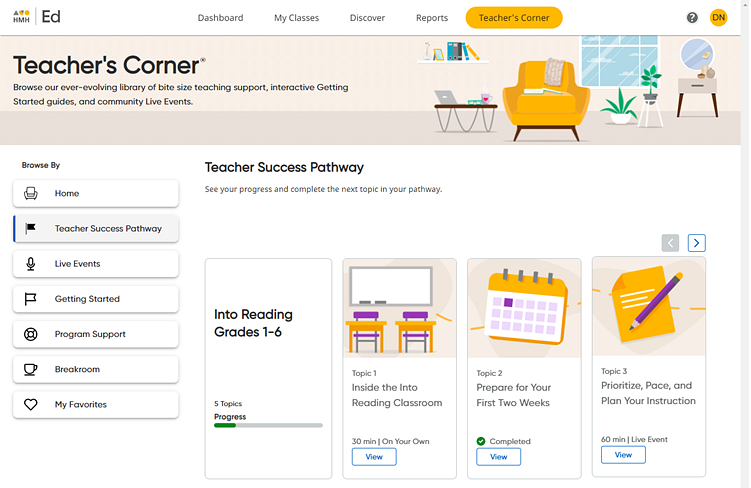
Your Dashboard page appears, and your Teacher Success Pathway area is displayed at the top of the page providing access to all the program training pathway topics for the grades, subjects, and programs that you selected.
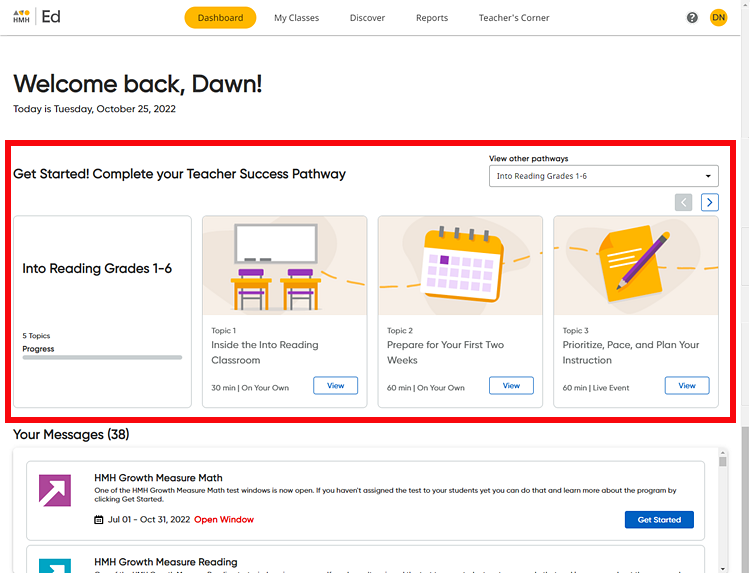
Teacher Pathway items for the first program in your list are provided on the page as topic cards showing the title, item type, and duration. The options available differ by program and include a variety of items, such as live events, videos, sample lesson plans, interactive sessions, and so on.
Note: Once set up, you can also open your Teacher Success Pathway from Teacher's Corner® by doing the following:
a. In the banner at the top of the page, click the Teacher's Corner tab. The Teacher's Corner Home page appears.
b. In
the Browse By panel on
the left side of the page, click Teacher
Success Pathway. The full Teacher Success Pathway page
appears. (
For details about Teacher's Corner, see Open Teacher's Corner Resources. |
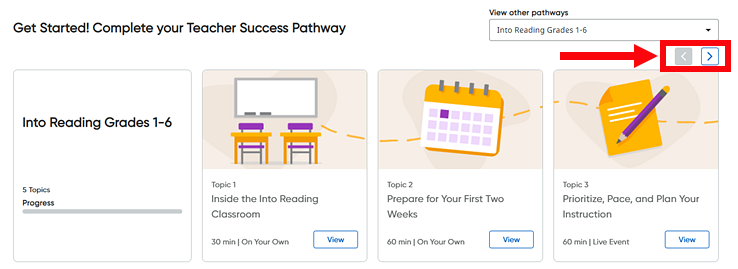
4. If necessary, view additional topic cards for the selected program by clicking the arrows in right corner of the Teacher Success Pathway area.
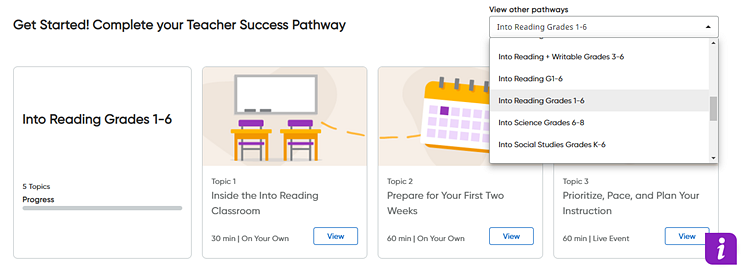
5. Use the View other pathways list to select a different program and view the items offered for that program. The Teacher Success Pathway area of the Dashboard updates to display the topic cards for the selected program.
6. Click the View button in a topic card. The full Teacher Success Pathway page for that item opens.
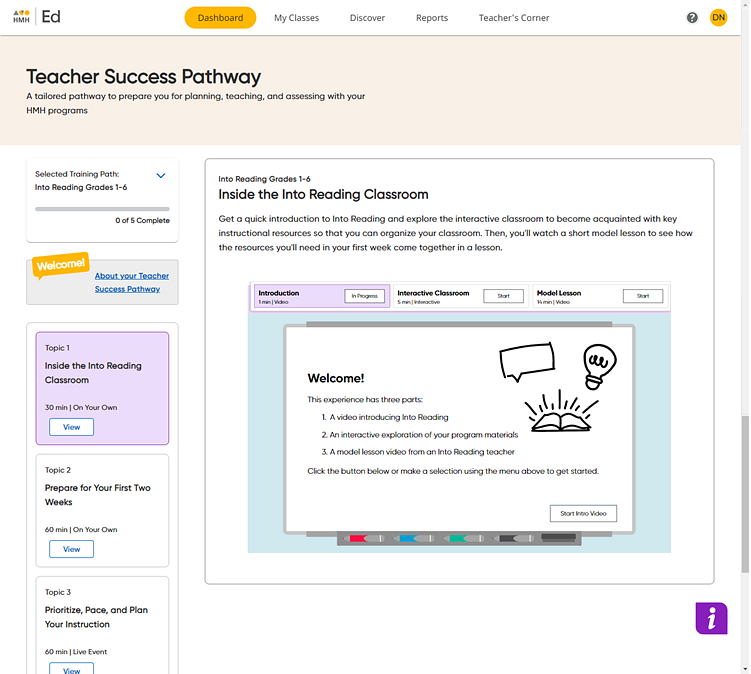
7. On the full Teacher Success Pathway page, do any of the following:
– View the detailed description of the selected item provided in the main part of the page.
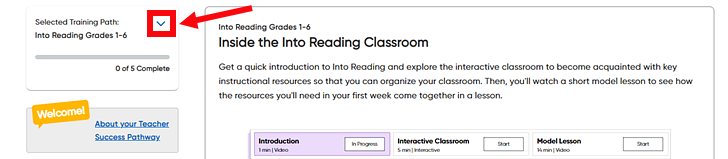
– Click the arrow in the top left Selected Training Path card to select a different program training path.
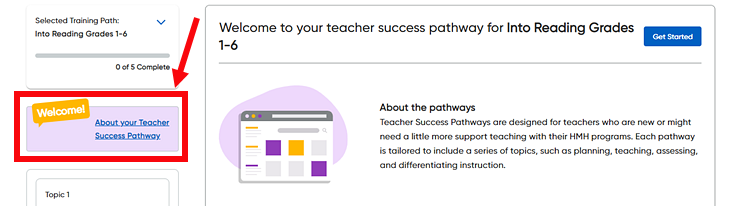
– Click the link in the Welcome card on the left side of the page to view a full description of the selected program training path.
– Browse all the items for the selected program training path displayed as topic cards in the left bar of the page and click within any topic card to open the full page for the item.
– Depending on the item type, click to start a video, open an item, register for a live event, or view additional content.
Note the following about live events:
– You can sign up for these sessions when it is convenient for you, or you can simply watch a recording.
– After you sign up for a live event, you will receive a confirmation email and be able to attend the live event directly from Ed.
– After each session, you will be provided access to the recording and shared resources.
|
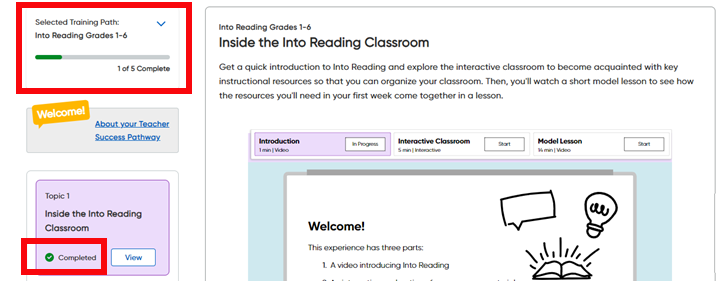
When you complete a topic, a Completed check mark displays in the topic box and the progress bar monitors your progress through the selected program training path. Each pathway has its own progress bar.
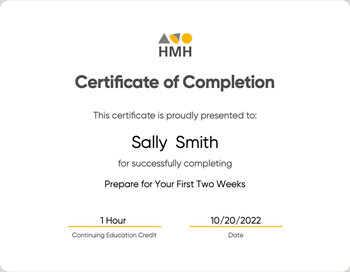
After completing a topic (with the exception of Topic 1), you earn a Certificate of Completion.
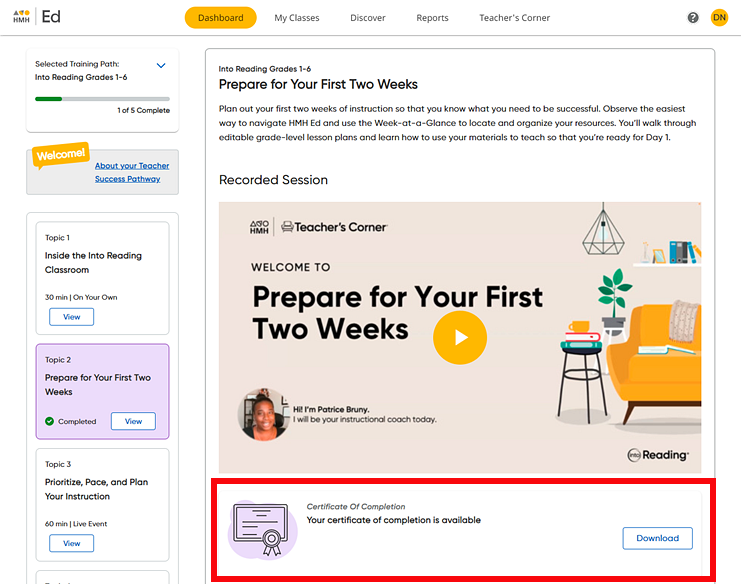
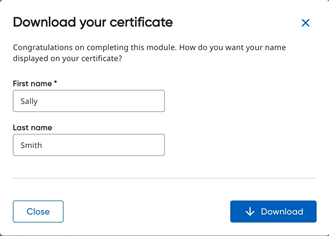
8. View your certificate by clicking Download in the dialog box below the completed topic and then in the Download your certificate dialog box, verify or edit your first and last name and click Download.
Your Certificate of Completion appears as a PDF file, which you can save and/or print.
See Also:
Edit Your Teacher Pathway Profile

 Click
to view.
Click
to view.