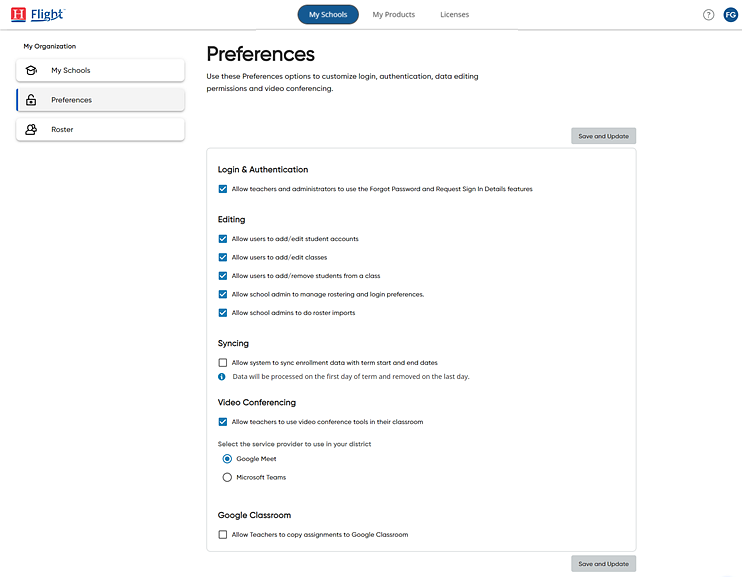
If your organization rosters using OneRoster API, OneRoster CSV, or PowerSchool, you can limit the data that your users view to the active term only; this is not allowed for other formats, such as Clever API.
This syncing option is available on the Preferences page and in the rostering wizard on the Define Preferences page. By default, this setting is turned off, so that data for the entire school year are available for viewing.
1. On the left panel of the My Schools page, click Preferences. The Preferences page appears.
2. In the Syncing section, select the check box for Allow system to sync enrollment data with term start and end dates.
By selecting this check box, you ensure that only currently active data is shown. If you are in semester 1, you only see semester 1 data. If you are in semester 2, you only see semester 2 data. Active classes and rosters are determined by the start and end dates that are tied to those records.
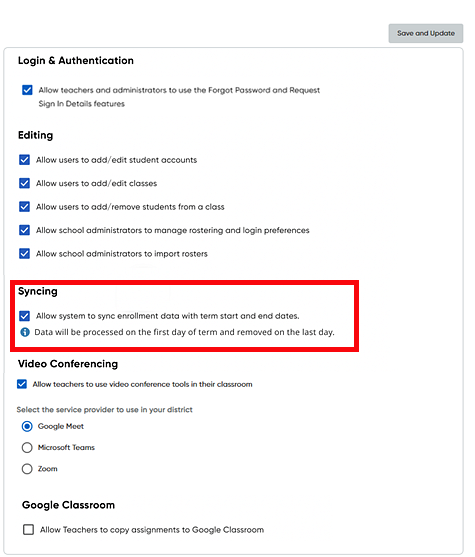
3. Click Save and Update. A success message appears confirming that the changes to preferences are saved.
