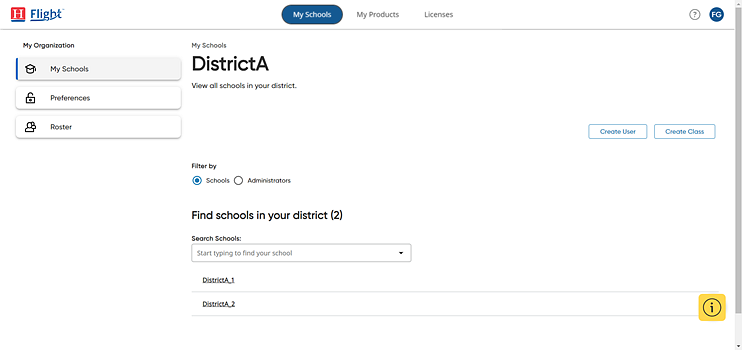
1. On the My Schools page, click the My Schools option button (which is the default) and then select a school as follows.
– If you are a district administrator, select a school from the list of schools.
The page for the school appears and defaults to the Teachers page, which lists all of the teachers associated with the selected school.
– If you are a school administrator, the Teachers page is the first page that appears.
2. In the Filter by area, click the Students option button. The Students page appears and lists all the students for the selected school.
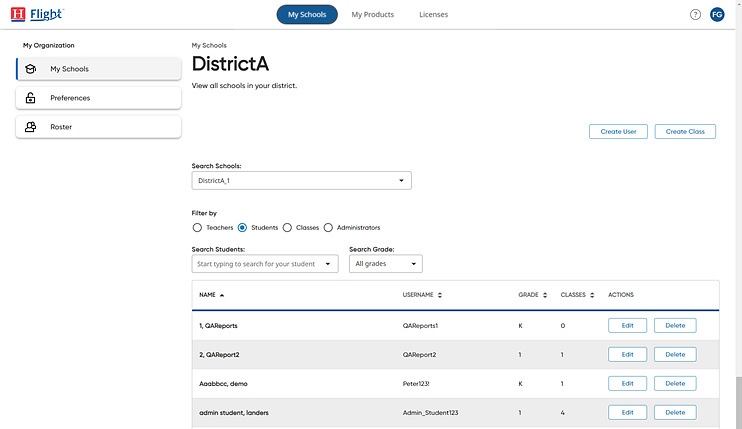
3. If necessary, search for the student by doing one or both of the following:
– In the Search Students box, type all or part of the student's name.
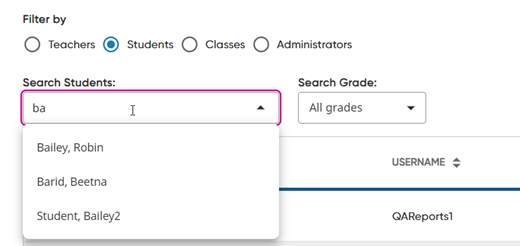
Note: To clear
the student search criteria, click the  in the list
box.
in the list
box.
– In the Search Grades list box, click the down arrow and select a grade level.
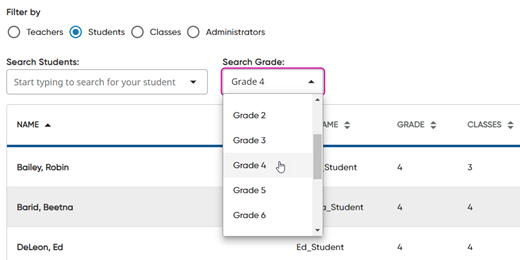
Note: To clear the grade search criteria, select All grades from the list.
The list of students that meet your search criteria displays on the page.
4. To
edit a student account, click the  button. The Edit Student dialog
box appears. See Heinemann Flight Rostering Service Help: Edit User Account
button. The Edit Student dialog
box appears. See Heinemann Flight Rostering Service Help: Edit User Account  for full
details.
for full
details.
See Also: