Depending on how your account is set up, administrators and teachers may be able to request login credentials at any time on the Sign In page.
Note: This option is not available to single sign on (SSO) users or students. Students obtain login credentials from their teachers. If your organization uses SSO, see your administrator for log in details.
1. Open Heinemann Flight at the following URL: https://platform.heinemann.com/ui/login/index.html
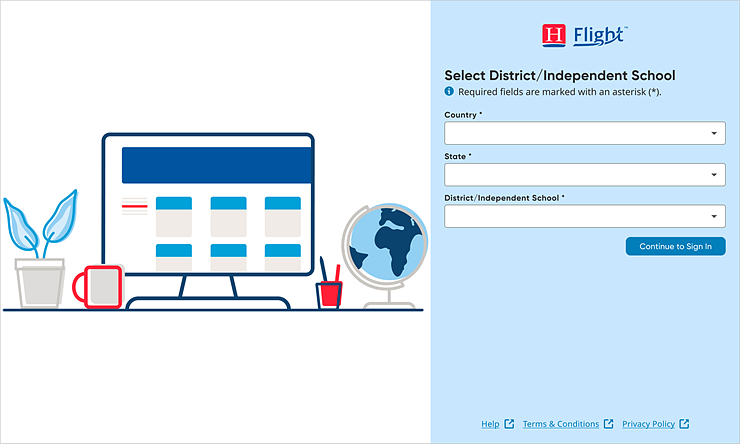
2. If the Select District / Independent School page appears, enter your location as follows:
a. In the Country field, begin typing the name of your country or select from the list.
b. In the State field, begin typing the name of your state or select from the list.
c. In the District/Independent School field, begin typing the name of your district, diocese, or school or select from the list.
d. Click the Continue to Sign In button. The Enter Account Information page appears.
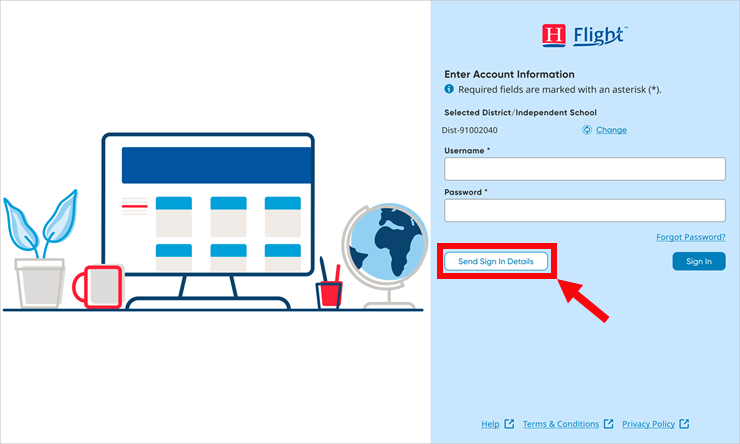
Depending on how your account is set up, you may see an option to request your login credentials.
3. If available, click the Send Sign in Details button.
A Request my sign in details page appears prompting you to enter your email address.
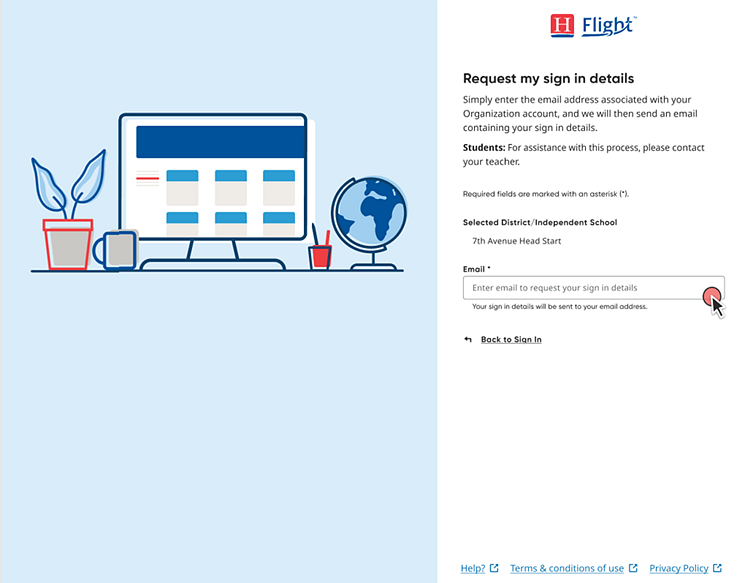
4. In the Email field, type the email address that is tied to your school/organization staff account and then click Submit. A welcome letter is sent to the email address you entered.
5. From your email account, locate and open the welcome email. The email contains your username, login information, and a link to create/reset your password.
Note: If you cannot locate this email, try looking in your Junk or Spam folders.
6. If you do not know your password or are logging in for the first time, click the Reset My Password link. The Create a new password page appears.
7. On the Create a new password page, do the following:
a. In the Username field, type the username provided to you in the email.
b. In the New password field, type a password using the password rules, and then retype the new password.
Note: See Passphrase Recommendation for recommendations on creating passwords.
c. Click Create new password.
The Enter Account Information page appears with a message that your password was created. The location fields (Country, State, and District/Independent School) are populated with your information.
8. In the fields provided, type your Username and Password, and then click Sign In.
If this is your first time on Flight, a welcome terms and privacy dialog box appears.
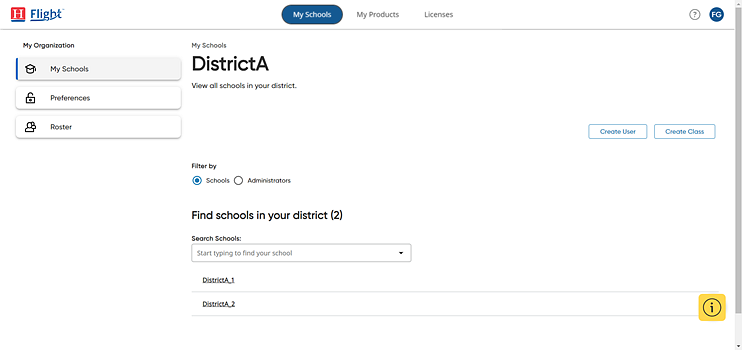
9. Select the check boxes to accept the Terms & Conditions and the Privacy Policy, and then click Submit. The My Schools page appears, which is the Heinemann Flight landing page for administrators.