 in the box containing the session to be deleted. The list of options appears.
If you have scheduled a Virtual Classroom option, you can edit or delete the session.
1. In the left panel of the Class Overview page, click the Virtual Classroom link. The Virtual Classroom page appears listing scheduled sessions for all of your classes displayed in chronological order.
2. Click
the vertical ellipsis button
in the box containing the session to be deleted. The list of options appears.
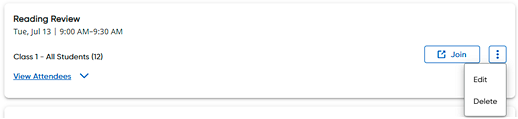
3. Click Delete. A Delete Session dialog box appears confirming the details of the session to be deleted.
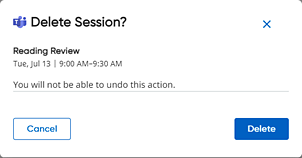
4. Click the Delete button. A confirmation that the session has been deleted is provided.

5. Click Close. The session is removed from your Virtual Classroom widget and removed from your students' Home page.
See Also:
Edit Virtual Classroom Sessions