 .
.
Administrators of organizations that are using Amira in Ed, the HMH Learning Platform can follow the process below to create class rosters and view reports.
● Create Classes and User Accounts
Your organization's classes and users must be created by importing files or manually creating information in Ed. To create user accounts and classes, do one of the following:
– Use HMH's rostering import process: HMH Rostering Service. For details, see Import a Roster.
– Manually
create classes and user accounts in Ed.
For details see Add a New Class
and Create a New User .
Note: Once
user accounts are set up, teachers must manually enable Amira for each
of their classes in order for the teacher and students to gain access
to Amira. For details, see Enable Amira Learning
for Classes in Ed Teacher
Help .
● Access Ed-Amira Reports
1. To view reports, log into Ed and then click the Discover tab in the banner. The HMH Resources tab of the Discover page appears.
2. Depending on how your organization purchased Amira, open Amira in one of the following methods.
a. In the Browse by panel on the left side of the page, click Connected Solutions.
b. On the Connected Solutions page, locate the Amira card, and click View.
Or
a. In the program list, select Amira.
b. When the Amira card appears on the page, click the card to open.
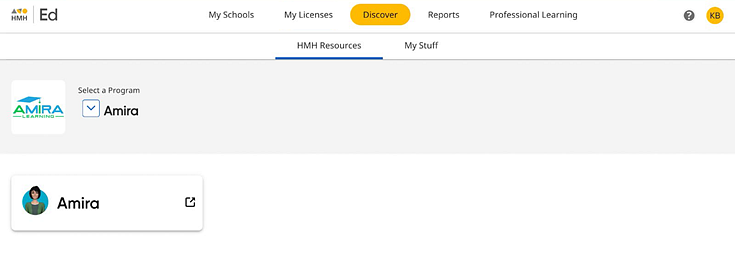
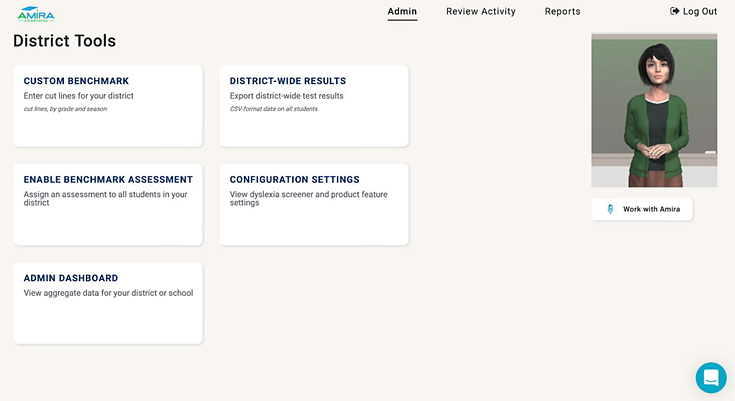
Amira opens in a separate browser tab.
● View Amira Licenses
At any time, administrators can view the status of their organization's Amira licenses. For details see View and Manage Product Licenses.
See Also: