 button in the upper right corner of the page.
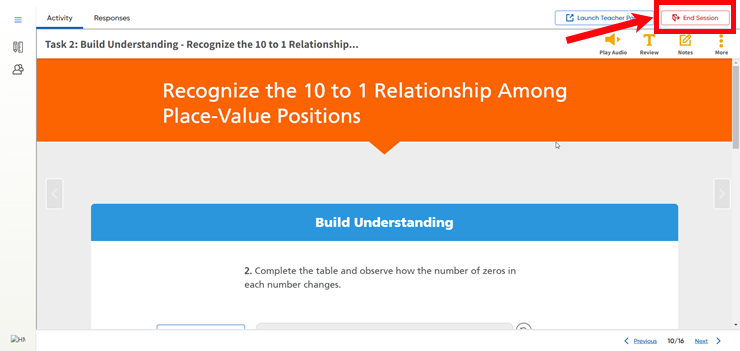
Classcraft sessions can be closed on the Classroom Panel.
1. On
a Classcraft session's Classroom Panel
page, click the
button in the upper right corner of the page.
An End Session dialog box appears.

2. Depending on your session status, do any of the following:
– If you are done with the session, select the Mark as completed option and then click End Session. The Classcraft session closes, and your HMH Ed Session Organizer page appears.
The session is marked as complete and does not appear on your Session Organizer page (unless you select to view completed items). The next Classcraft session in your teaching timeline moves to the top of your class Session Organizer list.
– If you are not done with the session, click End Session (and leave the Mark as completed option clear). The Classcraft session closes, and your HMH Ed Session Organizer page appears.
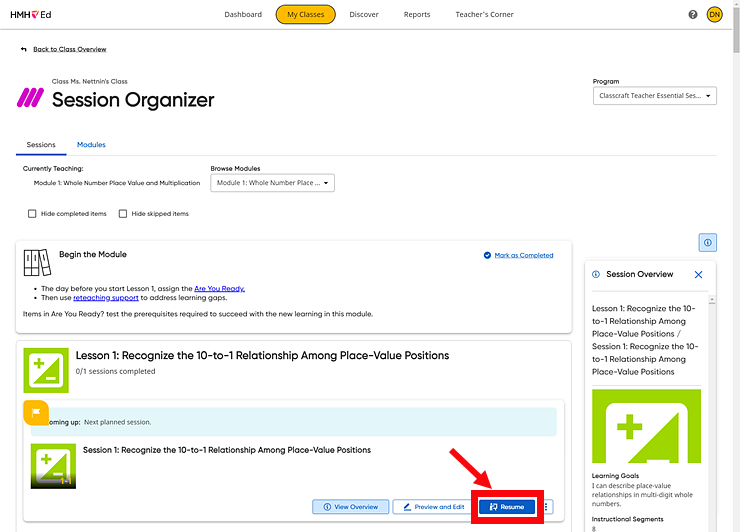
You can continue the session where you left off by locating the Classcraft session card in HMH Ed and clicking the Resume button.
– If you do not want to end the session at this time, click the Resume Session button. The End Session dialog box closes and the session can continue.