Register the Mac Agent against the Dashboard
After the Agent has successfully installed on the computer, the next stage is to register the device on the Dashboard.
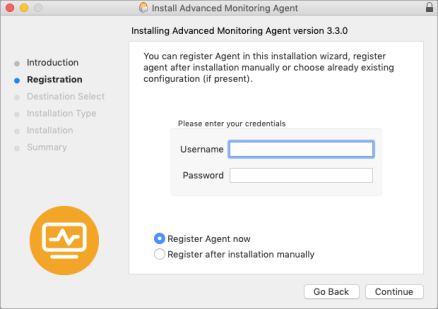
When installing Mac Agent 3.3.0 or later, the installer automatically proceeds to the next step. If installing an earlier version you must navigate to the Utilities directory and open the Agent
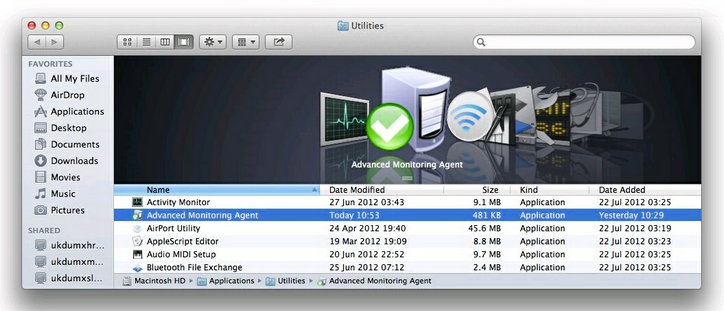
Pre-Mac Agent 3.3.0
- Navigate to the Utilities directory on the Mac
- Double-clicking on Advanced Monitoring Agent
All Agent versions
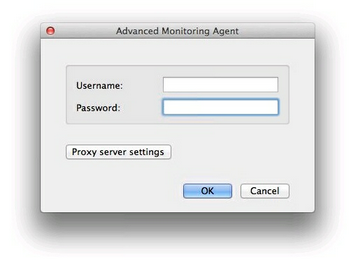
- Enter a Dashboard login Username and Password
- Complete the Proxy server settings (if required)
- Address
- Port
- Username
- Password
- Populate the Description of the workstation in the Device dialog
- Select the Client and Site combination to register the Mac Agent against from the relevant drop-downs
- Click OK to finish the registration process
A confirmation message is displayed once the device is successfully registered against the Dashboard and monitored.
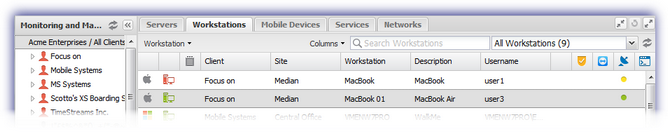
After the Mac is registered against the Dashboard it appears in the Workstations section, under the selected Client and Site. A Mac icon  is displayed against the computer for easy identification.
Any amendments to the Mac Agent (changes to the settings or Check management) are configured and actioned from the Dashboard.
Pre-Mac Agent 3.3.0
Mac Agent 3.3.0 and later
Mac Devices on the Dashboard