Lesson Two: Troubleshooting Tools
 Have you ever tried to drive in a nail with a screwdriver or dig a hole with a hammer? If so, you were probably frustrated because you didn't have the right tool for the job. Finding errors in your code is no different! If you don't have the right tools or skills, identifying coding problems can be difficult.
Now, if you have a syntax error, Python will tell you about it with a specific error message. So, syntax errors are usually not too hard to figure out. In this lesson, we are going to focus on runtime errors instead, which are often harder to identify and fix. Fortunately, software engineers have at least three common tools they can use to help spot and fix runtime errors. Your coding experience will become easier as your gain confidence with these tools.
Tool #1 - Code Review
If something goes wrong in your Python program, you can simply look at the code and try to figure out the error. This is called a code review or hand tracing. A good set of human eyes can be great troubleshooters! For small programs with just a few lines of code, you may not need a formal code review strategy. However, as your programs become more complex, you will want to follow a specific code review process to have the best chance of finding the problem.
Remember that Python will run your program from top to bottom, one line at a time. The computer doesn't know about statements it hasn't reached yet, and each line of code can only work based on statements that have already been run. So, to perform a complete code review, follow these steps:
- Begin with an understanding of the run-time error you are trying to fix. If the output is incorrect, or you get an exception message, those are important clues that will help guide your code review.
- Examine the first statement and answer the following questions:
- Do you understand what the statement is supposed to do?
- Are you confident the statement is correctly written to do what you want?
- Is the statement formatted correctly and is easy to read?
- What are the expected results from this statement?
- Do any nearby comments match what the statement actually does?
- What variables or data does this statement use?
- Is there any way that variable data could be incorrect or contain unexpected values?
- Is there any way this statement could produce the runtime error that you observed?
- If you are calling a Python function, look at the Python reference material at https://docs.python.org/3/ to make sure you understand how to use that function.
- What are the function parameters?
- What does the function do?
- What data does the function return, if any?
- Once you are confident in the current statement, move to the next one and repeat the inspection process.
- Repeat your careful review of each statement until you find the one that causes the runtime error.
Remember, each statement will run based on the variables and logic that have been initialized and run by earlier statements. Python can't look ahead to see what you intended later!
When a programmer leaves comments in a program, they are often important clues that can help you follow the logic and understand what is supposed to happen. But keep in mind that comments themselves can be wrong or misleading!
Look at the code below. This program demonstrates a math party trick that you can use on your friends. It asks the user for a secret integer, then leads the user through a series of calculations. The actual calculations are made by the program as well, and the result is displayed at each step. The final answer should always be 5, no matter what original value was entered. The program will double-check the math and print a confirmation message if correct, or an error message if the result does not equal 5.
Unfortunately, there are two runtime errors in this code. Run the program and see what happens. Can you find and fix both errors by using a code review?
The example below shows the correct output if the user enters 12 as a secret integer.
Enter a secret positive integer: 12
Now, double that number.  We calculate:  24
Then, add 10 to the result.  We calculate:  34
Then, divide the result by 2.   We calculate:  17.0
Finally, subtract your original number.  We calculate:  5.0
The final answer is always 5
Sometimes you can greatly speed up a code review by focusing on a particular area of code. Perhaps you have 100 statements in your program and you feel confident the first 75 worked fine based on the output you saw. In that case, start your code review later in the program with the statements that seem the most suspicious.
Tool #2 - Program Tracing
If you are unable to find a problem with a code review, you can consider adding program tracing instead. Tracing is a useful tool that displays temporary, extra output messages as the program runs. These extra output messages are not intended for a regular user but will give you, the programmer, some understanding of what the program is doing as the code runs.
Remember the print() function is used to display text to the screen. So, you can use the print() function to add program traces at key points in your program. You may want to add a print() statement each time an "if", "elif" or "else" block of logic is run. You might also add trace statements to display the contents of key variables as they are updated.
Consider the following code, which is supposed to calculate the bill at a restaurant, including a tip for the server. With a base price of $10.00, a tax rate of 7%, and a tip of $2.00, we would expect the final bill to be $12.70. Notice how good code comments give you some clues as to what the statements should be doing!
price = 10.00
taxRate = 0.07
tax = price * taxRate    # calculate the tax
total = taxRate + tax    # add the tax to the price
tip = 2.00
if (tip < 0):            # if there is a tip
  total = total + tip    # add the tip to the bill
print("Your total bill is: $",total)
However, the actual output total is only $0.77, not $12.70. While you might be able to spot the errors with a code review, let's add some program tracing to help you understand what the program is doing. The updated example below contains some extra print() statements to trace key bits of information to the screen as the program runs. Try it and see!
With the extra trace statements, you should see the following output:
Calculated tax = $ 0.7000000000000001
Calculated total = $ 0.77
Tip = $ 2.0
Your total bill is: $ 0.77
Right away you can see that the first calculated total is incorrect. Adding the tax ($0.70) to the price ($10.00) should give you $10.70. Therefore, we know there is something fishy about the first total assignment statement. Go ahead and fix that statement so it correctly adds the price and the tax and run the program again. You should see some new output.
Calculated tax = $ 0.7000000000000001
Calculated total = $ 10.7
Tip = $ 2.0
Your total bill is: $ 10.7
Now, the first calculated total is correct ($10.70). However, our print() statement that says "adding tip to total..." is not visible in the output! This means our "if" logical expression is not true. We are expecting that expression to be true when the tip is greater than 0. Go ahead and fix that logical expression and run the program again. You should now get the expected output, $12.70, as shown below.
Calculated tax = $ 0.7000000000000001
Calculated total = $ 10.7
Tip = $ 2.0
adding tip to total...
Your total bill is: $ 12.7
Don't forget, when you have fixed all your errors, you will want to remove the temporary trace statements. They just clutter up the output and are not supposed to be seen by a regular user. You can delete the extra print() lines or just comment them out if you think they might become useful again later.
Tool #3 - Debuggers
 Sometimes, code reviews or program tracing just isn't enough. To understand and fix a problem, you really need to watch the program as it executes, step-by-step. A debugger is a software tool that provides this capability! When running a program in a debugger, you can study the result of the last statement and look ahead to the next statement. You can even peek at the values inside your variables to make sure everything looks the way you expect.
Python contains a debugger that is easy to use. You'll learn all about the Python debugger in the next lesson.
Other Tools
 As you troubleshoot a problem with a code review, program tracing, or a debugger, you will need to clearly understand the program requirements. Your program requirements will define the allowable types of input data and specify what output data should be produced for each input. With this information, you can create a series of test cases. A test case defines a specific set of inputs and the expected program output. You may need to run or review code many times to check all of your test cases and ensure the program works under all conditions.
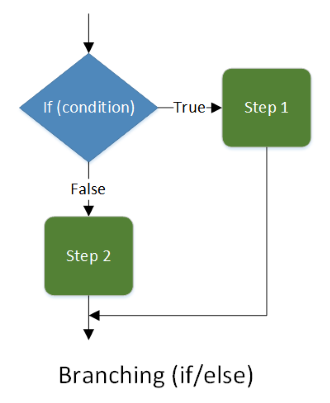
If your program logic is hard to understand, a visualization may help. Diagrams of program behavior (such as a flowchart) can help illustrate what should happen at each step of the logic, given specific inputs. These visualizations can be easier to follow than lines of code. You'll learn how to create flowcharts to represent program logic later in the course!
Testing Boundary Conditions and Handling Invalid Data
Programmers will commonly write code that works well with expected data. But what happens if your program tries to process some invalid values? If you ask users to enter a number like "3", they might type in "three" instead. Or a user might click on a "Submit" button while leaving some required list entries or checkboxes de-selected. You should expect users to enter all kinds of invalid data - anything your program allows them to do, even incorrectly, will eventually happen over time!
Therefore, well-written programs should carefully check all input data before using it. Verify that you have everything you need in the correct format before continuing. If there is a problem with the data, display a message to the user so the problem can be fixed. When testing your program, make sure to not only test with valid data, but with all possible kinds of invalid input as well!
Similarly, the user may enter valid data that is just rare. For example, if you ask a user for their age, you might expect a 2-digit number between 0 and 99. But someone may realistically enter a 3-digit number such as 101. Or, you might write a program to keep track of all the individual parts that make up a machine. The program might work well with 10, 20, or even 100 parts. But what happens if someone tries to define a machine with 10,000 or even a million different parts? Your program may crash or become so slow that it can't be used.
These unusual (but valid) numbers represent boundary conditions. Programmers should carefully define the range of data expected for all values and understand how to handle data that is unusual in any way. As a tester, it's your job to explore these boundary conditions with test cases and ensure they are handled gracefully by the program. So, when asked for a number, try entering very large, very small, and negative numbers. Or, if you are entering text, you might try entering empty, very short, and very long strings to see what happens.
Programmers should spend time verifying and handling invalid inputs and boundary conditions. That way programs will not encounter costly problems once given to users.
Testing With Authentic Data
Another useful approach to program verification is to use real data gathered from reliable sources. For example, if your program is supposed to calculate statistics for a sports team, you can visit that team's website to gather raw data. Or, if your program will convert temperatures between Celsius and Fahrenheit systems, you can gather real data from public weather websites to double-check your output. You may find new boundary conditions in real data that you didn't consider when creating test data by hand!