
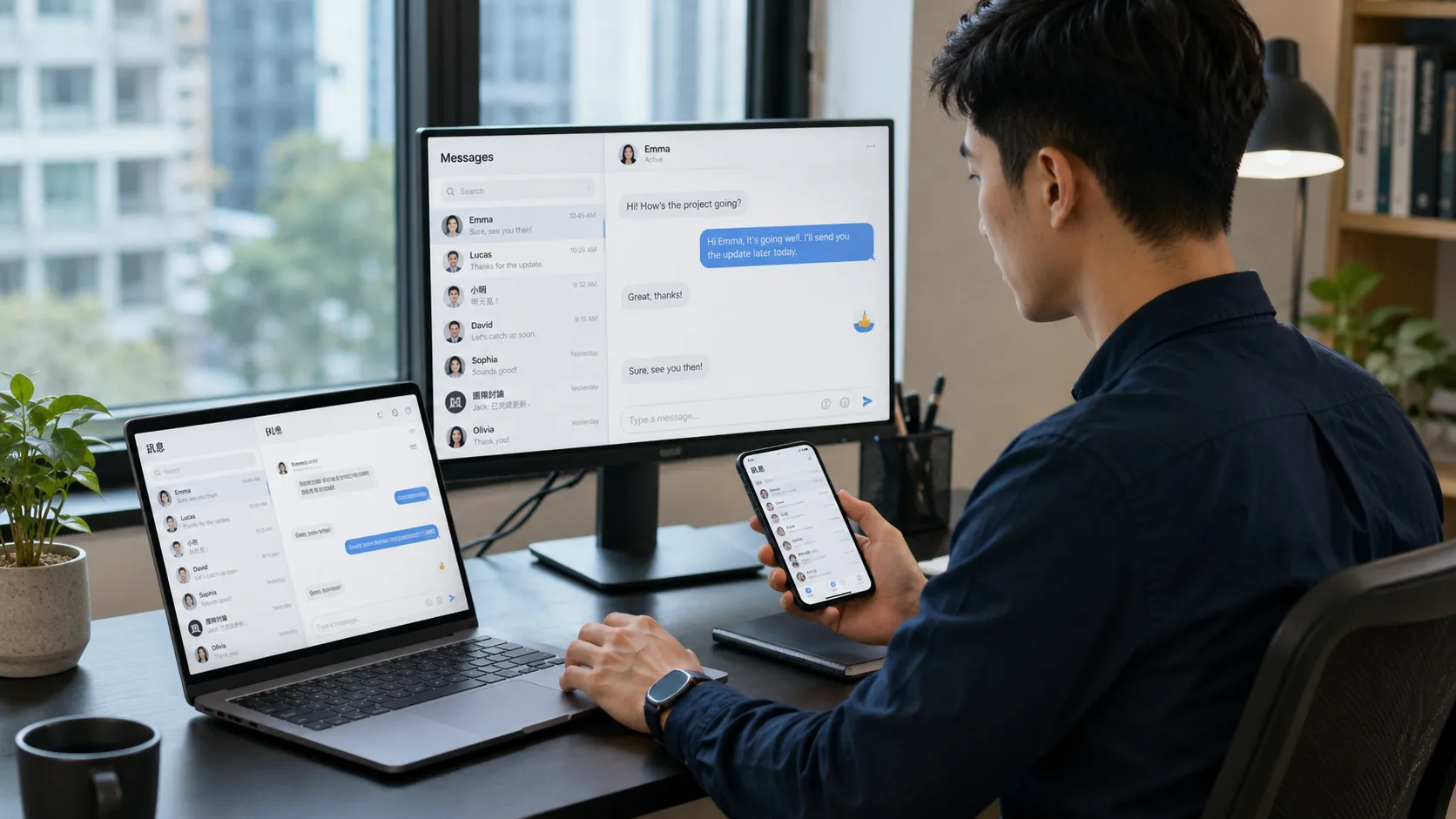
Digital communication rarely happens on a single device anymore. Many users now move between smartphones, laptops, desktop computers, tablets, and web browsers throughout the day. A conversation might begin on a phone during a commute, continue on a desktop computer at work, and be checked again from a tablet at home.
For multilingual users, this experience can be even more complex. In Hong Kong, Taiwan, and other Chinese-speaking communities, users often switch between English and Chinese interfaces, different input methods, and regional terminology. The same desktop application may be described as a “desktop client,” 「電腦版」, 「桌面版」, or simply the computer version of an app.
Choosing the right messaging setup therefore involves more than installing software. Device compatibility, language settings, security, and everyday usage habits all influence which combination of mobile, desktop, and browser access makes the most sense.
Why Device Choice Matters
Smartphones remain the most convenient communication tools for people who are frequently away from a desk. They provide immediate notifications, mobile data, cameras, voice messaging, and quick access while traveling.
Desktop devices serve a different purpose.
A larger screen makes it easier to follow long conversations, manage shared files, and keep messaging windows open alongside documents or other work applications. A physical keyboard can also make longer messages faster to write, especially when users frequently switch between English and Chinese input methods.
For students, freelancers, remote workers, and small-business users, desktop messaging can become part of the normal productivity environment rather than a separate activity.
The most effective setup is often not a choice between mobile and desktop. Instead, users combine both and allow each device to handle the tasks it performs best.
Installation Guides Can Reduce Setup Confusion
Installing a messaging application sounds simple, but the process may differ depending on operating system, device type, and language.
Windows and macOS applications use different installation methods. Android users commonly install software through Google Play or approved package sources, while iOS users normally rely on Apple’s App Store. Desktop users may encounter direct installers, application stores, or several different versions of the same software.
Multilingual search terminology adds another layer of complexity.
Chinese-speaking users looking for localized instructions may encounter resources such as an 电报中文版安装指南 when researching installation steps, Chinese-language settings, or device compatibility.
In Hong Kong and Taiwan, similar search intent may appear through Traditional Chinese expressions such as 「中文版」、「安裝」、「下載」 or 「電腦版」. Users elsewhere may encounter Simplified Chinese variants.
The important point is not which phrase is used. Users should identify what the guide is actually explaining: installation, language configuration, desktop compatibility, or account setup.
A clear guide can make the process easier to understand, particularly for people who are less comfortable navigating software menus in English.
Desktop Messaging Works Better for Some Tasks
Mobile messaging is excellent for short and immediate communication, but desktop access can be more efficient when conversations become part of work or study.
File handling is one advantage.
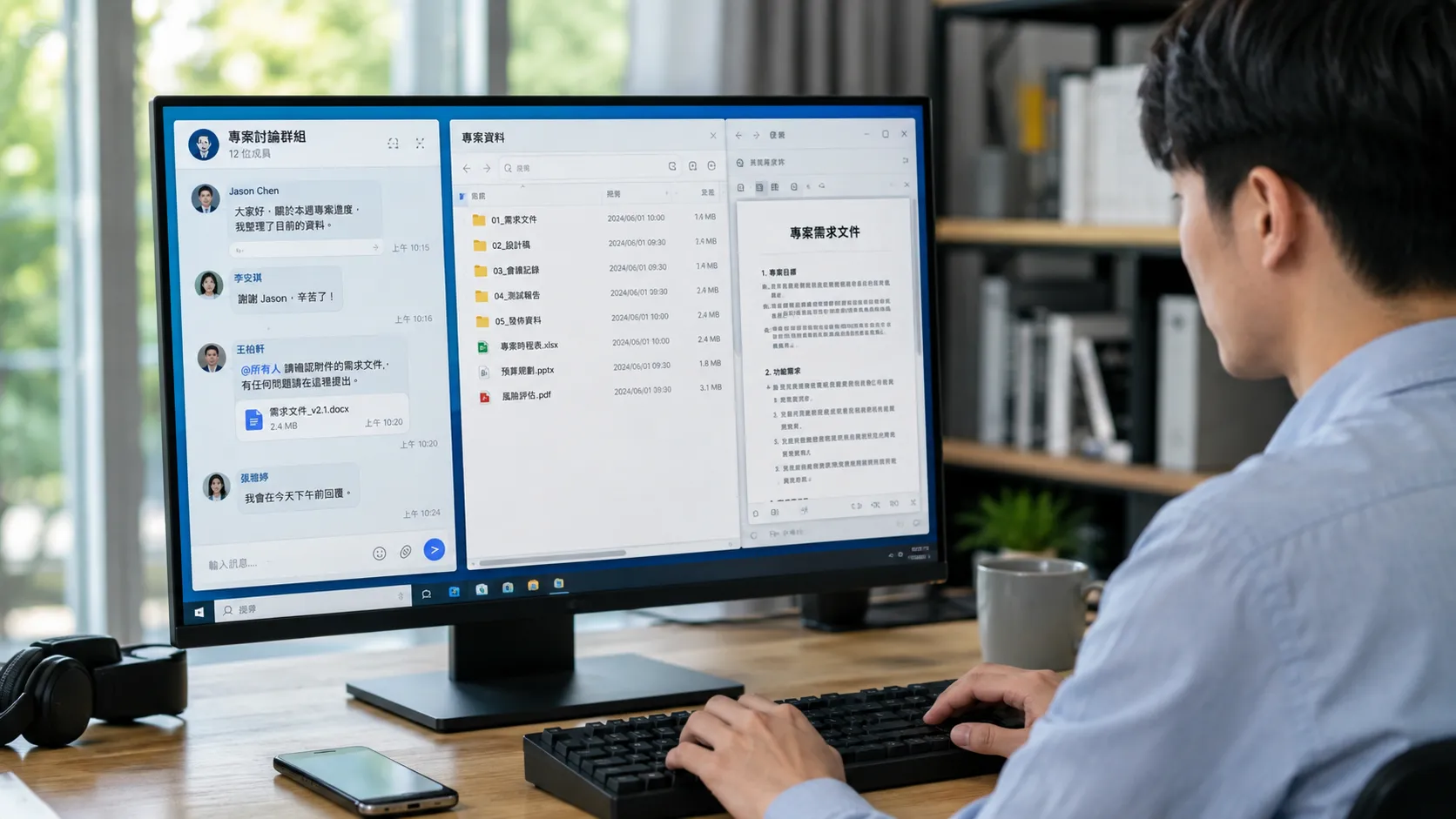
Documents downloaded on a computer can be reviewed, edited, renamed, and moved between folders more easily than on many mobile devices. Users can also drag files into conversations or copy information between applications without constantly switching screens.
Desktop environments are also better suited to multitasking.
A user might keep a messaging application open on one side of the screen while working in a spreadsheet, browser, or document editor on the other. This can be particularly useful for project teams, students collaborating on assignments, or business users communicating with clients.
Longer conversations are another reason to use a computer. A physical keyboard generally makes detailed replies easier, and larger displays reduce the need to repeatedly scroll through complex message threads.
Desktop messaging is therefore not simply a larger version of mobile messaging. It supports a different style of communication.
Chinese Search Terminology Varies by Region
One challenge for multilingual users is that the same software feature may be described differently depending on location.
In Traditional Chinese environments, users may encounter terms such as:
電腦版
桌面版
下載
安裝
繁體中文
官網
Across other parts of the Chinese-language web, users may also see:
电脑版
桌面版
下载
安装
中文版
官网
The intent behind these searches is often very similar, even though the wording changes.
Someone searching for 「電腦版」 in Taiwan may be looking for essentially the same information as another user searching for “desktop version” in English or “电脑版” in Simplified Chinese.
This is why technical guidance should focus on platform names, operating systems, and functions rather than assuming that one phrase is universally understood.
Users in Hong Kong and Taiwan also commonly operate in mixed-language environments. A Windows or macOS system may use English while a messaging application is configured in Traditional Chinese. Another user may keep the software interface in English while typing messages in Chinese.
A flexible setup should support these preferences rather than require a single language environment.
Desktop Guides Help Users Compare Platforms
Users researching computer-based messaging often want to know more than where to install an application.
They may want to compare:
Windows and macOS support
Mobile and desktop synchronization
Desktop notifications
File transfer
Keyboard shortcuts
Language settings
Browser access
Security features
Chinese-language users may therefore encounter resources described as a 纸飞机电脑版使用指南 while researching Windows installation or desktop usage options.
“纸飞机” is an informal nickname associated with Telegram in parts of the Chinese-language internet because of the application’s recognizable paper-plane imagery. In Traditional Chinese environments, users may also encounter the form 「紙飛機」.
Such terminology can help users find explanatory content, but it is still important to distinguish between a tutorial and the software distribution source itself.
Guides can explain how desktop access works, while users should separately confirm that any software they install comes from an appropriate and trustworthy distribution channel.
Browser Access Can Be Useful in Temporary Situations
Desktop applications are convenient on regularly used computers, but installing software is not always possible.
Some workplace computers restrict installation privileges. Travelers may occasionally need to use a temporary device. A user may also need quick access from a secondary computer without setting up a full application.
In these situations, browser-based messaging can be useful.
Browser access reduces installation requirements and can provide temporary access to conversations from different devices. However, users should be cautious when using shared or public computers.
Important precautions include:
Avoid saving login credentials
Do not allow the browser to remember passwords
Sign out completely after use
Remove downloaded files
Avoid leaving message previews visible
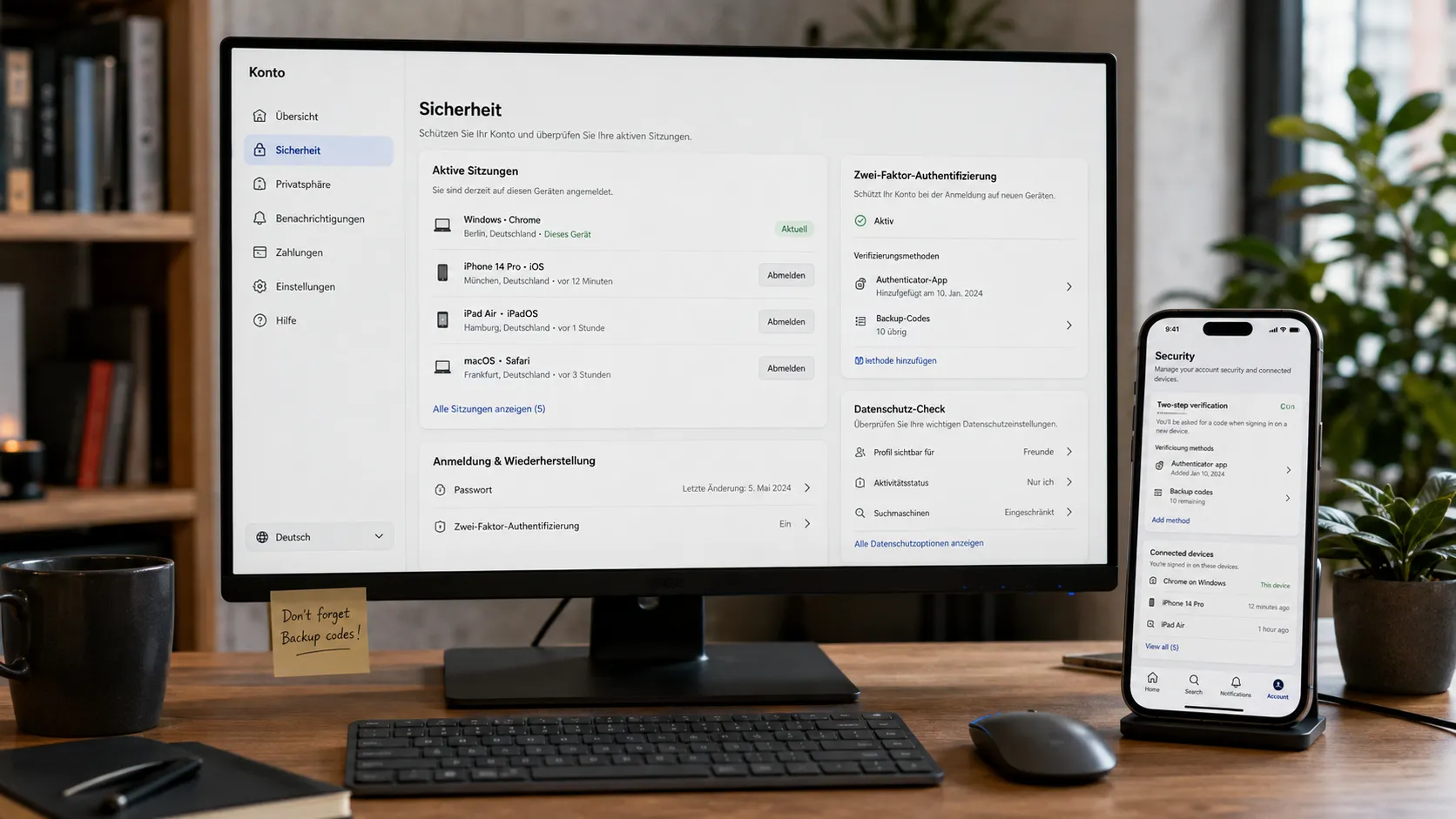
Review active sessions afterward
Browser access is best treated as a flexible option rather than a replacement for a trusted personal device.
Security Should Follow Users Across Devices
Using several devices increases convenience, but it also creates more account sessions to manage.
A user may eventually have an account connected to:
A personal phone
A work computer
A home laptop
A tablet
One or more browsers
Some of these devices may eventually be replaced, sold, lost, or simply forgotten.
Reviewing connected sessions regularly helps reduce unnecessary account exposure. Devices that are no longer in use should be removed from the account.
Two-step verification can add another layer of protection by requiring additional authentication when a new device attempts to sign in.
Local device security also matters.
An account can have strong authentication and still be exposed if the computer itself has no screen lock. Desktop notifications can reveal message content to people nearby, while downloaded files may remain stored on the device even after a conversation is closed.
Users should therefore consider both account security and device security as part of the same messaging setup.
Matching the Setup to Everyday Habits
There is no single ideal configuration for every user.
A person who mainly communicates casually may only need a smartphone.
Someone who spends most of the workday at a computer may benefit from using both mobile and desktop applications.
A traveler who frequently works from temporary machines may occasionally rely on browser access.
The right choice depends on practical questions:
How often is the user away from a computer?
Are long messages common?
Are documents and media files frequently exchanged?
Which operating systems are used?
Does the user work on shared computers?
Which interface language is most comfortable?
How important is desktop notification control?
Answering these questions can make software choices much easier.
A Practical Multi-Device Messaging Checklist
1. Identify the devices in regular use
List the phone, computer, tablet, and browser environments that need access.
2. Confirm operating-system compatibility
Check whether the desktop application supports the current Windows, macOS, or Linux version.
3. Choose the preferred interface language
Decide whether English, Traditional Chinese, Simplified Chinese, or another language is most comfortable.
4. Verify installation sources
Use guides for information, but independently confirm the source of the software before installation.
5. Configure security
Enable available account-protection options and review login sessions.
6. Adjust notifications
Hide sensitive message previews when using computers in shared environments.
7. Review connected devices periodically
Remove old or unused sessions.
8. Keep applications updated
Updates can improve compatibility, security, and performance.
Building a More Flexible Communication Routine
Modern messaging is increasingly defined by flexibility rather than a single device.
Mobile applications provide immediate access while traveling. Desktop clients offer space, faster typing, and better file handling. Browser access provides temporary flexibility when installation is not practical.
For multilingual users, the challenge is also linguistic. English interface terms, Traditional Chinese expressions, Simplified Chinese search phrases, and informal nicknames may all refer to similar features.
The most useful approach is to focus on function rather than terminology.
Users should choose software versions that match their devices, understand the difference between tutorials and distribution sources, protect active sessions, and select the combination of mobile, desktop, and browser access that best fits their daily routine.
When those factors are handled carefully, cross-device messaging becomes easier to manage, more secure, and better suited to the way people actually communicate today.