Test and Cutover Menu
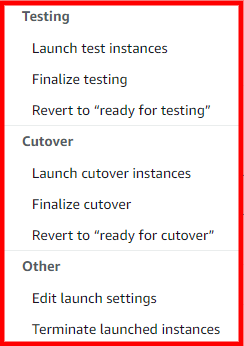
The Test and Cutover menu allows you to manage Test and Cutover instances.
-
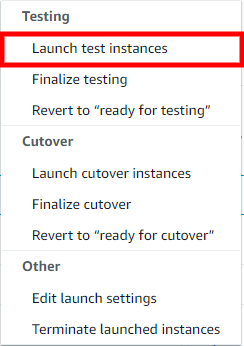
Launch test instances- Choose the Launch test instances option to launch a test instance for this server.
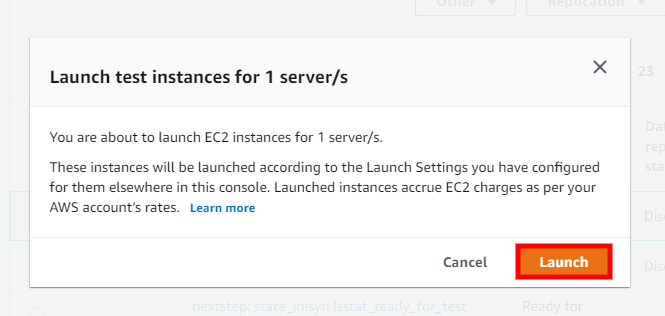
The Launch test instances for X servers dialog will appear. Choose Launch to begin the test.
The Application Migration Service Console will indicate 1 launch job complete once the test has been completed successfully.
-
Finalize testing - Choose the Finalize testing option to finalize testing for this server after you have completed all of the necessary tests in preparation for cutover.
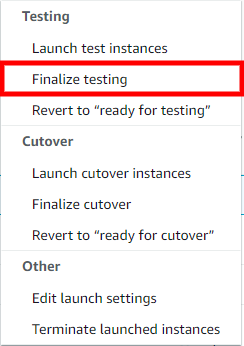
The Finalize testing for X servers dialog will appear. Select whether you want to terminate the launched instances used for testing. It is recommended to terminate these instances, as you will be charged for them even though you will no longer need them. Check the Terminate launched instances (recommended) box and choose Finalize.
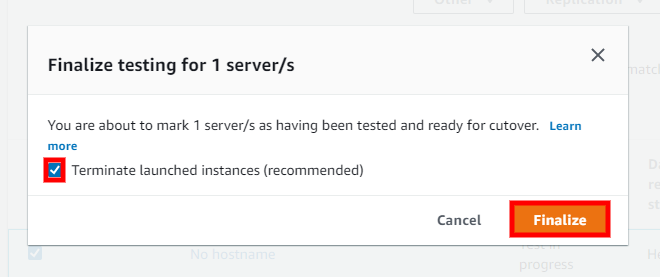
The Application Migration Service Console will indicate that testing has been finalized. The selected source servers' Migration lifecycle column will show the Ready for cutover status and the launched Test instances will be deleted if that option was selected.
-
Revert to "ready for testing"- Choose the Revert to "ready for testing" option to revert a finalized test for this server if you want to run further tests prior to initiating a cutover.
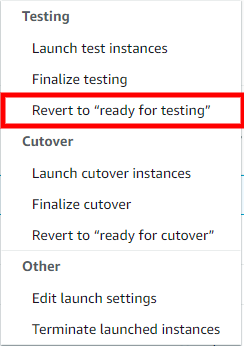
The Revert testing for X servers dialog will appear. Select whether you want to terminate the launched instances used for testing. It is recommended to terminate these instances, as you will be charged for them even though you will no longer need them. Check the Terminate launched instances (recommended) box and choose Revert.
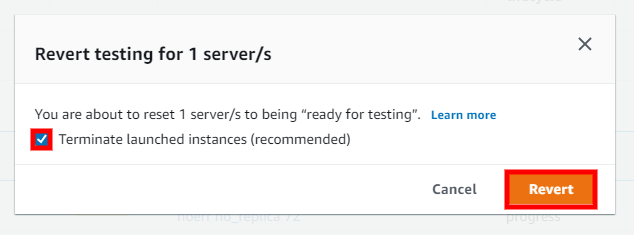
The Application Migration Service Console will indicate that testing has been reverted. The selected source servers' Migration lifecycle column will show the Ready for testing status and the launched Test instances will be deleted if that option was selected.
-
Launch cutover instances - Choose the Launch cutover instances option to launch a cutover instance for this server after you have finalized all of your testing and are ready to initiate a cutover.
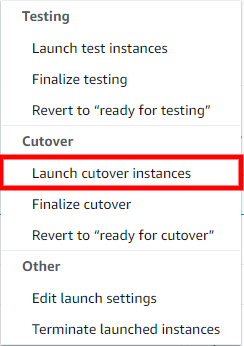
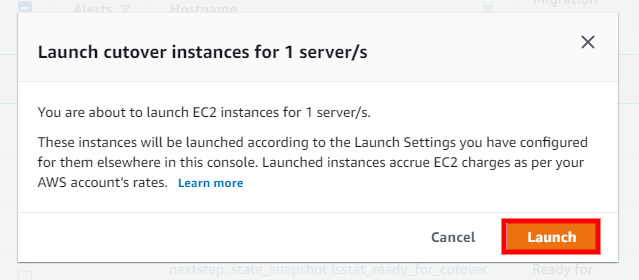
The Launch cutover instances for X servers dialog will appear. Choose Launch to begin the cutover.
The Application Migration Service Console will indicate 1 launch job complete once the cutover has been completed successfully. IMAGE
-
Finalize cutover - Choose the Finalize cutover option to finalize the cutover for this server after you have successfully performed a cutover.
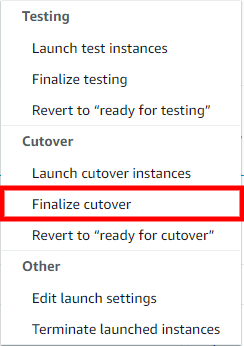
This will change your source servers' Migration lifecycle status to Cutover, indicating that the cutover has been complete and that the migration has been performed successfully. In addition, this will stop Data Replication and cause all replicated data to be discarded. All AWS resources used for Data Replication will be terminated.
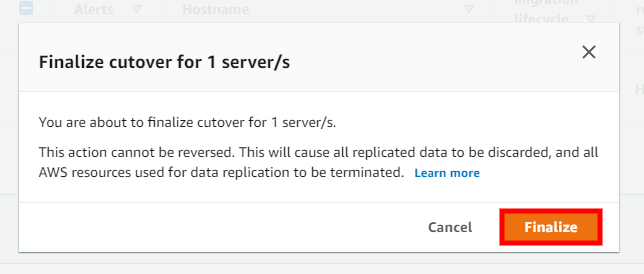
The Finalize cutover for X servers dialog will appear. Choose Finalize.
The Application Migration Service Console will indicate X servers cutover. Data replication has bee stopped for servers once the cutover has been completed successfully. The Application Migration Service Console will automatically stop Data Replication for the cutover source servers in order to save resource costs. The selected source servers' Migration lifecycle column will show the Cutover status, the Data replication column will show Stopped and the Next step column will be blank. The source servers have now been successfully migrated into AWS. IMAGE
-
Revert to "ready for cutover" - Choose the Revert cutover option to revert a finalized cutover for this server if you encounter any issues or want to reverse the cutover for any reason.
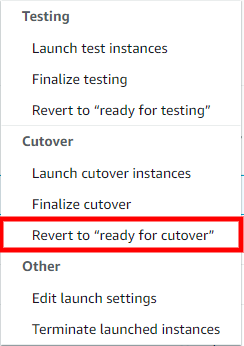
This will revert your source servers' Migration lifecycle to the Ready for cutover status, indicating that these servers have not undergone cutover. During a revert, you will also have the option to delete your Cutover instances for cost saving purposes.
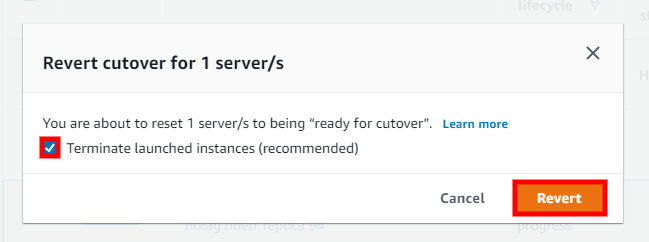
The Revert cutover for X servers dialog will appear. Select whether you want to terminate the launched instances used for cutover. It is recommended to terminate these instances, as you will be charged for them even though you will no longer need them. Check the Terminate launched instances (recommended) box and choose Revert.
-
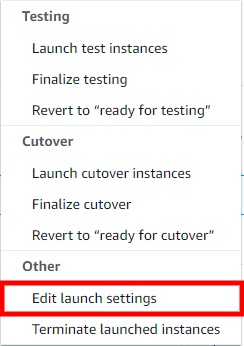
Edit launch settings - Choose the Edit launch settings option to edit the launch settings for this server. This will redirect you to the Launch settings tab.
-
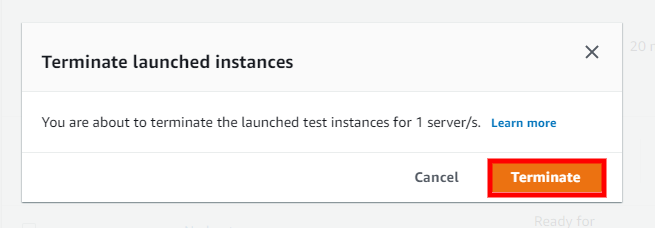
Terminate launched instance - Choose the Terminate launched instance option if you want to delete your test or cutover instance for any reason at any point. This option can only be selected for a server that launched a test or cutover instance.
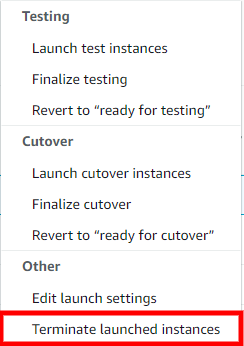
The Terminate launched instance dialog will appear. Click Terminate.