KDB Setup
KDB+ is a Driverless AI allows you to explore KDB data sources from within the Driverless AI application. This section provides instructions for configuring Driverless AI to work with KDB.
Description of Configuration Attributes
kdb_user: (Optional) User namekdb_password: (Optional) User’s passwordkdb_hostname: IP address or host of the KDB serverkdb_port: Port on which the KDB server is listeningkdb_app_jvm_args: (Optional) JVM args for KDB distributions (for example,-Dlog4j.configuration). Separate each argument with spaces.kdb_app_classpath: (Optional) The KDB classpath (or other if the jar file is stored elsewhere).
KDB with No Authentication
This example enables the KDB connector without authentication. The only required flags are the hostname and the port.
nvidia-docker run \
  --pid=host \
  --init \
  --rm \
  --shm-size=256m \
  --add-host name.node:172.16.2.186 \
  -e DRIVERLESS_AI_ENABLED_FILE_SYSTEMS="file,kdb" \
  -e DRIVERLESS_AI_KDB_HOSTNAME="<ip_or_host_of_kdb_server>" \
  -e DRIVERLESS_AI_KDB_PORT="<kdb_server_port>" \
  -p 12345:12345 \
  -v /tmp/dtmp/:/tmp \
  -v /tmp/dlog/:/log \
  -v /tmp/dlicense/:/license \
  -v /tmp/ddata/:/license \
  -u $(id -u):$(id -g) \
  h2oai/dai-centos7-x86_64:1.4.0-9.0
KDB with Authentication Example
This example provides users credentials for accessing a KDB server from Driverless AI.
# Docker instructions
nvidia-docker run \
  --pid=host \
  --init \
  --rm \
  --shm-size=256m \
  -e DRIVERLESS_AI_ENABLED_FILE_SYSTEMS="file,kdb" \
  -e DRIVERLESS_AI_KDB_HOSTNAME="<ip_or_host_of_kdb_server>" \
  -e DRIVERLESS_AI_KDB_PORT="<kdb_server_port>" \
  -e DRIVERLESS_AI_KDB_USER="<username>" \
  -e DRIVERLESS_AI_KDB_PASSWORD="<password>" \
  -p 12345:12345 \
  -v /tmp/dtmp/:/tmp \
  -v /tmp/dlog/:/log \
  -v /tmp/dlicense/:/license \
  -v /tmp/ddata/:/license \
  -u $(id -u):$(id -g) \
  h2oai/dai-centos7-x86_64:1.4.0-9.0
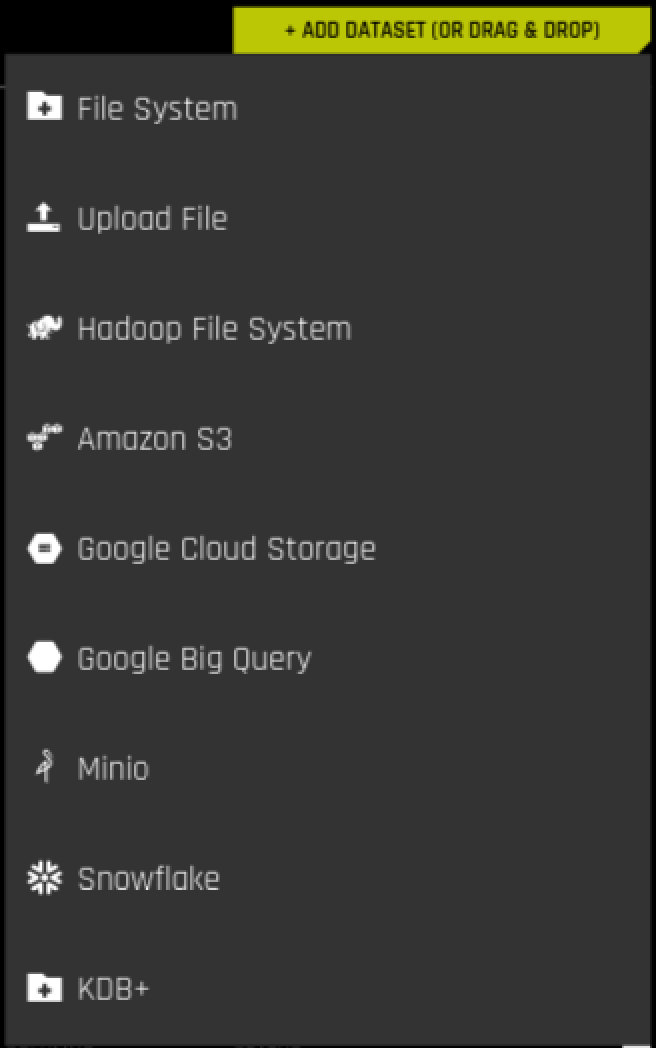
After the KDB connector is enabled, you can add datasets by selecting KDB+ from the Add Dataset (or Drag and Drop) drop-down menu.
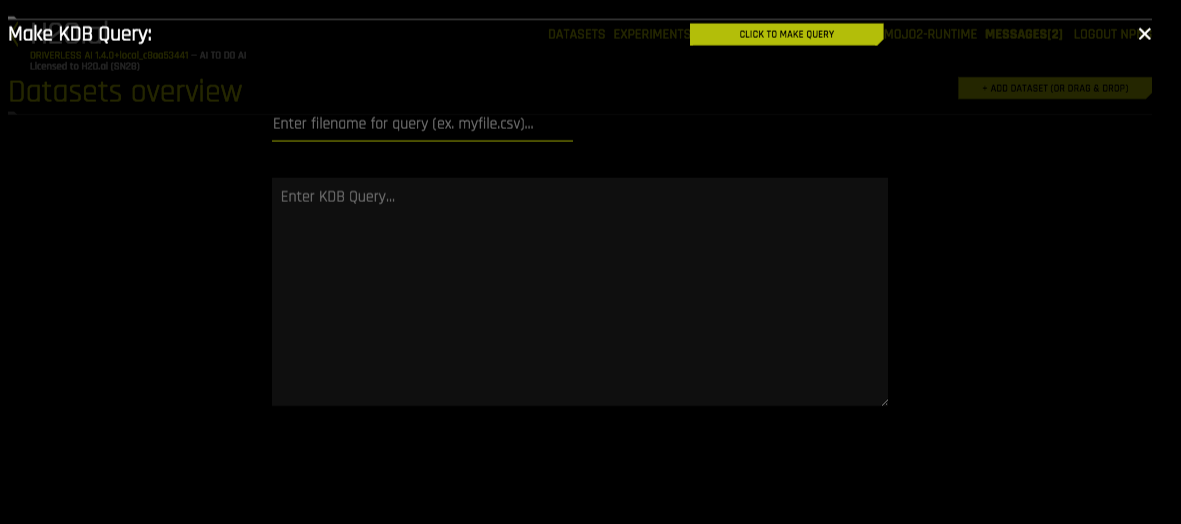
Specify the following information to add your dataset.
- Enter filepath to save query. Enter the local file path for storing your dataset. For example, /home/<user>/myfile.csv. Note that this can only be a CSV file.
- Enter KDB Query: Enter a KDB query that you want to execute. Note that the connector will accept any q qeuries. For example:
select from <mytable>or<mytable> lj <myothertable> - When you are finished, select the Click to Make Query button to add the dataset.