|
With online payments enabled in AppFolio, you can give your renters the option to pay their rent by:
- E-Check – Paid by a direct debit from a checking or savings account.
- Credit Card – Paid with a credit card from Visa, Mastercard, or Discover.
- Electronic Cash Payment – Paid with cash at a 7-11 or Ace Cash Express.
This guide outlines the steps for you to complete to start receiving online payments.
1. Collect and Enter Emails
Your renters can pay rent online by E-Check or Credit Card through their own Tenant Portal. You will need to send out the Tenant Portal invitation email from AppFolio.
To send an email invitation, you will need to collect your tenants email addresses and enter them into AppFolio in advance. Collecting emails allows you to offer online payments to more of your tenants and will increase the number of online rent payments you receive. You can use this sample template to mail to tenants without email addresses on file.
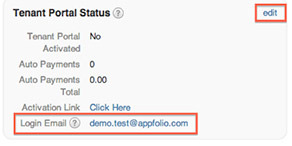
To enter a new email address into AppFolio, go to into Tenant Page in AppFolio under the Tenant Portal Status section.
2. Configure AppFolio for Online Payments
Online payments made through the Tenant Portal apply to any outstanding charges the tenant’s ledger. You have the ability to set the order in which those charges are paid.
Click Settings, then Manage Accounting Settings.
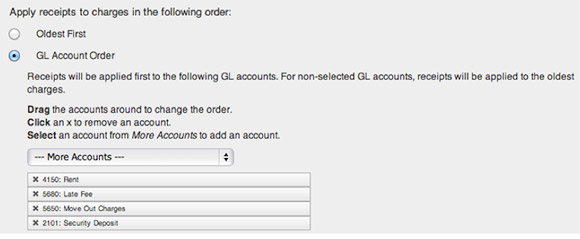
Under the Receipts section, select one of the options:
- Oldest First will receipt funds in the order charges post to the Tenant Ledger, starting with the oldest.
- GL Account Order allows you to set a GL account priority so that funds are paid by the GL order you set.
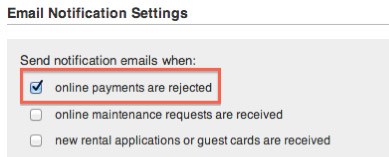
In the event a payment made by a tenant rejects, you can select which people in your company receive an email notification. (See the FAQ at the end of this document for more information on rejected payments).
Click Settings, then Manage My Settings. Under Email Notification Settings, check the box to receive a notification email for rejected online payments.
3. Send Tenant Portal Invitations
Once tenant emails are entered into AppFolio, you can send out email invitations for tenants to create their own Tenant Portal.
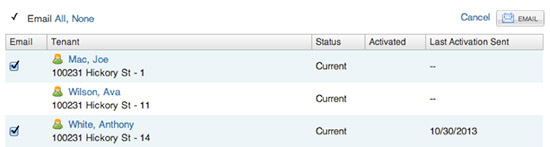
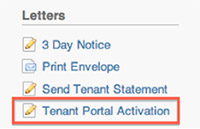
To send out an email invitation to multiple tenants at once, click on the Reporting tab and select the Tenant Portal activation link on the right side of the page.
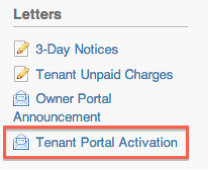
Select the Search button to produce a list of all current tenants. Check boxes on the left indicate the tenant has an email address entered on the Tenant Portal Status section of their Tenant Page. Click the Email button to email the Tenant Portal activation to all tenants with checked boxes. Note the invitation email will be sent from the AppFolio user's email address.
To send an invitation to individual tenants, go to the Tenant’s Page and click the Activation Link. A new tab will open in your browser with the Tenant Portal activation link to share with the tenant.
4. Tenant Portal Activation Email
Your tenants will receive the invitation email from you with a link to setup their Tenant Portal.
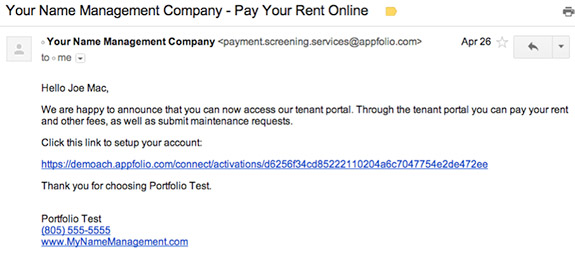
You can refer tenants with questions about their Tenant Portal to our help page.
5. Print Payslips for Electronic Cash Payments
You can enable your residents to pay their rent in cash at 7-11 or Ace Cash Express. Go to the Tenant Page and click the Get PaySlip link. You then have the option to print a PaySlip, or email a PDF copy to the tenant.

Electronic Cash Payments are certified funds and are guaranteed to deposit into your bank account. Click here search for locations near you for tenants to pay.
6. How Tenants Pay Rent and You Receipt Funds
Funds are receipted in AppFolio within minutes of a tenant paying online through their Tenant Portal or in person by Electronic Cash payment. You can see these receipts in AppFolio by clicking on Accounting, Receivables, and then Receipts.
All payments will have a unique eight-digit Reference number and “(Paid Online)” is shown if a payment is made by Credit Card or E-Check through the Tenant Portal.
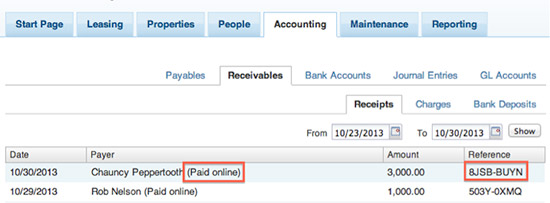
You can click on individual receipts to view the payment type: E-Check (ACH), Credit Card, or Electronic Cash Payment.
Tenant payments made by E-Check (ACH), Credit Card, and Electronic Cash Payment are grouped together each day into batches for processing and deposit into your bank account. Each batch is shown in AppFolio as a deposit under the Bank Deposits tab.
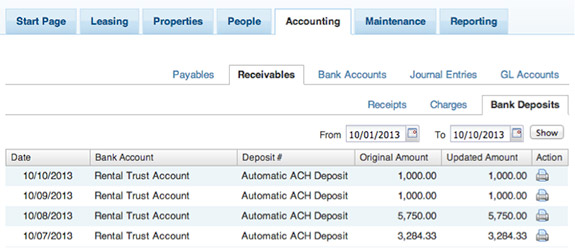
Batch deposits are post-dated in AppFolio to estimate the day the funds deposit into your bank. Note there can be variance in the exact date and time depending on when your bank posts funds to accounts.
Online Payments FAQs
How long does it take for an online payment to deposit into my bank account?
The timeframe depends on the payment type:
| Payment Type | Business Days |
| E-Check (ACH) | 1-2 |
| Credit Card | 3-4 |
| Electronic Cash Payments | 4-5 |
The exact date and time funds are deposited varies upon the time a payment is submitted and your bank’s schedule for disbursing funds.
What is the cost for each of the payment options?
AppFolio instantly rebates the online payment fee for E-Check payments so this option is free of charge to tenants. For your residents paying by a Credit Card, the online payment fee is tiered according to the payment amount and added to the balance paid by the residents.
| Payment Amount | Online Payment Fee |
| $0.01 - $900.00 | $17.00 |
| $900.01 - $1,250.00 | $27.00 |
| $1,250.01 - $3,000.00 | $37.00 |
Residents paying by cash at a 7-11 or Ace Cash Express pay a $3.99 fee for payments up to a $1,500 maximum.
When are online payments rejected and how am I notified?
An E-Check payment is rejected when the attempt to debit a resident’s account is unsuccessful. The most common rejects are for invalid account information or insufficient funds.
When a rejected payment occurs, an email is automatically sent to the resident and to AppFolio users set to receive notification (Go to Settings, then Manage My Settings to set).
Can I configure AppFolio to require full payment?
Yes, you can set your account so that all tenant payments must be made in full. If you would like activate this option, please email support@appfolio.com and a member of our team will reach to assist.
For more information, please visit our help topics:
E-Check
Credit Cards
Electronic Cash Payments
|