Model Metrics
The Model Metrics pane enables you to see a summary of metric measurements showing how your Revit models are built. Clarity provides a variety of mechanisms to capture individual metrics on each Revit model.
These include:
-
File Size / File Open Time (Which can be a measurement of cleanliness/health/complexity)
-
Modeling Practices (Such as # of Warnings, CAD Imports, In Place Families or Groups)
-
Cleanup (# of Views Not on Sheets, Purgeable Families)
-
Performance (Autodesk provides 18 criteria for why your Revit model is slow – for example, large families).
-
Complexity (# of Views, Sheets, Room/Space/Floor Area, Worksets)
Summary Tab
The Summary tab displays all of the models that have been processed with metric data and the most recent values for each of the Firm Standard Metrics that the administrator has defined. The existing red, yellow, green icons represent a range defined at the company level for what the expected range should be. This is useful in drawing the attention to those models and metrics that require work.
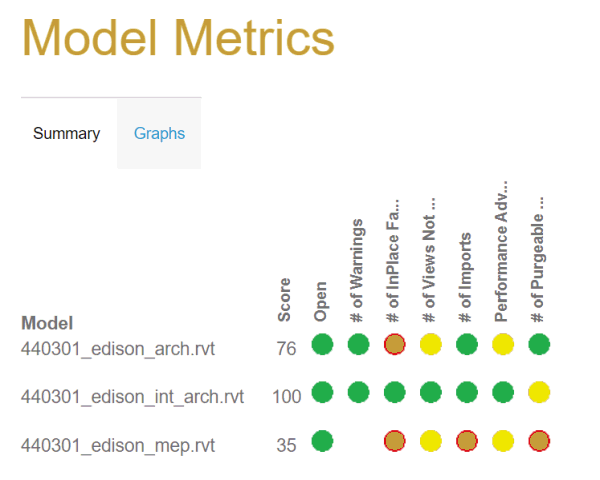
The metrics shown are the subset of metrics that your firm has decided are important to focus on. If your firm has implemented scoring for models, you will also see a "Model Score".
Graphs Tab
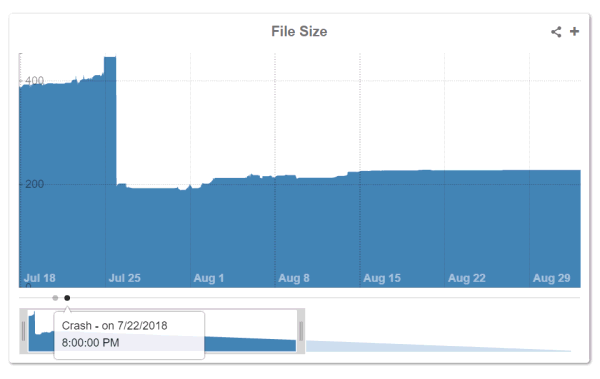
The Graphs tab enables you to look at the history of a variety of metrics over time, and to add various dashboard items to track values and trends.
Notes:
-
From the available drop-down lists, you can select the model that you want to check and the metrics required.
-
Metrics such as Model Size (and Support File Size for Revit Server Projects) always display. You can choose which additional metric you want to see graphed over time.
-
To focus in on a particular area of time on the graph, move the handles below the graph to a specific area within the timespan.
-
Many of these metrics require the Model Metrics or Performance Advisor tasks to be setup in order to collect the metrics.
-
The Ranges page (in the Metrics area) enables you to compare between models or across multiple Projects.
-
Any Model Events that have been reported show up as dots along the bottom of the graph.
Dashboard
To keep track on a specific metric, click the + in the upper right corner of the graph to add a dashboard widget at the top of the screen. This enables you to instantly track that metric for that model and see its value and what the change is compared to a previous metric value.

For more details on the various metrics that Clarity can capture, see Model Metrics Overview and Firm Standards.