Application-aware Retention
Zerto's Application-aware Retention captures the state of application data at the scheduled Retention process time. This includes data in memory and pending transactions which ensure continuous use of the application upon restore.
Zerto uses Windows VSS services to quiesce all writes and freeze I/O operations at the scheduled Retention process time, ensuring that the checkpoint is taken while there are no pending I/Os or data in memory. Once the checkpoint is taken, the application resumes immediately after.
For guidelines to install and utilize the Zerto VSS Agent with your Zerto environment, see Zerto Environment with VSS – Deployment and User Guide.
To restore the application, see Restoring VMs or VPGs from a Repository
Considerations and Requirements
| • | Application-aware Retention can be enabled for one VM. |
| • | Zerto VSS utility must be installed on the VM. For further details, see Zerto Environment with VSS - Deployment and User Guide. |
| • | VMware Tools must be installed on the protected VM with Application-aware Retention enabled. Zerto recommends VMware Tools version 10.2.1 or above. |
| • | Guest Services Credentials must be set in the Setup tab. The Credentials are used by Application-aware Retention to access the VM and trigger the VSS mechanism, according to the scheduled Retention process time. |
Limitations
| • | Application-aware Retention is only supported for Windows VMs. |
| • | Both the protected and recovery site must be VMware vSphere. |
| • | Only Manual deployment of the Zerto-VSS utility is supported. |
| • | Only one VM in the VPG can be configured with Application-aware Retention. |
Enabling Application-aware Retention
To enable application aware retention on a virtual machine:
| 1. | First, set the Guest Services Credentials in the Setup tab. |
| 2. | Then, enable Application-aware Retention for the virtual machine. |
Setting Guest Services Credential
To set Guest Services credentials:
| 1. | In the Zerto User Interface, click SETUP > GUEST SERVICES CREDENTIALS > ADD. |
The CREATE NEW CREDENTIAL window is displayed.
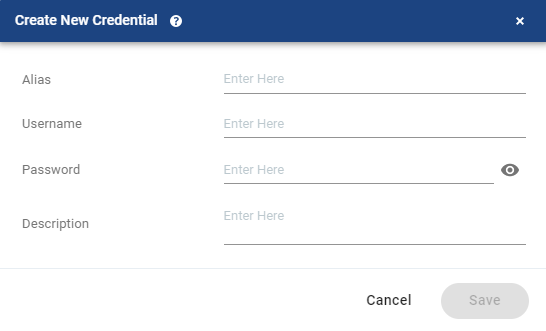
Specify the following:
|
Alias |
(Mandatory) A unique name for the credential. |
|
Username |
(Mandatory) The username of the VM/s for which to enable Application-aware Retention. |
|
Password |
(Mandatory) The password of the VM/s for which to enable Application-aware Retention. |
|
Description |
(Optional) Specify a description for the credential/s. |
| 2. | Click SAVE. |
Enabling Application-aware Retention
Application Aware retention can be enabled at the same time when you first create the VPG to protect virtual machines.
You can also enable Application Aware retention by editing an existing VPG.
To enable Application-aware Retention for a virtual machine:
| 1. | Click the Long-term Retention step. |

| 2. | In the Guest Services area, you can enable File System Indexing and Application-aware Retention for the virtual machines. |
| 3. | Click VM Settings. |
The Guest Services Settings window appears.
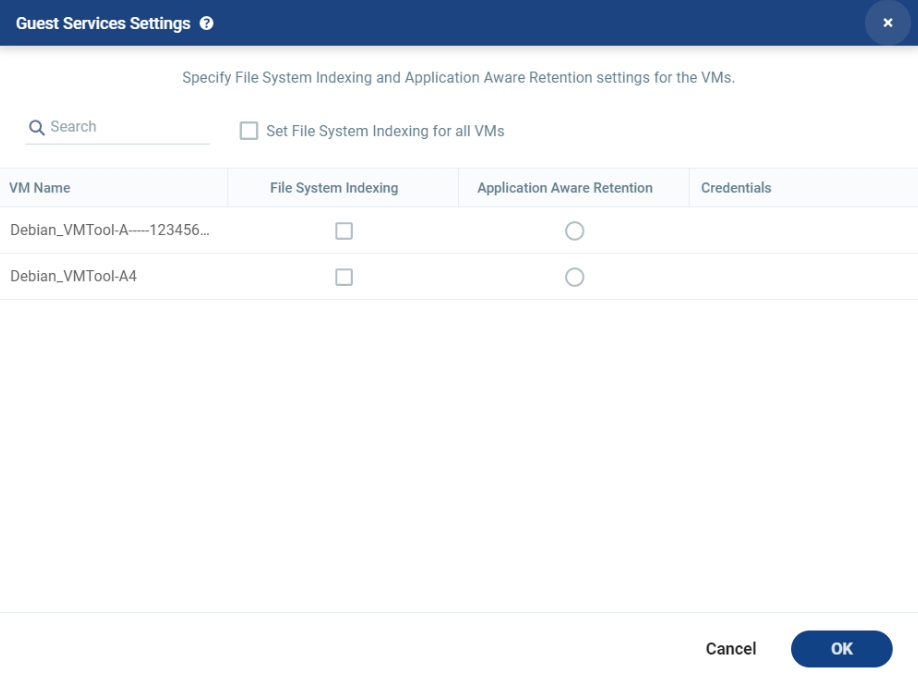
Specify the File System Indexing and Application-aware Retention settings for the VMs:
| Set File System Indexing for all VMs |
Select this checkbox to enable File System Indexing for all the VMs in the selected VPG. |
| VM Name |
This column lists the name of the available VMs. |
| File System Indexing |
Select this in order to select the virtual machines where File System Indexing will be performed. |
|
(VMware vSphere only) Application Aware Retention |
Select this in order to select the virtual machine where you will enable Application-aware Retention. Only one virtual machine can be selected. . |
|
(VMware vSphere only) Credentials |
Click to select the Alias that matches the Credentials for the selected virtual machine. The Credentials are used by Application-aware Retention to access the VM and trigger the VSS mechanism, according to the scheduled Retention process time. See |
| 4. | Click OK. |